How to Reconnect Hive Thermostat and Receiver
A complete, developer-friendly guide on how to reconnect Hive thermostat and receiver. Learn the exact steps, required tools, and troubleshooting tips to restore pairing quickly with Thermostat Care.


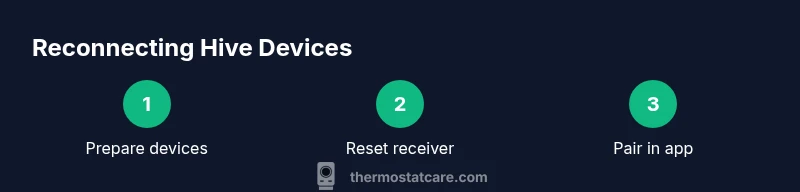
To reconnect the Hive thermostat and receiver, re-pair them through the Hive app. Power cycle the receiver, put both devices into pairing mode, and follow the app prompts to link them. You’ll regain remote control and live temperature data once pairing is complete.
Understanding Hive pairing basics
The Hive heating system relies on a thermostat communicating with a central receiver (hub) via a short-range wireless link, managed through the Hive app. When the link is broken, temperature data, schedules, and remote control may stop working. According to Thermostat Care, most reconnection efforts succeed when you approach the task calmly and methodically, using a clean pairing procedure. The goal is to re-establish a secure, two-way connection between the thermostat and receiver so your schedules and live readings stay accurate. In practice, you’ll typically place both devices into pairing mode and follow the app setup flow. This is a routine maintenance task that homeowners perform occasionally, and understanding the process reduces the chance of errors. By following these steps, you’ll reconnect quickly and with confidence, just like a pro. The Thermostat Care team emphasizes sticking to trusted steps and avoiding rushed, ad-hoc tweaks that can interrupt the pairing path.
Prerequisites and safety checks
Before you begin, confirm you have a powered Hive receiver and thermostat, a smartphone with the Hive app installed, and a stable home Wi‑Fi connection. Make sure you are logged into the correct Thermostat Care/official Hive account and that the app is up to date. Have a pen or note-ready device to capture any pairing codes if prompted. For safety, perform the process in a dry area away from water, and do not unplug devices during the pairing sequence. If you share power outlets with other devices, consider using a dedicated outlet for minimal interference. Keeping the environment calm and free of distractions helps ensure you follow prompts accurately and complete the pairing without errors.
Step 1: Prepare your Hive devices for pairing
Begin by ensuring both devices are powered and within reasonable range of the router and each other. On the thermostat, make sure the display is active and you can access the Settings or Menu. Open the Hive app on your phone and navigate to Devices > Add device or Pairing. If you’re re-linking after a reset, select the option to pair a thermostat with the receiver. Confirm any on-screen prompts, and verify that you’re connected to the same Wi‑Fi network. The goal of this step is to prepare both ends so the app can detect the receiver and the thermostat without errors. The Thrive with Thermostat Care guidance suggests having your login credentials ready in case you need to reauthenticate.
Step 2: Reset and power cycle the receiver
Power cycle the receiver by unplugging it from the power outlet for about 15 seconds, then plug it back in. Allow roughly 60 seconds for the receiver to fully reboot and begin signaling its pairing mode (often indicated by a blinking LED). If the LED doesn’t blink, try a quick reset again or plug the receiver into a different outlet to rule out a power issue. This resets the link between devices and helps establish a clean pairing environment, which is crucial when you’re re-linking after a disruption. Thermostat Care notes that restarting the hub is a common source of successful reconnections when performed calmly.
Step 3: Put the thermostat into pairing mode
Access the thermostat’s menu and select the pairing option. Depending on the model, you might need to navigate to Settings > Pairing or press and hold a dedicated pairing button until the screen shows a pairing message. Keep the thermostat close to the receiver during this step to maximize the chance of a quick handshake. Once pairing mode is active, the thermostat should indicate it is ready to pair with the receiver. If you hear a chime or see a success icon, you’re likely in good shape to continue in the app. The exact UI prompts may vary slightly by firmware, so follow what appears on screen.
Step 4: Complete pairing in the Hive app
Return to the Hive app and follow the on-screen prompts to link the thermostat and receiver. The app will scan for the receiver and then request confirmation to pair with the thermostat. If a code or PIN appears, enter it exactly as shown. After you confirm, the app should display a connected status for both devices. Test adjusting the setpoint and observe the thermostat responding via the receiver. If the app reports any issues, retry pairing once more, ensuring you remain on the same Wi‑Fi network and that Bluetooth permissions (if prompted) are enabled. If you previously used a different account, sign in with the correct credentials to access the devices.
Step 5: Verify connection and test basic functions
Once pairing is confirmed, test core functions: adjust the setpoint, change mode (heat/cool/off), and verify temperature readings on the thermostat and in the app. Check that the receiver mirrors the thermostat’s current reading and that schedules trigger correctly. It’s normal to observe a short delay as data syncs across devices; allow a few minutes for full synchronization. Thermostat Care recommends repeating a quick test after a few minutes to ensure consistency and reliability, especially if you’re restoring a saved schedule or geofenced settings.
Common issues and quick fixes
If pairing fails, first verify power to both devices and confirm you’re using the correct pairing mode steps for your model. Ensure the receiver is fully rebooted and that your phone is on the same network. If the app cannot detect the receiver, consider temporarily disabling VPNs or firewalls that could block device discovery. In some cases, removing the thermostat from the app and re-adding it can resolve lingering pairing errors. If problems persist after multiple attempts, move to a partial reset of both devices (as a last resort) and start over from Step 1.
Aftercare and reliability tips
To keep reconnection reliable, maintain your home Wi‑Fi as a stable backbone for the Hive system. Regularly update the Hive app and firmware on both the thermostat and receiver when prompted. Keep a dedicated power outlet near the receiver to avoid accidental power drops. If you notice recurring pairing issues, document the exact steps that fail and the error messages you see to help with future troubleshooting. The Thermostat Care team emphasizes building a small troubleshooting log to accelerate support if needed.
Tools & Materials
- Hive thermostat(Ensure it has battery backup or is powered, and you can access its menu)
- Hive receiver (hub)(Power adapter plugged in near the router)
- Smartphone with Hive app installed(iOS or Android, latest version)
- Stable Wi‑Fi network(2.4 GHz network is commonly supported; ensure good signal at the thermostat area)
- Reset tool (paperclip or pin)(Use to press recessed reset button if required during troubleshooting)
- Notepad or device to record prompts(Helpful for noting pairing codes or prompts in case you need to retry)
Steps
Estimated time: 15-25 minutes
- 1
Put thermostat into pairing mode
On the thermostat, access the menu and select the pairing option. If prompted, choose 'Pair with receiver' and wait for the pairing indicator to appear on the screen. Keep the device near the receiver during this step to maximize signal visibility.
Tip: If there is no pairing option, ensure the firmware is up to date and consult the manual for your model. - 2
Reset and power cycle the receiver
Unplug the receiver for about 15 seconds, then plug back in. Wait up to 60 seconds for it to reboot and indicate pairing mode (LED blinking). If the LED doesn’t blink, try a second reset and confirm power is steady.
Tip: Avoid unplugging other devices during this step to prevent power fluctuations. - 3
Pair via the Hive app
In the app, go to Add Device or Pairing, select Thermostat, and follow prompts to connect to the receiver. If asked, enter any shown pairing code exactly as displayed.
Tip: Ensure your phone stays connected to the same Wi‑Fi network during setup. - 4
Verify pairing and test
The app should show both devices as connected. Test changing the setpoint and mode and confirm the thermostat responds on the physical unit and in the app.
Tip: Allow a brief sync delay; test again after a few minutes to confirm stability.
Questions & Answers
Can I reconnect Hive thermostat and receiver without an internet connection?
Hardware pairing between the thermostat and receiver can occur locally, but you’ll need internet access to complete the app-based setup and confirm the connection.
Pairing can happen without internet, but you’ll need the app afterward to finish setup and verify the connection.
What should I do if the thermostat won’t pair after a reset?
Double-check power and that both devices are in pairing mode. If the app can’t detect the receiver, reboot your router and retry. If needed, repeat the reset on both devices and start again from Step 1.
If pairing fails after reset, check power, retry pairing mode, and consider rebooting the router before trying again.
Do I need to keep the Hive app open during the entire pairing process?
Yes. Follow the on-screen prompts in the Hive app to complete pairing and link the devices.
Keep the app open and follow the prompts to finish pairing.
How long should the pairing take?
Most users finish within 5-15 minutes, depending on network conditions and device responsiveness.
Pairing typically takes about 5 to 15 minutes.
What if the receiver’s LED won’t light up after reset?
Ensure the receiver is properly plugged in and receiving power. Try another outlet and check the power cable if the LED remains off.
Make sure the receiver is powered and try a different outlet if needed.
Will reconnection affect my schedules?
If the pairing is successful, schedules should be restored automatically. If not, you may need to reconfigure them in the Hive app.
Most schedules come back after pairing, but you may recheck in the app.
Watch Video
What to Remember
- Verify devices are powered and nearby before pairing.
- Follow app prompts precisely to complete the pairing.
- Test control and readings after pairing to confirm success.
- If pairing fails, perform a careful retry with fresh resets.
- Maintain a simple log of steps for future reconnections.