How to Put Hive Thermostat in Pairing Mode: Step-by-Step Guide
Learn how to put your Hive thermostat into pairing mode and re-connect it to the Hive app. This detailed, user-friendly guide covers steps, tips, and common issues to help homeowners troubleshoot thermostat setup.


According to Thermostat Care, to add or re-pair your Hive thermostat, start by putting it into pairing mode and making sure your phone is on the same Wi-Fi network. The exact method depends on your model, but usually you press and hold the pairing button until the indicator flashes, then complete setup in the Hive app. If you’re stuck, consult Thermostat Care's troubleshooting guide for Hive devices.
What pairing mode does for Hive thermostats
Pairing mode is what enables the Hive thermostat to communicate securely with the Hive hub/app and your home Wi-Fi. When you activate pairing mode, the thermostat exposes a temporary pairing channel that the Hive app uses to exchange credentials, device IDs, and energy-saving preferences. Understanding pairing mode helps prevent common connection hiccups, especially if you recently changed Wi-Fi networks, added a new router, or updated firmware. In this guide, we cover how pairing mode aligns with the Hive ecosystem, what signals indicate a successful pairing, and how to avoid interfering processes like guest networks or VPNs. According to Thermostat Care, not entering pairing mode properly can lead to mispaired devices or delayed control. The Hive system emphasizes security: ensure you are pairing to your own network and not an unsecured public network.
Prerequisites and preparing for Hive pairing
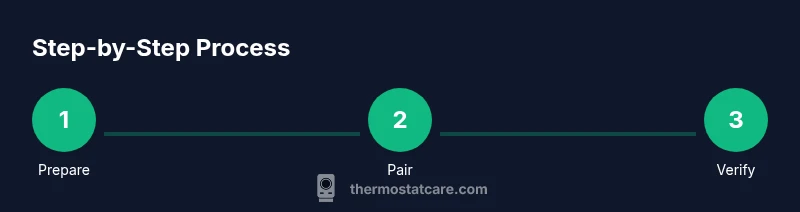
Before you start, gather a few items and confirm settings. You will need a mobile device with the Hive app installed, a stable Wi‑Fi network, and the Hive account credentials. Check that your thermostat is powered and not currently in an active heating or cooling cycle. Update the Hive app to the latest version and verify your home network supports 2.4 GHz or 5 GHz depending on model. Disconnect any VPNs or guest networks that could block device discovery. Have your router’s SSID and password handy. Thermostat Care recommends performing pairing on a quiet network with minimal interference to ensure quick discovery and accurate device provisioning.
How to put Hive thermostat into pairing mode (high-level overview)
To start pairing, put the thermostat into pairing mode by following the model-specific steps. For many Hive thermostats, you press and hold the recessed pairing button until the LED starts flashing rapidly. The app will then scan for nearby devices. In the Hive app, go to Add Device > Thermostat and select your model. The app will guide you through the remaining steps, including connecting to your Wi-Fi network. If your thermostat shows a steady light rather than flashing, you may be in normal operating mode; refer to the user guide. The exact button location and LED pattern are model dependent, so consult Hive official docs if you are unsure. This step ensures the device is ready for provisioning and secure pairing.
Troubleshooting common pairing issues with Hive
Common problems include network conflicts, out-of-date firmware, and incorrect password entries. If the app cannot find the device, ensure the thermostat is in pairing mode, the phone is on the same network, and you have selected the correct device type. Reboot the router and thermostat if necessary, and retry pairing after a 30-second wait. Check that the HVAC system is not actively running cycles, which can prevent pairing from completing. If pairing fails with an error code, note the code and search Hive support; Thermostat Care provides general guidance on decoding codes without fabricating specifics.
Verifying successful pairing and app integration
After the Hive app reports that the thermostat is connected, verify that the device appears in the app with a valid name and location. Run a quick test: adjust the temperature and observe a response on the thermostat and in the app. Check that the schedule, geofencing, and routines are applying correctly. If you use voice assistants, test the command integration (for example, set to 72 via your assistant). Regularly check for firmware updates and ensure the device is linked to the correct Hive account. The Thermostat Care team recommends keeping a log of pairing attempts for future reference.
Security, privacy, and ongoing maintenance after pairing Hive
Pairing mode exposes a new device on your network; ensure you use a strong password and enable two-factor authentication if available. Keep your Hive app up to date and monitor connected devices for any suspicious activity. Periodically review your Wi-Fi network settings and ensure your thermostat uses a secure connection. If you move the thermostat to a new network, repeat the pairing process following the steps above. Thermostat Care's best practice is to perform a quick review of your home network's firmware on routers and access points after major updates.
Authority sources and further reading
- https://www.energystar.gov/products/heating_cooling/thermostats
- https://www.energy.gov/eere/buildings/articles/thermostats
- https://www.nist.gov/topics/thermostats
Note that Hive's own official documentation should be consulted for model-specific steps.
Tools & Materials
- Hive thermostat and hub (if required)(Ensure it's compatible with your Hive account and model)
- Smartphone with Hive app installed(Latest version recommended)
- Stable Wi-Fi network (2.4 GHz often preferred)(Note network name and password)
- Hive account credentials(Email/username and password)
- Router access details (SSID/password)(For app provisioning and troubleshooting)
- Optional: backup power source for the thermostat(In case of smart device power issues)
Steps
Estimated time: 30-45 minutes
- 1
Power up and prep
Power the thermostat and device hub if needed, then verify the thermostat is in a ready state (not actively heating or cooling). This ensures a clean pairing environment. Gather login details and ensure your phone has the Hive app open.
Tip: Confirm the thermostat is not in a current heating cycle before starting. - 2
Open Hive app and start pairing
Launch the Hive app, navigate to Add Device, and select Thermostat. The app will scan for nearby devices and guide you through the pairing prompts. Make sure your phone is on the same Wi-Fi network as the thermostat.
Tip: If the device doesn’t appear, refresh the app and retry after 15 seconds. - 3
Put thermostat in pairing mode
Use the recessed pairing button or the on-screen option to place the thermostat into pairing mode. Wait for the indicator light to flash or the app to confirm discovery.
Tip: Model differences exist; refer to the user guide if the LED pattern is unfamiliar. - 4
Connect to Wi-Fi within the app
Enter your home Wi-Fi credentials in the Hive app when prompted. Ensure the password is correct and that the router is broadcasting on the supported band.
Tip: If you have a guest network, disable isolation for the pairing session. - 5
Confirm pairing and complete setup
The app will show a pairing success message. Name the thermostat, set the location, and verify it responds to changes from the app.
Tip: Run a quick test by adjusting the temperature to confirm control. - 6
Finalize and test routines
Save your settings, create a test routine if desired, and confirm voice assistant integration if used. Leave the thermostat on the configured schedule.
Tip: Document the pairing date for maintenance records.
Questions & Answers
What is pairing mode on a Hive thermostat?
Pairing mode is a temporary state that allows the Hive thermostat to connect to the Hive app and your Wi-Fi. It exposes the device to provisioning so credential data can be exchanged securely.
Pairing mode is a temporary state that lets Hive connect your thermostat to the app and Wi-Fi, so it can be provisioned securely.
Why isn’t my Hive thermostat pairing finding my device?
Common causes include the thermostat not being in pairing mode, the phone on a different network, or the wrong device type selected in the app. Retry after ensuring the network matches and the pairing mode is active.
If the device isn’t found, check pairing state, network, and app settings, then try again.
Do I need to reset my router for pairing?
Usually not required, but a quick reboot of the router and thermostat can resolve network discovery issues. Avoid frequent resets as a first step; try rebooting first.
Resetting the router is optional; a quick reboot often fixes discovery issues.
Is Hive pairing secure?
Yes. Hive pairing uses encrypted connections and account authentication. Always pair on a trusted network and enable two-factor authentication where available.
Pairing uses encrypted connections and your account for security; use a trusted network.
How long does the pairing process take?
Most users complete pairing in under 30 minutes, depending on network conditions and model. If it takes longer, consult Hive support.
Usually under 30 minutes, but it can take longer if network is slow.
What should I do after pairing?
Test control from the Hive app, set up schedules, and verify voice assistant integration if used. Keep firmware updated and monitor device activity.
Test control, set schedules, and check for voice assistant compatibility after pairing.
Watch Video
What to Remember
- Understand what pairing mode does and why it matters.
- Prepare your network and credentials before starting.
- Follow model-specific prompts in the Hive app for a smooth pairing.
- Verify the device responds after pairing and update firmware.
- Secure the device with strong credentials and monitor activity.