What to Do If Your Hive Thermostat Is Offline: A Step-by-Step Fix
Learn how to diagnose and fix a Hive thermostat that’s offline. This urgent, step-by-step guide covers power checks, network and hub troubleshooting, app syncing, and firmware updates to get your home back to comfortable, efficient climate control.


Most likely, the Hive thermostat is offline due to a simple network hiccup, power issue, or hub connectivity problem. Start with the easiest fixes: ensure both the thermostat and the Hive hub have power, perform a quick reboot of the hub, and verify your Wi‑Fi is up. If these steps don’t reconnect the device, proceed through the diagnostic flow to check the network, account, and firmware problems.
Why Hive offline status happens
Offline status on Hive thermostats is most often triggered by power or network problems rather than a faulty device. According to Thermostat Care, the two most common culprits are a tripped breaker or a router that’s momentarily unreachable, followed by hub connection glitches or account sync issues. In many homes, a brief power outage or a routine router reboot leaves the device temporarily disconnected. Understanding these patterns helps you tackle the problem quickly and safely. This section prepares you to identify the root cause and lays a foundation for the practical steps that follow. Keep in mind that most problems are solvable without professional help, especially when you start with simple power and connection checks.
Quick fixes to try first (before deeper checks)
Before diving into diagnostics, start with the simplest actions that fix most offline issues. First, confirm power to both the thermostat and the Hive hub—look at status LEDs and the outlet or power strip. If either device is unpowered, plug it back in or replace the fuse. Next, perform a quick reboot: unplug the hub for 10 seconds, then plug it back in and wait for the LEDs to stabilize. While you’re at it, verify your Wi‑Fi network is up by checking other devices. If your internet is slow or offline, the thermostat will mirror that status. If you still see offline after these steps, move to the network and hub checks outlined below. Safety note: never press internal reset buttons or open the thermostat housing unless you are following the manufacturer’s instructions. If the problem persists, continue with the diagnostic flow.
Safety and account considerations
When you’re troubleshooting a Hive offline issue, never bypass safety protocols or attempt electrical work beyond your comfort level. If you suspect a blown outlet or a tripped breaker, reset the circuit only if you’re confident in doing so safely. Do not work on live wiring. Make sure your Hive account credentials are correct and that your account hasn’t been locked due to suspicious activity. If you’ve recently changed passwords or enabled two‑factor authentication, re‑authenticate the app with the hub. Keeping your login details secure helps ensure a stable cloud connection, which is essential for online status to reflect accurately.
Network and router basics you should verify
A reliable connection starts with a solid home network. Hive devices typically rely on a stable 2.4 GHz network for best performance. If your router uses 5 GHz only, or has a guest network with client isolation, your thermostat may fail to communicate with the hub. Check that MAC filtering isn’t blocking the thermostat or hub, and disable any firewall rules that might block outbound connections to Hive servers. If you’re on a mesh network, ensure the Hive hub is within a good range of the main router and that there’s no excessive latency. After adjusting settings, re-test the device by checking the app for updated status. These network hygiene steps reduce recurring offline incidents. Thermostat Care notes that most users regain connectivity after aligning their home network with the device requirements.
Check your Hive hub and power sources
Power and placement matter. Verify the Hive hub has a solid, uninterrupted power source and isn’t mounted in a cramped space where vents or cables could disrupt airflow. Check the power adapter and cable for wear. If you use a surge protector or power strip, temporarily connect the hub directly to a wall outlet to rule out power strip issues. Confirm the hub’s LEDs indicate a normal boot and stable connection to the internet. If the hub isn’t lighting up as expected, replace the power supply or move to a closer outlet and retry. A healthy hub is the backbone of your online thermostat status.
Thermostat and hub LED indicators
LED indicators convey status without opening apps. A solid amber or blue LED usually indicates normal operation, while a flashing or no light often signals a power or boot issue. Compare what you’re seeing with the Hive manual for your model. If the LED behavior is abnormal, perform a power cycle or soft reset following manufacturer guidelines. Do not attempt to pry open the thermostat; internal components require specialized care. Noting the exact LED pattern helps you search for the most relevant solution quickly. This visual cue is a powerful, quick diagnostic tool that saves time during troubleshooting.
Hive app and cloud status checks
Sometimes the device is fine, but the app or cloud services are temporarily unavailable. Check Hive’s official status page or social channels for any outage notices that could explain the offline state. In the app, verify that the thermostat is listed and shows an online status. If the device is listed but offline, try removing and re-adding it in the app, ensuring you follow the pairing steps exactly. Confirm you’re logged into the correct Hive account and that your device permissions aren’t restricted. Cloud connectivity issues can mimic offline behavior, so this check is crucial in the diagnostic flow.
Advanced troubleshooting steps
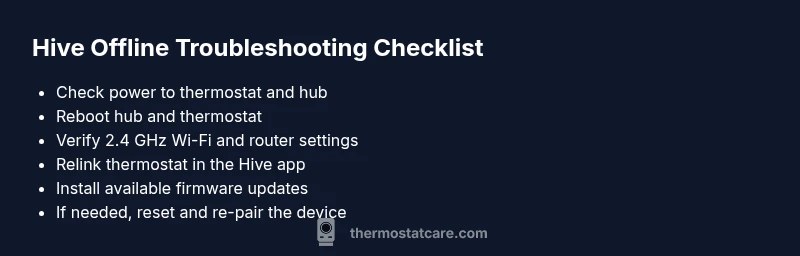
If basic power and network checks fail, proceed with more advanced steps. Reboot the hub again, then update firmware on both hub and thermostat if updates are available. Any pending firmware updates can cause temporary disconnections. Re-link the thermostat to your Hive account from the app, and consider removing the device from the account before re-adding it. If you’re comfortable, perform a factory reset as a last resort, then re-pair the thermostat. Remember to back up routines and schedules, as a reset may erase saved data. If you’re seeing persistent offline status after these steps, capture logs and timestamps to share with support.
When to call support and what to prepare
If the device remains offline after you’ve exhausted the diagnostic flow, it’s time to contact Hive support. Gather the model number, serial, firmware version, and a brief description of the steps you’ve taken. Note whether other smart devices on the network are affected and whether outages align with service windows. Having the hub and thermostat plugged in during the call helps the agent diagnose the issue faster. Thermostat Care recommends documenting the exact LED patterns and app messages you observe before reaching out so the support agent can reproduce the issue quickly.
Prevention: keeping Hive thermostat online
Long-term reliability comes from proactive maintenance. Schedule regular reboots of the hub, keep firmware up to date, and monitor Wi‑Fi performance to reduce future offline incidents. Place the hub in a central, open area away from obstructions and power hazards. Avoid placing the thermostat or hub near microwaves, metal filing cabinets, or dense walls that can degrade the signal. Regularly verify the network health and consider a dedicated 2.4 GHz SSID for IoT devices to minimize interference. Thermostat Care’s preventative tips focus on consistent hardware power and stable cloud connectivity to maintain a seamless learning and scheduling experience.
Steps
Estimated time: 25-40 minutes
- 1
Power cycle thermostat and hub
Unplug the Hive hub and the thermostat (if possible) for 10–20 seconds, then plug them back in. Wait for the devices to boot and recheck status in the app. This clears minor glitches and re-establishes local network handshake.
Tip: Perform the power cycle during a period when household devices aren’t heavily using the network to avoid re-connections failing. - 2
Check your internet connection
Make sure your internet is active on other devices. If the Wi‑Fi is down, the Hive hub won’t reach the cloud. Restart your router if needed and ensure the 2.4 GHz band is available for IoT devices.
Tip: If you have a mesh network, ensure the hub isn’t stuck on a far node with weak signal. - 3
Verify hub status and LED indicators
Inspect the hub LEDs for normal boot activity. If the hub shows error patterns, consult the manual or support page to interpret the lights.
Tip: Note the exact LED color pattern to aid troubleshooting. - 4
Re-link the thermostat to your Hive account
Open the Hive app, remove the device if necessary, and re-pair it following the on-screen prompts. Ensure you’re logged into the correct account and that permissions are granted.
Tip: Keep the pairing screen accessible until the device is confirmed online. - 5
Check for firmware updates
In the app, check for any pending firmware updates for the thermostat and hub. Install updates and reboot after the update completes.
Tip: Updates can take several minutes; avoid interrupting the process. - 6
Test the network path and routers settings
If the device still shows offline, test alternative network paths or temporarily disable firewall rules that might block outbound connections to Hive servers.
Tip: Document any changes you make so you can revert if needed. - 7
Factory reset (last resort)
If nothing else works, perform a factory reset on the thermostat and re-pair it. This will erase schedules and history, so back up where possible.
Tip: Only reset after you’ve exhausted all other options and documented your setup. - 8
Confirm resolution and monitor
Once online, verify that the thermostat status updates in the app and that schedules run as expected. Keep an eye on stability over the next 24–48 hours.
Tip: If problems recur, consider scheduling a service check with a qualified technician.
Diagnosis: Hive thermostat shows offline in app or display
Possible Causes
- highPower issue
- mediumWi-Fi network outage
- mediumHub connection problem
- lowAccount sync or firmware issue
Fixes
- easyCheck thermostat and hub power; replace fuses or batteries if applicable
- easyPower-cycle the Hive hub and allow it to reboot fully
- easyVerify internet is functioning (test with another device) and reconnect hub
- easyRe-link thermostat to Hive account and check for firmware updates
Questions & Answers
Why is my Hive thermostat offline even though my Wi-Fi seems fine?
Offline status can be caused by a hub miscommunication, a stale cloud session, or a firmware hiccup. Start with power cycling, hub reboot, and re-linking the device in the app. If the issue persists, follow the diagnostic flow to confirm cloud connectivity is stable.
Offline status often comes from a hiccup in the hub or cloud session. Start by rebooting the hub and relinking in the app, then check firmware and network stability.
How do I reset my Hive thermostat safely?
A safe reset typically means performing a soft reset via the Hive app or a factory reset as a last resort. Always back up schedules before a reset and follow on-screen prompts to re-pair the thermostat with your Hive account.
Reset through the app first; if needed, perform a factory reset as a last resort and re-pair the device.
Will rebooting the hub affect other smart devices?
Rebooting the Hive hub temporarily disrupts all devices connected through that hub. Most devices reconnect automatically once the hub finishes rebooting. Schedule reboots during low-usage times to minimize disruption.
Reboot may briefly disrupt connected devices, but they typically reconnect automatically.
Can a cloud outage cause the thermostat to appear offline even when hardware is fine?
Yes. If Hive services are down, the thermostat may show offline in the app even though it’s powered and connected locally. Check Hive status pages and retry after the outage is resolved.
Yes, service outages can make devices look offline even if they’re fine locally.
Is a firmware update essential to reconnect after an outage?
Firmware updates aren’t always required to reconnect, but they can fix known bugs that cause disconnects. Check for updates in the app and install if available.
Updates can fix disconnect bugs; check and install if available.
What information should I have ready when contacting support?
Have your device model, serial number, current firmware version, a list of steps you’ve tried, and any LED patterns or error messages you observed. This helps support diagnose faster.
Gather model, firmware, and a log of troubleshooting steps before you call.
Watch Video
What to Remember
- Power cycle and verify power to both devices.
- Ensure stable Wi‑Fi and correct network band (2.4 GHz).
- Re-link and update firmware if needed.
- Only contact support after attempting diagnostic steps.