Keep Your Nest Thermostat at One Temperature: A Step-by-Step Guide
Learn how to lock your Nest thermostat to a single temperature using Hold, disable Auto-Schedule, and manage overrides. Practical, step-by-step guidance from Thermostat Care to keep comfort steady and energy use predictable.


You’re aiming to keep your Nest thermostat at a single temperature. The quickest way is to use Hold to lock the current setting, disable Auto-Schedule, and verify no routines or geofencing override the hold. This approach minimizes drift and keeps comfort predictable while you troubleshoot any thermostat quirks. For consistent results, perform the hold during a stable outdoor temperature period and recheck after a few hours.
Why keeping a single temperature matters
In daily life, small shifts in ambient temperature can feel bigger than the thermostat's numbers suggest. Consistent comfort reduces energy waste and helps HVAC components operate more smoothly. According to Thermostat Care, many households experience noticeable fluctuations when multiple devices or schedules try to choreograph climate control at the same time. The Thermostat Care team found that locking in one temperature during occupied hours dramatically reduces temperature swings, improves occupant satisfaction, and can cut marginal energy use by avoiding unnecessary ramp-ups and cool-downs. This guide focuses on Nest thermostats and practical steps to keep a single temperature steady without sacrificing safety or efficiency. By understanding how Nest features interact with your home's heating and cooling system, you can set a reliable baseline and grow more confident troubleshooting drift during seasonal transitions. The aim is not to disable smart features entirely, but to use Hold strategically so that the thermostat respects your chosen temperature while you refine settings or diagnose issues. With careful setup, Habits and routines can still serve you later, but for now, lean into a fixed point that keeps your space comfortable and predictable.
How Nest features influence temperature stability
Nest devices balance comfort with energy efficiency by offering several modes that can affect stability. The Hold feature locks in the current setpoint so the thermostat does not chase a schedule or sensor drift. Eco temperature reduces power usage by allowing a slightly wider temperature range when you’re away, but it can cause the thermostat to drift back toward a comfortable baseline when it detects occupancy. Auto-Schedule builds a daily cycle based on your routines, which can reintroduce swings if you aren’t actively managing it. Home/Away routines adjust comfort when occupants leave, which may override a hold during transitions. Sensor placement matters: multiple temperature sensors (including room sensors in some Nest models) help distribute comfort, but a faulty sensor can mislead the system. For best results, keep a single stable baseline temperature, then use Hold for steady periods while you refine your schedules. Thermostat Care analysis, 2026, indicates that users who consciously separate Hold usage from automatic scheduling experience less drift and more predictable energy use. Remember: the goal is control, not a blanket disablement of smart features.
Understanding how Hold works on Nest (for a single temperature)
Hold is a control mechanism that tells the thermostat to maintain a chosen setpoint until you actively change it. It can be set for a fixed duration or until you manually override it again. When Hold is engaged, Nest will resist transient changes from schedules, Home/Away, or sensor updates, prioritizing the locked temperature. However, very large temperature swings or equipment limitations can still cause apparent drift if the system’s runtime or safety controls trigger a protective adjustment. Use Hold as a tool for consistency during occupied hours or while you calibrate new settings, and switch back to a dynamic schedule later when you’re ready to optimize comfort and energy savings. As with any thermostat, understanding your heat source—gas, electric resistance, heat pump, or dual-fuel—helps you predict how long a fixed hold will be effective without compromising safety.
Step-by-step overview: planning your fixed temperature strategy
Before you lock a temperature, plan how long you want it to stay fixed and under what conditions you’ll release it. Decide your target setpoint based on comfort and energy goals, note any safety minimums for your equipment, and prepare to monitor performance over at least a full day. If you have a multi-zone system, ensure all zones align with your chosen setpoint or understand how zone control might override a single hold. This planning phase reduces the risk of frustrating re-adjustments and makes the Hold feature a reliable anchor for the rest of your setup. In the next section, you’ll see a precise, step-by-step sequence to implement Hold in the Nest app or thermostat interface.
Step-by-step: locking temperature with Hold (how-to overview)
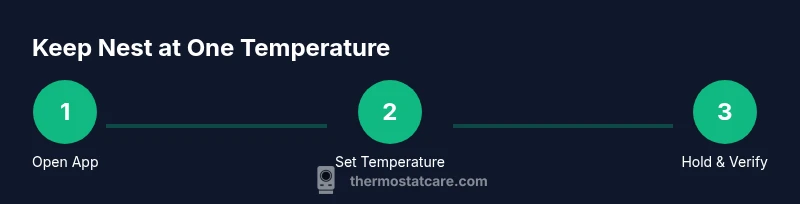
- Open the Nest app on your phone or access the thermostat display directly. 2) Navigate to the current temperature and select the Hold or Lock option. 3) Set the desired temperature and choose Hold until I change it (or equivalent duration). 4) Confirm that Auto-Schedule is disabled or set to Off to prevent automatic swings. 5) Check any routines or Home/Away settings that could re-apply a different setpoint. 6) If you have room sensors, confirm they align with the main thermostat reading. 7) Leave the system running for at least 12-24 hours and observe stability. 8) If drift occurs, revisit sensors and schedules, not the hold itself. Tip: document your baseline temperature so you can compare after changes.
Troubleshooting drift and overrides: common scenarios
Drift typically arises from active schedules, sensor misreads, or occupancy detection that triggers a mode change. When you notice a drift, first verify that Hold is enforced and that there are no overriding schedules. If the temperature returns to normal only after you re-enable scheduling, examine your energy-saving modes and occupancy settings. Check the thermostat’s sensor calibration—some models allow you to calibrate the temperature reading. If you’re using a heat pump, ensure the auxiliary heat isn’t causing unexpected warmups. For homes with pets or sunlit rooms, consider relocating a room sensor to a more representative space. If you still see drift after these checks, reset the device or re-wire the thermostat according to the manufacturer guidance. Thermostat Care’s practical advice is to approach drift methodically, testing one variable at a time.
Maintenance habits to keep a constant temperature across seasons
Seasonal transitions often reveal weaknesses in hold-based setups. Regular firmware updates ensure you have the latest stability improvements. Periodically review your energy history to see whether a fixed setpoint is truly reducing energy use or merely masking inefficiencies. Clean the sensor window and ensure the thermostat is not dusty or shaded by direct sunlight. Re-evaluate the comfort baseline at the beginning of each season and adjust Hold duration. If you have a multi-zone system, coordinate the hold across zones so all spaces stay at the same temperature.
Energy considerations and best practices for Nest users
A fixed temperature can reduce HVAC cycling and energy waste, but it can also lead to higher energy costs if the hold is set far from the outside temperature or away from occupancy patterns. Use Hold during work hours or nights when rooms are consistently occupied, and switch to Eco or a measured schedule during off-peak times to balance comfort and savings. If your home experiences frequent temperature swings due to sun exposure, consider shading windows or repositioning sensors to reduce drift. For homeowners concerned about long-term efficiency, pairing Nest with a programmable schedule during unoccupied periods may yield the best balance between predictability and energy savings. Thermostat Care emphasizes testing a fixed temperature for a few days, then reassessing after you observe how your system handles the new baseline.
Thermostat Care verdict: practical guidance for a stable single temperature
In practice, keeping Nest at one temperature is about disciplined use of Hold, cautious management of Auto-Schedule, and a deliberate testing cycle. The Thermostat Care team recommends starting with a comfortable baseline, locking it with Hold, and monitoring performance for a full day or two before deciding whether to continue with a fixed point or reintroduce a tailored schedule. This approach reduces confusion, minimizes unwanted temperature drift, and provides a clear framework for diagnosing issues when they arise. If you follow these steps and keep notes, you’ll gain confidence in controlling your home climate without sacrificing safety or energy efficiency. Thermostat Care’s guidance aims to empower homeowners and DIY enthusiasts to troubleshoot with clarity and achieve consistent comfort.
Tools & Materials
- Nest thermostat (gen 3 or newer)(Ensure it is powered, connected to Wi‑Fi, and enrolled in the Nest app.)
- Smartphone or tablet with the Nest app(Use the official app to adjust Hold and schedules.)
- Stable Wi‑Fi connection(Needed for remote changes and updates.)
- Access to thermostat settings(Admin access helps change Auto-Schedule and Hold.)
- Optional: room sensor (if your model supports it)(Place away from direct sun or drafts for accurate readings.)
Steps
Estimated time: 15-25 minutes
- 1
Open the Nest app or thermostat UI
Launch the app on your phone or interact with the thermostat display to access temperature controls. Ensure you’re logged in and connected to the same Wi‑Fi network as the thermostat.
Tip: Have your login credentials ready and confirm the device is online. - 2
Set the desired fixed temperature
Adjust the setpoint to the temperature you want to maintain. This becomes the baseline for the Hold action and should reflect typical occupancy times.
Tip: Choose a comfortable baseline (e.g., 72°F/22°C) before locking it in. - 3
Activate Hold to lock the temperature
Tap Hold or Lock to prevent automatic swings from schedules or sensors. Confirm the option to hold until you change it.
Tip: If your app shows Hold for a duration, select Hold until I change it to ensure it remains fixed until you decide otherwise. - 4
Disable Auto-Schedule (if present)
Turn off Auto-Schedule or set it to Off so the system doesn’t reintroduce daily temperature transitions.
Tip: Some models call this “Schedule” or “Adaptive” – disable all automated temperature changes during your Hold period. - 5
Check for overrides (routines/Home/Away)
Review any routines, geofence rules, or Home/Away settings that could override the fixed temperature.
Tip: Temporarily pause routines during the Hold period to prevent surprises. - 6
Verify room sensor alignment
If you use room sensors, confirm they reflect the target space and aren’t reading a drafty or sunlit area.
Tip: Relocate sensors if readings seem inconsistent with comfort in the main room. - 7
Test and monitor over time
Leave Hold in place for 12–24 hours and observe stability. Note any drifts or overrides.
Tip: Keep a simple log of observed temps vs. setpoint for comparison.
Questions & Answers
Can Nest stay at one temperature permanently?
Yes. By using the Hold feature and turning off Auto-Schedule, you can maintain a fixed setpoint for extended periods. Periodic checks ensure safety and comfort.
Yes. Use Hold and disable Auto-Schedule to keep a fixed temperature, then monitor performance over time.
What should I do if the temperature drifts after enabling Hold?
Check for any active schedules, Home/Away routines, or room-sensor misreads that might override the Hold. Validate sensor placement and recalibrate if available.
If it drifts, check for overrides and sensor placement before changing the Hold again.
Will using Hold affect energy reports or efficiency insights?
Hold can reduce cycling, potentially lowering energy use during occupied periods. Review energy history to see how Hold affects overall consumption.
Holding can reduce cycling; review energy history to understand the impact.
Can I revert to a schedule after using Hold?
Yes. You can release Hold and re-enable a scheduled or adaptive temperature pattern when you’re ready to optimize comfort and energy savings.
Sure—you can turn Hold off and go back to a schedule when ready.
Is Hold available on all Nest models?
Most recent Nest thermostats include Hold, but the exact label or location may vary by model. Check the app’s help section for your specific device.
Most models have Hold, but find the option in your device’s menu since labels vary.
Watch Video
What to Remember
- Lock the temp with Hold to eliminate schedule-driven swings
- Disable Auto-Schedule to prevent automatic transitions
- Check for overrides from routines or Home/Away settings
- Test stability for a full day to confirm the hold is effective
- Position sensors thoughtfully to reflect the occupied space