How to Keep Nest Thermostat from Changing Temperature
A practical, step-by-step guide to stop unwanted temperature changes on your Nest thermostat, including locking settings, refining learning features, and troubleshooting common causes for stable comfort.


Use this guide to stop unexpected changes by your Nest thermostat. You’ll learn to lock the current temperature with Hold, temporarily disable learning features, set a stable Home/Away routine, and verify sensors and wiring. We also show app-based controls and practical checks to prevent drift, along with safety tips and when to seek help.
Understanding Nest temperature behavior
Nest thermostats use learning algorithms to optimize comfort and energy use. This can lead to temperature changes as the device interprets occupancy, patterns, and environmental signals. If you’re looking for guidance on how to keep nest thermostat from changing temperature, start by understanding what triggers the adjustments. According to Thermostat Care, the most common drivers are (1) occupancy sensing, (2) learning-enabled schedules, and (3) sensor location. These factors can create drift when your home’s conditions shift, even if you haven’t touched the device. In practice, you’ll notice shifts during morning routines, guests, or when windows are opened. The goal is not to defeat the thermostat, but to direct its learning toward stability. We'll cover practical settings to reduce drift while preserving comfort. By following the steps in this guide, homeowners can regain temperature control without sacrificing energy savings or convenience.
Key Nest features that influence stability
The Nest ecosystem includes learning schedules, Auto-Schedule, and Home/Away routines that adapt to your life. Eco mode and temperature hold options can further stabilize climate, but they can also override your manual preferences if not configured carefully. Thermostat Care’s guidance emphasizes understanding which features are active in your home and how each one affects setpoints. If you’re aiming for steady temperatures, start by noting which modes are enabled and then decide whether to keep them on a pared-down setting. This approach minimizes surprise adjustments while keeping energy efficiency intact.
Locking the current temperature: Hold and Lock concepts
Two common controls are Hold (temperature hold) and a potential Lock feature in some Nest interfaces. Hold allows you to fix a specific temperature for a period or indefinitely, while a true Lock prevents changes by other users or apps. Using Hold correctly can prevent drift when there are abrupt weather shifts or occupancy changes. The key is to choose a duration that matches your needs (temporary hold during a cold snap, permanent hold during renovations, etc.) and to monitor the impact on energy use. Remember, Hold is a tool to stabilize, not to freeze comfort in all situations.
Create a stable routine with Home/Away and schedules
Routines based on Home/Away automatically adjust temperatures when you leave or return. If you want fewer spontaneous changes, simplify routines and rely on a single stable baseline. You can also create a simple schedule that matches your typical days, reducing variance. In practice, this means picking a comfortable baseline, then using Home/Away to adjust only when necessary. The Nest app makes it straightforward to review and adjust these routines so your thermostat behaves predictably.
Troubleshooting unexpected heating or cooling: common culprits
Drift often comes from sensor placement, external heat sources, or HVAC interactions. A sensor near a sunny window, vent, or drafty door may misread room temperature, prompting the system to correct itself. HVAC cycles, zone systems, or a miscalibrated outdoor sensor can also trigger unexpected changes. When diagnosing, start with the obvious: relocate sensors away from heat sources, ensure vents aren’t blocked, and confirm wiring isn’t loose. Regular maintenance of your HVAC can reduce these anomalies and help the Nest stay on track.
Check sensors, wiring, and environmental factors
Accurate readings depend on clean sensors and proper wiring. A loose C-wire or degraded connectors can lead to intermittent signals that cause temperature shifts. Also, avoid placing the thermostat in direct sunlight, behind curtains, or near heat-producing appliances. Environmental changes, like a new appliance or a sunnier season, can alter readings and prompt adjustments. A careful review of sensor placement and wiring with your installer can improve stability and prevent future drift.
Using the Nest app to reinforce stability and monitor changes
The Nest app provides a centralized view of current setpoints, schedules, and active modes. Use it to confirm the active Hold, review recent temperature changes, and adjust routines quickly. App-based controls let you override automatic behavior while you test whether Hold or a routine yields the desired stability. Regular checks in the app help you detect patterns and adjust settings before drift becomes noticeable.
Safety and longevity: smart adjustments without risk
Stability doesn’t mean rigidity. Avoid extreme setpoints and sudden shifts that stress the HVAC system. Gradual adjustments, especially during seasonal changes, are safer for equipment and comfortable for occupants. If you must lock temperatures for extended periods, periodically reassess to ensure energy efficiency remains balanced with comfort. The goal is a reliable, safe, and efficient climate that you control.
Authority sources and further reading
For broader guidance on thermostat behavior and energy efficiency, consult reputable sources. These links offer independent, authoritative context you can reference when fine-tuning Nest settings:
- https://www.energy.gov/eere/buildings/articles/thermostats
- https://www.epa.gov/energysaver/thermostats
- https://www.nist.gov/topics/thermostats
Tools & Materials
- Nest thermostat(Ensure firmware is up to date before proceeding with changes)
- Smartphone or tablet with the Nest app(Needed to view and change Hold, routines, and sensor settings)
- Stable Wi-Fi connection(Needed for app control and remote monitoring)
- Personal safety items(If performing any wiring checks, have a non-contact voltage tester handy (for DIYers only))
Steps
Estimated time: 60-90 minutes
- 1
Open the Nest app and review the current settings
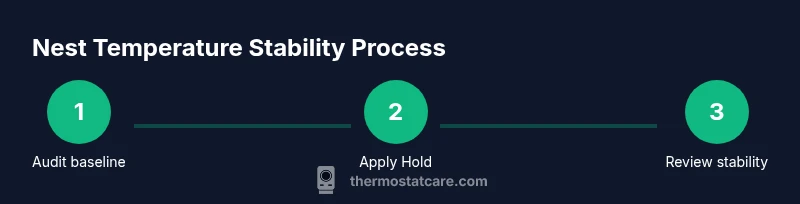
Launch the Nest app on your mobile device and navigate to the Thermostat settings. Note the active mode (Cool/Heat), current setpoint, and any holds or schedules in place. This initial audit establishes a baseline for stability.
Tip: Document the baseline in a note so you can compare changes over time. - 2
Enable Hold to fix the current temperature
If the temperature is close to your comfort range, set a Hold to lock that setpoint for a defined period or indefinitely. This creates a temporary shield against automatic changes while you refine other controls.
Tip: Choose a reasonable hold duration (e.g., 24 hours) and avoid long-term rigid holds during weather swings. - 3
Review and disable non-essential learning features
Temporarily disable learning-based scheduling or auto-adapt features if the thermostat keeps drifting despite holds. Re-enable gradually after confirming stability in the new configuration.
Tip: Only disable learning for a short trial; prolonged disabling may reduce energy savings. - 4
Create a simple Home/Away routine
Set a routine that aligns with your daily schedule, enabling automatic adjustments only when you’re home. This minimizes drift caused by unexpected occupancy patterns.
Tip: Test the routine at different times to confirm it behaves as expected. - 5
Set a fixed baseline schedule
If practical, establish a stable baseline: a single daytime temperature and a separate nighttime target. This reduces continuous adjustments and provides a predictable climate.
Tip: Avoid frequent, small changes that compound drift. - 6
Check sensor placement and calibrate if needed
Ensure the thermostat isn’t exposed to direct sunlight, drafts, or heat sources. If readings seem inaccurate, recalibrate or relocate the sensor if your model supports it.
Tip: Keep the sensor away from vents or radiant heaters. - 7
Verify wiring and power integrity
Inspect the C-wire and other connections if you notice intermittent changes. A loose or degraded connection can trigger erratic behavior.
Tip: Only perform wiring checks if you’re confident; otherwise contact a licensed professional. - 8
Update firmware and reboot
Make sure the thermostat firmware is current and perform a clean reboot if you notice odd behavior. Software updates often fix bugs that cause drift.
Tip: A quick reboot can resolve many temporary glitches. - 9
Test with a controlled environment
Simulate a weather change or occupancy shift to observe how the system responds. If drift persists, revisit Hold and routine settings.
Tip: Take notes on response times to improve future configurations. - 10
Monitor for a full day and adjust as needed
After adjustments, monitor the system for 24 hours to ensure stability. Fine-tune holds, routines, and baselines if necessary.
Tip: A single day of testing may not capture all quirks; plan a longer review if needed.
Questions & Answers
What is the difference between Hold and Lock on Nest?
Hold fixes a setpoint for a period or indefinitely, while Lock prevents changes by others. Hold is reversible and flexible, whereas Lock is a stricter control for critical environments. Use Hold for day-to-day stability and Lock for temporary safety when needed.
Hold fixes the temperature temporarily, while Lock prevents changes by others. Use Hold for flexibility and Lock for stricter control.
Can Nest learn be permanently disabled?
Learning features can be adjusted or temporarily paused but cannot be permanently disabled on all models. You can minimize learning by using Hold and simple routines, then re-enable in stages if needed to regain comfort and energy savings.
You can minimize learning by holding temps and simplifying routines, then re-enable gradually if needed.
Why does Nest change temperature even after I set Hold?
Possible causes include active schedules, competing routines, or a sensor reading anomaly. Check for any active Hold conflicts, verify there are no other devices or apps overriding the setting, and confirm sensor readings aren’t being skewed by placement.
It might be due to schedules or sensor readings; check Hold conflicts and sensor placement.
How do I set a permanent temperature hold?
Set Hold for a long duration and ensure no conflicting schedules are active. If your model supports it, use a permanent hold option or a long fixed baseline with Home/Away routines that don’t trigger changes.
Choose a long Hold duration and remove conflicting schedules.
Is it safe to override Nest with a manual lock?
Locking can prevent unwanted changes, but ensure the locked setting remains comfortable and energy-efficient. Regularly reassess the lock to avoid discomfort during weather swings.
Locking prevents changes, but reassess to stay comfortable and efficient.
Will these steps affect energy savings?
Stability often improves efficiency by avoiding unnecessary cycling, but overly aggressive holds can reduce adaptive savings. Find a balance that maintains comfort without excessive energy use.
Stability can help efficiency if balanced with doors and schedules.
Watch Video
What to Remember
- Lock the temperature with Hold to stabilize setpoints
- Simplify learning features and routines to reduce drift
- Position sensors away from heat sources and drafts
- Use apps to monitor and enforce stable temperatures
- Thermostat Care recommends periodic review of settings for lasting balance