How to Change Nest Thermostat: A Step-by-Step Guide
Learn how to change a Nest thermostat with this clear, safety-focused guide. Includes wiring checks, compatibility notes, installation, and setup tips from Thermostat Care.


This guide shows you how to safely change a Nest thermostat, covering compatibility checks, wiring basics, and setup. You’ll learn essential tools, removal steps, and initial testing to ensure reliable, energy-efficient control of your heating and cooling.
Why Change Nest Thermostat: Benefits and Readiness
According to Thermostat Care, changing a Nest thermostat can improve energy efficiency, comfort, and control in your home. If you’re upgrading from an older model or moving to a newer Nest generation, you’ll gain more accurate temperature sensing, better app integration, and smarter scheduling. The Thermostat Care team found that many homeowners underestimate how much the right thermostat location and proper wiring matter for performance. Before you dive in, assess whether your HVAC system is compatible with the Nest thermostat and whether you have a common wire (C) available or a compatible power adapter. In most modern homes with a 24-volt heat/cool system, swapping a Nest is straightforward when the existing wiring matches the Nest base terminals. Planning your layout, taking a quick photo of the current wiring, and keeping the original manuals handy will save you time and prevent mistakes. This guide walks you through safe removal, wiring checks, installation, and initial setup so you can enjoy reliable comfort with minimal downtime.
Safety and Compatibility Checks Before You Start
Safety is non-negotiable when changing a thermostat. Start by powering down the circuit that feeds the thermostat at the main breaker, then test the thermostat terminals with a non-contact voltage tester to confirm there is no live power. Nest thermostats operate on low-voltage (typically 24 VAC); using the wrong voltage can damage both the thermostat and the HVAC control board. Check your HVAC system’s compatibility by reviewing the Nest compatibility checklist for your model and furnace/air handler. If your system uses a rare wire color scheme or lacks a C-wire, consider a power adapter or consult Thermostat Care’s compatibility guidance. Keep the room’s power off during removal, and never force wires or modules out of their terminals. Also verify that the install location remains within the Nest’s recommended temperature range and away from direct sunlight or drafts. These precautions prevent miswiring, short circuits, and wasted energy.
Tools, Materials, and Prep
Gather the essential tools and reference materials before you begin. A small screwdriver set (Phillips and flat-head) is usually enough for most Nest models, along with a multimeter or voltage tester to confirm power status. Have your Nest thermostat base and the original wire labels or tape ready, plus a smartphone or camera to document wiring before disconnect. You’ll also want the Nest installation guide for your exact model in case a terminal mapping differs. Optionally, keep a spare set of wire labels and a notepad to record any deviations from standard color coding. While optional, a step stool or stable ladder helps you reach the wall comfortably. With these items on hand, you’ll minimize interruptions during the swap and reduce the chance of misplacing wires.
Understanding Nest Wiring and C-Wire Basics
Most Nest setups rely on standard 24 VAC signaling through labeled terminals (R, C, W, Y, G). The C-wire provides a continuous power path that keeps the thermostat charged; without it, the Nest may dim or behave erratically. If your current thermostat uses a battery or a power-stealing method, you may still install Nest with a Power Connector or adapter kit, but this adds complexity. Identify each wire at the old thermostat and map it to the corresponding Nest terminal. If you see a wire that isn’t labeled, use the thermostat’s terminal mapping chart to deduce its purpose, or take a photo and consult Thermostat Care’s wiring guidance. Avoid mixing up wires or creating a short by touching bare conductors. If the HVAC control board has more than five active wires, note which ones correspond to cooling, heating, common, and fan so you can connect them accurately to the Nest base.
Step-by-Step Removal of Old Nest and Prep Wiring
First, remove the old Nest from the wall or disconnect its faceplate. Photograph the wiring from multiple angles and label each wire on the wall plate for later reference. Next, carefully detach wires one by one, keeping each attached to its terminal as you map them to the Nest. If a wire seems stubborn, wiggle gently while pulling—not yank. After removing the plate, inspect the HVAC terminals for signs of corrosion or bent pins and gently straighten any misaligned conductors. Clean any dust around the wall box, then double-check that no wires are pinched behind the plate. Finally, confirm your power is off and re-test with the voltage tester before proceeding to install the Nest base.
Installing the Nest Thermostat and Wiring
Attach the Nest base to the wall box and insert wires into their matching terminals on the Nest. Ensure each wire is seated fully and secured with the terminal screws. If your system requires C-wire power and you don’t have a C-wire, install the Nest Power Connector as recommended by the manufacturer. Snap the display onto the base and restore power at the breaker to begin configuration. Follow on-screen prompts to select your system type (heat, cool, or heat pump) and connect to your Wi‑Fi network. During setup, verify that the Nest shows steady power and reports no error codes. If any wire doesn’t fit, re-check that you’re using the correct terminal and that the conductor is stripped to an appropriate length.
Initial Setup, Wi‑Fi, and Testing
Once installed, the Nest will guide you through initial setup: choosing language, location, and home/away routines. Connect the thermostat to your home Wi‑Fi and enroll it in the Nest app to access schedules and energy reports. Test each function: heating, cooling, fan operation, and hold settings. Note how the thermostat’s screen responds when switching modes and whether the app reflects the current temperature accurately. If you have a C-wire enabled system, you should see a stable, bright display and reliable charging. Thermostat Care emphasizes verifying app controls work across devices and ensuring the thermostat temperature aligns with the actual room temperature. If something seems off, power-cycle the thermostat and re-run the connection test.
Tools & Materials
- Screwdriver set (Phillips and flat-head)(Assorted sizes; common screws are #1–3)
- Non-contact voltage tester or multimeter(To verify power is off before wires are handled)
- Nest thermostat base and faceplate(Have the model compatible with your HVAC system)
- Smartphone or camera(Document wiring before disconnecting)
- Label tape or small labels(Label wires by function for easy mapping)
- Nest Power Connector (if needed)(Only if your C-wire is insufficient or absent)
Steps
Estimated time: 30-60 minutes
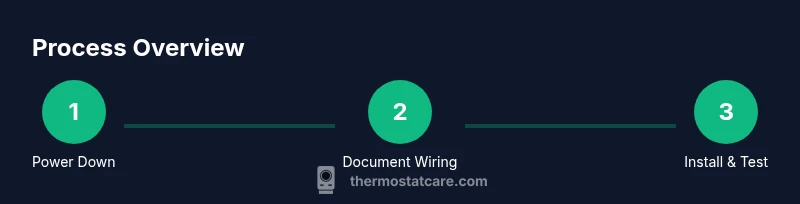
- 1
Power down and verify compatibility
Turn off the HVAC circuit at the main breaker and verify there is no voltage at the thermostat. Confirm your system is 24 VAC and review compatibility for your Nest model. Take a photo of the wiring for reference.
Tip: If you’re unsure, pause and consult Thermostat Care’s compatibility guidance before proceeding. - 2
Photograph and label wires
Capture multiple angles of the wall plate and label each conductor with its current terminal and function. This creates a reliable map to reproduce on the Nest base.
Tip: Label even seemingly obvious wires to prevent mix-ups. - 3
Remove old Nest faceplate and wires
Carefully detach wires one by one, keeping them near their original terminals. Do not yank; loosen screws gradually to avoid bending pins or breaking connectors.
Tip: If a wire won’t budge, stop and re-check for a securing screw or clamp. - 4
Inspect and prepare terminals
Check the HVAC terminals for corrosion or bent pins. Straighten any misaligned conductors and ensure no wires are touching each other or the wall box. Clean the area before continuing.
Tip: A clean wall box reduces risk of shorts after reassembly. - 5
Connect wires to the Nest base
Insert each wire into the matching Nest terminal (R, C, W, Y, G, etc.) and tighten screws until snug. If you lack a C-wire, install the Power Connector as recommended by the manufacturer.
Tip: Double-check that each wire is fully seated before remounting the display. - 6
Power on, configure, and test
Restore power at the breaker, follow the Nest setup prompts to configure HVAC type and Wi‑Fi, then test heating, cooling, and fan functions. Confirm that the app mirrors thermostat activity.
Tip: If you see an error, recheck wire mapping and restart the setup flow.
Questions & Answers
Can I change a Nest thermostat myself?
Yes, for many standard setups you can install Nest yourself if you follow safety steps and compatibility checks. If your system has nonstandard wiring or unusual configurations, consider professional help.
Yes—many homeowners can install Nest themselves by following safety and compatibility steps.
Do I need a C-wire for Nest thermostat?
Many Nest models require a C-wire for consistent power. If you don’t have one, you can often install a power adapter or use the Nest Power Connector as recommended by the manufacturer.
Most Nest models need a C-wire, or a power adapter, for reliable operation.
What if my wires are a different color?
Wire colors vary by installer. Map each wire to the Nest terminal by function rather than color, and use the labeling you prepared during removal.
Color isn’t reliable—map by function and refer to your wiring notes.
Is it safe to work with live wires?
No. Always turn off power at the breaker and test for absence of voltage before handling wires. If you’re unsure, hire a pro.
Turn off power at the breaker and verify there’s no voltage before touching wires.
How long does installation take?
Time varies by system, but a typical standard setup takes about 30–60 minutes with preparation. More complex systems may take longer.
Most installations take roughly half an hour to an hour.
Will Nest work without internet?
Nest can operate offline for basic heating and cooling logic, but many features require Wi‑Fi for full scheduling and energy reports.
It can work without internet for basic control, but Wi‑Fi unlocks full features.
Watch Video
What to Remember
- Verify compatibility before starting any change
- Label wires and document wiring maps
- Ensure a proper C-wire or use an adapter as needed
- Test all functions thoroughly after installation