How to Remove a Temporary Hold on a Honeywell Thermostat
Learn how to remove a temporary hold on Honeywell thermostats with clear, model-agnostic steps. This guide covers menu navigation, app options, and troubleshooting to restore your regular schedule and energy-saving settings.


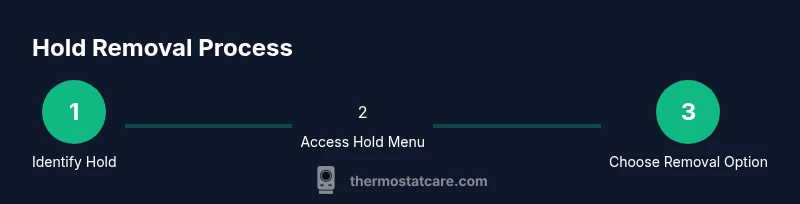
To remove a temporary hold on a Honeywell thermostat, first access the Hold menu. Choose 'Run Schedule' or 'Cancel Hold' (model-dependent). If your model uses 'Until Next Schedule,' select that option. Confirm the change and monitor the display to ensure the thermostat resumes your normal programming. If you can't find Hold options, consult the manual or the Honeywell Home app.
Understanding Temporary Hold on Honeywell Thermostats
A temporary hold is a feature that tells your thermostat to ignore its current schedule and maintain a chosen temperature for a set period. On Honeywell models, this is commonly used when you’re home earlier or later than usual and want comfort without editing the entire program. The Thermostat Care team notes that temporary holds are designed to be convenient, but they can become confusing if you’re not sure how to diffuse them. If you see a number or a highlighted “Hold” indicator on the display, you are likely in a temporary hold mode rather than a permanent schedule. The hold can be initiated from the main screen, the menu, or the quick-access buttons depending on the model. Understanding when and why a hold activates helps you decide the best way to disable it and restore your regular programming. According to Thermostat Care, the goal is to keep comfort steady while avoiding accidental changes that disrupt energy savings. In most situations, you can exit hold without affecting any saved temperatures, schedules, or energy-use history.
Common Reasons a Hold Might Be Active
Holds can show up for several reasons: you manually activated a hold for comfort on a particular day, a temporary override was set by someone in your household, a scheduling conflict popped up, or a sensor reading caused the system to adjust temporarily. Thermostat Care analysis shows that some users accidentally set a hold when trying to change a single degree or when adjusting the schedule for a future date. In many cases, the hold disappears once the thermostat reaches the target setpoint or the next schedule period begins. Familiarize yourself with the concept of "Until Next Schedule" versus a fixed duration hold so you can predict how long the hold will last and act accordingly.
Quick Methods to Clear a Temporary Hold (Model-agnostic)
Most Honeywell thermostats offer a quick path to disable a temporary hold. Start by tapping the Hold button or opening the Hold/Program menu. Look for options such as "Run Schedule" or "Cancel Hold"—some models show "Until Next Schedule" as an alternative. Select the option that best matches your goal (return to the regular schedule or resume automatic operation). Confirm the choice if prompted. If you prefer the mobile app, you can often remove a hold there by navigating to the device, selecting the current hold, and choosing the equivalent option to resume the schedule. Thermostat Care also recommends checking that the change has propagated to the HVAC system by observing the thermostat display for the scheduled temperature and watching for any subsequent changes.
When Hold Reappears: Scheduling vs. Sensor Issues
If a hold reappears shortly after you clear it, investigate whether a future schedule is still active or if there is a temperature sensor issue triggering a new hold. Some Honeywell models have multiple schedules (weekday vs weekend) and even adaptive learning features that reapply holds based on recent behavior. Sensor problems, such as a dirty or poorly calibrated sensor, can also cause the unit to hold a temperature longer than expected. In these cases, clearing any conflicting schedule entries and ensuring the sensor is clean and correctly positioned can prevent repeated holds. Thermostat Care emphasizes keeping your system firmware up to date to minimize misreadings that lead to unintended holds.
Verifying Hold Removal Across Zones and Profiles
If your system controls more than one zone or uses separate profiles (home/away, wake/sleep), verify that each zone or profile has exited hold mode. A hold in one zone won’t automatically clear in another, especially with zoning thermostats or multi-stage heating/cooling. Check the main screen for a global Hold indicator, then drill into each zone or profile to confirm they’re running on their scheduled temps. If a zone remains under hold, repeat the steps to exit hold for that specific zone. This step helps ensure consistent comfort and energy management across the entire home.
Troubleshooting Common Issues and Pitfalls
Common hiccups include not seeing a Hold option due to a simplified interface, or apps that show outdated statuses after a change. If you’re unable to clear the hold, power-cycling the thermostat (wait a few minutes before restoring power) can help reset temporary states, but avoid doing this during extreme temperatures. Firmware updates can also fix glitches that cause holds to persist. If you suspect a wiring or power issue, contact a professional to avoid damage to the HVAC system. Thermostat Care reminds readers to follow manufacturer safety guidelines and consult the manual for model-specific steps.
Long-Term Tips to Prevent Accidental Holds
To minimize future holds, lock in a stable schedule during times of regular routine and use a gradual change strategy (small degree adjustments) to test comfort. Regularly review your schedules for holidays or changes in occupancy and disable any unused holds. Keep your thermostat’s firmware up to date and consider enrolling in energy-saving features offered by the Honeywell ecosystem. By documenting how you use holds and reviewing your system quarterly, you reduce the chance of unexpected holds disrupting comfort or energy use. According to Thermostat Care, consistency in settings combined with proactive maintenance yields the best balance of comfort and efficiency.
AUTHORITY SOURCES
- https://www.energy.gov/eere/buildings/articles/thermostats
- https://www.energy.gov/energysaver/thermostats
- https://www.epa.gov/greenhome/thermostats
Tools & Materials
- Honeywell thermostat user manual (digital or printed)(Model-specific guidance and Hold feature details vary by model)
- Thermostat control panel or mobile app access(Ensure you can reach the Hold/Run Schedule options)
- Stable Wi-Fi connection (optional, for app-based changes)(Useful if you manage hold via the Honeywell Home app)
- A calm, well-lit room to observe temperature changes(Helps verify the hold is cleared and the schedule resumes)
Steps
Estimated time: 2-5 minutes
- 1
Identify hold status
Check the thermostat display for a Hold indicator, and confirm whether the current mode is a temporary hold or an active schedule. If the Hold indicator is present, you’re dealing with a temporary hold that needs removal.
Tip: Note the current setpoint so you can compare it with your desired programming after clearing the hold. - 2
Access the Hold options
Tap the Hold button or open the Hold/Program menu to reveal options such as Run Schedule, Cancel Hold, or Until Next Schedule. The layout varies by model but the goal is to reach a command that stops the hold.
Tip: If your thermostat uses a touchscreen, swipe to the Hold section rather than tapping random icons to avoid triggering other features. - 3
Choose the appropriate removal option
Select Run Schedule or Cancel Hold to exit temporary hold. If the model shows Until Next Schedule, choose that option to resume the regular programming at the next scheduled change.
Tip: If you’re unsure which option to choose, start with Run Schedule to return to your standard timetable. - 4
Confirm and test
Confirm the change if prompted, and observe the display to ensure the thermostat follows the normal schedule. Check a few minutes later to confirm the temperature drifts toward the target as per the standard program.
Tip: Give the system a couple of cycles to catch up with the new setting. - 5
Sync via app if needed
If you use the Honeywell Home app, verify that the app reflects the same hold status and push the change from the app if discrepancies appear on the thermostat.
Tip: Refresh the app or re-login if statuses appear stale.
Questions & Answers
What is a temporary hold on a Honeywell thermostat?
A temporary hold temporarily overrides the current schedule to maintain a chosen temperature. It expires or changes when you select a different hold option or when the system reaches the next scheduled change.
A temporary hold overrides the schedule until you cancel it or switch back to the regular program.
How do I know if Hold is active on my model?
Look for a Hold indicator on the display or in the app. If the temperature stays constant despite changing the setpoint, a hold is likely active.
Check the display for a Hold icon or a message indicating you’re in hold mode.
Will removing Hold affect my schedule later today?
Removing hold should restore the normal schedule immediately or at the next scheduled change, depending on the option you choose.
Restoring the schedule takes effect right away or at the next change, depending on the option selected.
What if Hold keeps coming back after I clear it?
There may be a future schedule entry, an adaptive learning setting, or a sensor issue triggering a new hold. Review all profiles and sensors, and update firmware if available.
If holds keep returning, check schedules and sensors, and update the thermostat firmware.
Can I disable temporary hold permanently?
You can disable Hold by ensuring your schedule is active and no manual holds are saved for the day. Use Run Schedule as the default mode and review any overrides regularly.
Set the thermostat to Run Schedule and remove overrides to prevent holds.
Watch Video
What to Remember
- Identify when a hold is active before changing settings
- Use Run Schedule or Cancel Hold to resume normal programming
- Verify hold removal across all zones/profiles
- Check for app synchronization to ensure consistency
- Keep firmware updated to prevent glitches