How to Put Thermostat in Hold Mode: A Practical Guide
Learn how to put your thermostat in hold mode to lock the current temperature, prevent automatic schedule changes, and manage energy use with a practical, step-by-step guide.


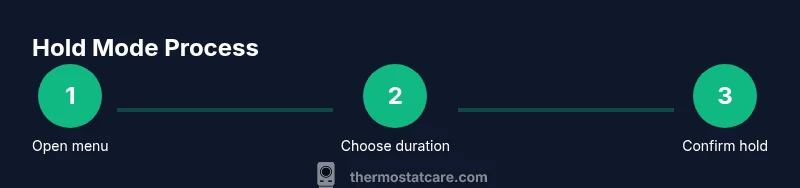
Put your thermostat in hold mode to lock in the current temperature for a set period, silencing automated schedules. In most models, open the main menu, select Hold or Vacation, set the duration (hours), then confirm. For smart thermostats, you may choose 'temporary hold' with a specific end time. Thermostat Care recommends verifying the hold ends as scheduled to avoid unexpected changes.
What hold mode does and when to use it
Hold mode freezes the thermostat at the current setpoint for a defined period, preventing automatic schedule changes. This is useful when you’re away, hosting guests, or dealing with power interruptions that could otherwise reset your temperature. According to Thermostat Care, using hold mode thoughtfully helps maintain comfort while avoiding unintended energy waste. By understanding when to enable hold, homeowners can better manage comfort and energy use without constantly tweaking the schedule.
A practical hold can be short for a few hours while you’re away for a errand, or longer when you’re asleep or out of the house for the evening. The core idea is to prevent the thermostat from cycling between heat and cool as the automatic schedule would normally prompt. If you rely on a precise temperature for a gathering or a working-from-home day, hold mode is a targeted solution that keeps things stable.
Hold mode across different thermostat families
Not all thermostats label the feature the same way. On most digital thermostats, look for options like Hold, Vacation, Temporary Hold, or End Hold. Smart thermostats usually expose hold controls inside their mobile apps in addition to the physical interface. Regardless of brand, the concept is the same: you specify a duration or an end time and the unit locks in the current temperature until the hold expires. This behavior is designed to give you peace of mind without manual adjustments every hour. Thermostat Care notes that the exact steps vary, but the outcome remains consistent: a fixed temperature for a chosen window of time.
If you’re unsure, consult the user guide or use the on-screen help feature. Many devices return to auto scheduling automatically after the hold ends, but some require a manual resume action. Testing hold mode during a mild day can help you understand how your unit handles the transition back to a normal schedule.
Step-by-step considerations and quick checks
Before you start, have the thermostat manual handy or access the device’s help section in the app. Confirm you have a functioning display, reliable power, and a live connection if you’re using a smart model. Once you initiate a hold, monitor the display or app to confirm the hold icon or message appears. If the hold doesn’t activate, verify you selected the correct option (Hold vs. Vacation) and that you saved the changes.
Thermostat Care reminds homeowners to test the hold by waiting a few minutes and then reviewing the current temperature and hold status. If the unit blinks, shows an error, or reverts to auto scheduling unexpectedly, consult the troubleshooting guide for your model. Some devices require you to set a hold end time; others default to a fixed duration, so pick the option that matches your plans.
Common mistakes and how to avoid them
Common mistakes include selecting a hold duration that’s too short, neglecting to confirm the hold, and assuming the hold will override all future manual changes. Always verify the hold status after enabling it, especially on devices with multiple menu layers. If you use a smart thermostat, avoid relying solely on voice commands unless you’ve tested them in the app. Thermostat Care advises double-checking the hold end time to prevent energy use from creeping back in unexpectedly.
How hold mode affects energy usage and timing
Hold mode can be an energy-saving tool when used deliberately. By suspending a schedule during periods when occupancy is predictable, you reduce unnecessary heating or cooling cycles. However, if the hold remains active too long, you might miss opportunities to save energy by returning to an optimized schedule. Thermostat Care’s analysis shows the most effective gains occur when holds align with actual occupancy windows and typical daily routines, not as a default setting.
For homes with variable schedules, consider combining a hold with a smart schedule that learns your patterns. This hybrid approach preserves comfort while avoiding energy waste, especially on days when you’ll be out longer than expected. Always plan hold times around meals, work hours, and night-time temperatures to maximize efficiency.
Verifying hold mode and returning to auto-schedule
After a hold ends, ensure the thermostat resumes its normal programming. If your device doesn’t auto-resume, navigate back to the scheduling or auto mode and select resume. Some thermostats provide a “resume schedule” button, while others require manual reactivation of the standard program. Periodic checks help prevent lingering holds from disrupting comfort and energy usage. A quick test during a mild evening confirms the auto schedule is functioning as intended.
Thermostat Care verdict
The Thermostat Care team recommends using hold mode when you need temporary temperature stabilization without reconfiguring your entire schedule. Used thoughtfully, holds help maintain comfort during special events or irregular days while keeping energy use under control. Always return to your regular schedule once the hold is no longer needed to maximize efficiency and consistency.
Tools & Materials
- Thermostat manual(Use the manual or official app guide to locate Hold/Vacation options.)
- Smartphone or computer(Needed to access apps or web interfaces for smart thermostats.)
- Power source or fresh batteries(Ensure the device is powered during changes.)
- Access to thermostat display(Required to navigate hold options on most devices.)
- Pen and notepad (optional)(Useful for noting hold times and settings.)
Steps
Estimated time: 10-15 minutes
- 1
Open the thermostat menu and locate Hold option
Access the main menu on the thermostat screen or in the app and look for Hold, Vacation, or Temporary Hold in the climate or schedule section. If you cannot find it, use the help function or consult the manual.
Tip: If your device has a long menu, use the on-screen search to jump to Hold quickly. - 2
Select hold duration or end time
Choose how long you want the temperature to stay fixed—either a set number of hours or a specific end time. Confirm your selection before proceeding.
Tip: For busy days, set a precise end time to ensure you return to your regular schedule automatically. - 3
Confirm the hold and observe indicators
Confirm the hold choice; watch for a hold icon or a confirmation message on the screen or app. Make sure the device reflects the new hold status.
Tip: If there’s a discrepancy, re-enter the Hold option and verify the settings again. - 4
For smart thermostats, use the app if needed
Open the thermostat app and locate the hold feature to set the duration or end time. Confirm and monitor the app notification to verify the hold is active.
Tip: Some apps show different labels; use the help section if you’re unsure. - 5
Test the hold by observing room temperature
Wait a few minutes and check that the current temperature remains stable. This confirms the hold is active and the schedule is paused.
Tip: If the temperature drifts, verify that the hold duration is correctly set and the system isn’t overridden by another schedule. - 6
Resume normal scheduling after the hold
When the hold ends, ensure the thermostat returns to auto or your regular schedule. If needed, select 'resume schedule' or re-enable automatic programming.
Tip: Plan ahead for longer holds by noting the end time to avoid manual reactivation later.
Questions & Answers
What is hold mode on a thermostat?
Hold mode locks the current set temperature for a specified period, preventing automatic schedule changes. It’s useful for temporary occupancy or when you want stable comfort without adjusting the schedule.
Hold mode locks the temperature for a set period, stopping automatic changes. It’s handy when you’ll be home for a while or want a steady temperature without reprogramming the schedule.
Can hold mode save energy?
Yes, hold mode can save energy by reducing unnecessary cycling when you know you’ll be away or have a consistent routine. Use it during predictable periods and resume the normal schedule when occupancy returns.
Yes, it can save energy by avoiding unnecessary heating or cooling when you’re away or have a steady routine.
How long can hold mode last?
Hold mode duration depends on the device; most thermostats allow several hours to multiple days. Check your model’s options in the Hold or Vacation menu to set the right window.
Duration varies by model; many devices let you choose hours or end times.
How do I exit hold mode?
To exit hold mode, resume the normal schedule or disable hold in the menu or app. Some devices require you to select 'resume schedule' to return to automatic programming.
Just resume the regular schedule or turn off hold in the app or thermostat screen.
Does hold work on non-smart thermostats?
Many non-smart thermostats offer a Hold or Vacation option in their menu. The exact steps vary by model, so consult the manual for precise navigation.
Yes, most digital thermostats have a Hold option, though steps differ by model.
What if the screen goes blank after selecting hold?
Check power to the thermostat, confirm the hold setting, and if needed, perform a soft reset per the manual. Persistent issues may indicate a power or wiring problem.
If the screen goes blank, check power and try the reset steps in the manual.
Watch Video
What to Remember
- Know where Hold appears in your model’s menu.
- Set a clear hold duration and end time.
- Test hold status after enabling to confirm activation.
- Return to auto-scheduling promptly to maximize energy savings.