How to Turn Off Hold on Thermostat: A Complete Step-by-Step Guide
Learn how to turn off Hold on any thermostat with clear steps, brand-agnostic tips, and safety considerations. Restore your normal schedule quickly and confidently.


Turning off Hold on most thermostats simply releases the current temperature hold and resumes the scheduled programming. Start by locating the Hold indicator (often labeled Hold, Short Hold, or Resume), then access the control that cancels Hold. If your model uses an app, you can disable Hold there too. After turning Hold off, verify the thermostat returns to its normal schedule.
Understanding Hold on Thermostats
Hold is a feature that temporarily freezes the current temperature to avoid waiting for the scheduled changes. When Hold is active, the thermostat won't follow the programmed routine until Hold is released. Understand its purpose: If you return home early or need to override the temperature for a specific period, Hold lets you lock in a comfortable temperature without editing the entire schedule. In practical terms, Hold can be a temporary override for a few hours or a longer override if you set a specific end time. According to Thermostat Care, Hold is common on most models and is implemented differently depending on the brand. If you want to ensure energy savings, remember that Hold can extend operation times beyond the default schedule. Remember to release or cancel Hold when the environment has stabilized. The ability to resume normal programming is essential for predictable energy use and comfort. This article will guide you through turning Hold off and back to your regular schedule across popular thermostat brands.
What Hold Looks Like Across Popular Thermostats
Most thermostats display a Hold or Hold Until indicator on the main screen, but the label and icon vary by brand. For many models, a banner reading Hold appears across the top, or a clock icon with a small Hold label when an override is active. Nest often uses a bubble or a ring around the temperature; Ecobee shows a "Hold" badge in the upper corner; Honeywell might display a shield icon or a timer reading "Hold until". By understanding these cues, you can quickly locate the Hold control. The goal is clear: identify the Hold state, then choose Cancel Hold or Release Hold to return to the programmed schedule. If you’re using a connected app, the same Hold control usually exists there as well, sometimes with slightly different wording. This familiarity saves time when you’re trying to reestablish your routine and keep energy use predictable. Remember to verify the thermostat’s on-screen clock aligns with your intended schedule.
Quick Troubleshooting Before You Turn Hold Off
Before flipping Hold off, check a few quick things to avoid unintended changes. First, confirm you’re not pressing a temporary override accidentally while adjusting the temperature. Second, verify you’re using the correct interface—some models require you to press a dedicated Hold button, while others use a menu option labeled Hold, Resume, or Cancel Hold. Third, check that you have a stable power connection to the thermostat; a low battery or power glitch can affect controls. Finally, if your home uses a separate smart-home hub or app, confirm Hold isn’t being re-applied by an automation rule or scene. If Hold reappears after you release it, it may be due to an active automation or a setting in the app. This is where the next steps in the guide become essential.
Step-by-Step: General Method to Turn Off Hold
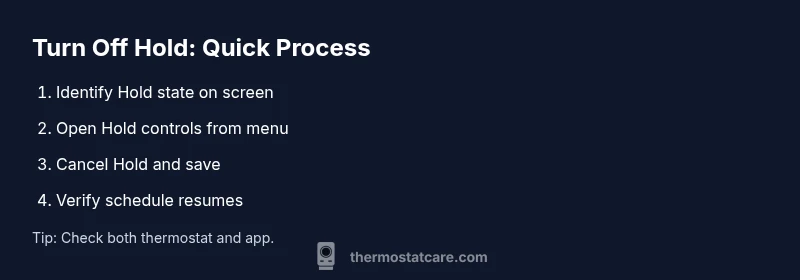
Begin by locating the Hold indicator on your thermostat screen. Then access the Hold controls from the main menu or quick-access bar. Next, select Cancel Hold or Release Hold and confirm if prompted. After releasing Hold, observe the current temperature and compare it to your programmed schedule to ensure the system resumes its typical cycle. Finally, exit the menu and be sure to save any changes if your model requires an explicit Save action. If you’re using an app, verify the change is reflected there as well and test with a simple temperature adjustment to confirm the schedule is active again. This process minimizes confusion and helps prevent accidental changes in the future.
Step-by-Step: Turn Off Hold on Popular Thermostat Brands
- Nest: Open the Nest app, select the thermostat, tap Hold, then choose Cancel Hold or Resume Schedule. Alternatively, you can tap the Hold banner on the device and pick Resume Schedule.
- Ecobee: Access the thermostat, choose Hold Until, then set it to "Off" or select Release Hold to return to the program. In the Ecobee app, go to Schedule and cancel any active Hold.
- Honeywell: On many Honeywell models, press and hold the Hold button or navigate through Menu > Hold > Cancel Hold to revert to Schedule. In some models, the Hold is tied to a time frame; reset the end time to zero or remove it.
Regardless of brand, confirm the system has returned to the configured schedule by observing the display and the room temperature. Check the app if you use one, as it often mirrors the thermostat’s state.
Common Pitfalls and How to Avoid Them
- Confusing Hold with a temporary temperature change: Hold freezes the schedule, not a single degree change; avoid conflating these actions.
- Forgetting to Save: Some models require saving changes to apply Hold-off; always check for a Save prompt.
- Missing a scheduled change: If you manually adjust during Hold, the thermostat can re-enter Hold unless you cancel it again.
- Sync issues with the mobile app: If you have multiple devices, ensure all show the same state after turning Hold off.
- Power interruptions: A brief power glitch can cause the thermostat to revert to a default hold; keep a stable power source or install backup batteries where permitted.
When Hold Keeps Returning: Software vs. Hardware Issues
If Hold keeps returning after you disable it, the problem may be software-driven or linked to an automation rule. Check smart-home routines, voice assistants, and energy-saving modes that might re-enable Hold. Update the thermostat firmware if available and verify that the app version matches the device. If automatic re-application happens at a specific time each day, review your schedules and disable conflicting rules. In rare cases, a faulty sensor or calendar event could re-trigger Hold; consult manufacturer support if the issue persists after updates.
How to Confirm the System Returns to Schedule
After turning Hold off, monitor room temperature for at least one cycle to ensure the thermostat follows the programmed schedule. Note the times of changes and compare them with the set schedule. If readings diverge significantly, re-check the thermostat’s clock, time zone, and date settings—an incorrect clock can throw off all scheduling. Record any persistent discrepancies and test again. If necessary, re-load factory defaults as a last resort and re-enter your schedule from scratch, ensuring you’ve saved changes on both the device and the app.
Safety, Privacy, and Energy Considerations After Adjusting Hold
- Keep your thermostat updated with the latest firmware to reduce vulnerability to security flaws that could allow remote Hold reactivations.
- Avoid sharing your account credentials; use strong passwords and enable two-factor authentication where available.
- Be mindful of energy savings: Hold can temporarily save energy by avoiding unnecessary heating or cooling, but leaving Hold off too long may equal longer system cycles. Use Hold judiciously to balance comfort with cost.
Troubleshooting Summary: Quick Checks and Next Steps
Start by releasing Hold on the thermostat screen, then verify in the app. If Hold returns, review any automations or schedules that could re-enable it. Confirm the clock is correct, the power is stable, and the system is operating within the expected temperature range. If problems persist, consult the manual or Thermostat Care’s support resources.
Tools & Materials
- Smartphone or computer with internet access(To access the thermostat app or web interface)
- Thermostat user manual or model-specific online guide(Helpful for exact button labels and menu paths)
- Stable power supply to the thermostat(Ensure the device remains powered during the procedure)
- Notepad and pen(To record the new schedule if desired)
Steps
Estimated time: 10-15 minutes
- 1
Identify Hold status
Look at the thermostat screen for an explicit Hold banner, or a Hold icon indicating an active override. If you see a time-labeled Hold until, note the end time.
Tip: This first check prevents accidental changes to the wrong feature. - 2
Access Hold controls
Open the main menu or quick-access bar where Hold is listed. On some models you tap the temperature DISPLAY to reveal Hold options.
Tip: Some thermostats hide Hold in submenus; use the search or help icon if available. - 3
Turn off Hold
Select Cancel Hold or Release Hold and confirm if prompted. If your device supports multiple Hold types, choose the one that ends the override.
Tip: Avoid changing multiple settings at once; focus on Hold to prevent confusion. - 4
Confirm the schedule resumes
Check that the current temperature matches your programmed schedule and that the Hold banner is gone.
Tip: If the app still shows Hold, refresh or re-sync the app. - 5
Save changes
Some models require an explicit Save action; ensure you save before exiting the menu.
Tip: Skipping Save can make Hold appear active again on re-entry. - 6
Check app and device consistency
If you use a companion app, verify Hold is off there as well and that changes propagate to the thermostat.
Tip: Synchronizing both interfaces prevents re-applications. - 7
Test the schedule
Make a small temperature adjustment to ensure the thermostat follows the programmed schedule over the next cycle.
Tip: Testing confirms the change is stable across interfaces.
Questions & Answers
What does Hold mean on a thermostat?
Hold temporarily overrides the scheduled temperature, freezing the current setting until you release it. It helps with quick comfort adjustments without editing the whole schedule.
Hold temporarily overrides the schedule to keep the temperature steady until you release it.
Can I turn off Hold using the thermostat app?
Yes. Most brands allow you to cancel Hold or switch to Resume Schedule from within the app. Look for Hold, Cancel Hold, or Resume Schedule in the thermostat section.
Yes, you can cancel Hold in the app by selecting Resume Schedule or Cancel Hold.
Why does Hold come back after I release it?
This often happens if an automation, routine, or smart-home rule re-applies Hold. Check any linked apps and disable conflicting rules.
Often automation or a linked app re-enables Hold, so review routines.
Is Hold different from Resume Schedule?
Hold is a temporary override. Resume Schedule returns the thermostat to its normal programmed timetable. Some devices use both terms interchangeably.
Hold is a temporary override; Resume Schedule returns to the regular program.
Will turning off Hold affect energy usage?
Turning off Hold typically reduces the time the system runs at a non-programmed level, aligning with your schedule and potentially saving energy.
Disabling Hold helps the system follow your program, which can save energy with a proper schedule.
What should I do if Hold won’t turn off?
Verify there isn’t an automation re-applying Hold, ensure software is updated, and try a power cycle or reset as a last resort per manufacturer guidance.
If Hold won’t turn off, check for automations and update firmware; consider a reset if advised.
Watch Video
What to Remember
- Turn off Hold to resume your schedule
- Check both thermostat and app for consistency
- Verify clock settings are correct
- Look for automation rules that could re-enable Hold
- Record your preferred schedule in a notebook