How to Put a Thermostat on Permanent Hold
Learn how to set permanent hold on your thermostat, with step-by-step instructions, tips, and considerations from Thermostat Care.


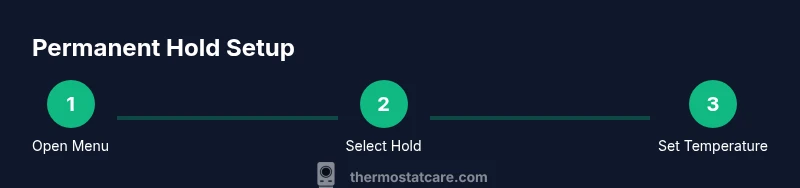
To put your thermostat on permanent hold, access the thermostat menu, select Hold or Permanent Hold, and set a target temperature for all future days. Disable any program-based schedules or vacation modes, then confirm and save. This keeps your home at the chosen setting until you change it again, regardless of time-based programs.
What permanent hold means for your thermostat
Permanent hold is a control mode that fixes the thermostat to a chosen temperature and keeps it there until you change it again. According to Thermostat Care, this feature is ideal when you want predictable comfort during travel, renovations, or guest stays. It bypasses scheduled changes, so morning updates or weekend tweaks won’t override your chosen setting. Keep in mind that a permanent hold can affect energy use if you leave the house at a much different temperature for an extended period. In practice, you’ll see the hold icon or a label like "Hold" or "Permanent Hold" on the main screen. If your model uses a timer-based hold, it may be labeled “Until I Change” or “Permanent.” The key benefit is consistency: your home remains at the set temperature regardless of the time of day.
When and why to use permanent hold
There are several legitimate reasons to activate permanent hold. If you’re traveling for an extended period, hosting guests, or undergoing renovations, you may want to keep the indoor climate steady without worrying about a changing schedule. A permanent hold also helps when you have a fixed comfort preference that you don’t want interrupted by automatic programming. From a maintenance perspective, it reduces the risk of conflicting schedules with smart-home routines. Thermostat Care's guidance emphasizes that use should be intentional: set it when you’ll be away or when a single temperature will suffice, and revert when normal routines resume.
Compatibility and model differences you should know
Not all thermostats label the feature the same way. Some brands offer “Hold,” others offer “Permanent Hold,” and many use “Until Next Program” as a default. The practical effect is the same: the thermostat ignores the scheduled changes until you change the hold. For non-smart thermostats, you’ll typically access the control panel manually; for smart models, you can set the hold from the app. Always check the user manual for your exact labels, and verify that the hold applies across heating and cooling modes if your system supports both.
Common missteps and safety notes
Common mistakes include forgetting to save the hold, assuming the hold will survive a power interruption, and failing to account for sensors or external temperatures. While permanent hold isn’t dangerous, it can create energy waste if you leave the setpoint far from outdoor conditions for long periods. If you use a smart thermostat, ensure the app is synchronized and that any geofencing or occupancy-based schedules aren’t overriding the hold. A quick glance at the status indicator will confirm that the hold is active.
Troubleshooting tips if the permanent hold doesn’t apply
If you set a hold but the thermostat resumes its schedule, start by confirming you saved the selection and that you’re not in a separate override mode. Some devices require you to press a confirmation button or navigate to a final "OK" step. Check whether a separate “Vacation” or “Away” mode is enabled and disable it. If there’s a firmware update available, install it, as outdated software can affect hold functionality. Finally, verify your wiring or power supply if the unit behaves erratically; consult the manufacturer or Thermostat Care for model-specific guidance.
What to expect after enabling permanent hold (energy and comfort considerations)
After enabling permanent hold, you’ll experience a stable indoor temperature until you override it. Your energy usage depends on how close the hold temperature is to outdoor conditions and whether you are home. If you’ll be away for a season, consider slight adjustments to reduce energy waste. Thermostat Care notes that you should revisit holds when schedules change or seasons shift, so you don’t miss comfort or savings opportunities.
Tools & Materials
- Thermostat with permanent hold feature(Ensure your model supports 'Permanent Hold' or equivalent label)
- User manual or model-specific guide(Helpful to locate exact menu labels for hold functionality)
- Smartphone or tablet with thermostat app (optional)(Useful for remote hold activation and verification on smart thermostats)
- Stable power supply to thermostat(Keep the device powered during the change to avoid interruptions)
Steps
Estimated time: 10-15 minutes
- 1
Open the thermostat menu
Access the main menu on the thermostat’s screen or in the app. Navigate to the section labeled Hold, Permanent Hold, or equivalent. If you’re using a traditional dial unit, you may need to press and hold a button to activate the menu.
Tip: If you can't locate the Hold option, consult the manual or search model name + 'hold' online for quick references. - 2
Select Hold or Permanent Hold
Choose the Hold option when the interface presents multiple hold modes. If permanent hold is listed, select it. Some models use a generic 'Hold' with a duration setting; choose the option that indicates no automatic resume.
Tip: Some devices show a 'Hold Until' vs 'Permanent Hold' toggle; picking the latter ensures no automatic resume. - 3
Set the target temperature for the hold
Dial in or type the temperature you want to maintain while the hold is active. Start with a comfortable baseline (e.g., 68-72°F in winter, 72-76°F in summer) and adjust later if needed.
Tip: Aim for a temperature that matches your typical comfort range to minimize energy waste. - 4
Choose Hold duration
If your device distinguishes between 'Permanent Hold' and 'Hold Until' durations, select the permanent option. Otherwise, set 'Hold' and ensure there is no automatic resume.
Tip: In some apps, you may see a calendar or auto-resume option; disable any auto-resume settings. - 5
Save and apply the hold
Confirm your choice and save the settings. The device should indicate that a hold is active with an icon or message on the screen or app.
Tip: Take a screenshot or write down the hold temperature for future reference. - 6
Verify hold is active
Check the main screen for a hold indicator and ensure the system isn’t flashing a schedule override. If possible, run the system through a quick cycle to confirm the hold engages.
Tip: If you don’t see a hold indicator after saving, re-open the menu and re-check the hold selection. - 7
Document the hold and set a reminder
Note the setpoint and hold status in a simple device log or your digital notes. Consider setting a reminder to review the hold when your schedule changes seasonally.
Tip: Keeping a log helps you avoid forgetting a hold when you return from travel.
Questions & Answers
What is a permanent hold on a thermostat?
A permanent hold fixes the thermostat to a chosen temperature and ignores scheduled changes until you change it again. It’s useful for extended travels or when a specific comfort level is needed. It is not the same as a temporary hold, which resumes on its next schedule.
Permanent hold locks in your set temperature and ignores schedules until you change it. Great for travel or fixed comfort needs.
Will permanent hold affect energy usage?
Yes, it can affect energy use depending on how close the hold temperature is to outdoor conditions. If the hold is far from outside temperatures for long periods, energy costs may rise or fall accordingly.
Energy impact depends on the hold temperature relative to outside conditions; monitor usage if you’ll be away for a while.
Can all thermostats use permanent hold?
Most modern thermostats offer a Hold or Permanent Hold option, but labels vary by brand. Check your model’s manual or settings to confirm the exact label and behavior.
Most models support a hold option, but labels differ. Check your manual for the exact button or menu names.
How do I revert from permanent hold to a schedule?
Open the hold settings and disable permanent hold, then choose the standard schedule or set a new hold as needed. Save changes and verify the system resumes its regular programs.
To revert, disable permanent hold in the menu and re-enable your regular schedule, saving changes afterward.
Why doesn’t hold apply after I save it?
Common causes include an active override (Vacation/Away mode), a failed save, or a firmware issue. Check for overrides, re-save, and install any available updates.
If hold isn’t applying, check for overrides, re-save, and update firmware if available.
Is permanent hold safe for boilers or furnaces?
Permanent hold is not inherently dangerous, but keep comfort and energy goals in mind. Ensure the hold temperature isn’t set to extremes that strain the system and monitor performance.
It’s not dangerous, but pick a reasonable hold temperature to avoid stressing the system.
Watch Video
What to Remember
- Put a permanent hold by selecting Hold or Permanent Hold at the desired temperature.
- Verify there is no schedule override or Vacation mode active that could override the hold.
- Smart thermostats simplify managing holds via apps and remote checks.
- Always confirm hold is active after saving and document the setting for future reference.