How to Remove Temporary Hold on Honeywell Thermostat
Learn how to remove a temporary hold on a Honeywell thermostat, whether you’re using the device interface or the companion app. This step-by-step guide covers common models, troubleshooting, and best practices to restore your programmed schedule.


To remove a temporary hold on your Honeywell thermostat, locate the hold or resume program option on the main screen, then cancel the hold and restore the scheduled program. You can do this directly on the device or through the Honeywell app, depending on your model. The key is to avoid leaving a manual hold active longer than needed.
Understanding temporary holds on Honeywell thermostats
A temporary hold is a short-term override that lets you adjust the current temperature without permanently changing your programmed schedule. Depending on the model—whether a classic touchscreen, a modern Wi‑Fi enabled unit, or a Lyric-style device—the exact labels and steps to cancel can vary. The core idea remains the same: a temporary hold is intended for a short adjustment window and will typically revert to the next programmed event or a specified end time. For many homeowners, the goal is to remove the hold quickly so the thermostat can resume its normal programming without further intervention. According to Thermostat Care, understanding your specific model’s hold behavior is the first step toward trouble-free cancellation. If you’re uncertain which mode you’re in, glance at the display for hints like “Hold,” “Temporary,” or a countdown timer showing remaining minutes. This section helps you map the terminology to your device and prepare for a smooth cancellation without guessing.
How to identify and cancel a temporary hold on the device itself
On many Honeywell thermostats, a hold is indicated prominently on the home screen with the word Hold or Temporary Hold, sometimes accompanied by a countdown. Start by pressing the main Hold button or the menu to reveal hold options. Some devices require you to press Hold, then choose Cancel Hold or Resume Schedule. If you’re unsure, consult the model guide to locate the exact path (for example: Hold > Cancel Hold or Hold > Until Time). The key is to confirm you are disabling the override, not simply nudging the temperature up or down. Once you cancel, observe the screen to ensure it returns to the programmed setpoint at the next scheduled event. Thermostat Care recommends confirming the change by watching a brief cycle or checking the schedule indicator to avoid a stray hold continuing unnoticed.
Using the Honeywell app or web interface to clear a temporary hold
If your thermostat is connected to Wi‑Fi and you use the Honeywell Home, Lyric, or thermostat app, you may cancel holds remotely. Open the app, navigate to the thermostat control, and look for a Hold option or a “Schedule”/“Program” tab. Tap Cancel Hold or select Resume Program to restore the embedded schedule. Some models push changes to the device instantly, while others require you to confirm the change and then sync. After cancellation, verify that the app shows the thermostat following the programmed schedule and that the temperature is stable across upcoming time blocks.
Common model variations and how they affect hold management
Honeywell has several lines with different interfaces. Some older models use physical buttons and a simple LCD, while newer connected models present a richer touchscreen and a robust app interface. In some cases, a temporary hold may be tied to a specific end time (e.g., Hold until 6:00 PM), while other models reset at the next scheduled event. If your model appears different from the examples above, locate the main Hold control, confirm you’re editing the override rather than the entire schedule, and look for terms like Pause, Resume, or End Hold. Thermostat Care notes that model-specific phrasing is common, so when in doubt, check the user guide for the exact navigation path.
Troubleshooting when the hold won’t clear
If cancellation fails, first check that the thermostat is connected to power and not running on batteries that are low. A paused communication or a frozen interface can cause hold changes to not register. Try a soft reset or reboot via the settings menu if available. If the device still shows the hold after attempting Cancel Hold, wait a minute and recheck, then try the action once more. For Wi‑Fi connected models, ensure the app or cloud service isn’t experiencing outages. Thermostat Care suggests attempting the action both on-device and in-app to determine whether the issue lies with the interface or the network connection.
Best practices for managing holds and schedules long term
To minimize repeated holds, consider programming a consistent schedule aligned with your daily routine. If you frequently need temporary adjustments, configure a separate override window that won’t disrupt your programmed program, or switch to a more flexible scheduling option. Regularly verify the thermostat’s firmware and app version to ensure smooth operation. Keep a quick reference of your model’s exact steps for canceling holds, as this improves response time and reduces frustration when weather or occupancy patterns change.
What to do after removing the hold and verifying the schedule
After cancelling the hold, monitor the system for 10–15 minutes to confirm it follows the program. If temperatures swing unexpectedly, recheck the programmed settings for the relevant time block and adjust as needed. If you have multiple zones or a smart home setup, confirm other thermostats reflect the same scheduling logic. Documentation shows that consistent testing after changes helps prevent inadvertent overrides from pushing the system off-schedule. The Thermostat Care team recommends keeping notes on any model-specific quirks you encounter so future adjustments are faster and more reliable.
Tools & Materials
- Honeywell thermostat (model with digital interface)(Ensure device is powered and responsive; have access to its screen/buttons)
- Access to the thermostat app or web interface(Log in and ensure the app can communicate with the thermostat)
- Owner’s manual or model-specific guide(Helpful for model-specific hold options and navigation)
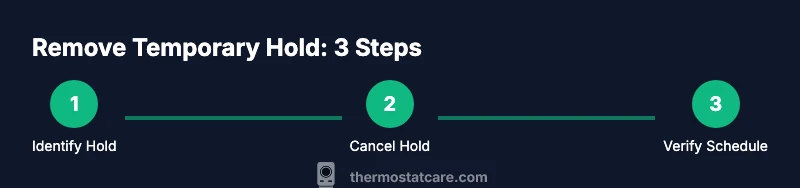
Steps
Estimated time: 5-15 minutes
- 1
Identify the current hold status
Look at the thermostat display to confirm a Hold, Temporary, or End Hold indicator. Note any end time or countdown, as this informs which cancellation option to choose. If the screen shows a time-based hold, you’ll need to cancel that hold explicitly to return to the programmed schedule.
Tip: If unsure, take a photo of the screen for reference when navigating menus. - 2
Access the device hold controls
On the device, press the Hold button or navigate to Hold/Program in the main menu. Some models require you to select Hold, then Cancel Hold or Resume Schedule. Confirm you’re cancelling the override, not adjusting the setpoint.
Tip: In some models, you may need to press and hold to reveal hidden options. - 3
Cancel the hold on the device
Choose Cancel Hold or Resume Schedule to remove the temporary override. If the option shows an end time, confirm the cancellation and ensure it reverts to the programmed schedule immediately or at the next scheduled event.
Tip: If the screen reverts to a different option, re-open Hold and choose Cancel Hold again. - 4
Verify the change on the device
After cancelling, monitor the display to ensure it reflects the programmed setpoint and upcoming schedule. Some units show a brief confirmation message; others require a screen refresh to update.
Tip: Walk to a nearby room to confirm the thermostat is maintaining the new setpoint. - 5
Check the app or web interface (if applicable)
Open the Honeywell app and verify that the thermostat follows the programmed schedule. If the app indicates a different hold status, perform the same cancellation there and force a sync if the app prompts you.
Tip: Ensure the app has recent connectivity and isn’t displaying cached data. - 6
Perform a quick reset if needed
If the hold remains stubborn, perform a soft restart of the thermostat from the settings menu. This can help register any missed commands and stabilize the schedule.
Tip: Avoid a hard power cycle unless the device is unresponsive. - 7
Test the next cycle
Let the thermostat reach the next scheduled block and confirm the temperature transitions smoothly. If it doesn’t, re-check the program block and ensure there isn’t another override active elsewhere.
Tip: Document the next transition time for future reference. - 8
Confirm full synchronization with home systems
If you use multiple connected devices or a smart home hub, verify that the entire system reflects the restored schedule. Update any automations if necessary to align with the standard program.
Tip: Regularly review all linked devices to avoid drift in temperature control.
Questions & Answers
What does a temporary hold do on a Honeywell thermostat?
A temporary hold temporarily overrides the programmed schedule to reach a preferred temperature. It will usually revert at the next program event or after a set end time. Removing the hold returns the thermostat to its normal schedule.
A temporary hold temporarily changes the temperature and then returns to the normal schedule. Removing it puts you back on the regular program.
How do I cancel a temporary hold on the device?
Press the Hold or Hold/Program option and select Cancel Hold or Resume Schedule. Confirm the change and watch for the screen to confirm the new programmed setting.
Go to Hold, choose Cancel Hold or Resume Schedule, and confirm. The thermostat should return to its normal program.
What if Cancel Hold isn’t available or it doesn’t work?
If the button doesn’t respond, try a soft reset from the settings menu or reboot the device. If the problem persists, check for app or firmware updates or contact support.
If Cancel Hold doesn’t respond, try a soft reset or reboot, then check for updates. If it still fails, seek support.
Can I remove holds remotely via the Honeywell app?
Yes. Open the app, locate the thermostat control, and cancel the hold or select Resume Schedule. Ensure the app is synchronized with the device.
Yes, cancel the hold in the app and make sure it syncs with the thermostat.
Should I delete all holds or just cancel the current one?
Only cancel the current hold if you want to revert to the schedule. Deleting holds from history isn’t necessary and depends on model features.
Only cancel the active hold to return to the programmed schedule; you don’t need to delete past holds.
Watch Video
What to Remember
- Identify and cancel holds directly on the device or app
- Verify return to programmed schedule after cancellation
- Model variations require model-specific navigation
- Check both device and app to ensure synchronization
- Prevent future holds by aligning schedules with routine