How to Fix a Honeywell Thermostat Display Not Working
Urgent guide to diagnose and fix a Honeywell thermostat display not working. Power checks, battery swaps, resets, wiring tips, and expert steps from Thermostat Care to restore full function.


Why the Honeywell display goes blank
A blank Honeywell thermostat display is a signal that something in the power path isn’t delivering steady voltage, or that the device is in a reset loop. According to Thermostat Care, the most common reasons are power supply issues, dead or corroded batteries (for battery-powered units), or a system-wide fault that requires a reset. In older models, weak backlighting or a burned-out display panel can also create the illusion of a blank screen. Start by ruling out simple power and battery problems before opening the thermostat or touching furnace wiring.
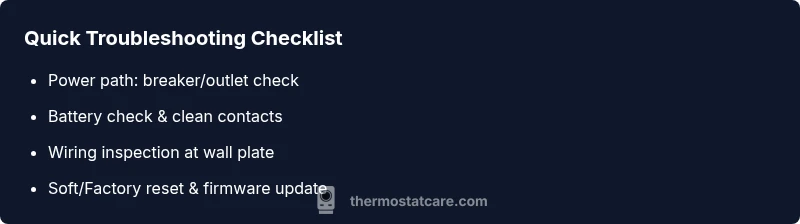
- Check if the thermostat is hard-wired to power or if it uses batteries; if it uses batteries, replace with fresh alkaline or lithium batteries of the correct type.
- Verify the HVAC system is receiving power and the circuit breaker hasn’t tripped. If the breaker trips repeatedly, there may be a short or overload.
- Look for any physical signs of damage on the display housing or screen edge, such as cracks or moisture ingress.
Safety first: power and battery checks
Before you touch any wires, ensure your safety. Power off the thermostat at the switch or breaker, then confirm there is no live voltage at exposed terminals. If your Honeywell unit is battery-powered, remove and replace batteries, clean contacts with a dry cloth, and re-seat them firmly. After power restoration, listen for the thermostat’s display to wake up. If you have a plug-in model, unplug and replug the power adapter to reset the power path.
- Use a non-contact voltage tester if available to verify power at the wall plate.
- Keep the thermostat and surrounding area dry and away from condensation.
Inspect wiring and connections
Examine the wall plate for loose screws and verify that the wires are correctly connected to the thermostat terminals as per the model's wiring diagram. If you recently worked on HVAC wiring, ensure the thermostat cable is intact and not pinched. At the furnace/air handler, check the 24V control wire is connected to the R terminal and the common C wire is secure; a loose C can produce no display. A miswired or loose connection is a frequent cause of blank screens on Honeywell units.
- Gently reseat the R and C wires at both ends and tighten terminal screws to the recommended torque.
- If you notice frayed insulation near terminals, replace the cable rather than just re-seating wires.
Reset and firmware considerations
Try a soft reset or factory reset per model; this clears glitches but may erase saved settings. For many Honeywell thermostats, hold down a specific button sequence (e.g., hold and press for 5–10 seconds) to perform a soft reset, then reconfigure date/time and preferences. If an update is available, install the firmware to fix known display issues and improve stability. After reset, check if the display returns to normal brightness and responsiveness.
- Back up your settings if the device allows it before performing a factory reset.
- Ensure you’re using the official app or manufacturer tool to check for firmware updates.
When the display stays blank: professional help and replacement options
If the display remains blank after basic checks and resets, there may be an internal fault or display panel problem beyond user service. A licensed HVAC technician can test voltage at stat terminals, inspect the internal display circuitry, and determine if a repair or replacement is warranted. For many modern Honeywell models, a failed display panel or processor board makes replacement the more cost-effective choice in the long run. The Thermostat Care team recommends evaluating total cost of repair vs replacement and considering warranty status.
- Ask about on-site diagnostic charges and exact replacement costs before committing.
- Consider model compatibility and smart home integration when deciding on a replacement.
Preventive maintenance to avoid future display issues
Preventive care helps keep the Honeywell display reliable. Regularly replace batteries if applicable, keep the vented area around the thermostat dust-free, and inspect wall plates for signs of wear or moisture. Avoid mounting the stat in direct sunlight or near heating vents, which can degrade backlighting over time. Schedule annual HVAC maintenance to keep the control systems in sync, and log firmware versions for quick reference during troubleshooting.