Troubleshooting a Honeywell Thermostat Black Screen
Urgent guide to fix a Honeywell thermostat black screen. Quick checks, safe DIY steps, and when to call Thermostat Care for professional help for DIY success.


If your honeywell thermostat black screen is blank, start with the simplest fixes: power supply, battery or fuse, and display brightness. Thermostat Care recommends a quick, safe check sequence that you can perform yourself. This guide walks you through a diagnostic flow, practical steps, and safety reminders to restore the screen and prevent future blank displays.
Why honeywell thermostat black screen happens
A blank screen on a honeywell thermostat can be caused by power issues, drained batteries, or a temporary display fault. According to Thermostat Care, understanding the most common culprits helps homeowners troubleshoot safely and quickly. In many cases, the fix is simple and can be completed with basic tools and no professional help. If you search for the phrase honeywell thermostat black screen, you’ll find that the top causes are power, battery, or display faults. This guide explains how these issues arise and how to spot them during your initial assessment.
Safety first: before you begin
Before you touch any thermostat hardware, turn off power to the thermostat circuit at the breaker panel to avoid shock or short circuits. Do not attempt to cut or pry into the device; thermostats are low-voltage but still require careful handling. If your unit is mounted behind drywall or inside a wall cavity, ensure you have stable footing and no exposed wiring. Thermostat Care emphasizes safety as the cornerstone of any troubleshooting effort, especially when electrical components are involved. Always consult the manual for model-specific cautions and wear eye protection if you’re working near potential loose wires.
Quick checks you can perform first
Start with the simplest steps and document what you observe. Check the thermostat is powered and properly connected to its base. If your model uses batteries, replace them with fresh alkaline cells and observe whether the display reactivates. If the unit is hardwired, inspect the 24V supply at the subpanel or transformer for any signs of tripped breakers or blown fuses. Verify that the display brightness isn’t set to the lowest setting by using the brightness controls if visible. Finally, confirm there are no loose wires behind the thermostat plate or at the wall junction box.
Diagnostic flow overview
This section outlines a practical diagnostic flow you can follow in sequence. Start with the most common, easy-to-fix causes and move toward less likely issues. For each symptom, the diagnostic path suggests specific tests and the expected outcomes. If you reach a step where the screen remains blank after all basic checks, it is reasonable to escalate to professional service. Thermostat Care’s approach prioritizes safety and rapid restoration of function, reducing the risk of collateral damage to the HVAC system or the thermostat itself.
Step-by-step: Fix for the most common cause (power/battery)
- Power cycle: turn off the thermostat, disconnect power at the circuit, and wait 30–60 seconds before reconnecting and turning it back on. 2) Battery replacement: remove and replace batteries with fresh ones if your model supports batteries. 3) Check the base connection: reseat the thermostat on its wall plate to ensure a solid contact. 4) Inspect wiring for damage or looseness and correct as needed, but do not force any connectors. 5) If the screen returns, navigate to brightness and display settings to re-initialize the display. 6) If the screen stays blank, proceed to more advanced troubleshooting or contact support. Tip: Keep a small screen-room flashlight handy to see tiny connectors during the reseating process.
Firmware update or reset: when and how
If power and battery checks fail, a firmware issue could be the root cause. Check the Honeywell app or the thermostat’s menu for available firmware updates and install them following the manufacturer’s instructions. If no update is available, perform a factory reset only after backing up schedules and configurations. Note that a reset wipes custom settings, so you’ll need to reconfigure your preferences afterward. Thermostat Care advises performing resets only when absolutely necessary and keeping a record of your setups.
Prevention tips to avoid future blank screens
Regular maintenance reduces blank-screen incidents. Schedule periodic power checks, especially after a voltage surge or line disturbance. Keep batteries fresh if your model uses them, and replace them at the manufacturer’s recommended intervals. Protect the thermostat from direct sunlight and high humidity, which can affect display performance. Finally, maintain a clean, dust-free wall plate and ensure the mounting screws remain snug to preserve electrical contact. Following these practices helps maintain reliable operation and extends the life of your Honeywell device.
When to call Thermostat Care
If you’ve exhausted safe, DIY steps and the screen remains blank, professional assistance is warranted. A blank screen can mask underlying issues with wiring, the control board, or firmware that require specialized tools and expertise. The Thermostat Care team recommends scheduling a diagnostic visit when the problem persists after basic troubleshooting, especially if your unit is integral to climate control or if you notice unusual heating or cooling patterns.
Steps
Estimated time: 20-40 minutes
- 1
Power cycle the thermostat
Turn off the thermostat, unplug or switch off the circuit, wait 30–60 seconds, then reconnect power and turn the unit back on. This simple reset often clears display glitches and reinitializes communication with the HVAC system.
Tip: Make sure the breaker is fully off before touching any wiring. - 2
Check and replace batteries
If your model uses batteries, remove the cover and replace with fresh alkaline batteries. Reinsert and power up to see if the screen returns. Some models require a specific battery type; consult the manual.
Tip: Keep spare batteries on hand to reduce downtime. - 3
Inspect mounting base and wiring
Remove the faceplate carefully and inspect the wires at the back of the unit for loose connections or damage. Reseat wires firmly, ensuring correct color-to-terminal alignment when reassembling.
Tip: Only touch exposed conductors with the power off. - 4
Reset display settings
If the screen powers up but looks dim or misconfigured, access brightness/display settings and restore defaults if needed. Save changes and test navigation.
Tip: Document any custom schedules before resetting. - 5
Check for firmware updates
Navigate to the thermostat menu or app to see if a firmware update is available. Install following on-screen prompts and reboot after installation.
Tip: Back up schedules before updating when possible. - 6
Escalate if unresolved
If the screen remains blank after these steps, it's time to consult a professional technician. A persistent blank screen may indicate a control board or harness fault.
Tip: Do not attempt advanced disassembly without proper training.
Diagnosis: Screen remains blank after power restoration
Possible Causes
- highPower supply issue (outlet, power strip, or transformer)
- highDead or weak batteries (if model uses batteries)
- mediumDisplay driver or firmware fault
- lowLoose internal connection or damaged ribbon cable
Fixes
- easyTest outlet with another device and try a direct wall outlet
- easyReplace or recharge batteries (if applicable)
- easyRestart the thermostat via reset or power cycle
- mediumIf persists, contact support or schedule service
Questions & Answers
Why is my Honeywell thermostat screen blank when power is on?
A blank screen can result from power supply problems, dead batteries (if applicable), or a display firmware fault. Start with the simplest checks before moving to advanced diagnostics. If power and battery checks don’t help, firmware or hardware issues may be involved.
A blank screen often means power, battery, or firmware issues. Start with power and battery checks, then firmware if needed.
Should I reset my thermostat to fix a blank screen?
Resetting can fix software glitches but will erase custom schedules. Only reset after trying power, battery, and firmware steps. If the screen returns after a reset, reconfigure settings and schedule as needed.
Reset only after basic checks fail, and be ready to reconfigure your schedules.
If the screen stays blank, when should I call a professional?
Call a professional if basic checks, battery replacement, and firmware updates do not restore the display. A technician can assess control boards, wiring, and mounting issues that require specialized tools.
If basic steps fail, it’s time to call a thermostat technician.
Can a display problem affect HVAC performance?
Yes, a non-responsive display can prevent you from controlling cooling and heating schedules, leading to comfort and energy issues. Resolving the display problem restores full thermostat control.
A blank display can prevent you from controlling your system, so fix it promptly.
What maintenance helps prevent a blank screen?
Regularly check power, replace batteries when needed, and keep the unit clean and dry. Avoid exposure to direct sun and moisture, and ensure the mounting is secure.
Keep the power and battery checks up to date and avoid moisture to prevent blank screens.
Is firmware update always necessary?
Firmware updates are helpful for bug fixes and compatibility, but not always required. Check availability in the app or device menu and apply only if recommended by the manufacturer.
Only update firmware if a newer version is available and recommended.
What should I do first if the screen blacks out after a power surge?
First check the outlet and breaker, then perform a power cycle. If the display remains blank, replace batteries and inspect connections before seeking professional help.
After a surge, reset power, test the battery, and check connections before calling for service.
Watch Video
What to Remember
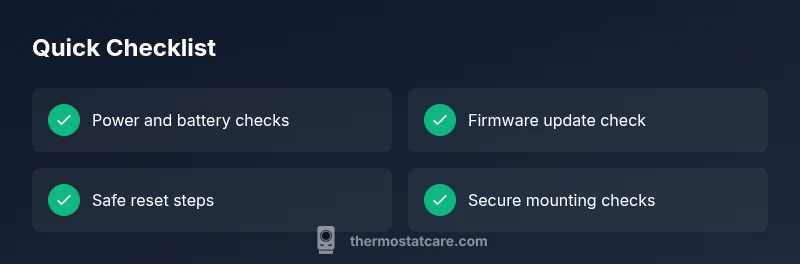
- Start with power and battery checks
- Follow a logical diagnostic flow
- Back up configurations before resets
- Know when to seek professional help
- Prevent future issues with regular maintenance