Fix Google Nest Not Connecting to WiFi: A Troubleshooting Guide
Step-by-step guide to resolve google nest not connecting to wifi issues quickly, with network checks, app diagnostics, and preventative tips to restore reliability.


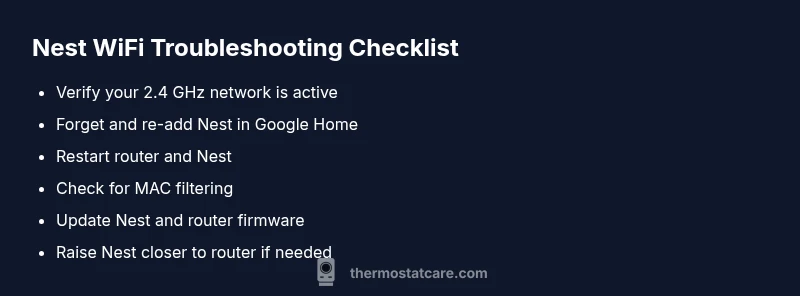
Most likely, the Google Nest not connecting to wifi is caused by a network band mismatch or a weak signal. Quick fixes: reboot both router and Nest, ensure you’re on a 2.4 GHz network, forget and re-add the Nest in Google Home, and re-enter the wifi password. If it still fails, move the Nest closer to the router or disable MAC filtering temporarily.
Why google nest not connecting to wifi happens
When homeowners search for google nest not connecting to wifi, the issue is often a network mismatch, weak signal, or incorrect credentials rather than a faulty device. According to Thermostat Care, the Nest thermostat relies on a stable home network and will struggle if the 2.4 GHz band is not available or if the password has changed. Recognizing the common failure points helps you apply targeted fixes quickly and safely. Thermostat Care analysis emphasizes starting with simple checks before diving into advanced settings. By confirming the network band, password accuracy, and signal strength, you can usually restore connection without hardware changes. In many cases, a quick router restart and re-adding the Nest to Google Home resolves the problem. The takeaway: treat this like a connectivity issue, not a hardware fault, and proceed step by step.
Quick checks you can perform on your network and Nest
- Verify that the WiFi network you're trying to join is visible and the password is correct. A small typo can block the Nest from joining.
- Confirm the Nest is connecting to a 2.4 GHz network. Many Nest issues arise when only 5 GHz is offered or when the router auto-switches.
- Check that other devices can reach the same network. If not, troubleshoot the router or contact your ISP.
- Reboot the router and the Nest. Unplug both for 30 seconds, then plug back in and try again.
- If you use MAC filtering or a guest network, temporarily disable them to test connectivity. If connection occurs, re-enable with the Nest’s MAC address whitelisted.
- In Google Home, remove the Nest and re-add it to the network, following the app prompts carefully.
How Nest networking works with 2.4GHz vs 5GHz
The Nest thermostat has historically performed best on a stable 2.4 GHz network due to its range and wall penetration. If your router is dual-band, you may need to force the Nest onto the 2.4 GHz band or create a separate SSID for 2.4 GHz during setup. After initial pairing, you can rejoin the main 2.4 GHz network if desired. This distinction is important because some routers use Intelligent Band Steering that can push devices to the 5 GHz band, which can cause drop-offs for Nest devices at the edges of your home. Consider temporarily disabling band steering while troubleshooting.
Common causes and how to verify them
- Wrong wifi password or network name: Double-check the credentials and re-enter them exactly as shown on your router settings.
- Band mismatch or no 2.4 GHz availability: Ensure a 2.4 GHz network is present; some older Nest models require it for reliable connectivity.
- Router firmware or Google Home app outdated: Update both the router firmware and the Nest firmware/app to the latest versions.
- MAC address filtering or guest network isolation: If enabled, Nest may be blocked. Add the Nest MAC to the allowed list or connect Nest to the main network.
- ISP or router outage: Temporarily test with a smartphone hotspot to verify if the problem is router/ISP related.
- Interference or multiple devices fighting for bandwidth: Reboot the router to reset the network environment and test again.
Using the Google Home app for diagnostics
Open the Google Home app and select your Nest device. Look for a Network or WiFi status screen, which can reveal connection health and recent drops. Run a quick network test if available, review the current firmware version, and verify you are connected to the intended wifi. If you see a mismatch, forget the network and re-add it with the correct password. The app can guide you through linking to a 2.4 GHz network and re-pairing the Nest if needed.
When to contact support and other safety notes
If the Nest refuses to connect after following all checks and fixes, you may need professional help. Contact Google Nest support or a qualified installer for a deeper network assessment. Do not attempt invasive hardware changes inside the thermostat. Always power down hardware safely when performing resets or reconfigurations to avoid electrical hazards.
Prevention tips to avoid future wifi issues
- Update router firmware and Nest firmware regularly to maintain compatibility.
- Keep your Nest within reasonable distance of the router, and consider a mesh system if you have dead zones.
- Use a dedicated 2.4 GHz network for smart home devices during setup and reconfigure to your main network after successful pairing.
- Periodically review your WiFi security settings (passwords, MAC filtering) to avoid unintentional blocks.
- Maintain a stable internet service with a modest, predictable home network environment; avoid using the Nest on networks with frequent interruptions.
Steps
Estimated time: 20-40 minutes
- 1
Verify WiFi details
Confirm the network SSID and password are correct and that the 2.4 GHz band is available. If the router uses a single combined network, consider temporarily splitting into dedicated 2.4 and 5 GHz networks for setup.
Tip: Write down the exact SSID and password to avoid typos during re-entry. - 2
Forget and rejoin on Nest
In Google Home, select your Nest, go to WiFi settings, forget the current network, and re-enter the password to rejoin. Make sure you are connected to the intended 2.4 GHz network.
Tip: If you see multiple networks, pick the 2.4 GHz one with the strongest signal. - 3
Reposition devices for signal
Move the Nest within line of sight of the router; avoid thick walls or metal cabinets that can block signals. Consider a short-term wifi extender or mesh unit if you have large spaces.
Tip: Test connectivity after each small repositioning before making further changes. - 4
Reboot network gear
Power down the router and modem, wait 60 seconds, then power them back on. After the network comes back online, retry connecting the Nest.
Tip: When rebooting, unplug the devices completely to clear caches. - 5
Check for MAC filtering
If MAC filtering or a guest network is enabled, temporarily disable them or add the Nest’s MAC address to the approved list. Then attempt to connect again.
Tip: You can find the Nest MAC address in the device settings of Google Home. - 6
Use app to re-pair if needed
If all else fails, reset the Nest network settings and re-add the device to wifi via the Google Home app. Ensure you know the wifi password and that you’re targeting the correct network.
Tip: Only perform a network reset if you can reconfigure the Nest on the spot.
Diagnosis: Nest won't connect to wifi
Possible Causes
- highRouter on a different band (no 2.4 GHz) or band steering causing Nest to prefer 5 GHz
- highIncorrect wifi password or network name
- mediumNest firmware/app or router firmware out of date
- lowMAC address filtering or guest network isolation
Fixes
- easyForce Nest onto a 2.4 GHz network or create a dedicated 2.4 GHz SSID during setup
- easyForget the network on the Nest and re-enter the correct password; re-add in Google Home
- easyRestart router/modem and the Nest; ensure internet service is active
- mediumUpdate firmware for both router and Nest app/firmware; ensure proximity is sufficient
Questions & Answers
Why won’t my Google Nest connect to wifi?
Most often the issue is a network band mismatch or incorrect credentials. Verify that you are connected to a 2.4 GHz network, confirm the password, and try re-adding the Nest in Google Home.
The common causes are a wrong password or a 2.4 GHz network mismatch; try re-adding the Nest after confirming the network details.
Does Nest require a 2.4 GHz network to work reliably?
Yes. Nest devices typically rely on 2.4 GHz for better range through walls. If your router only uses 5 GHz, create a temporary 2.4 GHz network during setup.
Nest usually needs a 2.4 GHz network for best reliability; you may need to enable it temporarily.
What if the Nest keeps dropping wifi after connecting?
This can be caused by interference, weak signal, or router band steering. Try moving the Nest closer to the router, disable aggressive band steering, or reboot the router and Nest.
If it keeps dropping, check signal strength and router settings, then try a quick reboot.
How do I rejoin Nest to wifi in the Google Home app?
Open Google Home, select your Nest, go to WiFi settings, forget the network, and re-enter the password to reconnect.
Go to the Nest device in Google Home, forget the network, then reconnect with the correct password.
Should I reset the Nest or the router if issues persist?
Only reset as a last resort. Prefer forgetting and re-adding the network first; a full device reset is rarely necessary and can erase settings.
Resetting is a last resort after trying re-adding the network and rechecking connections.
When should I contact Nest support?
If you’ve exhausted all troubleshooting steps and the Nest still won’t connect, contact Google Nest support or a qualified installer for a network health check.
If nothing works after all steps, reach out to Nest support for further assistance.
Watch Video
What to Remember
- Restart router and Nest when issues appear.
- Force Nest onto a 2.4 GHz network for reliability.
- Use Google Home to re-link Nest after network changes.
- Keep firmware updated to prevent compatibility problems.
- Seek professional help if problems persist after all steps.