Google Nest Internet Troubleshooting for Your Thermostat
A practical guide to diagnose and fix Google Nest internet connectivity for your thermostat, with step-by-step checks, network optimization tips, and troubleshooting strategies.


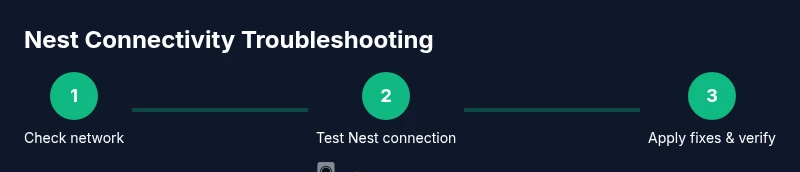
With this guide you will diagnose and fix Google Nest internet connectivity issues affecting your thermostat. You’ll verify your network, check Nest and Google Home apps, adjust Wi‑Fi settings, and verify your connection after fixes. By the end, your Nest thermostat should reliably stay online and respond to schedules.
Understanding google nest internet and why it matters for your thermostat
In the smart home era, the google nest internet connection is the backbone of how your Nest thermostat communicates with your Wi‑Fi router, cloud services, and your mobile device. The term google nest internet refers to how your Nest thermostat connects to your home Wi‑Fi network and to cloud-based features like scheduling, remote control, and energy reports. A stable connection means fast responses to temperature changes, reliable scheduling, and timely firmware updates. According to Thermostat Care, a dependable internet link is essential for the thermostat to receive schedules and weather data promptly. If the connection drops, you may see delayed responses, missed updates, or the Nest app showing offline status. This article walks you through diagnosing common issues, optimizing your network, and applying fixes that keep google nest internet stable even in busy households with multiple devices. Whether you’re troubleshooting an intermittent drop or a complete outage, the steps below are practical and tested for typical home networks.
Assessing your network prerequisites for reliable Nest connectivity
Before diving into fixes, take a quick assessment of your network environment. A stable google nest internet connection relies on a robust home Wi‑Fi, consistent internet service, and properly configured router settings. Thermostat Care analysis shows that most connectivity issues originate from weak signals, misconfigured routers, or outdated firmware rather than from the thermostat itself. Start by confirming you have a reliable broadband connection, that the Nest device is on the correct network band, and that your router firmware is up to date. If you’ve recently changed ISPs or upgraded your router, you may need to re‑authorize the Nest in your Google Home app and re‑enter Wi‑Fi credentials. A clear baseline helps you identify whether the problem is local (room-level) or network-wide (router or modem issues). Consistency is the goal; the goal is to keep google nest internet stable across your home so the thermostat can operate on schedule.
Tools and apps you’ll need to diagnose connectivity
To troubleshoot effectively, you’ll rely on a few essential tools and apps. A smartphone or tablet with the Google Home and Nest apps installed is essential for device checks, firmware updates, and network reassignment. You should also have access to your home Wi‑Fi password and your router’s admin interface for on‑the‑fly adjustments. A backed‑up set of credentials and a pen and paper for quick jotting of IPs or error messages will save you time. If you have a mesh network or range extenders, note their locations so you can verify coverage in critical rooms. Finally, keep a stable internet connection and a small amount of time set aside for testing after each change. With the right tools, you’ll be able to pinpoint where the google nest internet is failing and apply precise fixes.
How Wi‑Fi bands affect Nest devices: 2.4 GHz vs 5 GHz
Most Nest devices favor the 2.4 GHz band for better range through walls, though some dual‑band routers allow the Nest to be on 5 GHz for short‑range speed. If you’re experiencing dropouts, check whether the Nest is connected to 2.4 GHz or 5 GHz, and consider forcing a switch to 2.4 GHz for stability. Legacy or crowded 2.4 GHz channels can still cause interference, so ensure there’s no heavy Wi‑Fi traffic on the same channel. For a smoother google nest internet experience, keep the Nest on the band that provides the strongest, most consistent signal while maintaining isolation from network congestion. If you’re unsure which band the Nest uses, you can view the device’s network details in the Google Home app. This is a common source of connectivity problems and a good first target for fixes.
Common causes of Nest internet issues you can fix yourself
Several recurring culprits disrupt google nest internet connectivity: weak signal in key rooms, router settings that block new devices, outdated firmware on the Nest or router, and conflicts introduced by guest networks or captive portals. Physical obstructions, such as thick walls or metal appliances, can degrade the signal. IP address conflicts or NAT settings can also trap the Nest in a “offline” state. Finally, some ISPs implement dynamic IP assignments that momentarily cut off devices until re‑authenticated. By understanding these causes, you can target your troubleshooting efforts where they’ll have the most impact and keep google nest internet stable across your home.
Quick checks you can perform before deeper fixes
Start with the simplest checks: verify the Nest is visible in the Google Home app, ensure the router is broadcasting the 2.4 GHz band, and confirm you can access the internet from another device on the same network. Rebooting the router and the Nest often resolves transient faults. If you have a mesh system or range extenders, test Nest connection from multiple locations in your house to identify weak spots. Finally, confirm no firewall rules, router parental controls, or guest network settings are unintentionally blocking the Nest. These quick checks often resolve many google nest internet issues without more invasive changes.
Foundational fixes you can implement now
If the Nest still shows offline, begin with a reset of network settings in the Nest app and re‑enter your Wi‑Fi password. Move the thermostat closer to the router to reduce interference, or remove physical barriers such as cabinets that trap heat. If your router supports it, enable UPnP and ensure NAT type is open for multiple devices to connect smoothly. Consider updating both the Nest firmware and router firmware to the latest versions. Finally, check if the NAS or DNS settings in the router affect connectivity and switch to a reliable DNS (e.g., a widely used public DNS) to test stability. These steps address the most common google nest internet issues and set the stage for a reliable connection.
Advanced network tuning for a steady Nest connection
For stubborn problems, adjust network settings more deeply. Create a dedicated 2.4 GHz SSID for the Nest and eliminate interference from other devices by changing channels and reducing overlapping networks. Enabling a guest network only for visitors can help, but ensure Nest devices are allowed access to your main network or a dedicated IoT VLAN. If you use a VPN or custom firewall rules, temporarily disable them to see whether they’re affecting connectivity. Finally, consider a wired Ethernet bridge if your Nest supports it, which provides the most stable google nest internet in challenging homes.
Security considerations that impact stability and performance
Secure networks are essential for reliable Nest operation. Use a strong, unique router password and keep firmware up to date to prevent intrusions or IoT device stalls. Disable older insecure protocols and enable WPA3 if available. Consider enabling device isolation for guest networks to prevent interference while allowing legitimate Nest communication. Regularly review connected devices to ensure only authorized gear remains on the network, which helps avoid unexpected disruptions to google nest internet.
When to escalate: contact support and what to gather
If you’ve exhausted common fixes and your Nest still won’t connect, gather relevant information before calling support: model of Nest thermostat, router make/model, firmware versions, error messages on the Nest app, and the exact steps you followed. Document when the issue started and whether it affects a single room or the entire home. Contact Google/Nest support or your Internet Service Provider with this information. Thermostat Care recommends keeping a record of changes and test results to speed up resolution.
Real‑world troubleshooting scenarios and lessons learned
Let’s consider two typical cases: a two‑story home with a weak signal on the second floor, and a condo with significant router congestion during peak hours. In the first case, relocating the router or adding a mesh node in the upper level restored google nest internet stability. In the second, enabling a dedicated IoT network and updating firmware removed interference. These examples illustrate how small changes can yield big gains in Nest connectivity. The key takeaway is to avoid large, sweeping rewrites of network settings; instead, implement targeted, testable adjustments.
Verifying improvements: test plan and next steps
After applying fixes, perform a test to confirm the Nest is online and responsive to app commands. Schedule a temperature change and check if the thermostat updates promptly. Use the Nest app’s diagnostics or the router’s client list to ensure the Nest has a stable IP lease and low latency. If issues reappear, repeat the steps above or restructure your network with a mesh system for broader coverage. Regular checks help sustain a healthy google nest internet.
Tools & Materials
- Google Nest thermostat(Ensure it is correctly linked to your Wi‑Fi network during troubleshooting.)
- Smartphone or tablet with Google Home and Nest apps(Needed to access settings and verify connectivity.)
- Stable Wi‑Fi router supporting 2.4GHz and 5GHz bands(Check that both bands are operational and not isolated.)
- Modem/router admin credentials(Needed to adjust DNS, NAT, UPnP, and security settings.)
- Ethernet cable (optional)(Use for a wired bridge if supported by your Nest model.)
- Pen and paper or notes app(Record IPs, error messages, or test results for reference.)
Steps
Estimated time: 60-90 minutes
- 1
Open the Google Home app and verify the Nest is online
Launch the Google Home app and check that the Nest thermostat appears as a connected device. If it shows offline, note the error message and proceed to basic network checks.
Tip: If the device isn’t listed, try refreshing the app or re-adding the Nest to your home profile. - 2
Reboot your router and the Nest thermostat
Power cycle the router and the Nest device. Unplug them for about 60 seconds, plug the router back in, wait for the network to stabilize, then power the Nest back on.
Tip: This can clear temporary network glitches that block google nest internet. - 3
Confirm 2.4GHz connection for the Nest
Ensure the Nest is connected to the 2.4GHz band, which generally provides better in‑home coverage for IoT devices. If needed, temporarily disable 5GHz on your router or create a separate 2.4GHz network name (SSID).
Tip: Some routers require you to select the band in the device settings within the Nest app. - 4
Move the Nest closer to the router
Relocate the thermostat or add a nearby mesh node to reduce dead zones. Physical obstacles and distance can degrade the signal dramatically.
Tip: Avoid placing the Nest behind appliances or inside closed cabinets for optimal signal. - 5
Check for firmware updates on Nest and router
Update the Nest firmware via the Google Home app and confirm the router’s firmware is current. Outdated software can cause compatibility issues with connectivity.
Tip: Keep automatic updates enabled if possible to maintain compatibility. - 6
Review router settings (UPnP, NAT, and firewall)
Ensure UPnP is enabled, NAT is not overly restrictive, and firewall rules aren’t blocking Nest traffic. This helps devices communicate smoothly over your network.
Tip: If unsure, reset to default settings and reconfigure gradually. - 7
Test a DNS change and network stability
Experiment with a reliable DNS (for example, a public DNS) to test stability. If the Nest connects more reliably, you may want to keep the DNS setting.
Tip: Document changes to compare performance over time. - 8
Try a wired bridge if available
If your Nest supports Ethernet bridging or if you have a compatible hub, temporarily connect the Nest via Ethernet to test stability.
Tip: Wired connections eliminate wireless interference. - 9
Test on a separate guest network
Create a guest network or IoT‑friendly VLAN to isolate Nest traffic from primary devices. This helps determine if other devices are causing congestion.
Tip: Minimize cross‑traffic during testing for clear results. - 10
Reset Nest network settings in the app
If problems persist, reset the Nest network settings within the Nest or Google Home app and reconnect to your Wi‑Fi. This clears stale credentials.
Tip: Backup your configuration before a full reset. - 11
Document results and plan further steps
Record test results, including signal strength, latency, and whether the Nest goes online after changes. Use this data to decide on next steps.
Tip: If you’re unsure, pause and re‑test after a cooling‑off period. - 12
Contact support if needed
If connectivity remains unstable after these fixes, gather logs and reach out to Google/Nest support or your ISP with a concise report of steps taken.
Tip: A calm, documented report speeds up resolution.
Questions & Answers
Why does my Google Nest thermostat keep disconnecting from Wi‑Fi?
Most disconnects are caused by weak signals, router settings, or outdated firmware. Start with basic checks, then move to targeted fixes like adjusting bands or renewing credentials.
Wi‑Fi disconnects are usually due to signal strength or router settings. Start with basic checks and then try targeted fixes.
Can I connect Nest to a guest Wi‑Fi network?
Yes, but ensure the Nest has access to the internet on that network and is allowed by the router’s security settings. If issues persist, use the main network for reliability.
Yes, you can use a guest network, but ensure it allows Nest access and isn’t blocking the device. If problems persist, switch to the main network.
Do I need to reset the Nest to fix connectivity?
Only after other fixes fail. A network reset or re‑coupling to Wi‑Fi using the Nest app can re‑establish a healthy connection without a full reset.
Only after other fixes fail. Try resetting the network in the app before a full Nest reset.
Does Nest work on 2.4GHz only?
Nest devices commonly perform best on the 2.4GHz band for range, but some setups may require 5GHz temporarily. Check which band your Nest uses in the app.
Yes, Nest often uses 2.4GHz for stability, but you can test 5GHz if your setup supports it.
How long should I wait after a network reset?
Allow a few minutes for devices to re‑authenticate and establish a stable connection. If the Nest remains offline, re‑attempt setup from the Nest app.
Give it a few minutes for re‑authentication. If it stays offline, try the Nest app setup again.
Watch Video
What to Remember
- Verify Nest shows online in the Google Home app
- Prioritize 2.4GHz band for IoT devices
- Reboot devices to clear transient network issues
- Isolate Nest traffic with a dedicated network/VLAN if needed
- Update firmware on Nest and router for compatibility
- Test with wired bridge if wireless issues persist