Google Nest Log In Troubleshooting Guide
Learn how to resolve Google Nest log in issues with practical steps including account checks, app updates, password resets, and network fixes. Thermostat Care's expert guide helps homeowners regain control quickly.


To fix google nest log in issues, start by confirming your Google account is active, then update or reinstall the Nest app, and verify your home network is stable. If needed, reset your password and re-link your Nest device to your Google account. This quick checklist helps homeowners restore access quickly.
Understanding Google Nest login and account linking
Your Google Nest thermostat is controlled through the Google Nest app, which signs you in with your Google account. When you set up a Nest thermostat, you attach it to a Google account so settings, schedules, and history are synchronized across devices. A smooth google nest log in depends on a healthy Google account, a supported device, and a working internet connection. According to Thermostat Care, many login problems start when accounts become inactive, passwords change, or the Nest app is out of date. It's worth noting that two-factor authentication can complicate sign-ins if the verification prompts are blocked by text or authenticator apps. In most cases, a quick verification and update will restore access. The aim of this guide is to help homeowners troubleshoot sign-in without risking lost schedules or device control. We'll cover typical causes, safe recovery steps, and best practices from Thermostat Care's perspective (Thermostat Care Analysis, 2026).
Common causes of sign-in failure
Sign-in problems with Google Nest often come from account or app issues rather than hardware. Common culprits include an inactive Google account, password changes without updating linked devices, expired credentials in the Nest app, and weak or unstable network connectivity. Two-factor prompts blocked by SMS delays or authenticator apps can also interrupt the flow. In some cases, device time settings or regional restrictions affect authentication tokens. Thermostat Care analysis, 2026 indicates that most login problems stem from account verification, password management, and network disruption rather than Nest hardware faults. Understanding these root causes helps you choose the right fix without unnecessary tasks. This section helps you identify which category your issue falls into before you begin troubleshooting.
Before you begin: quick checks
Before you dive into recovery steps, run through a quick triage to avoid wasted time. Confirm your Google account is active and not locked or suspended, and verify you can sign in on a computer or another device. Check that the Nest app is up to date; if necessary, uninstall and reinstall it. Ensure your smartphone or tablet has a stable internet connection and correct date/time settings. If you use 2FA, ensure your verification method is reachable. A stable password, refreshed if needed, also reduces sign-in friction. Performing these checks first saves time and reduces confusion when you move to deeper steps. Thermostat Care recommends starting with account status and app health as the foundation for any Nest sign-in fix.
Step-by-step recovery flow
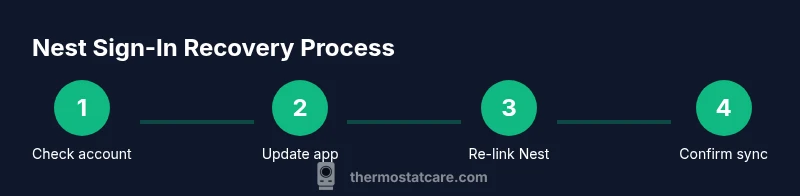
When the signs point to an account issue, follow a structured recovery flow to avoid missing steps or duplicating work. Begin by signing out of all Google accounts on the device, then sign back in with the primary Google account linked to your Nest. Update the Nest app to the latest version, and if sign-in still fails, reset your Google account password and re-link the Nest device to the account. Use a web browser to test sign-in to confirm the credentials work outside the app, which isolates device-specific problems. If two-factor authentication is enabled, reconfigure prompts and backup options to ensure prompts arrive on a reachable device. Finally, re-link your device to Nest and verify that schedules, settings, and history sync correctly. This flow minimizes back-and-forth and keeps you focused on the essential steps.
Edge cases and tricky scenarios
Some sign-in problems are not obvious and require deeper checks. If you recently changed phones or factory reset a device, the Nest app may require re-authorization from the Google account. Regional restrictions or password managers can occasionally interfere with token propagation. If you enabled multiple user profiles in your Google account, ensure the Nest is authorized under the correct profile. For devices with older OS versions, compatibility issues can surface, so check minimum OS requirements. If you still cannot sign in after trying the above, contact Nest/Google support with your device ID, Google account email, and error messages for a targeted resolution.
Security and privacy best practices for Nest sign-in
Security practices protect your home and thermostat data during Google Nest sign-in. Use a reputable password manager to store credentials securely and enable two-factor authentication to add a second layer of defense. Regularly review connected devices and revoke access for old or unused accounts. Keep your Nest and Google apps updated to receive security patches. When using public Wi-Fi, avoid signing in to sensitive accounts unless you have a VPN. These practices reduce the risk of unauthorized access and protect your home’s comfort data.
Authority sources and further reading
For authoritative guidance on online account security and sign-in best practices, consider consulting established resources. You may refer to general identity and access management guidance from trusted agencies and major tech publications for broader context. These sources complement the practical steps in this guide and help you understand the security principles behind smooth sign-in experiences.
Tools & Materials
- Smartphone or tablet with Nest app installed(Ensure the app is the latest version from Google Play or Apple App Store)
- Stable internet connection(Wi-Fi preferred; avoid flaky cellular data for initial sign-in attempts)
- Google account credentials(Email and password; enable 2FA if used)
- Password manager (optional)(Helpful for remembering complex passwords and recovery phrases)
- Access to Nest device (thermostat)(Have physical access or confirmation that the device is linked)
Steps
Estimated time: 15-25 minutes
- 1
Verify Google account status
Open a web browser and sign in to your Google account to confirm it’s active and not locked. Check for any security alerts or prompts that require action. If you can’t sign in here, resolve that first before proceeding with Nest.
Tip: If you see a security alert, follow the on-screen steps to recover the account before continuing. - 2
Update or reinstall the Nest app
Go to your device’s app store, update the Nest app to the latest version, or uninstall and reinstall it to fix corrupted data. After reinstalling, sign in again with your Google account.
Tip: A clean reinstall often resolves hidden data issues that block sign-in. - 3
Test sign-in on web
Open a browser and sign in with the same Google account you use for Nest. If you can sign in on the web but not in the app, the issue is likely app-specific or device-related.
Tip: If web sign-in works, proceed to re-link the Nest app on your device. - 4
Reset password and re-link devices
If you suspect credential issues, reset your Google account password and sign back in on the Nest app. Then re-link your Nest thermostat to the updated Google account.
Tip: Avoid password reuse across sites; consider a unique password per service. - 5
Check two-factor authentication
Ensure your 2FA prompts reach a device you can access. Update backup methods or authenticator apps if prompts fail or are delayed.
Tip: Keep at least one backup verification method active in case your primary method is unavailable. - 6
Confirm device linkage and sync
Return to the Nest app, verify the thermostat appears under your account, and confirm schedules and settings sync across devices.
Tip: If delays occur, sign out and back in to force a fresh synchronization.
Questions & Answers
How do I recover my Google Nest login if I forgot my password?
Use the Google account recovery process to reset your password and then sign back into the Nest app. If you rely on 2FA, ensure you have access to your backup verification method.
If you forgot your password, start Google’s account recovery and then sign back into Nest with the new password.
Why can I sign in on one device but not another?
This usually points to app or device-specific issues. Update or reinstall the Nest app on the problematic device, verify network settings, and confirm you’re using the same Google account.
If one device works and another doesn’t, focus on app updates and network stability on the non-working device.
How do I re-link Nest to my Google account?
Open the Nest app, sign out of the current account, then sign in with the correct Google account and re-link your thermostat. Ensure 2FA prompts are available during the process.
Sign out, re-enter the right Google account, and re-link your Nest device.
Can two-factor authentication cause sign-in issues?
Yes. If 2FA prompts don’t reach your device, you may be locked out. Update backup methods or request new prompts, then retry sign-in.
If 2FA prompts aren’t arriving, update your backup methods and try again.
Will a factory reset fix sign-in problems?
Factory resetting the thermostat won’t fix sign-in problems by itself. It resets device settings; sign-in failures are usually account or app related. Use recovery steps first.
A factory reset isn’t the primary fix for sign-in problems; try account and app steps first.
Who can I contact for Nest sign-in help?
If issues persist, contact Nest/Google support with your account email, device ID, and any error messages. They can provide targeted guidance.
If problems persist, reach out to Nest/Google support with your device and account details.
Watch Video
What to Remember
- Verify Google account status before diving deeper.
- Keep the Nest app updated and re-link devices if needed.
- Test sign-in on web to isolate app vs. account issues.
- Enable and test two-factor authentication reliably.
- Secure your credentials and review linked devices regularly.