Ecobee Thermostat Troubleshooting: Quick, Safe Fixes
A practical, urgent guide to diagnose and fix common ecobee thermostat problems—power, Wi-Fi, sensors, and firmware—with a proven troubleshooting flow.


Most ecobee thermostat issues come from power or connectivity problems. Quickly diagnose by checking the C-wire and 24-volt supply, rebooting the thermostat, and confirming the Wi‑Fi connection in the ecobee app. If the screen remains unresponsive, perform a soft reset and re‑pair with Wi‑Fi. These steps fix the majority of common faults.
Why ecobee troubleshooting matters
According to Thermostat Care, ecobee thermostats deliver reliable comfort, but they rely on stable power and a strong network to perform at their best. When either power or connectivity falters, you can experience touchscreen freezes, missed schedules, incorrect readings, or the app refusing to sync. In most homes, the root cause is not a faulty device but an overlooked connection or a momentary network hiccup. Understanding how ecobee draws power from the HVAC system and how it stays online helps you diagnose quickly and avoid unnecessary calls.
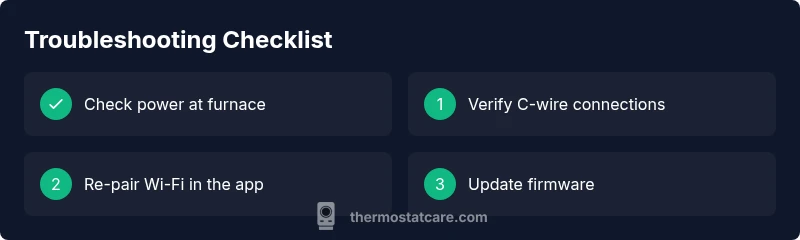
The ecobee thermostat uses the 24-volt control circuit provided by your furnace or air handler. A loose C-wire, a tripped breaker, or a weak transformer can interrupt that power, causing the screen to go dark or the device to reboot mid-cycle. On the connectivity side, Wi‑Fi instability or router issues can prevent real-time data from reporting to the cloud, making scheduling and remote control unreliable. Before you replace hardware, run through a simple checklist: verify power at the furnace, confirm the C-wire is securely connected, check the thermostat’s breaker, and rejoin the Wi‑Fi network from the ecobee app.
By following structured steps, most ecobee problems resolve quickly, reducing energy waste and restoring reliable comfort. The Thermostat Care team recommends starting with the easiest checks and saving professional help for unresolved cases.
Common symptoms and initial checks
If your ecobee is acting up, you’ll notice clear signals first: the touchscreen may be blank or frozen, the HVAC system might not respond to the app, readings could drift from actual room temperature, schedules may fail to start, or you may see the Wi‑Fi icon with an exclamation mark. These symptoms point to either a power or connectivity issue, or sometimes a loose wire or sensor fault. Start with the simplest checks first, because addressing a power or network problem often resolves multiple symptoms at once.
Checklist of quick checks:
- Check the breaker and furnace power: a tripped breaker or blown fuse cuts power to the thermostat and can make it unresponsive.
- Inspect the C-wire at both ends: a loose or corroded connection can prevent the thermostat from drawing consistent power.
- Reboot the thermostat: a short power cycle clears minor glitches.
- Confirm Wi‑Fi signal strength and router settings: ensure the 2.4 GHz band is enabled and the thermostat is authorized on the network.
- Verify sensor status in the app: remote sensors may report stale readings if they lose connection.
If these steps don’t restore normal operation, move on to more advanced checks, such as PEK installation, wiring corrections at the furnace, or a firmware update.
Diagnostic perspective: power, network, and sensors
A systematic understanding of how ecobee operates helps you map symptoms to likely causes. The thermostat relies on the HVAC power circuit and an active internet connection to report status and receive commands. Power issues—such as an unstable 24V supply or a loose C-wire—often cause a freezing screen or reboot loops. Wi-Fi problems prevent timely updates and remote control, while faulty or misaligned sensors can display incorrect room temperatures. When diagnosing, consider the sequence: is it power first, then network, then sensing? This helps you avoid chasing phantom faults and keeps repairs efficient.
Interpreting ecobee error messages and status codes
Error messages on ecobee are designed to guide you toward a fix. A Wi-Fi disconnected alert usually points to router or password problems; re-enter credentials, ensure the device is allowed on the network, and verify the 2.4 GHz band is active. A “sensor fault” message often means a loose sensor wire or a miscalibrated remote sensor; reseat connectors and recalibrate as needed. If the device reports a “power issue,” inspect the furnace harness, ensure the 24V transformer is providing adequate voltage, and check for loose terminals at the thermostat and control board. When in doubt, performing a controlled restart and re-sync can clear persistent codes and restore normal operation.
Step-by-step strategy: power, Wi-Fi, and sensor problems
- Power cycle the thermostat: switch off at the breaker for 30 seconds, then turn back on; 2) Verify C-wire and power: check connections at the thermostat and furnace, ensure the C terminal is tight; 3) Restart and reconnect Wi‑Fi: forget the network, reconnect with the correct password, and confirm router settings allow the device; 4) Check sensors: reseat remote sensors if present, calibrate temperature readings; 5) Update firmware: ensure the latest ecobee firmware is installed; 6) Test operation: run a quick test cycle and verify schedules. Pro tip: if your system uses a PEK, verify proper installation per the ecobee guidelines.
Safety, common mistakes, and how to avoid them
Never work on the HVAC electrical components with power applied. Always switch off the breaker before inspecting wiring connections, especially at the furnace. Avoid bypassing the C-wire or jury-rigging power connections to force operation. Use the ecobee app to verify settings; avoid manual changes that conflict with adaptive scheduling or energy-saving features. If you’re uncertain about wiring or dealing with the main panel, professional help is advised to prevent hazards and ensure code compliance.
Pro tips for maintenance and reliability
Keep firmware up-to-date to ensure compatibility with routers and services. Position your Wi-Fi router for strong coverage in the space where the thermostat is mounted, or use a mesh network to reduce dropouts. Regularly inspect furnace-side connections, especially after electrical work or HVAC maintenance. Use the ecobee app’s diagnostic tools monthly to check for sensor drift or communication errors. Finally, document any changes you make so you can revert if a new setting causes issues.
Quick checklist to prevent future issues
- Confirm 24V power and secure C-wire connections
- Maintain a stable, 2.4 GHz Wi-Fi connection for ecobee
- Keep firmware updated and re-pair Wi-Fi after router changes
- Regularly test sensors and calibration through the app
- Schedule periodic checks after HVAC service or electrical work
Steps
Estimated time: 20-40 minutes
- 1
Power cycle the thermostat
Turn off the thermostat at the breaker or disconnect power for 30 seconds, then restore. This clears minor glitches and forces a clean reboot.
Tip: A quick power reset fixes many transient faults. - 2
Check the C-wire and 24V supply
Inspect the C-wire at both the thermostat and furnace control board. Look for loose screws, corrosion, or damaged insulation. Ensure the 24V supply is present when the system is calling for heat or cool.
Tip: If you’re unsure, use a multimeter to confirm 24V between R and C. - 3
Re-seat wires and test connections
Disconnect and reattach the C-wire and any remote sensor leads. Tighten terminals without over-tightening. Power on and observe if the display stabilizes.
Tip: Loose connections are a common cause of flicker or reboot. - 4
Re-link ecobee to Wi-Fi
In the app, forget the network, re-enter credentials, and ensure the thermostat appears on the network. If the router has guests or MAC filtering, adjust settings.
Tip: Ensure 2.4 GHz is enabled if your thermostat doesn’t support 5 GHz. - 5
Check sensors and recalibrate
Verify remote sensors are communicating. Recalibrate or replace as needed; ensure sensor placement follows manufacturer recommendations.
Tip: Sensor drift can cause comfort and reporting disparities. - 6
Firmware update or reset
Update to the latest ecobee firmware; if issues persist, perform a factory reset and reconfigure from scratch.
Tip: Back up settings before a reset.
Diagnosis: ecobee touchscreen unresponsive and/or fails to maintain schedule
Possible Causes
- highPower issue (tripped breaker, blown fuse, or weak 24V transformer)
- highWi-Fi connectivity problems or router interference
- mediumLoose or damaged C-wire / improper wiring at furnace
- lowSoftware glitch or outdated firmware
Fixes
- easyCheck and reset the HVAC power and 24V supply; verify breaker state
- easyReseat or replace C-wire connections at thermostat and furnace terminals
- easyRestart the thermostat and rejoin Wi-Fi; reconfigure network if needed
- mediumUpdate firmware or perform a factory reset if problems persist; reconfigure settings
Questions & Answers
Why is my ecobee screen blank or unresponsive?
A blank screen is usually caused by a power issue or a loose C-wire. Start by checking the breaker, 24V supply, and C-wire connections, then reboot the thermostat and reconnect Wi-Fi if needed.
A blank screen usually means power or wiring problems. Check the breaker and C-wire, then reboot and reconnect Wi-Fi.
Why won't my ecobee connect to Wi-Fi?
Wi-Fi problems are commonly due to router settings or credentials. Re-enter the network name and password, ensure 2.4 GHz is enabled, and verify the thermostat is allowed on the network.
Wi-Fi trouble is usually router or credential related. Re-enter your network, check the 2.4 GHz band, and allow the device on the network.
What is a PEK and should I use it with my ecobee?
PEK stands for Power Extender Kit. It’s used when there isn’t a reliable C-wire. Follow ecobee’s installation instructions when using it.
PEK helps provide power when you don’t have a C-wire. Follow the official install guide.
When should I call a professional?
If you’re uncomfortable with wiring, HVAC panels, or refrigerant-related issues, contact a licensed technician. Electrical work beyond basic checks can be hazardous.
If wiring or panel work makes you nervous, it’s best to call a pro.
How often should I update ecobee firmware?
Check for updates periodically. Updates fix bugs and improve compatibility with devices and routers.
Check for updates from the app every few months to stay current.
What’s the best way to prevent future issues?
Maintain tight wiring connections, ensure strong Wi-Fi coverage, and perform periodic checks using the ecobee app’s diagnostics.
Keep connections tight, maintain good Wi‑Fi, and run regular diagnostics.
Watch Video
What to Remember
- Check power and C-wire first to stop most faults
- Re-link Wi-Fi before suspecting hardware failure
- Use the diagnostic flow to map symptoms to causes
- Never skip safety steps when wiring or working near HVAC panels
- Keep firmware and app up-to-date for reliability