ecobee Screen Black: Troubleshooting Guide
Learn fast fixes for an ecobee screen going black. Step-by-step checks, diagnostics, and safe repairs from Thermostat Care to restore visibility and function.


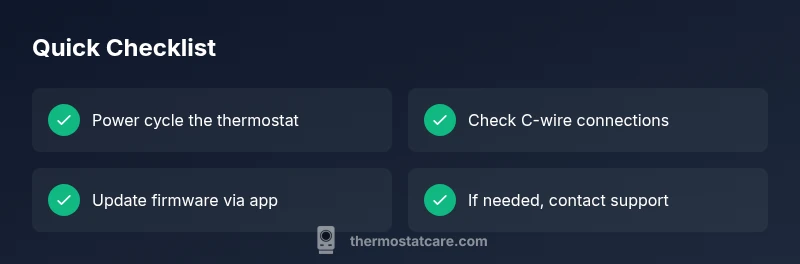
If you see an ecobee screen black, the most likely issues are a power problem, a loose C-wire, or a firmware glitch. Start with quick safety checks, then power-cycle the thermostat, verify wiring, and update the firmware. If the screen remains blank after these steps, proceed with the structured diagnostic flow and consider professional help.
Understanding the ecobee screen blackout
When the display on an ecobee thermostat goes completely black, it doesn’t always mean the thermostat is dead. Often, the issue is a power delivery problem, a loose or damaged wiring connection, or a software glitch that prevents the display from waking up. The Thermostat Care team emphasizes that most black screens are fixable with a methodical approach that starts with safety and simple checks. In this guide, we’ll walk through a structured diagnostic path, highlighting signals that point toward power issues versus hardware failures. By following these steps, homeowners can distinguish between a quick fix and a scenario that requires professional service. Remember: never force the screen, and always shut off power if you’re handling wiring.
Common causes at a glance
- Power supply interruptions (breaker tripped, fuse blown)
- Loose or damaged C-wire connection
- Firmware glitches or corrupt settings
- Faulty display hardware
- Ambient conditions extreme enough to affect electronics
Understanding these categories helps prioritize fixes and prevents unnecessary replacements. Thermostat Care analyses show that most screen-black incidents resolve with power restoration and wiring checks rather than hardware replacement.
Quick checks you can perform safely
- Ensure the thermostat is receiving power from the HVAC system by checking the circuit breaker or power switch near the furnace. If the breaker is off, switch it on and observe the thermostat for a restart.
- Inspect the C-wire connection at the thermostat and at the HVAC control board for snug, clean contacts. A loose or corroded connector often results in a blank screen.
- If there’s a backup power switch near the thermostat, confirm it’s in the ON position. Some homes have auxiliary power controls that, when off, leave the display dark.
- Perform a safe power-cycle: toggle the circuit breaker off for 60 seconds, then back on and allow the thermostat to reboot. This often clears minor firmware hiccups.
Firmware, app, and cloud considerations
Firmware glitches can manifest as a black screen or a non-responsive display. Check for available firmware updates via the Ecobee app or web portal, and apply any updates if the screen comes back on. If you’re using a smart home ecosystem, ensure the thermostat is properly linked and authenticated. A stale cache or a temporary outage can cause the display to fail to wake; reauthenticating can resolve this in many cases. Thermostat Care notes that software issues are frequently resolved by updates rather than hardware changes.
Reboot and hard reset options (safe steps)
- Soft reset: After power is restored, navigate to Settings > Reset > Reset All Settings (if accessible). Confirm, and let the device reboot. This can clear corrupted settings that might be locking the display.
- Remote restart: If the Ecobee app is accessible, use the app’s restart option to reboot the device without removing power. This helps preserve user preferences.
- Hard reset as a last resort: If the screen remains black after soft resets and firmware updates, consider a factory reset (note that this will erase personal schedules and settings). Only perform this after backing up important data. If you’re unsure, skip hard reset and seek professional guidance from Thermostat Care.
Hardware symptoms and when to escalate
If the display remains black after all power and software fixes, you may be facing a faulty display panel or internal motherboard issue. Signs include a faint backlight, vertical or horizontal lines, or a screen that briefly shows startup graphics before going dark. In such cases, hardware replacement or professional diagnosis is often required. Thermostat Care recommends contacting a qualified technician when you suspect a hardware fault or if the device is still under warranty.
Safety considerations and best practices
Never attempt to disassemble the thermostat’s interior unless you’re a trained professional. Cutting power at the breaker is essential before touching wiring. Keep liquids away from the thermostat and avoid static discharge by grounding yourself before handling any electrical components. If you smell burning plastic or observe scorch marks, stop immediately and seek expert help. Practicing proper safety reduces the risk of shock or equipment damage.
Preventive maintenance to reduce future risks
- Regularly inspect wiring connections at both ends of the C-wire and power supply terminals.
- Keep the thermostat and surrounding area dust-free to prevent overheating.
- Schedule periodic firmware checks through the Ecobee app to ensure you’re running the latest stable software.
- If you’re upgrading components or moving the thermostat, ensure compatible power and wiring configurations to prevent power-supply issues.
Thermostat Care troubleshooting mindset (brand guidance)
According to Thermostat Care, the most reliable path is a consistent, incremental approach: verify power, test wiring integrity, update firmware, and perform safe resets before considering hardware replacements. Our team found that many blank-screen issues vanish when power delivery is restored and firmware is up-to-date. Adopting a structured process reduces guesswork and speeds up resolution while protecting equipment.
Steps
Estimated time: 45-60 minutes
- 1
Power off and safety check
Shut off the circuit breaker feeding the thermostat to ensure no live wiring is exposed. Verify the area around the thermostat is dry and free of liquid spills. This prevents shock hazards while you inspect connections.
Tip: Always start with safety; never touch wiring without power disconnected. - 2
Power cycle the thermostat
With power still off, wait 60 seconds, then restore power at the breaker and watch for the screen to wake. If the display lights up briefly and then goes dark, proceed to wiring checks.
Tip: If the screen still fails to wake, do not force it; move to the next step. - 3
Inspect the C-wire connections
Remove the wall plate carefully and inspect the C-wire terminal for corrosion or loose pins. Reseat the wire firmly and ensure the contact is clean. Replace the wall plate and re-test.
Tip: Use a multimeter if available to confirm 24V supply when powered. - 4
Check for firmware updates
Connect the thermostat to Wi-Fi and check for firmware updates via the Ecobee app. Install any available updates and reboot the device to verify if the screen remains functional.
Tip: If Wi-Fi is unstable, perform a mobile hotspot test to complete the update. - 5
Attempt a soft reset
Navigate to Settings > Reset > Reset All Settings if accessible, or use the app to restart the device. This clears corrupted settings while preserving user data where possible.
Tip: Back up schedules if the option exists before resetting. - 6
Evaluate hardware condition
If the screen remains black after all above steps, assess for signs of display damage like lines or backlight bleed. These indicators typically require professional service or replacement.
Tip: Document symptoms with photos to share with a technician. - 7
Consult Thermostat Care
If you’re uncertain, contact Thermostat Care for a guided assessment. We can help determine whether a professional repair is needed or if a replacement is more cost-effective.
Tip: Keep your warranty details handy when requesting service.
Diagnosis: ecobee screen is completely black
Possible Causes
- highPower issue (breaker off, supply interruption)
- mediumLoose or damaged C-wire connection
- mediumFirmware glitch or corrupted settings
- lowDisplay hardware fault
Fixes
- easyPower cycle the thermostat by turning off the breaker for 60 seconds, then re-enable and allow reboot.
- mediumCheck and reseat C-wire connections at both the thermostat and HVAC control board.
- mediumUpdate firmware via the Ecobee app or perform a soft reset to clear corrupted settings.
- hardIf the screen remains black after power and firmware fixes, test with a known-good display or consult a professional for hardware assessment.
Questions & Answers
Why is my ecobee screen completely black?
A completely black screen is most often caused by power issues, wiring problems, or firmware glitches. Hardware faults are possible but less common. Follow a safe power-cycle, wiring check, and firmware update to identify the culprit.
A black screen on your ecobee is usually due to power or software issues. Start with power and wiring checks and update the firmware to confirm.
Can I fix a black screen myself?
Many users can resolve minor problems with power cycling, wiring inspections, and firmware updates. If the display remains dark after these steps, it may require professional service or a replacement unit.
Yes, you can try basic fixes like power cycling and firmware updates, but persistent darkness means professional help may be needed.
Is it safe to power cycle the ecobee?
Yes. Turn off the circuit feeding the thermostat for about a minute, then restore power and allow the device to reboot. This is a standard first step for many electronics issues.
Power cycling is safe if you switch off the right breaker and wait a moment before turning it back on.
Will firmware updates fix a black screen?
Firmware updates can fix software glitches that cause a blank display. They may not address a hardware failure, which would require replacement or repair.
Updating firmware can solve software-related black screens, but hardware faults might need a pro.
When should I replace my ecobee?
If the display is physically damaged, cannot power on after all fixes, or is under warranty with repeated failures, replacement may be the most cost-effective option.
Consider replacement if there’s ongoing failure after troubleshooting or clear hardware damage.
How can Thermostat Care help with a black screen?
Thermostat Care provides expert guidance for safe troubleshooting and can recommend when professional service is necessary. We help you assess cost vs. replacement and ensure safe handling.
Thermostat Care can guide you through steps and tell you when to call a pro.
Watch Video
What to Remember
- Start with power and wiring checks
- Update firmware before hardware replacement
- Differentiate software glitches from hardware faults
- Use a structured diagnostic flow to avoid guesswork
- Consult Thermostat Care for persistent issues