ecobee Thermostat Black Screen Troubleshooting Guide
Urgent, practical troubleshooting for a blank ecobee thermostat screen. Learn power checks, firmware updates, wiring tips, and safe steps to restore a responsive display quickly.


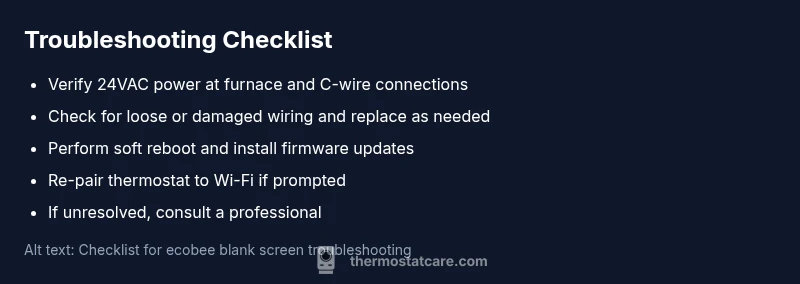
Most often, a black screen on the ecobee thermostat means it isn’t getting consistent power or has a firmware glitch. Start by verifying 24VAC power and the C-wire at both the furnace and thermostat. If power is solid, perform a soft reboot, then check for firmware updates and re-pair the device if needed.
What a black screen on ecobee means
A black or blank screen on the ecobee thermostat is a sign of an issue that prevents the display from powering up or booting. This problem is almost never caused by the thermostat’s wall placement alone; more often, it stems from power delivery, wiring, or firmware boot problems. The keyword ecobee thermostat black screen points to power or software as the most common culprits. In most homes, the fix begins with power checks, then moves to firmware updates or wiring inspections. Thermostat Care’s analysis shows that addressing the power and C-wire first resolves the majority of blank-screen cases in a single session.
If you’re a homeowner or DIY enthusiast, stay methodical and document your steps. Quick, safe checks can save a lot of time and money, and they keep you out of risky situations around electrical panels.
Tip: Treat the thermostat as part of an HVAC system, not just a smart device. Correct power delivery benefits both the display and overall comfort control.
Safe, initial checks before you touch wiring
Safety comes first. Before opening any panel or touching wires, switch off the HVAC circuit at the main breaker and confirm zero voltage on exposed conductors. With power safely off, inspect the thermostat’s wall plate for loosening screws and confirm the front plate isn’t loose. If you see condensation, moisture, or burn smells, stop and call a pro. Next, inspect the thermostat’s wires: ensure the C-wire is connected securely to the furnace control board and that the other common wires (R, G, Y) are firmly attached. A loose or corroded connection can halt power and keep the screen dark.
If you have a multimeter, measure for 24VAC between R and C while the system is powered; a healthy reading confirms power delivery. If you don’t have tooling, a quick visual inspection and re-seating of the wires is still worthwhile.
Tip: Never yank wires or pry connectors. Gentle reseating is safer and often effective.
Power and wiring: the first diagnostic checkpoint
This section focuses on power stability and C-wire integrity. A stable 24VAC supply is essential; fluctuations or a failed C-wire will leave the display blank. Start by turning off power at the HVAC disconnect, then remove the thermostat’s faceplate to access the low‑voltage wiring. Ensure the C-wire is firmly inserted into both the thermostat terminal and the furnace control-board C terminal. If the wiring looks frayed or damaged, replace the segment or route a new C-wire. If you don’t see any power, check the 24VAC transformer at the furnace; a transformer failure will need a professional to replace. Finally, reset the breaker and retest.
This step often resolves the black screen without further complications.
Tip: Keep a simple wiring diagram or photo log handy for reassembly.
Firmware, reboot, and pairing: software checks that fix most cases
If power looks solid, the problem may be a boot failure or firmware glitch. Perform a soft reboot: power off at the HVAC breaker for 30 seconds, then restore power and allow the thermostat to restart. Check for firmware updates in the ecobee app; install any pending updates, then re-pair the thermostat to Wi‑Fi if prompted. If the screen remains blank, consider re-initializing the device from the app—this can clear corrupted settings without hardware replacement.
Firmware issues are a common source of ecobee black screen problems and often resolved with a clean boot and update.
Tip: Back up any customized schedules or routines before a reset or re-pairing.
When to test the display and hardware health
If the screen still doesn’t wake after power and firmware checks, the issue might be hardware-related. Inspect the display assembly for visible damage or unreasonable warmth, and test the touchscreen responsiveness by gently pressing different areas. If the display remains unresponsive, you may have a failing LCD or backlight. In this case, you’ll want professional evaluation or a potential replacement.
Hardware failures are less common but require a careful assessment to avoid unnecessary parts replacement.
Tip: Use a non-conductive tool to test the touchscreen area gently and avoid prying the display panel.
Safety, red flags, and how to avoid future issues
Safety remains paramount. If you’re unsure about any step—especially when dealing with low‑voltage wiring—pause and call a pro. Red flags include burnt smell, buzzing sounds, or scorched components. Prevent future black screens with regular checks: confirm ongoing power delivery, test the C-wire annually, and keep firmware up to date. A simple monthly check can prevent a future outage and keep your home comfortable. Thermostat Care recommends a scheduled maintenance reminder to catch issues before they escalate.
Steps
Estimated time: 30-60 minutes
- 1
Check power and 24VAC supply
Turn off the HVAC breaker, then inspect the furnace control board and transformer for 24VAC output. Ensure the R and C terminals show proper voltage and the C-wire is securely connected at both ends.
Tip: If you see no voltage, you may have a transformer or wiring fault—call a professional rather than guessing. - 2
Inspect and secure C-wire connections
With power off, remove the thermostat faceplate and check that the C-wire is firmly inserted into the C terminal on both the thermostat and the furnace board. Re-seat any loose wires and retest power after re-enabling the circuit.
Tip: Take a quick photo of the terminals before loosening anything so you can reconnect accurately. - 3
Soft reboot the thermostat
Power-cycle the thermostat by turning off the HVAC breaker for 30 seconds, then turn it back on and allow the thermostat to boot. Monitor the display to see if the screen wakes up.
Tip: A short delay can clear transient boot issues that cause a blank screen. - 4
Check for firmware updates
Open the Ecobee app and check for available firmware updates. Install any updates and observe whether the display comes back online after the upgrade.
Tip: Firmware updates often fix boot or display glitches that cause a black screen. - 5
Re-pair to Wi‑Fi if needed
If the device shows as connected but the screen is still blank, remove the thermostat from the Ecobee app and re-add it, following on-screen instructions to re-pair to Wi‑Fi.
Tip: Re-pairing can resolve corrupted pairing data that blocks the display from initializing. - 6
Assess for display hardware issues
If there is no improvement after software fixes, inspect for visible damage to the screen or backlight. Consider professional hardware diagnostics if damage is suspected.
Tip: Don’t attempt internal repairs on the display—hardware components require specialized service. - 7
Decide whether replacement is needed
If none of the above steps restore the screen, the LCD/display may be faulty and replacement might be the most cost-effective solution.
Tip: Compare replacement costs with a new thermostat model and consider warranty coverage. - 8
Document and schedule preventive care
Record what steps you took and set up a maintenance reminder to check power, wiring, and firmware every 6–12 months.
Tip: Preventive care helps avoid future black screen events.
Diagnosis: Ecobee thermostat displays a blank/black screen and is unresponsive
Possible Causes
- highPower supply issue (insufficient 24VAC power or loose connection)
- highDamaged or loose C-wire connection at thermostat or furnace
- mediumFirmware corruption or failed boot due to recent update
- mediumTripped circuit breaker or blown fuse affecting the thermostat circuit
- lowSevere hardware failure in the LCD/display assembly
Fixes
- easyVerify 24VAC power at the furnace/air handler and ensure C-wire is connected securely at both ends
- easyPower-cycle the thermostat by turning off the HVAC breaker, waiting 30 seconds, then turning back on and letting the device reboot
- easyUpdate firmware via the Ecobee app and re-pair to Wi-Fi if needed
- mediumInspect and reseat wires; replace damaged C-wire insulation or install a new C-wire if necessary
- hardIf power and firmware are solid but the screen remains blank, consider hardware replacement or professional service
Questions & Answers
Why is my ecobee thermostat screen black or blank?
A black screen on your ecobee is usually caused by power or firmware issues. Start with power checks and a soft reboot, then update firmware. If the screen remains blank, inspect wiring or seek professional help.
A blank ecobee screen is usually due to power or firmware problems. Start with power checks and a reboot, then update firmware; if it stays blank, check wiring or call for professional help.
What should I check first when the screen goes black?
First, verify that the thermostat is receiving 24VAC power and that the C-wire is secure at both the thermostat and furnace control board. Next, perform a soft reboot and look for firmware updates.
First, check for power and C-wire connections, then reboot and look for firmware updates.
Can firmware updates restore a black screen?
Firmware updates can fix boot glitches that cause a blank screen. Update via the Ecobee app and then re-pair to Wi-Fi if needed. If updating doesn’t help, proceed with further diagnostics.
Firmware updates often fix boot issues that cause a blank screen.
Is it safe to troubleshoot ecobee myself?
Basic checks, power cycling, and firmware updates are generally safe for confident homeowners. Avoid opening the furnace or touching live low-voltage parts beyond your comfort and experience level; call a professional for hardware concerns.
Basic checks and updates are usually safe for homeowners, but don’t tinker with live wiring beyond your comfort level.
When should I replace the ecobee thermostat?
If repeated software resets and wiring fixes fail or the display hardware is damaged, replacement is the practical option. Check warranty status and compare replacement costs.
If nothing fixes the issue and hardware seems damaged, consider replacement.
Watch Video
What to Remember
- Check power first: verify 24VAC and C-wire at both ends.
- Update firmware and reboot before hardware replacement.
- Re-seat wires and inspect for damage if the screen stays blank.
- Only proceed with professional help for hardware faults.
- Prevent future blanks with regular maintenance and careful wiring checks.