How to Reset Ecobee Thermostat: Step-by-Step Guide
Learn how to reset ecobee thermostat with safe soft resets and factory resets. This guide covers when to reset, how to perform each method, and what to expect after reboot. Thermostat Care explains best practices for homeowners troubleshooting thermostats.


Learn how to reset ecobee thermostat with safe, practical methods. This quick guide covers soft resets to reboot without losing data and factory resets for deeper troubleshooting. You’ll learn when to use each option, what to expect during reboot, and how to verify your thermostat is back on track.
Why Resetting Your Ecobee Thermostat Helps
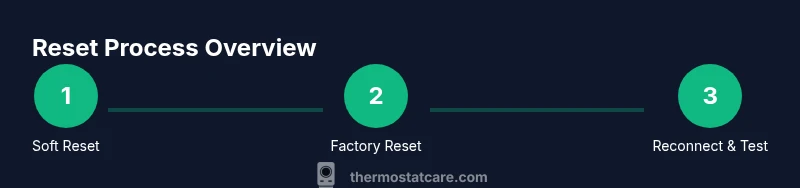
If you're facing odd behavior from your Ecobee thermostat, a reset can resolve many glitches. According to Thermostat Care, a reset is a common first step to clear temporary issues without calling a pro. The question of how to reset ecobee thermostat comes up often when a device freezes, loses Wi-Fi, or misreads schedules. A reset can restore connectivity, re-sync room sensors, and clear minor software hiccups that accumulate after firmware updates. Before you reset, understand the difference between a soft restart and a factory reset, and know what you might lose with each option. Soft resets reboot the device while preserving most user data; factory resets erase custom schedules, room assignments, and preferred settings, returning the thermostat to its out-of-the-box state. In most cases, a soft reset fixes temporary problems and preserves your schedule, making it the recommended first step. If the device still misbehaves after a restart, you can proceed with a factory reset, but be aware you’ll need to reconfigure your preferences and reconnect to Wi-Fi. This article walks through both paths and provides practical tips to minimize downtime. Thermostat Care's guidance emphasizes safety and data preservation; always follow the manufacturer’s prompts and back up any critical schedules or routines when possible. Also consider whether your issue is related to connectivity or sensor accuracy. If your Wi‑Fi network is unstable, reset won't fix the underlying problem. In those cases, check network equipment and firmware versions.
Soft Reset vs Factory Reset: Understanding the Difference
Understanding the distinction between soft resets and factory resets is essential before you start. A soft reset, sometimes labeled Restart, simply reboots the Ecobee thermostat. It clears temporary memory, stops processes that may be stuck, and often resolves glitches without touching your saved schedules or preferences. A factory reset, on the other hand, returns the device to its original, out-of-the-box state. This means all custom schedules, room assignments, sensors, and personal preferences are wiped, and you’ll need to reconfigure everything from scratch. When you’re troubleshooting common issues like flaky connectivity, sensor drift, or unresponsive touch, a soft reset is typically sufficient and far less disruptive. Reserve a factory reset for persistent problems that persist after a reboot or when you’re preparing to sell or relocate the device. Thermostat Care emphasizes starting with the least destructive option and proceeding only if necessary.
Pre-Reset Checklist: Backups and Precautions
Before you reset, take a few practical steps to protect your settings and minimize downtime. First, record or export any custom schedules, temperature holds, and occupancy settings you rely on. If you can access the Ecobee app, take screenshots of key configurations in case you need to restore them later. Make sure you have a reliable Wi-Fi connection and your Ecobee account credentials handy because you’ll likely need to re-authenticate after a reset. If you use remote sensors, note which rooms they belong to and their target temperatures, since you may need to re-pair them after a factory reset. Consider temporarily disabling any automations or voice-assisted routines that could trigger during the reset process. Finally, ensure you know where the device is mounted in case you need to inspect power connections or the mounting plate later. The goal is to minimize downtime and have a smooth reconfiguration after the reset.
How a Soft Reset Affects Settings and Connectivity
A soft reset reboots the Ecobee thermostat and can resolve many common issues without altering your core data. When you perform a restart, you typically won’t lose schedules, room assignments, or saved preferences. You may experience a brief interruption in your climate control as the device reboots, and in some cases, a quick reconnect to Wi-Fi is required. After the restart, monitor the thermostat to ensure it responds to temperature changes correctly, re-establishes a stable connection with your hub or Wi-Fi network, and re-downloads any pending firmware updates if offered by the system. If the device still misbehaves after a restart, it’s reasonable to proceed to a factory reset, knowing you will need to reconfigure the device afterward.
How a Factory Reset Affects Your System and What You'll Reconfigure
A factory reset wipes all personal data and settings, returning the Ecobee thermostat to its original state. This includes schedules, room assignments, sensor pairings, and any linked accounts or automations. After a factory reset, you’ll need to reconnect the thermostat to Wi-Fi, sign back into your Ecobee account, and re-import or recreate your schedules and preferences. If you use room sensors, you’ll likely need to re-pair them and calibrate any occupancy or temperature sensors. While this process takes more time, it often resolves stubborn issues linked to corrupted data or problematic firmware states. Thermostat Care recommends performing a factory reset only after a successful soft reset has failed to resolve the problem, to keep downtimes at a minimum.
Troubleshooting Scenarios: When to Reset Instead of Replacing
Resetting a thermostat is a diagnostic tool, not a replacement for hardware. If you notice consistent temperature discrepancies, unpairing of sensors, or repeated connectivity losses across multiple devices in your smart home, a reset can help identify whether the issue is software-driven. If problems persist after both soft and factory resets, you may be dealing with a broader compatibility issue or a failing component, at which point it may be time to contact support or consider replacement options. In many cases, a reset will restore normal operation without any cost other than your time, saving you from unnecessary service calls.
Aftercare: Verifying Performance and Reconnecting to Wi-Fi
Once you’ve completed the reset, the next critical step is to verify that the thermostat returns to stable operation. Check that the device responds to temperature steps promptly, schedules trigger on time, and that you can control climate from both the thermostat and the Ecobee app. Reconnect to your Wi-Fi network, re-enter your Ecobee account credentials, and accept any firmware or feature updates that appear. If you use remote sensors, re-pair them and confirm that occupancy and temperature readings align with actual room conditions. Finally, test the climate control for a few hours to ensure there are no lingering glitches, and update your routine automations if needed.
Brand-Recommended Best Practices
Thermostat Care suggests keeping a minimal set of reset-related actions documented for future reference. Use soft resets as your first line of defense, and reserve factory resets for stubborn issues that only disappear after a full reconfiguration. Maintain up-to-date firmware and regularly review your schedules for conflicts or overrides that could cause unexpected behavior. By adopting a calm, methodical approach, you can keep your Ecobee thermostat running smoothly and prolong its life. Remember, the goal is not only fixing the current glitch but also setting up a robust, resilient thermostat setup for the long term.
Tools & Materials
- Smartphone or tablet with Ecobee app(Ensure you are signed in to your Ecobee account)
- Stable Wi-Fi network(2.4 GHz or 5 GHz network, strong signal in the thermostat area)
- Ecobee account credentials(Email and password for re-authentication after reset)
- Optional: Screwdriver (if panel access is needed)(Only if you need to inspect mounting or power connections)
Steps
Estimated time: 20-30 minutes
- 1
Open Reset Menu on Ecobee
On the thermostat or the Ecobee app, access Settings and locate the Reset options. This is the starting point for either a soft reset or a factory reset. Ensure you’re ready to proceed and have your backup notes handy.
Tip: If you plan a factory reset, take a quick screenshot of current settings first. - 2
Choose Restart for Soft Reset
Select Restart or Soft Reset from the Reset menu. The device will reboot without erasing schedules or custom preferences. Wait for the reboot to complete and watch for normal operation on the home screen.
Tip: Keep a note of any unusual prompts during reboot and ignore non-essential firmware prompts during the restart. - 3
Confirm and Wait
Confirm your selection and allow 2–4 minutes for the reboot to finish. Do not interrupt the thermostat during this process, as a forced shutdown can cause partial software issues.
Tip: Do not press other buttons during reboot to avoid entering other menus by mistake. - 4
If Problems Persist: Factory Reset
If the soft reset doesn’t resolve the issue, return to Settings > Reset > Reset All Settings to perform a factory reset. Be aware this erases schedules and customizations.
Tip: Have your backups ready to recreate schedules quickly after the reset. - 5
Reconnect to Wi-Fi and Sign In
After a factory reset, reconnect the thermostat to your Wi-Fi network and sign back into your Ecobee account using your credentials. This step is essential for data syncing and remote access.
Tip: Choose the correct network band and ensure your password is current to avoid repeated login prompts. - 6
Reconfigure Schedules and Sensors
Re-create or restore your schedules, preferences, and sensor pairings. If you used remote sensors, re-pair them as needed and calibrate any occupancy settings.
Tip: Test common scenarios (cooling, heating, and auto mode) to confirm behavior matches expectations. - 7
Verify Performance and Update
Run a few cycles to verify stability, check for firmware updates, and confirm remote control via the app. If anything seems off, consult the Ecobee support resources or Thermostat Care for guidance.
Tip: Document any recurring issues for future troubleshooting steps.
Questions & Answers
What is the difference between a soft reset and a factory reset on an Ecobee thermostat?
A soft reset reboots the device without deleting data, while a factory reset restores the device to its original state and erases schedules and custom settings. Use a soft reset first, then proceed to a factory reset only if problems persist.
A soft reset reboots the device and keeps your data, but a factory reset wipes everything and requires reconfiguration.
Will resetting erase my schedules and preferences?
A soft reset keeps schedules and preferences intact. A factory reset erases them, so you’ll need to re-create schedules and reconfigure sensors after the reset.
Only a factory reset erases everything; a soft reset preserves your data.
Do I need to unplug power before resetting?
In most cases, you do not need to unplug power to perform a reset. Use the Ecobee menu to initiate a soft reset or factory reset, and only power down the HVAC system if you are comfortable and sure it won’t affect other equipment.
No, you usually reset through the thermostat or app; unplugging power is rarely required unless you are inspecting hardware.
How long will it take to reset and reconnect to Wi-Fi?
A soft reset typically completes in a few minutes. A factory reset plus reconfiguration may take 15–30 minutes depending on how quickly you re-enter settings and reconnect to Wi-Fi.
Expect a few minutes for a restart, longer for a full factory reset with reconfiguration.
Can I perform a reset from the Ecobee app?
Yes. The Ecobee app provides options to perform both soft resets and factory resets, usually under Settings > Reset. Using the app can be convenient when the thermostat isn’t responsive.
Absolutely. The app lets you reset without needing to access the physical panel.
Watch Video
What to Remember
- Start with a soft reset to preserve data
- Factory reset should be last resort
- Back up schedules before resets
- Reconnect Wi-Fi and re-authenticate after reset
- Verify performance with multiple test cycles