DIY Honeywell Thermostat: Install, Troubleshoot & Tune
A comprehensive, step-by-step guide to installing or troubleshooting a Honeywell thermostat safely. Learn wiring basics, model compatibility, setup, and maintenance with Thermostat Care.


With this guide, you’ll successfully install or troubleshoot a Honeywell thermostat DIY-style. You’ll need basic tools, proper wiring, a compatible model, and careful power shutoff. By following the step-by-step process, you’ll test wiring, configure the thermostat, and verify comfort settings while avoiding common electrical mistakes. Thermostat Care recommends proceeding carefully and double-checking connections at each stage.
Why DIY Honeywell thermostat installation can save money
According to Thermostat Care, many homeowners can complete a Honeywell thermostat installation themselves when they follow a structured guide, use the right tools, and verify wiring and settings before turning the system back on. A DIY approach can reduce professional labor costs and give you hands-on understanding of how your home comfort system works. The key is careful planning, modeling compatibility, and adhering to safety practices. By taking control of the installation, you can tailor schedules, temperature offsets, and energy-saving modes to your daily routine, which often leads to more consistent comfort and fewer service calls down the line. Thermostat Care’s guidance emphasizes methodical steps, documentation of wire colors, and testing each function after setup to prevent misconfigurations.
Understanding compatibility and Honeywell model families
Honeywell offers several thermostat families, including basic non-smart models, Wi‑Fi-connected units, and smart home-enabled variants. Compatibility depends on your HVAC system type (gas, electric, heat pump, or boiler), the number of wires in the wall, and whether a common C-wire is present. Before purchasing, check your current system terminals and confirm that the Honeywell model supports your equipment. If you have a heat pump, dual-fuel setup, or multi-stage heating/cooling, choose a Honeywell model designed for those configurations. The Thermostat Care team recommends confirming support for fan controls, stage count, and any specific features (like remote sensors) you plan to use, to avoid post-purchase surprises.
Safety first: power, wiring, and common risks
Safety is non-negotiable when working with any thermostat installation. Start by turning off the circuit breaker feeding the HVAC system and verify power is off with a non-contact tester. Do not rely solely on the thermostat’s display to determine power status. When wiring, avoid touching exposed conductors and ensure that you document each wire’s function. If you encounter unmarked wires or unusual colors, pause and consult the Honeywell wiring diagram for your exact model. A rushed job increases the risk of short circuits or equipment damage. If you feel unsure at any point, stop and seek assistance from a qualified electrician or HVAC technician.
Prepare your workspace and verify wiring before you start
Clear a clean, well-lit work area near the thermostat location. Remove the existing wall plate, take a photo of the current wiring from multiple angles, and label each wire with its terminal label. Keep the HVAC power off while you work and avoid bending wires excessively. If you must replace a damaged wall box, repair or replace it before you mount the new base. Having the labeled wires on hand reduces errors when wiring the new Honeywell unit, especially if you are switching to a different model family.
Basic wiring overview and color codes you may encounter
Wiring practices vary by model and system, but some color conventions are common: red is usually 24‑V power, white controls heat, yellow controls cooling, green runs the fan, and blue or brown is often the common C-wire. Do not assume colors represent identical functions across all brands. Always confirm with the wiring diagram for your specific Honeywell model. If a C-wire is missing, you may be able to operate certain models on battery power or with a power extender kit, but this should be verified against your HVAC equipment requirements.
Choosing the right Honeywell model for your system: Wi‑Fi vs non‑Wi‑Fi
If you want remote access, scheduling, and energy reports, a Wi‑Fi-enabled Honeywell thermostat is a good option. For basic comfort control, a non‑Wi‑Fi model may be sufficient and cost-effective. Consider your home’s existing wiring, whether you have a reliable Wi‑Fi network in the installation area, and whether your HVAC system supports advanced features like adaptive wake times or geofencing. Thermostat Care recommends matching the model’s features to your needs and ensuring that the device supports your system’s heat/cool stages and any auxiliary equipment.
Troubleshooting common installation hiccups (highlights)
Common issues include miswired terminals, a missing C-wire, and a loose connection at the wall plate. After wiring, recheck each terminal against the Honeywell diagram, re-seat wire connections, and perform a quick power-on test. If the display is blank, confirm power is reaching the unit and inspect for tripped breakers or a blown fuse. Camera photos and the model’s installation guide are invaluable references when you reassemble. When in doubt, pause and consult a professional.
Configuration tips for Honeywell thermostats and energy savings
After wiring and mounting, go through the setup wizard: select your HVAC system type, configure fan operation, set up temperature schedules, and enable any energy-saving modes. For heat pumps or multi‑stage systems, verify stage settings and sensor placements. In many Honeywell models, you can schedule different temperatures for weekdays vs weekends and program hold functions for vacations. Proper scheduling reduces runtime and can improve comfort consistency over time. Thermostat Care notes that confirming the wiring and settings before testing ensures a smoother first run and fewer troubleshooting steps later.
Maintenance and long-term care: extending lifespan and ensuring accuracy
Keep the thermostat faceplate and screen clean using a soft, dry cloth. Avoid spraying cleaners directly on the unit. Periodically verify the wiring connections, especially after any service work on the HVAC system. If you notice erratic reporting or unresponsive controls, check battery (if applicable), reconnect wires, and perform a software update if your model supports it. Regular maintenance helps preserve calibration accuracy, which in turn supports consistent comfort and energy efficiency.
Tools & Materials
- Non-contact voltage tester(Check power status before handling any wiring.)
- Screwdriver set (Phillips #2 and flat-head)(Use the appropriate screwdriver for wall plate screws.)
- Wire stripper/cutters(Trim wires cleanly and remove insulation close to the conductor.)
- Replacement Honeywell thermostat (model of choice)(Ensure compatibility with your HVAC system (heat/Cool, stages).)
- Labeling materials (masking tape and pen)(Label each wire by terminal to prevent miswiring.)
- Voltage tester or multimeter (optional)(Extra verification for circuits or unusual setups.)
- User manual for your Honeywell model(Keep on hand for model-specific wiring diagrams.)
Steps
Estimated time: 45-90 minutes
- 1
Power down and verify
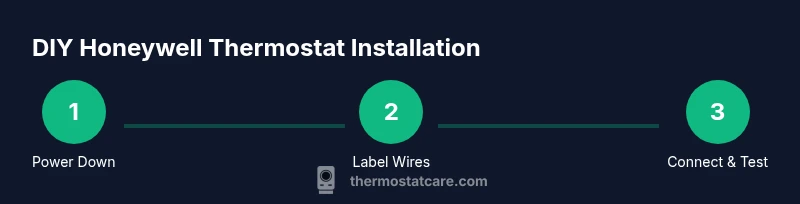
Turn off the circuit breaker that feeds the HVAC system and verify there is no voltage at the old thermostat wires using a non-contact tester. This prevents electric shock and equipment damage during removal.
Tip: Double-check the power-off state before touching any wires. - 2
Remove old thermostat faceplate
Remove the mounting screws and carefully pull the unit away from the wall. Photograph the wiring from different angles for reference, then detach wires one at a time.
Tip: Label wires as you remove them to avoid confusion later. - 3
Label and document wire functions
Use masking tape to label each wire with its terminal (e.g., R, W, Y, G, C). This helps ensure correct reattachment to the new Honeywell base.
Tip: If a wire has an unusual color, note its function even if it doesn’t match color conventions. - 4
Mount the new base and connect wires
Attach the new thermostat base to the wall and connect each labeled wire to the corresponding terminal. Make sure connections are snug and fully seated.
Tip: If your model requires a C-wire, ensure it is connected; otherwise the unit may not power reliably. - 5
Attach the thermostat body and secure
Snap or screw the thermostat body onto the wall plate. Ensure the unit sits flush against the wall and the display is clearly visible.
Tip: Avoid overtightening screws which could crack the wall box. - 6
Power up and run initial setup
Restore power at the breaker and follow the on-screen setup wizard. Select your HVAC type, system configuration, and preferred language.
Tip: Set up a basic schedule to confirm the system responds to commands. - 7
Test modes and verify operation
Manually switch to Heat and Cool modes, test the fan, and confirm temperature changes reflect on the room sensor. If available, run a quick system test or diagnostics.
Tip: Document any discrepancies and re-check wiring if needed.
Questions & Answers
Can I install a Honeywell thermostat myself, or should I hire a pro?
You can install Honeywell thermostats yourself if you’re comfortable with basic wiring and follow the device’s wiring diagram and safety steps. If your system has multiple stages, a heat pump, or you’re unsure about wiring, consider hiring a licensed technician.
You can install it yourself if you’re comfortable with wiring, but for complex systems, a professional is safer.
What tools are essential for a DIY Honeywell thermostat installation?
Essential tools include a screwdriver set, a non-contact voltage tester, wire strippers, labeling materials, and the replacement Honeywell thermostat. Optional tools include a multimeter for extra verification.
You’ll need basic tools like a screwdriver, tester, and wire strippers plus the new thermostat.
Will installing a Honeywell thermostat affect my HVAC warranty?
Installing a thermostat yourself is generally allowed, but improper wiring or damage from DIY work can affect warranty coverage. Always follow the manufacturer’s instructions and consult your HVAC provider if you’re unsure.
It can affect warranty if installation is done wrongly, so follow the guide closely.
How do I connect a Wi‑Fi Honeywell thermostat to my home network?
Connect the thermostat to your home Wi‑Fi during the initial setup, choose your network, and enter the password. Ensure the thermostat is within range of the router and that you have a stable network.
Connect it to Wi‑Fi during setup and ensure you have a stable signal.
What should I do if the thermostat display is blank after installation?
First verify power to the HVAC system and the thermostat. Check for tripped breakers, blown fuses, and properly seated wires. If power is present but the display remains blank, consult the user manual or contact support.
If the display is blank, check power and wiring first, then consult the manual if needed.
How can I ensure my Honeywell thermostat is calibrated correctly?
Calibrate by comparing thermostat readings to a reliable room thermometer, adjust the offset if necessary, and run a test cycle to confirm temperature accuracy. Many units auto-calibrate, but a manual check is helpful.
Compare readings with a thermometer and adjust if needed.
Watch Video
What to Remember
- Prepare thoroughly and verify power before touching wires
- Label every wire to prevent miswiring
- Choose a Honeywell model compatible with your system
- Test all functions after installation to confirm operation
- Document settings for future maintenance