Nest Installer: A practical DIY guide to installing a Nest thermostat
Learn how to install a Nest thermostat with confidence. This step-by-step guide covers compatibility checks, wiring basics, mounting, app setup, testing, and safe troubleshooting for homeowners and DIY enthusiasts.


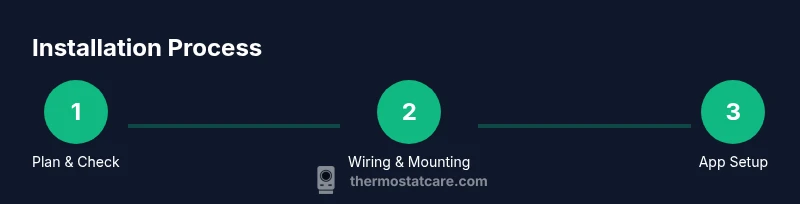
By following this Nest installer guide, homeowners can confidently install a Nest thermostat and connect it to their Wi‑Fi, HVAC system, and energy schedules. The process covers compatibility checks, wiring basics, mounting, app setup, and testing. Key prerequisites include a 24‑volt HVAC system, a C-wire if available, a smartphone with the Nest app, and basic hand tools for a smooth install.
Why Nest installer decisions matter
According to Thermostat Care, choosing the right path to install a Nest thermostat sets the foundation for comfort, reliability, and energy savings. A careful nest installer plan minimizes the risk of wiring mistakes, compatibility gaps, or future thermostat reboot cycles. When you install a Nest thermostat, you are not simply placing a screen on the wall—you are reconfiguring how your home communicates with your HVAC system. The result should feel seamless: accurate temperature readings, stable Wi‑Fi connectivity, and predictable schedules that save energy without sacrificing comfort. This block explains why your installation approach matters, and how to select a path that fits your home, budget, and mechanical setup. Nest is designed for homeowners to tackle the job, but the underlying wiring and power supply must be correct to avoid voltage fluctuations that can cause a thermostat to misread temperatures or reboot. Use this guidance to map your system type (gas, electric, heat pump) and to plan any wire upgrades before you start.
Compatibility and planning before you start
Before you remove the old thermostat, verify that your system can support a Nest and that you have a clear plan for mounting and wiring. Nest typically requires a 24‑volt heating and cooling system with a usable common wire in many setups. If your furnace or air handler uses a proprietary control or a non‑standard thermostat interface, you may need a professional compatibility check. Take stock of your wires: the common colors (G for fan, Y for cooling, W for heat, C for common, R or Rh/RC for power) map to core functions. If you see unusual wire colors or extra conductors, document them and consult the Nest compatibility guide. According to Thermostat Care Analysis, performing this planning step helps avoid wasted effort and unexpected compatibility hurdles. Also ensure you have a strong Wi‑Fi signal in the installation area for a smooth app setup and future updates.
Tools, wires, and safety prerequisites
Gather the essential tools and verify electrical safety before you touch anything. You will want a screwdriver set (Phillips and flat), a cordless drill with appropriate bits, a small level, a stud finder, a wire stripper, and a non‑contact voltage tester. Have mounting screws, wall anchors compatible with your wall type, and a spare wire label set on hand to keep cables organized. If you lack a C‑wire, consider Nest’s power connector options or an approved alternative recommended by Thermostat Care. Put on safety goggles and work with the power completely off to avoid shocks or shorts. Inspect wires for damage or fraying; do not reuse compromised conductors. Keep a photo record of your old wiring as a reference for the new connections.
Wiring basics and common configurations
Most residential thermostats use a standard set of wire terminals: G, Y, W, C, and R (or Rc/Rh). The Nest base will present labeled ports corresponding to these functions, and wires should be inserted straight and fully seated. If your system uses a heat pump, you may see O/B wires for reversing valve control; the Nest can auto‑detect some configurations but you may need to set it in the app. If the C‑wire is absent, you may still install Nest but with limited power, which can cause the display to reboot. Label each wire before removal and double‑check the function after connecting to the Nest base. Remember that modern HVAC equipment relies on consistent, clean connections, so avoid loose staples or nicked insulation. If you encounter unusual wire colors or additional conductors, consult the Nest compatibility guide and Thermostat Care’s troubleshooting notes before proceeding.
Preparing the wall and mounting location
Choose a location that is comfortable to read, easy to reach, and free from direct sunlight, drafts, or heat sources near the furnace. The mounting height should be roughly eye level for the average adult, typically around 48 centimeters (about 4 feet). Plan for adequate clearance behind the display to avoid bending wires during installation. If you have an existing wall plate, you may reuse it or replace it with the Nest mounting plate. Ensure the wall is clean and smooth; repair any holes or plaster irregularities prior to mounting. The goal is a stable, flush fit that won’t shift over time. Thermostat Care recommends testing the chosen spot by temporarily placing the Nest base before drilling to confirm alignment with wall studs and avoid nail hazards.
Nest base installation and wire insertion
Turn off the HVAC power at the main breaker to prevent shocks while wiring. Remove the old thermostat from its wall plate and disconnect wires one by one, keeping track of which wire came from which terminal. Label each wire or photograph the terminal layout for reference. Mount the Nest base on the wall using the supplied screws; secure with a level to ensure it sits flush. Insert each wire into the corresponding Nest terminal (G, Y, W, C, R, or others) until it seats fully. Do not bend wires sharply or crimp insulation. Once all wires are connected, carefully tuck them into the wall cavity and attach the Nest display to the base. Return power to the HVAC system to test live operation.
Connecting to Wi‑Fi and the Nest app
Power on the thermostat and follow the on‑screen prompts to connect to Wi‑Fi and to your Nest account. The app will guide you through selecting your home network, entering the password, and allowing the thermostat to run a short setup routine. If the app reports “low power” or an error, ensure you reinserted wires correctly and consider the C‑wire option if needed. The Nest installer will offer a guided test of temperature sensors, fan control, and cooling/heating stages. Keep the phone handy for quick app updates and for sharing access with household members. Thermostat Care suggests enabling energy reports and scheduling features to maximize savings from day one.
Testing and optimizing settings for comfort
After the Nest completes its initial setup, run through typical daily routines to confirm accurate readings and responsive controls. Check the fan, compressor operation, and stage changes by adjusting temperature setpoints and verifying HVAC response. In hot environments, enable Eco or Auto‑Adaptive settings to optimize energy usage; in winter, verify heat modes and auxiliary heating if present. Use the app to customize schedules, temperature offsets, and screen brightness. If the display is slow to respond, perform a quick reset or re‑pair with the app. The Thermostat Care team emphasizes testing across a full daily cycle to catch late‑day temperature drift and to refine comfort margins.
Common installation challenges and fixes
During Nest installation you may encounter low‑power warnings, missing C‑wire, or unresponsive touchscreen. These issues are usually solvable by double‑checking wire placement, ensuring all connections are fully seated, and using the Nest's built‑in wiring advisor. If the app cannot detect the HVAC system, verify that the system is indeed 24‑volt and compatible. In some cases, heat pumps require auxiliary wiring or specific O/B orientation that the app can detect only after a manual setting. Always consult the compatibility guide before making nonstandard modifications, and consider a staged approach—test small changes, then update the app with new configurations. Thermostat Care’s troubleshooting notes provide recommended steps for each common configuration.
When to call a pro
Although many homeowners can complete Nest installation, some situations benefit from a licensed technician. If your HVAC system uses proprietary controls, you lack a standard 24‑volt circuit, or you’re uncomfortable working near low‑voltage wiring, consider professional help. A pro can verify system compatibility, ensure clean, code‑compliant wiring, and safeguard your warranty. If your old thermostat is buried in a wall with nonstandard mounting, a pro can perform a safe removal and ensure that the Nest interface is properly powered and configured. Thermostat Care recommends weighing the value of peace of mind against the time spent learning and performing the install.
Maintenance and future-proofing your Nest
Keep the Nest's firmware up to date and re‑check connections if you upgrade your HVAC equipment. With more smart home devices, ensure your network security is current and your Nest account credentials are protected. Periodically review energy reports and adjust schedules to capture seasonal shifts. If you add sensors or zoning, verify that the Nest account is configured to reflect new zones. By staying proactive, you can extend the life of your Nest installer and maintain comfort.
Tools & Materials
- Screwdriver set (Phillips and flat)(Phillips #2 and flathead #2; magnetized tips help)
- Cordless drill with bits(Use small‑bit pilot holes for wall mounting)
- Torpedo level or small spirit level(Ensures thermostat sits flush)
- Stud finder(Locate studs to anchor mounting plate securely)
- Wire stripper/cusher(8‑22 AWG wires; strip insulation cleanly)
- Non‑contact voltage tester(Verify power is off before touching wires)
- Mounting screws and wall anchors(Choose appropriate anchors for wall type)
- Labeling kit or tape and a camera(Label wires or photograph terminal layout)
- Nest Power Connector or C‑wire option(Only if your system lacks a C‑wire)
- Smartphone with Nest app(Needed for setup and ongoing control)
- Safety goggles(Eye protection during drilling)
Steps
Estimated time: 60-90 minutes
- 1
Gather tools and verify compatibility
Collect all necessary tools and check HVAC compatibility with Nest using the compatibility guide. Confirm you have a 24‑volt system and a potential C‑wire path before touching wiring.
Tip: Double‑check the wall location and ensure you have a stable Wi‑Fi signal for app setup. - 2
Turn off power to HVAC
Switch off the power at the main breaker to prevent shocks. This step protects both you and the equipment during wiring changes.
Tip: Test for voltage with a tester before handling wires. - 3
Remove old thermostat and label wires
Carefully detach the old thermostat faceplate and label each wire by terminal. Take a photo for reference to map colors to Nest terminals.
Tip: Keep wires organized and avoid mixing up similar colors. - 4
Mount the Nest base plate
Position the Nest mounting plate on the wall, level it, and mark the screw holes. Drill pilot holes if needed and attach the plate firmly.
Tip: If you hit a stud, use it for maximum stability. - 5
Insert wires into Nest terminals
Insert each wire into its corresponding Nest terminal (G, Y, W, C, R, etc.) until seated. Ensure insulation is not under the terminal clamp.
Tip: Avoid bending wires sharply and keep conductors straight. - 6
Attach the Nest display to the base
Connect the Nest display to the mounted base plate and snap into place. Check that all wires remain securely seated.
Tip: Do not force the display if it doesn’t snap; recheck wiring first. - 7
Restore power and begin app setup
Turn the HVAC power back on and follow on‑screen prompts to connect to Wi‑Fi and sign in to your Nest account.
Tip: Have your Wi‑Fi password handy during setup. - 8
Run the Nest wiring advisor
Let the app scan and confirm wiring correctness. It will guide you through any required configuration steps for heat pump or conventional systems.
Tip: If the app reports a mismatch, reverify wire placement and labeling. - 9
Configure schedules and settings
Adjust temperature schedules, Eco modes, and screen preferences to fit your daily routine and climate.
Tip: Enable energy reports to monitor savings over time. - 10
Test functionality and finalize
Test cooling, heating, fan, and sensor readings. Ensure the Nest responds correctly to app commands and voice assistants if used.
Tip: Document any changes and keep the old wiring photo handy in case you need to troubleshoot later.
Questions & Answers
Is Nest installation a DIY job or should I hire a pro?
Many homeowners can install a Nest thermostat themselves if the HVAC system is standard 24‑volt and the wiring is straightforward. More complex configurations, unusual control boards, or difficult mounting may benefit from a licensed technician.
DIY is possible for standard setups, but consider a pro if you have a nonstandard system.
Do I need a C-wire for Nest?
A C-wire provides a reliable power source for the Nest and helps prevent power‑related reboot issues. If you don’t have a C-wire, you can use Nest’s power connector or a professional wiring solution.
A C-wire is often recommended for stable operation; use a power connector if you lack one.
What tools are essential for Nest installation?
You’ll need a screwdriver, a drill, a level, a stud finder, wire stripper, a voltage tester, mounting screws, and labeling supplies. A smartphone with the Nest app is essential for setup.
All essential handheld tools plus your phone for app setup.
How long does Nest installation take?
Typical DIY installation takes about 60 to 90 minutes, depending on wiring complexity, wall preparation, and app setup speed.
Expect roughly one to two hours if all goes smoothly.
What if my old thermostat runs on batteries?
Battery-powered thermostats can be converted to have Nest power through a C-wire or a compatible power connector, but some features may be limited without a common wire.
Battery-only setups may require a C-wire solution for full Nest power.
Will Nest installation affect HVAC warranty?
Installing Nest yourself can affect the HVAC warranty if the wiring or mounting causes damage. Check your equipment’s warranty terms and consult a pro if in doubt.
Warranty considerations exist; review terms and seek pro help if unsure.
Watch Video
What to Remember
- Plan compatibility first to avoid wasted effort.
- Label wires and map terminals accurately.
- Connect and test wiring methodically before powering the system.
- Use a C-wire or Nest Power Connector for stable power.
- Configure schedules and energy features for savings.