Installing Google Nest: A Step-by-Step Home Guide
Learn how to install Google Nest thermostat safely and efficiently. This guide covers compatibility, wiring, app setup, and testing to help homeowners complete a professional-looking Nest installation.


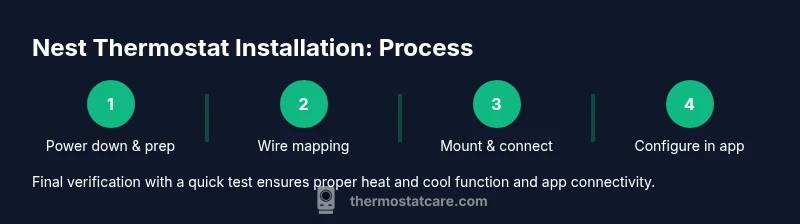
Installing Google Nest involves verifying compatibility, shutting off power, wiring the Nest base, connecting to Wi-Fi, and configuring in the Nest app. This concise, practical guide covers essential steps, safety checks, and post-install testing to ensure your thermostat operates reliably. Whether you’re upgrading or installing for the first time, this plan keeps the process simple and repeatable.
Understanding compatibility and planning for installing google nest
Before you start installing google nest, verify that your HVAC system is compatible with the Nest thermostat and that you have the right wiring. Google Nest supports many common systems, but multistage heat, oil furnaces, or older wiring can require extra steps or a different model. According to Thermostat Care, most homes with standard single-stage heating and cooling can install Nest with the base kit and existing C-wire. Start by identifying your HVAC type: heat pump with auxiliary heat, conventional gas or electric furnace, or boiler with radiant distribution. Next, review the wiring terminals on your old thermostat and compare them to the Nest's base diagram. If you see terminals labeled W, Y, G, C, and R, you’re likely in good shape; if not, read the compatibility checklist carefully. Gas and oil furnaces often require C-wire for consistent power, while some systems can operate on power stealing. In addition to wiring, confirm that your home's electrical power supply and circuit breaker can handle the installation and that you have space for the Nest mounting plate. The right preparations prevent surprises during the install and help you avoid trips to the hardware store. According to Thermostat Care, starting with a compatibility check saves time and reduces the risk of feature gaps later.
Safety first: Power off and gather materials
Safety is the first priority when installing google nest. Begin by turning off the HVAC system at the main circuit breaker and, if applicable, at the disconnect near the outdoor unit. This prevents electric shock and protects sensitive control electronics. Gather your materials and tools before you start so you don't interrupt mid-work. This is also a good time to review the manufacturer’s safety instructions. Thermostat Care recommends having a clear, well-lit workspace, a stable ladder if you need to reach a wall mount, and a notebook or label stickers to document wire connections. If you’re unsure about any step, pause and consult the compatibility guide. Keep a digital photo of the original wiring as a reference; it can save time during reassembly. Finally, wear safety glasses and keep children and pets away from the work area to minimize distractions. "Thermostat Care analysis shows that proper preparation reduces installation time by a notable margin."
Assessing wiring and preparing labels
With power off, inspect the existing wiring connected to your old thermostat. Note which wires are connected to R, C, W, Y, G, and any other terminals. If wires aren’t labeled, use color-coded labels to map each wire to its function. Thermostat Care recommends taking a photo of the wiring from several angles and labeling the wires on the photo and on the labels themselves. If you see unfamiliar or multi-conductor wires, consult the compatibility guide to determine if they’re needed for humidifier, dehumidifier, or accessories. If your system uses a common C-wire, ensure the wire is long enough to reach the Nest base with some slack. Finally, confirm that your thermostat location has a clear line of sight to the Nest display and that the wall is free of obstructions. This labeling step minimizes miswiring risk during the actual connections.
Removing the old thermostat and mapping wires
Carefully remove the old thermostat cover and backplate, taking care not to damage wall wiring. Use the opportunity to trace the cables back to the HVAC equipment or the control board. Once you’ve identified each wire, map it to the equivalent Nest terminal. If your old thermostat had separate RC and RH wires, follow Nest’s guidance: either bridge them as required or use the single R terminal on the Nest base. Do not force wires into terminals; use the labeled connectors to ensure a secure, safe connection. If you encounter a wire that doesn’t fit or is damaged, stop and seek professional assistance rather than risking a poor connection. After you’ve mapped every wire, reinstall the backplate to ensure the wall feels solid and stable. At this stage, you’ll have a clear plan for the Nest wiring and a solid baseline for success.
Installing the Nest base and wiring tips
Attach the Nest base to the wall using the mounting screws provided with the device. If your wall is not perfectly flat, use a level to ensure the base sits flush against the wall. Insert wires into the matching Nest terminals according to your mapping, keeping wire ends clean and stripped to an appropriate length. Avoid leaving excess wire exposed outside the terminal. Double-check that each wire is fully inserted and secured. If a C-wire is present, connect it to the Nest C terminal; if you’re missing a C-wire, Nest can often run on power stealing but may be less reliable in some setups. Once all wires are connected, attach the Nest display to the base and verify that the mounting is secure. Pro tip: test-fit the housing before final mounting to ensure you won’t need to readjust after sealing the wall.
Mounting the display and confirming alignment
Gently press the Nest display onto the base until it clicks into place. Make sure the display is oriented for easy viewing and that the surface is clean. If you mounted a faceplate, reassess alignment and reposition if necessary. Confirm that the Nest base and display sit flush with the wall and show no loose components. At this stage, you can reapply power to the HVAC system to test the electronics, but if you hear buzzing or see odd behavior, power down again and recheck wire connections. The mounting setup should support a clean, stable installation that stands up to daily use. If the display doesn’t seat correctly, remove and reseat the device to prevent future tilt or stress on connectors.
Connecting to Wi-Fi and configuring the Nest app
Power is restored and the Nest app on your phone is ready. Open the Google Home app or Nest app and follow the on-screen prompts to connect the thermostat to your home Wi‑Fi network. The app will guide you through selecting your system type (single-stage or multi-stage, heat, cool, or heat pump) and any accessories. When prompted, run through the built-in setup wizard to name your thermostat, set your preferred schedule, and enable energy-saving features. If your Wi‑Fi network does not appear, ensure the thermostat is within range and that your network’s 2.4 GHz band is active if required by your setup. Allow the Nest to download firmware updates if offered, and verify that the thermostat shows the correct room, zone, and system type in the app. Thermostat Care notes that a stable Wi‑Fi connection is critical for reliable reporting and remote access. The setup journey becomes complete when the app confirms online status and the thermostat displays the room name and current mode.
Testing, troubleshooting common issues
After installation, run a quick test to ensure heat and cool calls respond correctly. In the Nest app, trigger a heat call and verify the furnace or heater engages; then test cooling by requesting air conditioning. If the system does not respond, recheck wiring at the Nest terminals and ensure the power is on. If the Nest display shows a C-wire warning or a blinking light, reassess the C-wire connection or consider using the Nest Power Connector accessory if your setup supports it. Common issues include loose wire connections, mismatched terminals, or a non-functional C-wire. Thermostat Care recommends keeping the app updated and reviewing compatibility notes if something feels inconsistent.
Edge cases: non-standard systems and when to call a pro
Not all homes fit the standard single-stage model. If you have a heat pump with auxiliary heat, a radiant boiler, or a humidifier/Dehumidifier integrated with the system, you may need to adjust the wiring scheme or use a compatibility kit. In such cases, consider professional installation to avoid incorrect wiring or safety hazards. Thermostat Care suggests starting with the Nest compatibility checker and seeking support if you encounter unfamiliar terminals, transformer hum, or unexpected defaults in the app. For rare configurations, a pro can ensure correct wiring, safe power handling, and optimal performance. If you’re unsure, a pro can perform a load assessment and verify system compatibility before finalizing the install.
Maintenance, energy savings, and a final checklist
Regular maintenance helps Nest perform optimally and maximize energy savings. Update firmware when prompted, review your schedules seasonally, and calibrate temperature setpoints to match comfort needs. Keep a quick reference of your wire colors and terminal mappings in case you ever need to rewire or replace the device. Thermostat Care recommends periodic checks after HVAC service or home rewiring to ensure the Nest remains properly powered and connected. A final checklist includes verifying app connectivity, confirming that heat and cool cycles run as intended, and confirming that the Nest correctly reports system status. The Thermostat Care team recommends documenting any unusual behaviors and revisiting compatibility notes after major HVAC changes.
Tools & Materials
- Google Nest Thermostat (3rd Gen or newer)(Ensure model supports your HVAC type and has a compatible wiring base.)
- Smartphone with Google Home app installed(iOS or Android; necessary for setup and future updates.)
- Wi-Fi network (2.4 GHz/5 GHz) with stable connection(Needed for app configuration and firmware updates.)
- Screwdriver (Phillips head)(Typically #1 or #0, used for mounting screws.)
- Label stickers or wire labels(For mapping wires to Nest terminals during transfer.)
- Level(Ensure the mounting plate is flush against the wall.)
- Non-contact voltage tester(Optional safety tool to verify power in the wall behind the thermostat.)
Steps
Estimated time: 60-90 minutes
- 1
Power down HVAC and prep workspace
Turn off the power to the HVAC system at the main breaker, and if available, at the outdoor unit’s disconnect. Clear the area, set a stable ladder if needed, and gather tools. This basic safety step reduces the risk of electric shock during wiring.
Tip: Double-check power is dead with a tester before touching wires. - 2
Remove old thermostat and take a wiring photo
Carefully remove the old thermostat cover and backplate. Photograph the wiring from multiple angles to capture how each wire is connected. Label wires if they aren’t already labeled. This reference will guide Nest wiring and prevent misplacement.
Tip: A clear photo acts as your post-install reference in case you forget wiring mapping. - 3
Label wires and prepare for Nest
Mark each wire with a label that matches its function (R, C, W, Y, G, etc.). Confirm that the label correspnds to the Nest terminal diagram. If you lack a label, create a simple map on paper.
Tip: Keep labels visible while you work; avoid mixing up wires at the terminals. - 4
Map wires to Nest terminals
Match each wire to the corresponding Nest base terminal according to your photo and the Nest wiring guide. If you have separate RC and RH wires, follow Nest guidance for bridging or using a single R terminal. Do not force wires into terminals.
Tip: If a wire color doesn’t match a terminal label, rely on function from the photo rather than color alone. - 5
Mount Nest base and connect wires
Attach the Nest base to the wall with the provided screws and mount plate. Insert wires into the matching terminals, ensuring clean, stripped ends and secure connections. Confirm a flush mount before attaching the display.
Tip: Leave some slack in the wires so the base sits comfortably without bending wires at the connector. - 6
Attach display and power on
Snap the Nest display onto the base until it clicks. Power the system back on and verify that the display shows a steady home screen with no errors. If the display flickers or shows a warning, power down and recheck connections.
Tip: If you mounted a faceplate, ensure it aligns perfectly with the display and base. - 7
Set up Wi-Fi and system type
Open the Google Home or Nest app and connect the thermostat to your Wi‑Fi network. Choose your system type (single-stage or multi-stage) and any accessories. Follow the on-screen prompts to name the thermostat and adjust basic preferences.
Tip: Prefer a 2.4 GHz network if you experience any intermittent connectivity on 5 GHz. - 8
Run first heating/cooling test
In the app, trigger a heat call and then a cool call to confirm both commands engage the equipment. Check for delays or unresponsive cycles and recheck wiring if needed. Firmware updates may apply during this step.
Tip: Observe the equipment’s response timing; a sluggish reaction may indicate a wiring issue. - 9
Review energy settings and schedules
Configure energy-saving features, set an appropriate schedule, and calibrate target temperatures. Review any energy reports available in the app and adjust hold and away settings as needed.
Tip: A well-planned schedule can maximize savings with minimal daily adjustments. - 10
Document and finish
Record wire functions, thermostat location, and any notes about your system for future reference. Save the photo of the wiring and the Nest setup details. Do a final visual check for secure mounting and clean appearance.
Tip: Keep your setup information in a safe place for future maintenance.
Questions & Answers
Is a C-wire required for Nest installation?
A C-wire is strongly recommended for a stable Nest power supply. Some setups can run without one using power stealing, but this can cause reliability issues on certain systems.
A C-wire is usually recommended for reliability; some setups may work without one, but it can lead to power issues.
Do I need to turn off power to the HVAC before installation?
Yes. Always switch off the breaker before handling wiring to avoid electric shock and damage to components.
Yes—turn off the power at the breaker before you begin.
How long does installation typically take?
Most installations take about 45 to 90 minutes, depending on wiring complexity and system type.
Typically around 45 to 90 minutes.
Can Nest work with a heat pump?
Yes, Nest supports many heat pump configurations. Some multi-stage heat pumps may require additional setup or accessories.
Yes, many heat pumps are compatible; complex setups may need extra steps.
What if Nest can’t connect to Wi-Fi after install?
Ensure the thermostat is within range of your router, the network is active, and the 2.4 GHz band is available if required. Reboot the router and the thermostat if needed.
Make sure the thermostat is in range and the network works; reboot if needed.
Should I hire a professional for tricky wiring?
If you encounter unfamiliar terminals, multi-stage configurations, or unsafe wiring conditions, consult a licensed HVAC technician for safety and correct wiring.
If you’re unsure about wiring, it’s best to hire a professional.
Watch Video
What to Remember
- Verify compatibility before starting.
- Power off HVAC to avoid shock.
- Label and map wires carefully.
- Configure in the Nest app and test thoroughly.
- Regularly update firmware for best performance.