Is Nest Thermostat Easy to Install? A Step-by-Step Guide
Discover whether a Nest thermostat is easy to install with a clear, practical guide. Learn prerequisites, wiring basics, safety tips, and how to configure the Nest app for a smooth DIY installation.


Yes—many homeowners can install a Nest thermostat with basic HVAC wiring knowledge. Gather the thermostat, a Phillips #2 screwdriver, a smartphone with the Google Home app, and wire labels. After turning off power, follow the on-device prompts to connect wires, mount the base, and complete the app setup.
Why DIY Nest installation is feasible for many homeowners
According to Thermostat Care, installing a Nest thermostat is within reach for most homeowners when you have basic HVAC wiring knowledge and follow safety guidelines. The Nest is designed to be user-friendly, with color-coded wiring terminals and a guided app setup that simplifies configuration. The core idea is to map each terminal on your old thermostat to the corresponding Nest connector, then let the Nest app guide you through sensing the system type and configuring modes. For many homes, especially those with common 24V systems, the installation is a straightforward swap that can be completed in under an hour with careful preparation.
Prerequisites and compatibility: what you need to verify before you start
Before you touch any wires, confirm that your HVAC system uses standard 24V switching with a C-wire available. The Nest thermostat requires a heat/cool system that can be controlled via a standard thermostat wire bundle. If your system uses proprietary controls or high-voltage wiring, or if you have a boiler without a separate cooling source, you may need additional adapters or professional help. Check compatibility in the Nest support pages and consult your furnace/air handler labeling. This step saves time and prevents incompatible wiring from causing issues later.
Understanding wiring basics: C-wire, R-wire, and common terminals
Most modern thermostats use a simple set of labeled wires: R (power), W (heat), Y (cool), G (fan), and C (common). Nest configurations map these letters to the Nest terminals. If your current thermostat lacks a C-wire, you might still install the Nest using power-sharing methods, but this can affect reliability. In many cases, adding a C-wire improves stability and reduces power draw on batteries. Take clear photos of the old wiring before removing it to guide the transfer and avoid miswiring.
Step-by-step installation overview (high level)
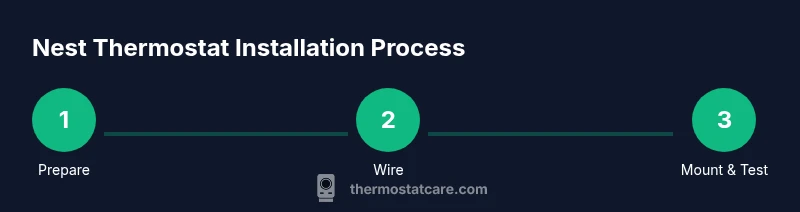
The general flow of Nest installation is: power down the HVAC system, remove the old stat, label wires, attach the Nest base, connect each wire to the matching terminal, mount the display, power up, and complete app-based configuration. The app will estimate system type, connect to your Wi-Fi, and walk you through naming zones and schedules. If Nest detects an unsupported wire, it will guide you on alternatives or suggest a professional check.
Common mistakes and how to avoid them
Rushing the wire labeling step leads to mismatches. Avoid forcefully inserting wires into terminals by ensuring the stripped portion is visible and clean. Overlooking the power-off step can cause shock or equipment damage. Always verify that the furnace or air handler is powered off at the breaker before touching the wiring, and use the app's wiring map to double-check terminals if you’re uncertain.
Post-installation steps: setup, testing, and optimization
After mounting the Nest, turn power back on and follow the app prompts to configure Wi‑Fi, thermostat naming, and schedules. Run a quick test of heating and cooling commands and observe that the fan responds correctly. Use the app to review energy-saving features, such as learning schedules or using Eco temperatures. Regularly check the C-wire status to ensure continued reliability.
Safety considerations and when to call a pro
If you encounter unfamiliar wiring, a nonstandard system, or if your HVAC panel is difficult to access, pause the install and seek professional help. Working with 24V systems carries shock risks, and improper wiring can damage the Nest or HVAC components. Always follow local electrical codes and the manufacturer’s instructions. When in doubt, a licensed HVAC technician can perform a quick, safe retrofit.
Nest features after a successful install: what to explore first
With the Nest installed, take time to explore features like Home/Away routines, scheduling, and temperature presets. The app offers energy history, occupancy sensing, and integration with smart home ecosystems. Understanding these features helps maximize comfort and minimize energy usage over the heating season and can justify the time spent on the initial setup.
Troubleshooting basics if something seems off
If the thermostat isn’t powering up or basic commands don’t respond, recheck wiring and power at the breaker. Ensure the Nest is seated properly on its base and the display is connected to the power supply. Some issues are resolved by reseating wires or re-running the app setup. For persistent problems, consult the Nest support resources or Thermostat Care guides for targeted fixes.
Tools & Materials
- Nest thermostat (3rd generation or newer)(Ensure it includes the base plate and faceplate)
- Phillips screwdriver #2(For removing old stat screws)
- Non-contact voltage tester(Use to verify power off at the furnace panel)
- Wire stripper or small scissors(To clean and trim wires)
- Labeling tape or wire labels(Mark each wire as you remove it)
- Smartphone with Google Home app(To configure and verify the Nest setup)
- C-wire adapter or power extender kit (if needed)(For systems without a C-wire)
- Access to furnace/air handler service panel(Power-off before accessing panel)
Steps
Estimated time: 45-90 minutes, depending on wiring and mounting condition
- 1
Power off the HVAC system
Switch off the HVAC circuit at the breaker and at the furnace control board to prevent shock while manipulating wiring. Confirm there is no voltage at the old thermostat wiring by using a tester if available.
Tip: Double-check the breaker before touching any wires. - 2
Remove the old thermostat cover and note wires
Carefully detach the front plate and take a photo of the existing wiring. Use labels to mark each wire and note which terminal it occupied on the old thermostat.
Tip: Label every wire before removing it to avoid misplacements. - 3
Label wires and prepare the base
Arrange wires so their color matches Nest terminals. If a wire is unneeded, tape it and tuck it away, keeping only what you need for the new thermostat.
Tip: Keep a neat wire bundle to prevent confusion during installation. - 4
Attach the Nest base plate
Mount the Nest base securely to the wall using the screws provided. Use a level to ensure straight alignment for a clean display.
Tip: A level helps avoid visible tilt or misalignment. - 5
Connect wires to matching Nest terminals
Insert each labeled wire into the corresponding Nest terminal (R, W, Y, G, C, etc.). Ensure a snug fit and no stray strands.
Tip: Check that each wire is fully seated before mounting the display. - 6
Mount the Nest display and restore power
Attach the display to the base and re-energize the HVAC system at the breaker. The Nest should power up and start the configuration prompts.
Tip: Watch for the Nest boot screen and confirm it begins the setup flow. - 7
Follow the app setup for wiring and system type
Open the Google Home app, select add devices, and follow the guided wiring and system type detection.
Tip: If the app asks about a C-wire, answer if you have one wired. - 8
Configure Wi-Fi and test heating/cooling
Connect to Wi-Fi and run a quick test for heat and cool to confirm proper operation. Review scheduling and Eco settings for energy savings.
Tip: Run a short test cycle to confirm faithful response to commands. - 9
Finalize settings and review features
Name the thermostat, set schedule preferences, and enable energy-saving features like Home/Away routines.
Tip: Document the final wiring setup for future reference.
Questions & Answers
Is a C-wire required for the Nest thermostat?
No, some Nest models may operate without a C-wire, but having a C-wire improves stability and power reliability. If your old thermostat had no C-wire, you may need a power connector or professional assessment.
Generally, a C-wire helps Nest stay powered reliably; if you don’t have one, you may need a power connector or professional help.
Can I install Nest thermostat myself if I have a heat pump?
Yes, but heat pumps add complexity with heat pumps reversing valves. Follow Nest’s heat pump wiring diagrams carefully and configure auxiliary heat correctly in the app.
Yes, but pay attention to heat pump wiring in the Nest app.
What tools do I need for installation?
Essential tools include a Phillips #2 screwdriver, wire labels, a smartphone with the Nest app, and a way to power off the HVAC system. Optional items include a voltage tester and C-wire adapter if needed.
You’ll typically need a screwdriver, labels, a phone with the Nest app, and a power-off method.
What if my old thermostat uses nonstandard wiring?
Nonstandard wiring may require adapters or professional evaluation. Use the Nest compatibility checker and seek help if you’re unsure about unknown wires.
If wiring looks nonstandard, check compatibility and consider a pro.
How long does installation typically take?
Most installs take 30-90 minutes depending on wiring and mounting conditions. Have a plan and gather materials beforehand to minimize interruptions.
Most installs take between 30 and 90 minutes.
What should I do if Nest won’t power on after installation?
Check that all wires are firmly seated, the base is properly mounted, and power is supplied at the breaker. If needed, re-run the app’s setup flow.
If it won’t power, recheck wiring and try the app setup again.
Watch Video
What to Remember
- Is Nest easy to install? For many homes, yes with proper prep.
- Plan, label wires, and follow app-guided setup for best results.
- A C-wire improves reliability and energy efficiency.
- If in doubt, consult Thermostat Care or a licensed pro.