Install Smart Thermostat: A Step-by-Step Guide
Learn how to install a smart thermostat safely and efficiently with a complete step-by-step process, from model selection to app setup. Get practical tips, safety checks, and troubleshooting guidance for homeowners and DIY enthusiasts.


By following this guide, you will learn how to install a smart thermostat safely and effectively. You’ll verify compatibility with your HVAC system, prepare wiring, mount the backplate, connect wires, and complete initial setup in the app. This step-by-step approach minimizes risk and delivers reliable, energy-efficient control. We cover safety checks, wiring basics, model compatibility, and post-install testing.
What a smart thermostat does for your home
A smart thermostat gives you precise control over heating and cooling, often with learning routines, remote access, and energy reports. It can adjust temperatures based on time of day, occupancy, or geolocation, reducing waste and increasing comfort. According to Thermostat Care, updating to a smart thermostat can improve comfort, help save energy, and simplify climate control. Thermostat Care analysis shows that many homes see meaningful energy-awareness gains after upgrading. With the right model, you can reduce energy use while staying comfortable. This overview helps you understand the value and the basics before you begin.
Choosing the right model and compatibility
The first decision is compatibility with your HVAC system, because wrong wiring or features can prevent the thermostat from powering properly or reading sensors. Check whether you have a gas, electric, or heat-pump system, and whether your system is single-stage or multi-stage. Look for features like learning schedules, geofencing, energy reports, remote control, and voice assistant support. Verify that the thermostat supports your wiring setup, including whether you have a dedicated C-wire for continuous power. If you’re unsure, use the manufacturer’s compatibility tool and compare with the existing wiring. Thermostat Care recommends confirming C-wire presence and reviewing the wiring diagram to avoid post-install surprises.
Brand note: The Thermostat Care team emphasizes choosing a model that suits your HVAC configuration, so you get reliable power and accurate sensor readings from day one.
Safety and prerequisites before you start
Turn off power at the main breaker and at the HVAC disconnect if available to avoid shock or equipment damage. Read the installation manual thoroughly and gather the required tools before you begin. If you have an older or unusual system, or if you are uncomfortable with wiring, consider hiring a licensed electrician. Ensure you have a stable Wi-Fi network with at least 2.4 GHz and a smartphone or tablet with the thermostat app. Keep a clean workspace, and avoid working near water or damp surfaces. Following these precautions helps protect you and your equipment during the upgrade. The Thermostat Care team also recommends having a plan for post-install testing and firmware updates.
Step-by-step overview before you dive in
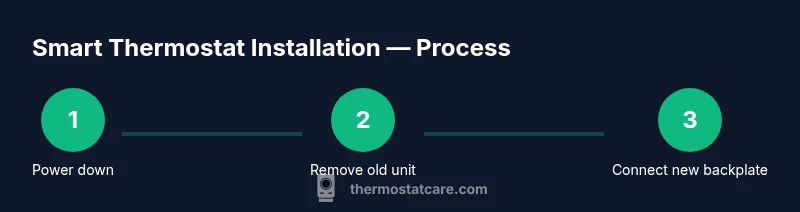
Below is a high-level overview of the installation flow so you know what to expect: power down the system, remove the old thermostat, confirm wiring, mount the new backplate, connect wires to the correct terminals, install the thermostat on the wall, and complete the app setup to connect to Wi-Fi. Finally, run a brief system test to verify heating and cooling calls and adjust settings as needed. This preview keeps you organized and ready to proceed safely.
Common mistakes and how to avoid them
Common mistakes include mixing up wires, skipping the C-wire check, forcing wires into terminals, or skipping a full system test after powering the unit. To avoid these, label wires, photograph the wiring, and follow the wiring diagram precisely. If your walls contain nonstandard wires or multiple stages, rely on the thermostat’s compatibility guide; when in doubt, contact Thermostat Care for guidance. A careful approach dramatically reduces the chance of miswiring and post-install issues.
Authority sources and further reading
For additional guidance and safety considerations, consult reputable sources. While models vary, you can visit government and major publications for general energy-saving practices and safety tips related to thermostat upgrades. This section provides links to credible resources to supplement your installation knowledge. Always cross-check with the model-specific manual.
AUTHORITY SOURCES
- https://www.energy.gov/eere/buildings/thermostats
- https://www.energy.gov/energysaver/thermostats
- https://www.epa.gov/iaq/smart-thermostats
Tools & Materials
- Smart thermostat(Ensure model is compatible with your HVAC system and supports required features)
- Screwdriver (Phillips #2)(For mounting the backplate and securing terminals)
- Level(Optional but helps ensure a straight install)
- Wire labels or tape(Label wires as you disconnect them to map wiring later)
- Smartphone with thermostat app(Needed for setup and Wi‑Fi configuration)
- C-wire adapter (if no C-wire present)(Use only if your model supports it)
- Voltage tester (optional)(Can be used for an extra safety check)
- Electrical tape(Useful for insulating exposed conductors)
Steps
Estimated time: 25-45 minutes
- 1
Power down the system
Turn off the HVAC circuit at the main breaker and, if available, the thermostat's power switch. This prevents electric shock and protects electronics during wiring. Do a quick test by trying to wake the old thermostat—if it remains off, power is truly down.
Tip: Verify with the breaker panel and the thermostat switch before touching wires. - 2
Remove old thermostat and document wiring
Carefully remove the thermostat cover and outer plate. Take clear photos of all wires and how they connect to each terminal. Remove wires gently and keep track of terminal labels to map them to the new thermostat.
Tip: Use a bright light and take multiple angles to capture all labels. - 3
Label wires and map terminals
Label each wire with its terminal designation (R, W, Y, G, C, etc.) and note wire color. Create a quick sketch or reference photo showing each connection. This mapping avoids miswiring on the new unit.
Tip: Keep wires attached to the old terminal strip until you’re ready to connect them to the new thermostat. - 4
Check compatibility and gather wiring information
Review the new thermostat’s wiring diagram and ensure your wires match the available terminals. If your system uses heat pump or multi-stage configurations, confirm that the thermostat supports those modes. Decide whether a C-wire is required or if a power-stealing model will suffice.
Tip: If you lack a C-wire, consider a compatible adapter or a model that supports power stealing. - 5
Mount backplate and prepare wires
Attach the mounting plate to the wall with screws. Use a level to ensure alignment, then route and trim wires to the correct lengths so they reach the new thermostat terminals easily.
Tip: Pre-fit the backplate to ensure nothing interferes with wall contours or screw holes. - 6
Connect wires to the new thermostat
Insert wires into the corresponding terminals on the new unit (for example, R to R, W to W, Y to Y, G to G, and C to C). If you have multiple stages or a heat pump, follow the specific terminal mapping in the manual. Do not leave exposed conductors.
Tip: Double-check that each wire is fully seated and that you didn’t swap neighboring terminals. - 7
Attach the thermostat and perform initial setup
Mount the thermostat onto the backplate and restore power. Use the thermostat app to connect to Wi-Fi and complete the on-screen setup, including time zone, language, and account login. Update firmware if prompted.
Tip: Have your Wi-Fi password handy and ensure the app is up to date before starting. - 8
Test system and finalize
Run a quick heat and cool test from the app to confirm the thermostat is controlling the HVAC as expected. Adjust schedules, comfort settings, and energy-saving preferences as needed. Monitor the first few days for any anomalies.
Tip: Watch for proper fan operation and confirm readings in the app match actual temperatures.
Questions & Answers
Do I need a C-wire for a smart thermostat?
Many smart thermostats require a C-wire for continuous power, but some models can operate with power stealing or batteries. Always check the model’s wiring diagram and compatibility tool before purchasing or wiring.
Most smart thermostats need a C-wire for stable power, but some models can work without it using power stealing or batteries. Check your chosen model's wiring guide.
Can I install a smart thermostat myself?
Yes, for typical single-zone systems with standard wiring. Follow the manufacturer’s instructions, ensure power is off, and map wires carefully. If you have a heat pump, multi-stage system, or unfamiliar wiring, consider professional help.
Yes, you can often install it yourself if your system is standard. If in doubt, hire a pro.
What if my old thermostat uses nonstandard wiring?
Nonstandard setups may require additional adapters or a thermostat that supports your unique terminals. Consult the wiring diagram and compatibility guide, and contact support if necessary.
Nonstandard wires can complicate installation. Check compatibility and seek help if needed.
How do I connect the thermostat to Wi-Fi?
Use the thermostat’s companion app to connect to your home network. Choose a 2.4 GHz network if prompted and enter your password. The app will guide you through device provisioning and firmware updates.
Set up Wi‑Fi in the thermostat app by following on-screen steps and entering your network password.
Will a smart thermostat save energy?
Smart thermostats can help reduce energy use by learning schedules and optimizing temperature changes. Savings vary by climate, occupancy, and usage patterns, so results differ between homes.
Energy savings depend on how you use the thermostat; results vary by home.
What safety precautions should I take?
Always power off at the breaker and disconnect power to the HVAC system before wiring. Use insulated tools and keep liquids away from electronics. If uncertain, consult a professional.
Power off, use insulated tools, and seek help if you’re unsure.
Watch Video
What to Remember
- Verify compatibility before starting
- Label wires clearly to prevent miswiring
- Test heating and cooling after installation
- Keep firmware updated for best performance