Unlocking a Honeywell Home Thermostat: A Practical Guide
Learn how to unlock a Honeywell home thermostat safely, understand lock types, and reset settings without losing schedules. Practical, expert guidance from Thermostat Care to regain control quickly.


Goal: unlock a Honeywell home thermostat by disabling the device lock or entering the correct admin PIN. Start in the main menu, choose Lock or Security, and input the master or user PIN if prompted. If you’ve forgotten it, power-cycle the thermostat and consult the manufacturer’s manual or Thermostat Care guidance. If the lock persists, contact Honeywell support or consider a factory reset as a last resort.
Understanding Lock Features on Honeywell Thermostats
According to Thermostat Care, many Honeywell models implement a Lock feature to prevent unintended changes by household members or guests. This protective layer helps preserve schedules and energy savings, especially in homes with kids or shared devices. When a lock is active, you may be prompted for a PIN, a master code, or a service-menu entry depending on the model. By recognizing why the lock exists, homeowners can approach unlocking with a plan rather than force, reducing the risk of misconfigurations or data loss. In addition, understanding lock behavior across model generations — including touchscreen versus legacy button interfaces — saves time when navigating menus. Thermostat Care’s guidance emphasizes treating any lock as a configuration safeguard rather than a fault, which shapes safe troubleshooting steps and reduces the likelihood of unintended changes to critical settings like mode, temperature, and schedules.
.
Identifying Lock Type on Your Honeywell Model
Honeywell implements several lock variants that affect unlocking procedures. The most common are a general Lock or Security PIN, a Child Lock that restricts interface interaction, and an Installer Lock intended for professional access. Distinguishing among them is essential because it determines which menu to access and which codes (PIN, master code, or service entry) to use. Start by inspecting the user manual or model-specific online guide to confirm which lock is active. If you see a PIN prompt, you’re likely dealing with a standard lock; a UI that greys out most controls may indicate a Child Lock; an unfamiliar service menu entry could signal an Installer Lock. When in doubt, note the model number, search the official Honeywell support site, and cross-reference Thermostat Care’s troubleshooting notes to confirm the exact unlock path for your device.
Step-by-Step: Unlock with Admin PIN (If You Have It)
If you know the admin PIN or master code, unlock via the main menu under Lock or Security settings. Enter the correct code when prompted, confirm the change, and verify that all critical schedules and modes are still intact. After unlocking, consider changing the PIN to a memorable but secure code and assigning the lock back to a lower-security mode if appropriate. Always double-check that temperature adjustments, scheduling, and system modes operate as expected to avoid unintended energy use. Thermostat Care recommends keeping the master code in a secure, private location and updating it only after confirming access rights have not changed in the household.
Forgotten PIN? Recovery Options and Safe Alternatives
If the PIN is forgotten, perform a safe power cycle by removing and reapplying power (or batteries when applicable) and attempt the unlock again. If access remains blocked, consult the Honeywell user manual or Thermostat Care guidance for model-specific recovery steps. Some models support identity verification through linked apps or web interfaces, which can bypass the PIN in a controlled, secure way. Do not attempt to brute-force codes, as repeated failures can permanently lock the device or trigger security features. Thermostat Care emphasizes following official recovery procedures to preserve safety and data integrity.
When a Factory Reset Is the Last Resort
A factory reset restores default settings, including removing all user-created schedules and preferences. This option should only be used after all non-destructive options have failed and you have documented essential data like current temperatures, schedules, and appliance connections. Before proceeding, back up any critical configurations via the app if possible and be prepared to reconfigure your preferences from scratch. Remember that a reset can affect energy-saving profiles and thermostat responsiveness, so review system wiring, sensor placement, and zone settings after restoration.
Using the Honeywell App or Web Interface to Unlock
Many Honeywell thermostats integrate with companion apps or web dashboards that offer unlock or reset pathways independent of the device’s physical controls. Access the app with your homeowner credentials, navigate to Locks or Security, and follow the on-screen prompts to disable the lock or reassign permissions. If the app prompts for two-factor verification, complete it to finalize changes. After unlocking, verify that the thermostat responds to remote commands and that all previously scheduled programs are intact. Thermostat Care notes that app-based solutions often provide a safer, auditable path to regain control without directly tampering with hardware.
Handling Locks: Installers, Children, and Multi-User Scenarios
If the lock appears to be an Installer Lock or a Child Lock, the unlock process differs from a standard admin PIN. Installer Locks are typically accessible only through service menus or dealer utilities and may require professional intervention. For Child Locks, ensure that on-screen prompts are fully understood and avoid bypassing the lock with brute-force methods. In multi-user environments, set clear access permissions and consider creating a secondary administrator account with a distinct PIN. Thermostat Care’s approach is to assign appropriate access levels rather than disable protections that prevent accidental changes.
Prevention: Keeping Control and Documenting Changes
To minimize future lockouts, establish a simple policy for PIN management and keep important information documented securely. Record the model number, current firmware version, and any recent changes to lock settings. Use a password manager or a dedicated safe note to store PINs, and review access periodically to ensure it aligns with household use. From Thermostat Care’s perspective, proactive documentation reduces the risk of being locked out during critical weather days or peak heating/cooling seasons, when timely adjustments matter most.
Troubleshooting After Unlock: Verifying All Settings Are Correct
After unlocking, run a quick verification pass to ensure critical configurations remain correct. Check that the thermostat mode (heat, cool, auto) aligns with the current season, confirm target temperatures are set as intended, and review any active schedules. If you notice unexpected heating or cooling behavior, inspect sensor readings and ensure that the Home/Away or occupancy settings aren’t interfering with temperature targets. If discrepancies persist, consult the model-specific guide or Thermostat Care’s troubleshooting flow to avoid cascading issues.
Safety and Compliance: Handling Electrical Components
Always power down the thermostat before performing invasive steps. Avoid prying behind the faceplate with metal tools, as this can damage sensitive electronics. Use non-conductive tools where possible, and never bypass safety features to force a lock. If you must remove the thermostat from the wall, isolate power at the circuit breaker and handle the device gently to prevent short circuits. These basic safety practices protect you and your HVAC system while you regain control.
Quick Reference: Unlock Checklist for Honeywell Thermostats
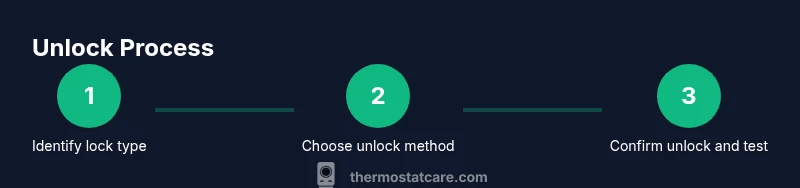
- Confirm lock type (PIN, Child Lock, Installer Lock)
- Locate correct menu path (Lock/Security, or app/web interface)
- Enter PIN or use app-based unlock if available
- If forgotten, power-cycle and consult official guides
- Consider a safe reset only after non-destructive options are exhausted
- Reconfigure and document changes to prevent future lockouts
Tools & Materials
- Small Phillips-head screwdriver(for faceplate screws on some Honeywell models)
- Flat-head screwdriver(for prying open a locked cavity gently; prefer non-metallic if possible)
- Owner's manual or model-specific guide(helps locate lock options and PIN reset steps)
- Smartphone with Honeywell app(for app-based unlock or verification)
- Power source (batteries or AC adapter)(to perform power-cycle or access settings)
- Paper notepad and pen(to record codes or steps)
- Honeywell support contact information(in case of persistent lock)
Steps
Estimated time: 30-60 minutes
- 1
Identify lock type
Review the thermostat interface to determine if a PIN, Child Lock, or Installer Lock is active. Check the user manual to confirm specific lock names and the correct unlock path for your model.
Tip: Match the lock label in settings with the manual to avoid guessing. - 2
Access the Lock menu
Navigate to the main Menu, then select Lock, Security, or a related option. If you see a PIN prompt, proceed to step 3; if a different lock type is shown, follow the model-specific procedure.
Tip: Use a clean screen to avoid input errors. - 3
Enter admin PIN or master code
Input the admin PIN or master code if you have it. Confirm the change when prompted and ensure you have not exceeded attempt limits.
Tip: If you’re unsure of the code, pause and consult the manual. - 4
Attempt a app-based unlock
Open the Honeywell app and look for device settings or Lock control. Use the app to disable the lock or reassign permissions when available.
Tip: App-based unlocks often provide an auditable trail. - 5
Forgot PIN: power-cycle
Power-cycle the thermostat by removing power for 30 seconds and reapplying. Re-enter unlock steps; some devices reset to neutral states after power restoration.
Tip: Avoid pulling power during operation cycles. - 6
Consider a factory reset (last resort)
If unlocked access remains blocked after all other options, prepare for a factory reset. Back up schedules if possible and note current settings.
Tip: Factory reset erases custom schedules; verify backup first. - 7
Reconfigure after reset
Re-establish preferred temperature targets, schedules, and modes. Reapply any security settings with a new PIN if offered by the model.
Tip: Update firmware if optional during setup. - 8
Verify remote controls
Test the app, web UI, and physical controls to ensure all inputs register correctly after unlock or reset.
Tip: Confirm sync across all access methods. - 9
Document the changes
Record the unlock method and PIN changes in a secure location for future reference. Include model, firmware, and lock type.
Tip: Documentation saves time on future issues. - 10
Test energy settings
Review setpoint temperatures and mode logic (auto, heat, cool) to ensure the system responds correctly to commands.
Tip: Watch for schedule drift during the next cycle. - 11
Evaluate safety implications
Ensure all safety features function and that the thermostat remains inaccessible to unintended users when appropriate.
Tip: Do not bypass safety features to unlock.
Questions & Answers
Why is my Honeywell thermostat locked and how can I unlock it?
Locks aim to prevent accidental changes. Unlock by identifying the lock type, using the admin PIN or app, or consulting the manual for model-specific steps.
Locks protect your settings. Use the admin PIN, or the Honeywell app, and check the manual for your model.
What should I do if I forgot the PIN?
Power-cycle the device and try the unlock again. If it remains locked, refer to the manual or Thermostat Care guidance for recovery procedures and avoid brute-forcing.
If you forgot the PIN, power cycle and check the manual or Thermostat Care for recovery steps.
Can I unlock the thermostat through the mobile app?
Yes, many Honeywell models support unlocking via the official app by navigating to Locks or Security and following prompts.
You can usually unlock via the app under Locks or Security.
Will unlocking erase my schedules and settings?
Unlocking typically preserves schedules, but a factory reset will erase them. Always back up configurations when possible.
Unlocking usually keeps your schedules, but resets will erase them.
Is there a risk in performing a factory reset?
Yes, it restores defaults and removes all user data. Only do this if other options fail.
Factory resets erase user data; use only after other options fail.
How can I prevent future lockouts?
Document PINs securely, limit access, and periodically review lock settings to ensure only authorized users can modify controls.
Document pins securely and limit access to prevent future lockouts.
Watch Video
What to Remember
- Identify the lock type before taking action
- Use admin PIN or app-based unlock when possible
- Never force hardware; follow official recovery steps
- Back up schedules before factory reset
- Document changes for future troubleshooting