Thermostat Home Assistant Setup and Troubleshooting
Learn how to integrate a thermostat with Home Assistant, build automations, and troubleshoot common issues. A practical, step-by-step guide for homeowners and DIY enthusiasts seeking centralized climate control and energy savings.


Quick Answer: You can set up Thermostat Home Assistant integration by linking a compatible thermostat to your Home Assistant hub, enabling the thermostat entity, and creating automations for schedules and occupancy. Start with basic temperature control, then add scenes, voice control, and energy-saving automations. You’ll need a working Home Assistant installation, a compatible thermostat, and reliable network access.
Why Thermostat Home Assistant matters for a connected home
For homeowners building a connected home, thermostat home assistant integration unlocks centralized control, consistent comfort, and the potential for energy savings. When you connect a compatible thermostat to your Home Assistant hub, you gain a single pane of glass to monitor, adjust, and optimize temperature across rooms and schedules. According to Thermostat Care, this approach reduces manual tweaking and helps align climate settings with daily routines. You can set adaptive schedules, create occupancy-based automations, and observe energy trends over time. The goal is not only convenience, but also reliability: you should be able to adjust the thermostat from your phone, voice assistant, or a smart display, and have it respond predictably.
Core capabilities you gain with Home Assistant integration
Linking a thermostat to Home Assistant opens a suite of capabilities that go beyond a traditional thermostat. You can expose climate entities to automations, monitor current temperature and setpoints in real time, and trigger actions based on conditions you specify. Common uses include occupancy-aware cooling and heating, geofenced schedules when you leave or return home, and energy-saving modes that reduce runtime during peak hours. With the right hardware, you can also automate fan control, hot water preheating, and humidification strategies. The system becomes a central nervous system for your home climate, coordinating multiple devices and scenes to maintain comfort with minimal manual input.
Compatibility and choosing the right thermostat
Compatibility matters. Check whether your thermostat supports the protocols you plan to use with Home Assistant (Wi‑Fi, Zigbee, Z‑Wave). Review the official integration documentation for your thermostat model to verify supported features like climate, energy saver mode, and occupancy sensing. If you are starting fresh, choose a model that offers robust local control and a reliable cloud option. Factors to consider include firmware update cadence, support for hold versus auto modes, display readability, and power requirements (C‑wire presence). Also ensure your Home Assistant setup has adequate resources—CPU and memory—to run integrations along with automations.
Network, privacy, and security considerations
Integrating a thermostat with Home Assistant expands your attack surface if not secured properly. Use a strong, unique password for your Home Assistant account and enable two-factor authentication where possible. Keep your Home Assistant instance on a trusted network segment, and avoid exposing the admin interface directly to the internet. Regularly update the thermostat firmware and Home Assistant core, and review logs for unusual activity. If you use cloud-based features, be mindful of data sharing and remote access settings. A well‑designed network with VLAN segmentation and secure guest access reduces risk while preserving usability.
Understanding Home Assistant entities, devices, and automations
In Home Assistant, a thermostat is represented by an entity (for example, climate.thermostat_name). Devices are grouped into areas or rooms, and automations connect triggers (like a temperature reading crossing a threshold) to actions (changing the setpoint or turning on a fan). Understanding the difference between a climate entity, a sensor, and a switch helps you build reliable automations. When you add the thermostat integration, Home Assistant will auto-discover relevant entities; you can rename them for clarity and assign them to zones. Start with simple automations and expand to multi-step scripts, templates, and condition-driven actions to handle weekends, holidays, and occupancy variations.
Real-world use cases and examples
Consider a standard two‑zone living area with a single smart thermostat. You can create a basic schedule that lowers cooling during work hours and raises the temperature before occupants return. A more advanced setup uses motion sensors to detect activity in rooms and adjust zones accordingly. You might implement a ‘Good Morning’ scene that warms the house gradually while conserving energy, or a ‘Away’ mode that maintains a comfortable baseline with reduced humidity and temperature drift. Thermostat Care analysis shows that thoughtful automations improve comfort while avoiding unnecessary runtime, especially when combined with weather-aware logic that anticipates outdoor conditions.
Troubleshooting common integration issues
If the thermostat does not appear in Home Assistant after adding the integration, verify the network connection and confirm that the thermostat is powered and online. Double-check the integration configuration for correct device IDs and credentials. Review the Home Assistant logs for error messages related to the climate domain or the specific integration. If discovery fails, try removing and re-adding the integration, then reboot the Home Assistant instance. For stubborn devices, check for firmware updates on the thermostat and ensure support for local control, not just cloud-based commands. Finally, confirm that the correct protocol (Wi‑Fi, Zigbee, or Z‑Wave) is in use and that the hub bridge is reachable.
Advanced topics: Scenes, scripts, and voice assistants
Advanced users can build complex scenes and scripts that chain multiple actions together. Use templates to make setpoints conditional on time of day, outside temperature, or occupancy. You can trigger automations from voice assistants such as Alexa, Google Assistant, or Siri by exposing the climate entity through Home Assistant’s voice integration. Scripts let you queue several steps—setpoint, fan mode, and humidity controls—in a single command. Keeping a clean, version-controlled automation library helps prevent conflicts when minor updates occur to devices or integrations.
Maintenance, backup strategies, and keeping it reliable
Regular maintenance is essential for long-term reliability. Back up your Home Assistant configuration and keep a changelog of automations and custom scripts. Schedule periodic firmware updates for both the thermostat and the Home Assistant instance, and test automations after each update. Maintain a documented recovery plan in case an automation causes discomfort or energy waste. Finally, run periodic sanity checks to ensure local control remains functional and that critical automations still respond to triggers as expected.
AUTHORITY SOURCES
- Energy.gov – Thermostats and energy savings: https://www.energy.gov/energysaver/thermostats
- ENERGY STAR – Thermostats: https://www.energystar.gov/products/thermostats
- NIST – Energy efficiency guidelines: https://www.nist.gov/topics/energy-efficiency
Tools & Materials
- Home Assistant core software(Installed on a Raspberry Pi 4 or compatible server)
- Compatible thermostat(Wi‑Fi, Zigbee, or Z‑Wave capable; check compatibility with Home Assistant)
- Smartphone or tablet(For initial setup and ongoing configuration)
- Smart home hub/bridge (if needed)(Needed for Zigbee/Z‑Wave depending on your devices)
- Reliable network(Stable Wi‑Fi or wired Ethernet; 2.4 GHz support ideal for many devices)
- Optional: backup power supply(If you have a critical system, consider a UPS for Home Assistant)
Steps
Estimated time: 60-120 minutes
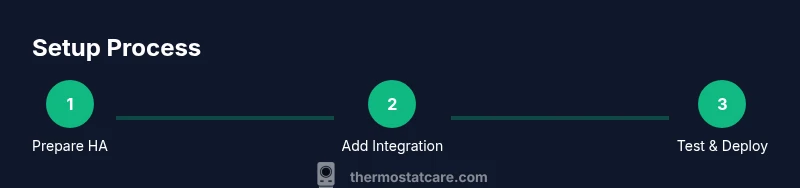
- 1
Prepare your Home Assistant environment
Verify your Home Assistant installation is up to date and create a backup. Ensure you have network access to both the HA instance and the thermostat. This step reduces the risk of data loss during the integration process.
Tip: Create a snapshot before adding new integrations. - 2
Choose the right thermostat integration
Identify the integration type that matches your thermostat (Wi‑Fi, Zigbee, or Z‑Wave). Review compatibility notes to confirm supported features like climate control and occupancy sensing.
Tip: Prefer models with strong local control support for reliability. - 3
Add the thermostat integration to Home Assistant
Navigate to Settings > Devices & Services > Add Integration and select your thermostat type. Follow on-screen prompts to authorize and connect. If needed, install any required bridge or chipset.
Tip: Keep device firmware updated for best compatibility. - 4
Discover and organize thermostat entities
After integration, Home Assistant will list climate entities. Rename them clearly (e.g., Living Room Thermostat) and assign to the correct area/room for accurate control.
Tip: Use meaningful names to simplify automations later. - 5
Create a basic automation
Set a simple automation to adjust the setpoint at a defined time or when occupancy changes. Test with manual triggers to confirm the correct device responds.
Tip: Start with a conservative range to avoid discomfort. - 6
Add a practical scene
Create a scene (e.g., Good Morning) that gradually warms or cools the space while enabling energy-saving modes. Link to a dashboard for quick access.
Tip: Scenes help you quickly switch climate settings for different times of day. - 7
Enable voice assistant integration
Expose your climate entities to your preferred voice assistant (Alexa, Google Assistant, or Siri) through Home Assistant. Verify voice commands control setpoints and scenes.
Tip: Test voice commands at a safe volume to confirm recognition. - 8
Validate, monitor, and iterate
Test automations in real life, monitor energy behavior, and adjust thresholds. Document configurations and keep notes on what works best for your home.
Tip: Schedule periodic reviews to refine efficiency.
Questions & Answers
Is Home Assistant required to use a smart thermostat?
No. A smart thermostat can operate independently, but integrating with Home Assistant centralizes control, automations, and energy management. The benefits rise as you add more compatible devices.
No, you can run a thermostat without Home Assistant, but using Home Assistant makes centralized control easier.
What should I do if the thermostat doesn’t appear after adding the integration?
First, verify power and network connectivity. Confirm the device ID and credentials in the integration settings, then check logs for errors. If needed, re-add the integration and reboot Home Assistant.
Check power, network, and logs; re-add the integration if needed and reboot.
Can I keep all controls local for privacy?
Yes. Many integrations offer local control options, which minimizes cloud data sharing. Review the thermostat and HA settings to ensure you’re using local control when possible.
You can keep most controls local by disabling cloud-only modes in the settings.
Which protocols should I prioritize for reliability?
Prioritize Wi‑Fi for flexible placement, and Zigbee or Z‑Wave if you want robust mesh networking and offline functionality. Ensure your hub supports the protocol natively or via a bridge.
Wi‑Fi is convenient, but Zigbee or Z‑Wave often offer more reliable local control.
How do I revert a broken automation without losing data?
Keep a versioned backup of automations. If something goes wrong, restore from a previous backup or manually disable the problematic automation and iterate.
Keep backups of your automations so you can restore quickly if needed.
Do I need to be highly technical to set this up?
A basic comfort with home networking and a little bit of YAML or UI-driven configuration is sufficient. Start simple and gradually explore advanced features as you gain confidence.
You don’t need to be a pro; start with basic setup and learn as you go.
Watch Video
What to Remember
- Integrate thermostat with Home Assistant for centralized control.
- Start with simple automations, then expand to scenes and voice control.
- Secure your setup with strong authentication and regular updates.
- Test and document configurations for long-term reliability.
- Use weather-aware logic to maximize energy savings.