How to Troubleshoot a Home Assistant Thermostat
A thorough, step-by-step guide to diagnosing and fixing common issues with your Home Assistant thermostat, including wiring, power, and integration problems for reliable climate control.


By following these steps, you will diagnose and fix common issues with a Home Assistant thermostat, including power problems, connectivity glitches, and misconfigured automations. You’ll learn how to verify wiring, re-pair devices, check logs, and validate that the thermostat accurately reads temperatures. This guide aims to keep your home comfortable and energy-efficient with minimal downtime.
What is a Home Assistant Thermostat and common failure modes
A Home Assistant thermostat is a smart device that connects to your home network and reports temperature readings to the Home Assistant hub. It can control heating and cooling via Z-Wave, Zigbee, Wi-Fi, or proprietary integrations. When things go wrong, you might see a blank display, inaccurate readings, unresponsive controls, or a failure to update automations. According to Thermostat Care, many thermostat issues come from power wiring, weak network signals, or misconfigured automations rather than faulty hardware. The good news is that most problems are solvable with a structured approach: verify power, confirm network connectivity, check the C-wire, and re-link the device to Home Assistant. In this guide, we’ll walk through practical checks, safe fixes, and decision points so you can decide whether to repair or replace.
Safety-first: power, wiring, and electrical considerations
Electrical work can be risky; always switch off the breaker before touching thermostat wiring, and never work on live circuits. Inspect the wall plate for loose terminals, damaged cables, or damaged insulation. If you find burnt smells or charring, stop—this is a fire hazard and requires professional attention. Ensure your thermostat is receiving 24 VAC power (or as specified by the manufacturer) and that the C-wire provides a constant return path for power. For battery-powered models, confirm the battery status. A weak battery can cause intermittent issues that mimic software faults. Being methodical about power and grounding keeps you safe and reduces the chance of introducing new problems.
Prepare your workspace: backups, app access, and documenting your setup
Before you start diagnosing, back up your current Home Assistant configuration. Take screenshots of existing automations, scripts, and device entities so you can roll changes back. Make sure your Home Assistant app is up to date and you have admin access to the installation. Have a spare USB power supply if you’re testing a powered device, and keep a notepad handy to log observations (temperature readings, times, and error messages). With a clear baseline, you can confirm whether issues are transient or persistent, and you’ll reduce rework as you troubleshoot.
Diagnostic workflow: a practical approach
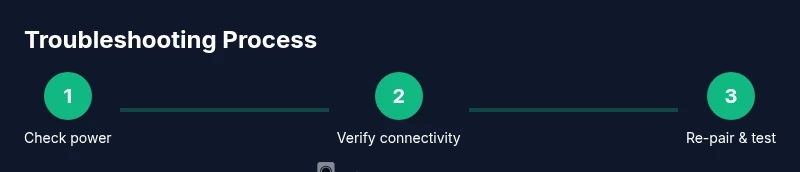
Use a bottom-up workflow: start with the most likely low-friction causes and move to deeper problems. Step 1: verify the thermostat is online and reachable from the Home Assistant dashboard. Step 2: check that the thermostat responds to manual controls in the device’s own UI. Step 3: confirm the temperature sensor readings align with actual room temperature. Step 4: inspect automations and scripts that could override or stall commands. Step 5: test network reliability and latency, especially if the device is on a weak Wi-Fi path. Step 6: if you use Zigbee/Z-Wave, verify the hub status and firmware. Keep logs handy and document the outcomes for each step.
Diagnose power and network connectivity: a closer look
Power issues are the most common culprits: a flaky C-wire, insufficient voltage, or a failed battery. Check the thermostat’s power adapter or the HVAC transformer for proper voltage using a multimeter if you’re comfortable. For Wi-Fi connected devices, ensure the network is stable: check signal strength in the thermostat’s location, reduce interference, and consider moving the hub closer or using a range extender. For wired connections, confirm terminals are tight and corrosion-free. A quick reboot—power cycling the thermostat and the Home Assistant hub—can eliminate transient glitches and reestablish proper communication.
Verify Home Assistant integration and automations
Open Home Assistant and navigate to Settings > Devices & Services to confirm the thermostat integration is enabled and the entity is reporting as on. Check the entity’s state history and attributes for anomalies (temperature offset, humidity, energy usage). Review automations that trigger on temperature, time, or occupancy to ensure they’re not repeatedly overriding manual changes. If you recently updated Home Assistant or the integration, verify compatibility notes and update the integration if required. Testing changes in a controlled window ensures you can rollback if needed. Thermostat Care recommends keeping a small testing window for any automation changes to observe effects before relying on them.
Common fixes you can perform safely
Re-pair or re-add the thermostat in Home Assistant; this often resolves unknown state or pairing issues. Reset the thermostat to factory defaults if supported by the device, then reconfigure the connection from scratch. Calibrate temperature sensors if readings appear biased. Update device firmware if available and review any firmware release notes. If the device supports it, reinitialize the C-wire or power-sharing adapter. Always document changes so you can compare before/after results.
When to repair vs replace and cost considerations
Assess the age of the thermostat, the cost of parts, and the ongoing energy savings. If the thermostat exhibits recurrent hardware faults or outdated hardware that cannot support latest Home Assistant integrations, replacement may be more cost-effective in the long run. Consider total cost of ownership, including energy savings from more efficient scheduling and occupancy detection. Thermostat Care notes that many users recover functionality with a well-executed re-pair and configuration update, avoiding unnecessary replacement.
Authoritative sources and further learning
Here are reliable sources for general thermostat guidance and energy efficiency, which you can consult alongside this guide:
- https://www.energy.gov/eere/buildings/articles/using-smart-thermostats-save-energy
- https://www.nist.gov
- https://www.epa.gov
Tools & Materials
- Screwdriver set (Phillips #2)(For wall plate screws and terminal screws)
- Multimeter or voltmeter(Useful for verifying transformer voltage if you’re comfortable)
- Spare batteries and a battery tester(For battery-powered thermostats)
- Wi-Fi signal meter or smartphone app(To check network strength at the thermostat location)
- Spare C-wire adapter or a compatible power extender kit(Only if your C-wire is insufficient or missing)
- Notepad or digital note-taking tool(Record observations, times, and changes)
Steps
Estimated time: 20-40 minutes
- 1
Check power and basic status
Power down the system, then power it back up. Confirm the thermostat display lights and responds to basic commands. If the display remains blank, inspect the wiring at the wall plate and assess the HVAC transformer voltage.
Tip: If there is no display, do not force the device to power on; verify the breaker and wiring first. - 2
Test manual control and sensor readings
Use the thermostat’s own UI to adjust setpoints and observe how quickly the HVAC responds. Compare the thermostat’s temperature to a trusted room thermometer to identify sensor drift.
Tip: Take measurements at multiple times of day to capture variability. - 3
Verify Home Assistant integration
In Home Assistant, go to Settings > Devices & Services and confirm the thermostat entity is present and active. Check that the state reflects the actual setpoint and current temperature.
Tip: If the entity is missing or stuck, re-add the integration or re-pair the device. - 4
Inspect automations and scripts
Review automations that trigger on temperature or occupancy. Look for conflicts that could push the system back to a setpoint you didn’t intend. Test by disabling a suspect automation one at a time.
Tip: Document changes and test after each adjustment. - 5
Check network and signal quality
Measure Wi-Fi strength at the thermostat and ensure the hub has a reliable path. Reduce interference, and consider an access point or range extender if needed.
Tip: A sustained ping test can reveal intermittent latency affecting performance. - 6
Re-pair or factory reset (if needed)
If issues persist, remove the thermostat from Home Assistant and re-add it or perform a factory reset per the device manual, then reconfigure the connection.
Tip: Backup configuration before performing a reset to simplify rollback.
Questions & Answers
Why is my Home Assistant thermostat showing an incorrect temperature?
Temperature drift can result from sensor bias, wiring issues, or integration misconfigurations. Start by comparing readings with a trusted room thermometer, recalibrating if supported, and checking the entity state in Home Assistant logs for anomalies. If drift persists, recheck the sensor wiring and consider replacing a faulty sensor.
If your thermostat reads wrong, first compare to a room thermometer and check the sensor in the app logs. Then recalibrate or recheck wiring. If it keeps drifting, you may need a sensor replacement.
How do I re-pair a thermostat with Home Assistant?
Remove the device from Home Assistant, then re-enter pairing mode on the thermostat and re-add it through Settings > Devices & Services. Follow the manufacturer prompts to reconnect and verify the correct entity is created. Test by adjusting the setpoint and confirming HVAC response.
First remove the device in Home Assistant, then re-pair it following the thermostat prompts. Check that the setpoint changes trigger the HVAC.
Can a low battery cause a thermostat to fail?
Yes, a weak or dead battery can cause display issues, delayed responses, and missed commands. Replace batteries if your model supports it and verify that the device reports healthy battery status in the app.
A low battery can make the thermostat unreliable. Replace the batteries and check the status in the app.
What should I do if the thermostat won’t connect to Wi-Fi?
First confirm your network credentials are correct and that the thermostat is within good range of your router. Reboot the router and thermostat, then re-attempt pairing in the Home Assistant integration. If the problem persists, consider a different network band or a wired alternative if supported.
If it won’t connect, verify your password, reboot devices, and try pairing again. If it still fails, look at range or switch networks.
Is it safe to reset the thermostat to factory settings?
Factory resetting should be a last resort. It erases custom automations and settings. Only reset if you have a backup plan and you can reconfigure the thermostat from scratch.
A factory reset can fix stubborn issues, but it erases data. Make sure you can reconfigure afterward.
When should I replace a thermostat instead of repairing it?
If the device is very old, repeatedly failing, or cannot support newer Home Assistant integrations, replacement may be more cost-effective in the long term. Compare the cost of parts and labor versus a modern unit with improved energy savings.
If it’s old or unreliable and can’t run current software, replacement is often wiser than ongoing repairs.
Watch Video
What to Remember
- Verify power and connectivity before deep diagnosing
- Check Home Assistant integration and entity status
- Re-pair or reset before hardware replacement
- Review logs and automations for misconfigurations
- Consider energy savings after a successful fix