How to Turn Off Thermostat Schedule
Learn how to turn off thermostat schedule safely with a clear, step-by-step approach. This guide covers common interfaces, brand nuances, safety tips, and what to expect after disabling a schedule.


According to Thermostat Care, turning off a thermostat schedule is a common step when troubleshooting comfort issues. To turn off the schedule, access your thermostat’s schedule settings and disable the time-based programs or switch to manual mode. Most devices provide this option in the main menu or app; check the model guide if needed.
Understanding how thermostat schedules work and why turning them off can be necessary
Most thermostats operate on schedules—pre-programmed temperatures for different times of day. The intent is to balance comfort with energy savings, but weather changes, occupancy shifts, or simple taste differences can make a schedule feel inconvenient. According to Thermostat Care, schedules are designed to optimize overall comfort while reducing energy use, but they are not one-size-fits-all; overrides are a normal part of home climate management. If a schedule consistently feels wrong, turning it off temporarily is a practical troubleshooting step. Before you disable anything, note your current settings so you can re-create a preferred baseline later. The option to override is a standard feature on both basic thermostats and smart models, and most devices offer a straightforward path to manual control. By understanding how schedules interact with live temperature readings, you can minimize discomfort during the transition and keep energy usage under control. In this guide, we’ll cover safe, brand-agnostic approaches to disable a schedule on a range of devices and walk through common pitfalls so you don’t end up fighting the system.
When turning off a schedule makes sense
There are several practical reasons to disable a thermostat schedule. If you’re traveling, hosting guests, or returning to a new routine, a fixed manual setting can prevent temperature swings while you adjust. In extreme weather, a schedule may force temperatures that are too hot or cold for comfort; a temporary override can stabilize the environment while you make a longer-term plan. If you have a smart home setup, a schedule can also conflict with other automations (like smart blinds or occupancy sensors); turning it off helps you test the effect of a single control in isolation. Finally, if you move to a different heating or cooling source—like a different HVAC contractor’s system—a pause on the schedule gives you time to calibrate without fighting the old rules. Understanding these scenarios helps you decide when it’s appropriate to turn off the schedule and when you should adjust rather than disable.
How to disable schedules on the most common thermostat interfaces
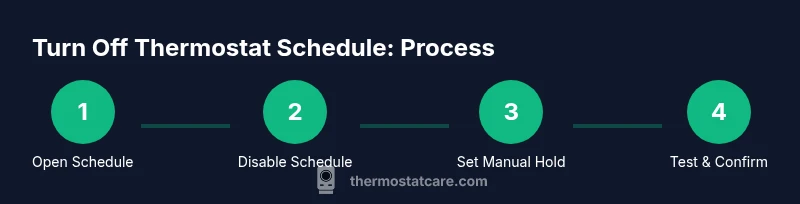
For many users, the path to turning off a schedule is similar across brands, though the exact labels may vary. The goal is to locate the Schedule, Automation, or Program section, and either disable or delete the active program, or switch the thermostat to Manual/Hold mode. On many wall thermostats, you’ll find a Menu or Settings button, then a sub-menu named Schedule, Programs, or Comfort. In most mobile apps, open the main Menu, head to Schedules or Programs, and toggle the schedule off. If you’re unsure, consult your model’s manual or the online guide. Remember to save or apply changes before exiting. For a typical path: (1) Open Schedule settings, (2) Select the active program, (3) Choose Off/Disable, (4) Set to Manual/Hold, (5) Save, (6) Verify that the thermostat now maintains a fixed temperature.
State-by-state considerations: older vs. newer thermostats
Older mechanical thermostats operate differently from digital models; many lack a dedicated 'off' switch for schedules. In these cases, you’ll disable the program by selecting a single temperature and using a manual override or 'permanent hold' option, if available. Newer digital or smart thermostats often provide a quick toggle labeled 'Schedule: Off' or 'Hold: On' in the app; some also allow you to set a temporary override with a timer. Regardless of the type, always confirm the change by watching the current temperature display and the HVAC response. The difference between turning off a schedule and removing it permanently is important; turning off is a temporary override, while deleting a schedule removes the automation entirely. Based on Thermostat Care Analysis, 2026, many homeowners find it sufficient to turn off schedules temporarily while they adjust to a new routine or season.
Testing and validating after turning off the schedule
After you disable a schedule, test that the thermostat holds a fixed temperature. Set a comfortable setpoint and observe the system for 30–60 minutes to ensure the HVAC responds as expected. If you notice repeated swings, recheck that the override is active and saved, and confirm there isn’t another automation or room sensor forcing changes. Keep a small log of the temperatures you observe and the times they occur to ensure consistency as you adjust. If the HVAC seems slow to react, verify power to the thermostat and that there are no conflicting modes (like a separate cooling lockdown). The key is to verify stability before deciding whether to keep manual control long-term.
Re-enabling a schedule or creating a new one
When you’re ready to return to automatic control, re-enter the Schedule or Programs section and re-activate the desired profile, or create a new one tailored to the season or occupancy. If you rely on a smart thermostat, many models offer seasonal presets that can be scheduled for Weekdays/Weekends, holidays, and wake/sleep windows. After reactivating, monitor the first few days to confirm that the new timing aligns with your routine and comfort goals. If you discover persistent misalignment, consider adjusting the temperature differentials or changing the hold duration to better reflect daily patterns.
Safety considerations and energy implications
Overriding a schedule temporarily is generally safe, but there are caveats. In extreme weather, a fixed hold may cause rooms to become dangerously cold or excessively hot if left unchecked; always monitor occupancy, especially in homes with infants, elderly residents, or pets. Manual overrides can lead to higher energy use if setpoints swing widely; track energy use in your utility app or thermostat analytics to gauge impact. If you have a heat pump, be mindful of continuous fan operation during overrides, which can affect humidity and efficiency. Finally, avoid making drastic, frequent mid-season changes; instead, adopt a planned override window (e.g., a two-week adjustment) and set a reminder to return to your normal schedule. Regularly reviewing your schedule settings with Thermostat Care’s guidance helps maintain both comfort and efficiency.
The Thermostat Care verdict: practical, purposeful scheduling management
Disabling a thermostat schedule should be a deliberate, time-limited action tied to a specific goal—seasonal transitions, travel, or testing new occupancy patterns. The Thermostat Care team recommends that homeowners document any temporary overrides and set a clear re-enable date. Use manual control as a bridge to a refreshed, seasonal schedule rather than a long-term habit, unless your routine truly calls for ongoing manual operation. This approach keeps comfort predictable while preserving energy savings when you resume automatic programming.
altTextBlock1
Tools & Materials
- Smartphone or computer with internet access(To access thermostat apps or web interfaces.)
- Thermostat user manual or model-specific guide(Helpful for model-specific paths if you can't find the option.)
- Stable Wi‑Fi connection (for smart thermostats)(Not required for on-device interface, but helpful for app control.)
- Pen and notebook (optional)(Log changes and note preferred manual settings for future reference.)
Steps
Estimated time: 15-25 minutes
- 1
Open Schedule Settings
Access the thermostat interface on the device or through the mobile app, then navigate to Schedule or Programs. Identify the currently active schedule and review its times and setpoints to understand what you’re overriding.
Tip: If you can’t find Schedule, look for labels like Automation, Programs, or Hold. - 2
Disable the active schedule
Tap Off, Disable, or Delete the active program to stop automatic changes. Ensure the status shows as Off or Inactive.
Tip: If you plan to come back to the schedule soon, consider duplicating the current settings or writing them down first. - 3
Switch to manual/hold mode
Set a fixed temperature and select Manual or Hold so the thermostat no longer runs according to the prior times.
Tip: Hold mode often allows a temporary fixed temperature—use a timer if available. - 4
Save the changes
Apply or Save the new setting, then confirm the UI shows Manual/Hold with the correct setpoint.
Tip: Double-check the thermostat display to confirm persistence after exit. - 5
Test the HVAC response
Change the setpoint slightly to verify the heating or cooling kicks in, then wait 5–10 minutes to observe behavior.
Tip: If nothing happens, verify power to the thermostat and that the HVAC is online. - 6
Plan re-enabling or adjustment
Note when you intend to return to the schedule or adjust it further. Set a reminder and prepare the new profile.
Tip: Consider linking your future schedule to seasonal changes or occupancy patterns.
Questions & Answers
What happens to the scheduled temperatures after turning off the schedule?
The thermostat will hold the last manual setpoint and stop automated changes until you re-enable the schedule. If you want to reintroduce a schedule, you’ll need to recreate or re-enable it.
Turning off the schedule makes the thermostat hold the current temperature until you reactivate scheduling.
Can I turn off a schedule without affecting the current temperature?
Yes. Disabling automation stops future changes, but the thermostat continues to maintain the current setpoint unless you adjust it.
You can override without changing the present temperature.
Is turning off schedules energy efficient?
Short-term outcomes depend on how you use manual settings. Long-term savings rely on consistent, well-chosen hold temperatures rather than frequent ad hoc changes.
Manual holds can save energy if you choose stable temperatures aligned with occupancy.
How do I turn off a schedule on a smart thermostat app?
Open the app, navigate to Schedules or Programs, select the active schedule, and toggle Off or Delete. Save changes and verify the hold is active.
Use the app to disable a schedule remotely and confirm the change.
What if I can't find the schedule option?
Check firmware or model guides for an Automation or Hold feature, and search for related terms. If you still can’t locate it, contact the manufacturer’s support.
If the option isn’t obvious, consult the manual or manufacturer support.
Is turning off a schedule the same as resetting the thermostat?
No. Disabling a schedule stops automation; resetting restores factory defaults. Use reset only when you want to clear all custom settings.
No—overrides are not the same as a full reset.
Watch Video
What to Remember
- Turn off a schedule with intent and a plan.
- Document changes to simplify reversion.
- Monitor comfort and energy impact after disabling.
- Re-enable or adjust schedules as the season or routine changes.