How to Set Thermostat for Heat: A DIY Guide
Learn how to set thermostat for heat with a comprehensive, step-by-step approach. Master heating modes, scheduling, and energy-saving tips to stay warm efficiently this winter.


To set thermostat for heat, switch the system to Heating mode, set a comfortable target temperature, and choose whether to use Auto, Hold, or a schedule. Verify the heat cycle starts within a few minutes and test for even warmth. If you’re replacing hardware or using a smart model, confirm the wiring or app connection before final testing. This quick setup gets you warm reliably.
Why Getting the Heat Setting Right Matters
Comfort, energy efficiency, and equipment longevity all hinge on how you set thermostat for heat. When the heating mode is correct and the setpoint aligns with occupancy, your home stays comfortable without wasting energy on needless heating cycles. The thermostat acts as the control hub for furnaces, heat pumps, and boilers, so a well-configured heat setting reduces wear on equipment and lowers utility bills over time. According to Thermostat Care, even small adjustments to mode, setpoint, and scheduling can translate into noticeable improvements in both comfort and efficiency. In this guide, we’ll unpack the steps, common system types, and practical tips you can apply in real homes today to maintain warmth with less waste.
Before You Begin: Gather the Right Tools and Understand Your System
Before you touch the thermostat, identify your heating system type (furnace, heat pump, or boiler) and confirm compatibility with your current thermostat. Check whether your model supports heat mode, auto-changeover, fan control, and a C-wire or battery power. If you have a heat pump, verify auxiliary heat behavior and defrost settings. Gather essentials: a small screwdriver for faceplate removal, a photo of the existing wiring for backups, and access to the installation manual for model-specific steps. If you’re using a smart thermostat, ensure the app is updated and your Wi‑Fi is stable. Decide if you want a fixed Hold or a weekly Schedule, as this choice drives energy savings and comfort. Planning now prevents surprises during setup.
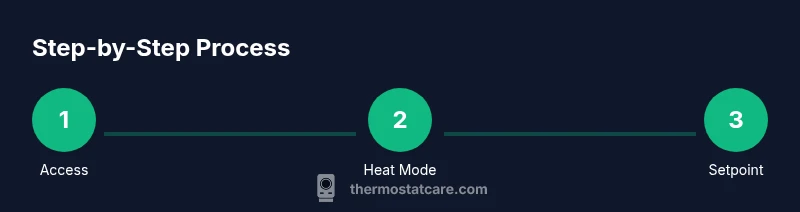
Step 1: Access Your Thermostat Interface
Begin by waking the unit and entering its main menu. If needed, remove the faceplate to access wiring and power options following the manufacturer’s safety instructions. Navigate to the Heating or Mode section on the home screen, selecting Heat as your primary mode. For older models, you may need to shift from Cool to Heat and confirm the change. Take a photo of current wiring before making changes so you can revert if necessary. This initial check ensures you’re modifying the correct device and helps you recognize any unusual or nonstandard configurations. Pro tip: keep the furnace power switch ON to avoid a complete reset during changes.
Step 2: Switch to Heating Mode
Set the thermostat to Heating mode so it signals the furnace or heat source to engage when the indoor temperature drops below your target. Many thermostats present options like Heat, Auto, and Cool; select Heat and confirm with OK or Apply. If upgrading from an older unit, disable Cool to avoid conflicting signals. For dual-fuel systems, verify the heat pump is allowed to operate in heating mode and that auxiliary heat remains available for very cold days. This step guarantees the correct equipment is commanded and aligns with your home’s heating strategy.
Step 3: Set Your Desired Heat Temperature
Adjust the setpoint to your comfort target, typically a few degrees above the current room temperature to prevent cold starts. Common practice is 68–70°F (20–21°C) during the day and a cooler setting at night. If you have zone controls, you may want to tailor temps to specific areas. Remember outdoor conditions influence perceived warmth, so adjust the setpoint seasonally. After changing the setpoint, confirm the display shows the new target and that the heating system responds within a few minutes.
Step 4: Decide Between Auto, Hold, or Scheduling
Auto lets the thermostat manage temperature changes automatically based on time and occupancy. Use Hold if you want a fixed temperature for a defined period, such as when you’re home all day. Scheduling enables a weekly program that lowers heat during work or sleep hours. For homes with variable occupancy, a smart thermostat can optimize adjustments using sensors and weather data. Pick the option that best balances comfort with energy savings, and ensure you save or apply the setting so it persists after power cycles.
Step 5: Verify System Response and Safety Checks
Watch the heat cycle start and listen for the furnace or heat pump engaging. Confirm the air is warm and steady, with no odd noises or smells. The thermostat should display the target temperature and, if enabled, the fan should operate as expected. If you have a heat pump, check that auxiliary heat is not activating unnecessarily. Ensure wiring is secure and there are no exposed conductors. If anything feels off, revert to the backup photo and consult the device manual or a technician.
Common Pitfalls and How to Avoid Them
Many homeowners run into a few predictable issues when setting heat: a miswired C-wire, dead batteries on battery-powered units, or mode conflicts between the thermostat and the heating system. Double-check power sources and ensure the thermostat is receiving power. Avoid setting the temperature extremes, which waste energy and can stress equipment. If you’re using a smart thermostat, confirm the app is synchronized and firmware is up to date. Finally, consider household patterns; zoning or single-room focus can create inconsistent warmth if not addressed with sensors or additional thermostats.
Maintenance Tips for Accurate Heating Readings
Keep the thermostat and its sensor area clean and free of dust or condensation; a dirty sensor can read room temperature incorrectly and trigger unnecessary cycles. Replace non-rechargeable batteries as needed and verify C-wire connections remain secure in wired models. Periodically review the heating system’s air filter, ducts, and outdoor unit for airflow efficiency; restricted airflow can skew readings and reduce comfort. If available, calibrate temperature sensors after firmware updates and log changes to simplify future adjustments.
Energy-Saving Strategies for Heating Temperatures
A steady heat strategy blends comfort with efficiency. Start with a moderate daytime setpoint and adjust only when necessary. Program occupancy-based schedules to reduce heating when rooms are empty. Take advantage of natural solar gain by opening blinds on sunny days and closing them at night to maximize passive warmth. For heat-pump systems, favor energy-saving modes in shoulder seasons and use auxiliary heat sparingly. Pair with humidification to improve comfort without raising temperature, which can lower energy use and thermostat demand.
Troubleshooting Quick Fixes If Heat Is Not Coming
If heat isn’t responding, verify the thermostat has power (batteries or C-wire) and isn’t locked in a protection mode. Confirm Heat mode is active and the setpoint is above the room temperature. Inspect the circuit breaker, furnace switch, and fuses for trips. For smart thermostats, check Wi‑Fi connectivity and app permissions. If the issue persists, reset the thermostat per the manual or contact support for assistance.
What Thermostat Care Recommends
Thermostat Care emphasizes a clean, logical setup and consistent scheduling to maintain comfort and efficiency. Use built-in diagnostics to identify wiring or sensor problems, and keep firmware up to date for peak performance. When unsure, consult the manual or a professional technician. The team’s focus is safety, user-friendly controls, and energy-conscious operation for homeowners tackling heating settings at home.
Tools & Materials
- Thermostat owner's manual(Model-specific instructions and wiring diagram)
- Small screwdriver (Phillips #1 or #2)(Only if you need to remove the faceplate)
- Photo/documentation method(Capture wiring before changes for back-out)
- Smartphone or tablet with thermostat app(Useful for smart thermostats and remote control)
Steps
Estimated time: 15-20 minutes
- 1
Access the thermostat
Power on the thermostat and open the main interface. If needed, remove the faceplate to view wiring safely and take a quick photo of the current setup. This prepares you for changes and gives you a backup reference.
Tip: Have the manual handy and work with the unit in a well-lit space. - 2
Switch to heating mode
Set the mode to Heating and confirm the selection. Ensure the thermostat is signaling the heating system and not remaining in Cool or Off, which would prevent heat.
Tip: If upgrading from an old model, disable conflicting modes to avoid competing signals. - 3
Set the target temperature
Adjust the setpoint to a comfortable value, typically 68–70°F (20–21°C) during the day. Consider nighttime setbacks to save energy without sacrificing comfort.
Tip: Note that larger temperature gaps can cause longer cycling and wasted energy. - 4
Choose Auto, Hold, or Schedule
Decide how you want the heat to behave: Auto for automatic shifts, Hold for a fixed temperature, or Schedule for a weekly program. Save the setting to keep the configuration after power cycles.
Tip: Smart thermostats can optimize usage with occupancy data—enable it if you have it. - 5
Run a test heat cycle
Monitor the system as it heats up; check for warm air, consistent temperature rise, and noise. Verify the display reflects the new setpoint and the fan operation matches your preference.
Tip: If you hear unusual noises, pause and recheck wiring or consult a pro. - 6
Safety and wiring verification
Ensure wires are secure and no conductors are exposed. If you moved wires, compare with your backup photo. Reassemble the faceplate only after you confirm safe wiring.
Tip: Turn off the main power to the furnace if you’re unsure about wiring.
Questions & Answers
Why isn't heat coming on after I adjust the thermostat?
First, confirm the thermostat is in Heating mode and the setpoint is above room temperature. Check power (batteries or C-wire) and ensure the furnace is receiving power. If the problem persists, inspect wiring and confirm the thermostat and heating system are compatible.
Make sure the thermostat is set to Heat, the setpoint is higher than the room, and the system has power. If it still won’t start, check wiring and compatibility or consult a pro.
What temperature should I set for winter heating?
A common comfort target is around 68°F (20°C) during the day, with a lower evening setting. Adjust based on personal comfort and insulation quality. Consider using a schedule to reduce heat when you’re away or asleep.
Many people stay around 68 degrees in the day and lower it at night; tailor to your home.
How can I tell if my thermostat is compatible with my heating system?
Check the thermostat model’s compatibility list in the manual and verify whether it supports your system type (furnace, heat pump, boiler) and wiring scheme (C-wire or battery). If unsure, consult the manufacturer’s site or a technician.
Look up your model's compatibility in the manual or online to match your heating system.
Auto vs Hold vs Schedule—what’s best for regular heating?
Auto is best for automatic day-to-day changes based on time and occupancy. Hold is ideal for a constant temperature when you’ll be home all day. Schedule is great for routine days and can save energy when used with a smart thermostat.
Auto adapts to your day, Hold keeps one temperature, Schedule follows your weekly plan.
Why does my thermostat display go blank?
A blank display usually means power loss to the thermostat or dying batteries. Check batteries (if used) and verify the C-wire is connected. If the power source is fine, inspect the circuit and furnace switch.
Power or battery issues are most common; check connections and battery status.
Is it safe to adjust wiring or install a thermostat myself?
Only if you have electrical safety knowledge and the manual permits it. Many residential thermostats are low voltage and safe to handle; if you’re unsure, hire a licensed technician to avoid safety risks.
If you’re not confident with wiring, it’s safer to hire a professional.
Watch Video
What to Remember
- Set heat mode and verify the new setpoint is active
- Use Auto, Hold, or Schedule to balance comfort and energy
- Test heat cycle and watch for proper airflow
- Keep wiring safe and up-to-date; back up with manual photos
- Apply energy-saving strategies for year-round efficiency