How to Pair Thermostat and Receiver: A Practical Guide
Learn how to pair your thermostat with its receiver, troubleshoot common issues, and ensure a reliable connection with Thermostat Care's practical, expert guidance.


Goal: Pair your thermostat with its receiver to restore wireless control of your HVAC. Confirm compatibility, power up both devices, and follow the device-specific pairing sequence in the thermostat menu or app. Make sure the receiver is within range and the system is powered. This guide provides clear, dependable steps for common setups.
Understanding the pairing process
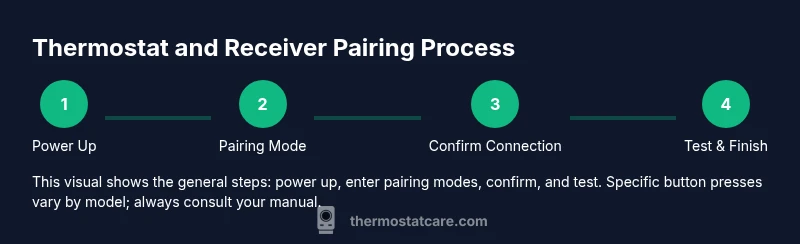
Pairing a thermostat with its receiver establishes a secure wireless link that lets the thermostat control the HVAC system. The process typically involves placing both devices into pairing mode, exchanging a pairing signal, and confirming the connection on the thermostat display or app. Once linked, the thermostat can reliably send on/off and temperature commands to the receiver, which then activates the furnace, heat pump, or AC. Most modern systems use a standardized pairing protocol, but some brands require brand-specific steps. Always consult your model manuals for exact button presses and timing. This section lays the foundation so you understand what you are trying to accomplish and why small details—like distance and power—matter for a stable link.
Compatibility and prerequisites
Before you start, verify that your thermostat and receiver are designed to work together. Look for the same brand family or explicitly stated compatibility in the manuals. Ensure both devices have fresh power: replace batteries if needed and confirm the thermostat is receiving steady power from its power source. If you use a smart thermostat app, confirm you are logged in and that the device firmware is up to date. A quick pre-check saves time and reduces the chance of failed pairing attempts later. This step also helps you avoid compatibility pitfalls that commonly frustrate DIY installers.
Safety, power, and reset considerations
Safety is the first priority. Power down the HVAC equipment briefly if you must access the wiring or internal pairing buttons. When you restart, give the system a few moments to settle before attempting pairing again. If your thermostat uses batteries, replace them with fresh ones and ensure correct polarity. If the manual recommends a factory reset, perform it only after confirming you have saved any needed settings. A clean slate can resolve stubborn pairing issues without risking misconfigured schedules or firmware hiccups.
Common causes of pairing failures and fixes
Most pairing problems fall into a few predictable categories: weak batteries, devices that are out of range, incompatible firmware versions, or incorrect pairing sequences. Start by powering both devices, moving them closer during the initial pairing, and reattempting the process. Check for interference from nearby wireless devices or metal appliances that can weaken signals. If you still can’t pair, consult the manual’s troubleshooting section for model-specific error codes and consider a reset as a last resort.
Advanced scenarios: multiple receivers or zones
Some homes use multiple receivers to control different zones or supplemental HVAC equipment. In these setups, you will typically pair the thermostat with each receiver individually, sometimes using unique pairing codes or channel selections. After pairing, test each zone to confirm independent, accurate control. Document which receiver corresponds to which zone and keep a simple map for future maintenance. This approach helps prevent cross-commands and keeps the system predictable.
Maintaining a reliable connection over time
Even after successful pairing, occasional interference or drifting performance can occur. Keep firmware updated, check for battery health regularly, and avoid placing devices behind metal cabinets or near large appliances that generate RF noise. If you notice lag or delayed responses, recheck the distance between the thermostat and receiver and perform a quick resync if recommended by the manufacturer. Regular checks keep the pairing robust and responsive.
Tools & Materials
- Thermostat user manual (model-specific)(Have model number handy to verify compatible pairing steps)
- Receiver unit manual(Check for any model-specific pairing codes)
- Smartphone or tablet with thermostat app(Ensure the app is updated to the latest version)
- Small screwdriver (Phillips #2)(Use only if the receiver housing requires internal access)
- Fresh batteries for thermostat/receiver (if applicable)(Optional but recommended to avoid power issues during pairing)
- Notepad or note-taking app(Log pairing steps, codes, and receiver IDs)
Steps
Estimated time: 15-25 minutes
- 1
Power up and prep
Ensure both devices have power and are accessible. Locate the pairing sections in the thermostat menu and the receiver housing. Have the manual handy to confirm exact prompts for your model. This step reduces guesswork and sets the stage for a smooth pairing.
Tip: Check battery levels and confirm model compatibility before proceeding. - 2
Enable thermostat pairing mode
Enter pairing mode on the thermostat by navigating to the connectivity or network settings and selecting pairing. Do not exit pairing mode until the receiver confirms it’s connected. Observing a flashing indicator or on-screen message signals readiness.
Tip: If you don’t see a pairing indicator within 30 seconds, restart the thermostat app or device. - 3
Enable receiver pairing mode
Access the receiver’s pairing control, often a recessed button or a sequence described in the manual. Put the receiver into pairing mode as directed. A light or LED behavior typically confirms it is ready to accept a pairing signal.
Tip: Gently press the pairing button; avoid pressing too hard to prevent damage. - 4
Initiate pairing on the thermostat
Initiate the pairing command from the thermostat so it searches for an available receiver. Wait for a successful link notification on the thermostat screen or in the app. Do not perform other network actions during this step.
Tip: Have patience; some models take a few moments to complete the search. - 5
Confirm connection
Once the thermostat reports a connection, confirm it on the app or display. Test basic functions like heating or cooling control to ensure commands reach the receiver. If the link shows but inputs don’t activate the HVAC, recheck power and range.
Tip: Run a quick thermostat temperature change to verify real-time response. - 6
Test and validate
Run a short test cycle (heat and cool if supported) to confirm reliable control. Confirm that no discrepancy exists between on-screen temperature and actual room feeling. If discrepancies occur, re-run the pairing process after a brief reset.
Tip: Document test results and note any lag or misreadings for future reference. - 7
Document and finish
Record the pairing date, device models, and any codes or IDs. Save the steps you followed in a notebook or app so you can replicate or adjust later. Disconnect or power cycle devices if you plan a major maintenance session later.
Tip: Keep the manuals within reach for quick reference during future maintenance. - 8
If issues persist
If pairing remains unsuccessful after multiple attempts, reset both devices to factory settings and start again with the most basic setup. Double-check compatibility and firmware versions, and consider contacting manufacturer support if needed.
Tip: Only reset after documenting current configurations to avoid losing settings.
Questions & Answers
What should I do if pairing fails on both devices?
If pairing fails, power cycle both devices, re-enter pairing mode, and retry. Check for compatibility and ensure the receiver is within range. Consult the manuals for any error codes and try a factory reset as a last resort.
If pairing fails, power cycle both devices and retry. Check compatibility and proximity. Refer to the manuals for error codes and try a reset only after you’ve tried the basics.
Can I pair multiple receivers to one thermostat?
Some systems support pairing a single thermostat with multiple receivers. This usually requires repeating the pairing process for each receiver and assigning them to separate zones or channels in the app. Always confirm with your manual.
Many setups support one thermostat with multiple receivers. Repeat pairing for each receiver and label zones in the app.
Do I need to reset the system before pairing?
A reset is not always required, but it can help if coupling fails repeatedly. If you reset, note existing schedules and settings so you can reconfigure after pairing.
A reset can help if pairing keeps failing, but you’ll need to reconfigure settings afterward.
Why does the receiver respond slowly after pairing?
Delayed responses can result from interference, weak power supply, or out-of-range placement. Move devices closer temporarily and check power levels, then re-test.
If the receiver responds slowly, check power and proximity, then test again.
Is pairing different for wired versus wireless thermostats?
Wired thermostats may use a different pairing path or require different adapters. Wireless models typically rely on a simple RF pairing sequence documented in the manual.
Wired and wireless models can differ in how you pair them; follow your manual for the exact steps.
Watch Video
What to Remember
- Verify compatibility and power before pairing.
- Follow manufacturer prompts precisely for your model.
- Test controls immediately after pairing to confirm success.
- Document results and steps for future maintenance.