How to Get Your Thermostat Back Online: A Practical Guide
Learn how to quickly bring a non-responsive thermostat back online with practical, safety‑first steps. Restore power, reconnect Wi‑Fi, and re-pair with your HVAC system using our comprehensive, user‑friendly guide.


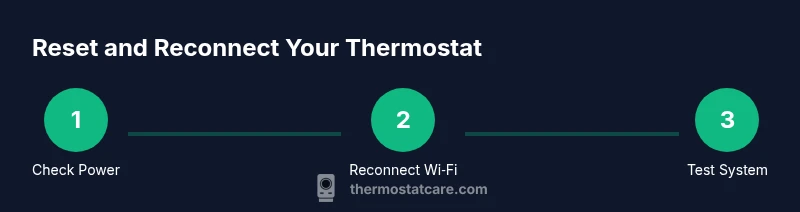
To get your thermostat back online, power cycle the device, verify battery if applicable, and reconnect to Wi-Fi through the thermostat app. If it still fails, perform a safe reset and re-pair with your HVAC system. This step-by-step approach minimizes downtime and restores climate control quickly.
Power, Power, Power: Immediate checks to perform
Power is the most frequent culprit when a thermostat goes offline. Start by turning off power to the thermostat and the HVAC system at the breaker if you’re comfortable; this prevents electrical arcing and data glitches. After a brief pause, restore power and give the thermostat a moment to wake up. If the screen remains blank, perform a simple battery check (for models that use disposable cells) and replace them if dim or corroded. While you work, ensure the thermostat is in a normal indoor environment; extreme cold or heat can hamper the display and battery life. According to Thermostat Care analysis, most offline issues are resolved by a clean power cycle and battery replacement, not a full reset. If you have a smart thermostat with a rechargeable battery, allow it to recharge for a few hours before testing again. Keep the user manual handy to locate the correct breaker, the wiring terminals, and the exact reset sequence for your model.
Check the Display, Batteries, and Environmental Factors
A dim or flickering display can mimic offline status, often signaling battery issues or internal looseness. Gently remove the faceplate (without touching internal components) and inspect the battery compartment. Replace batteries with the same type recommended by the manufacturer if they show signs of weakness. If your thermostat uses a rechargeable battery, ensure it has enough charge and isn’t overheating. Temperature extremes can affect performance; keep the thermostat away from direct sunlight or drafts. If the display remains unstable after a power cycle, refer to your manual for the proper reset steps and verify that the device is within its supported temperature range. Thermostat software updates can also resolve connectivity glitches—check the manufacturer’s site for firmware notes and update instructions.
Reconnect to Wi‑Fi: Re-establishing App Control
A working network bridge is essential for many smart thermostats. Ensure your Wi‑Fi network is operating normally—try loading a webpage on another device to confirm. On the thermostat, navigate to the network settings and re-enter your Wi‑Fi credentials, paying attention to the correct security type (WPA2/WPA3). If your router uses a guest network or MAC filtering, temporarily disable those features to test the connection. After entering credentials, run a quick connectivity test from the thermostat (if available) or in the companion app. If the thermostat connects but later drops offline, consider rebooting the router and moving the thermostat closer to the router for a stronger signal. Thermostat Care notes that most online outages are resolved with a reliable Wi‑Fi connection and a successful app re-pair.
Re-pairing with Your HVAC System and App
Many offline states are resolved by re‑linking the thermostat to your HVAC system and its mobile app. Start by removing the thermostat from the app’s paired device list, then re‑add it following the on‑screen prompts. If the thermostat supports a manual pairing mode, initiate it and complete the pairing in the app using the provided code. Ensure the HVAC control board accepts the thermostat connection and that the C‑wire (if used) remains properly connected. After pairing, run a quick test by adjusting the temperature and observing HVAC response. If the system does not respond, double‑check that the thermostat’s time and date settings match your local timezone; some services require accurate time for remote operations.
C‑Wire, Power Stability, and Firmware Updates
A stable C‑wire connection provides a reliable power source for many thermostats, reducing reboot loops. Inspect the furnace or air handler terminal block to confirm the C‑wire is securely fastened and not corroded. If your thermostat is battery‑powered, confirm the battery status remains adequate; replace as needed. Check for firmware updates in the thermostat’s app or manufacturer site, and install any available updates to fix known connectivity issues. After updating, re‑pair to the app and test the system again. If your model supports over‑the‑air updates, ensure your internet connection is stable during the process to avoid partial installs.
Safety, Reset, and When to Call for Help
If you’ve exhausted basic troubleshooting and the thermostat still won’t come online, consult the manual for a factory reset as a last resort. Note that a factory reset will erase saved schedules and preferences, so back up any essential data if possible. If the unit still won’t connect after a reset, there may be a hardware fault or compatibility issue with the HVAC controller. In this case, contact a licensed HVAC technician or Thermostat Care support for guidance. Always power down before handling wiring, and if you’re uncomfortable touching electrical components, seek professional help.
Tools & Materials
- Screwdriver set (Phillips and flathead)(For thermostat faceplate screws and wiring terminals)
- Replacement batteries (AA/AAA or model-specific)(Check user manual for type)
- Smartphone with thermostat app installed(Used for re‑pair and updates)
- Wi‑Fi router with internet access(Verify network is up during troubleshooting)
- User manual or model number(Helpful for specific reset steps)
- Multimeter (optional)(For advanced voltage checks if comfortable)
Steps
Estimated time: 30-60 minutes
- 1
Power down and restart
Turn off power to the thermostat and HVAC at the circuit breaker for 10–15 seconds, then restore power. This resets transient glitches and can clear minor firmware hiccups.
Tip: If your breaker is hard to reach, switch the breaker controlling the HVAC unit first, then the thermostat if accessible. - 2
Check battery or power source
For battery models, replace with fresh cells. For non-battery units, ensure the power supply is steady and that the display lights up briefly after power is restored.
Tip: Low batteries or unstable power are the most common offline causes. - 3
Reconnect to Wi‑Fi
Access the thermostat’s network settings and re-enter your Wi‑Fi credentials. If using a guest network or MAC filtering, temporarily disable those to test the connection.
Tip: Prefer 2.4 GHz networks if your device has compatibility issues with 5 GHz bands. - 4
Update firmware
Check for available firmware updates in the thermostat app and install them. Updates often fix connectivity bugs and improve reliability.
Tip: Do not interrupt the update; a failed install can leave the device in an unusable state. - 5
Re-pair with app and HVAC
Remove the thermostat from the app’s pairing list, then re-add it. Confirm the HVAC controller accepts the connection and that the C‑wire (if used) is secure.
Tip: Follow the on-screen prompts precisely; some models require a specific pairing sequence. - 6
Test the system
Set a temperature and observe whether the HVAC responds. Check both heating and cooling modes to ensure full functionality.
Tip: If one mode fails, note whether the issue is with the thermostat interface or the HVAC itself. - 7
Factory reset as last resort
If problems persist, perform a factory reset. Rebuild settings from scratch, then re‑pair with the app and network.
Tip: Only use this after other steps have failed; back up schedules if possible. - 8
Document and verify
Record model, firmware version, and steps taken. This helps if you need to contact support again or compare with future issues.
Tip: Keep a copy of your thermostat’s user manual for reference.
Questions & Answers
Why is my thermostat offline or showing unavailable?
Offline status is usually caused by power loss, a weak Wi‑Fi connection, or battery issues. Start with a power cycle, verify the display is active, and re‑connect to the network. If problems persist, check for firmware updates and re-pair with the app.
If your thermostat is offline, check power, battery, and network connections first, then update firmware and re-pair with the app if needed.
How do I reset my thermostat to regain online status?
Perform a soft reset via the control panel or app first; avoid a factory reset unless strictly necessary. After reset, re-enter Wi‑Fi credentials and re-pair with the app and HVAC controller.
Try a soft reset, then reconnect to Wi‑Fi and re-pair the device before considering a factory reset.
Can a dead battery cause online issues?
Yes. Replace the batteries if your model uses them, and ensure the battery contacts are clean. Battery health is a common source of display and connectivity problems.
Battery problems are a common cause; replace drinks and check contacts.
What if the Wi‑Fi signal is weak near the thermostat?
Move the router closer or reduce interference, use a 2.4 GHz band if compatible, and consider a range extender or mesh network to improve coverage near the thermostat.
Improve router placement or use a range extender to strengthen the signal.
When should I contact professional support?
If you’ve tried power, battery, Wi‑Fi, and firmware steps without success, there may be a hardware fault or compatibility issue. A licensed HVAC technician or thermostat support can diagnose electrical or control‑board problems safely.
If basic troubleshooting fails, seek professional help to check hardware or wiring.
Is there a way to use the thermostat offline after regaining power?
Most smart thermostats require an online connection for full functionality. You may still set basic temperatures locally on some models, but advanced features require Wi‑Fi.
Offline mode is limited; full features rely on internet.
Watch Video
What to Remember
- Power cycle first to resolve most offline issues
- Verify battery, wiring, and C-wire connections
- Reconnect to Wi‑Fi and re‑pair with app and HVAC
- Update firmware before escalating to professionals
- Use factory reset only as a last resort