Generic Thermostat Home Assistant: A Practical Guide
Learn how to wire, configure, and automate a generic thermostat with Home Assistant. This step-by-step guide covers compatibility, HA integration, safety, and troubleshooting to help homeowners optimize comfort and energy use in 2026.


By configuring a generic thermostat with Home Assistant, you gain centralized climate control, automation, and energy insights for your home. This guide covers wiring basics, HA integration steps, safety checks, and troubleshooting tips to help DIY homeowners succeed. According to Thermostat Care, starting with a compatible interface and a clear wiring plan reduces setup time and prevents common mistakes. Expect reliable, comfortable automation with careful setup.
Why a generic thermostat with Home Assistant matters
A generic thermostat in Home Assistant acts as a flexible control layer that can manage heating and cooling devices from different brands. It uses standard sensors for current temperature, target setpoints, and an actuator for the HVAC system. For homeowners, this approach creates consistent schedules, energy savings, and easier troubleshooting compared to brand-locked solutions. With Home Assistant, you can centralize climate control, create robust automations, and monitor performance from a single dashboard. This is especially helpful for multi-zone homes or retrofit projects where you want to leverage existing hardware while keeping future compatibility. The key idea is decoupling the user interface from the hardware, so you can swap components without changing your automation logic. When you implement a generic thermostat, you unlock cross-brand control, weather-responsive adjustments, and a unified history of temperature trends. It also simplifies maintenance because you manage rules in one place rather than juggling multiple apps or vendor apps. In summary, a generic thermostat home assistant configuration gives you scalable comfort and clear visibility into energy use.
Compatibility and prerequisites
Before you wire anything, verify that your HVAC system uses 24V AC control and that a C-wire is available or can be added. A generic thermostat in Home Assistant expects standard terminals like R, C, W, Y, and G. If your old thermostat lacks a C-wire, you may need to retrofit or use a power-sharing adapter, but these options require caution and user knowledge. Ensure you know the voltage of your HVAC system, the current draw of the thermostat, and whether your furnace provides a humidifier or heat pump interface that could affect control logic. Prepare a wiring diagram and take photos of existing connections. Having a clear plan reduces mistakes and makes the HA integration smoother. Finally, confirm you have reliable access to the Home Assistant instance and a stable network to support remote automation.
Wiring and hardware preparation
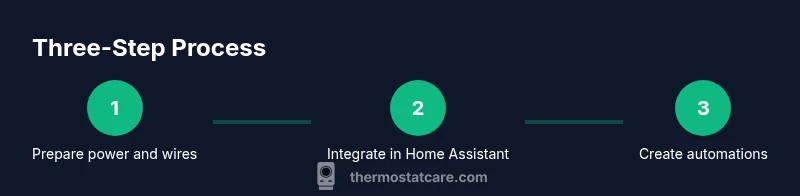
Start by turning off power at the breaker and isolating the HVAC circuit. Gather the necessary tools and a clean workspace to avoid accidental shorts. Remove the old thermostat and carefully label each wire with its terminal letter (R, C, W, Y, G). Confirm your base plate corresponds to those terminals and set the mounting orientation so the wiring won’t be strained. Decide whether you’ll use the C-wire directly, a jumper, or a power-sharing solution, and plan to keep extra wires neatly organized. Having a spare thermostat base on hand minimizes downtime if you need to swap models for compatibility. After wiring, gently tidy the cable and reattach the thermostat base so the connections stay secure.
Integrating with Home Assistant
With hardware prepared, install or update Home Assistant and add the generic thermostat integration. Create a climate entity in YAML or through the UI, pointing to the installed sensors (temperature, setpoint, and feedback) and the actuator that controls the HVAC system. Map the R and C wires to provide correct power and avoid glitches that could trip breakers. Verify that the climate entity exposes current_temperature, min_temp, max_temp, and a valid setpoint. If your system uses MQTT or REST, follow the specific integration steps and ensure the device state updates reflect in the UI in near real-time. Finally, add the climate card to your dashboard for quick control and visibility.
Creating automations and schedules
Develop automations that adjust setpoints based on time, occupancy, or weather. Example automations include raising the setpoint during the day, lowering it at night, and temporarily boosting cooling during heatwaves. Use weather and calendar data to trigger actions, rather than relying solely on fixed times. Create templates for dynamic targets; for instance, a weekend schedule may differ from weekdays. Always test automation triggers in a controlled environment before relying on them daily. Document the logic clearly so future upgrades don’t break existing behaviors.
Testing, safety, and maintenance
Test the setup incrementally: verify power, confirm the climate entity responds to setpoints, and ensure automations execute as expected. Check for warning signs like delayed responses, unexpected mode changes, or temperature swings that exceed comfort bounds. Regularly inspect wiring connections and clean any dust buildup that could affect sensors. Keep a backup of the HA configuration and any custom scripts, so you can recover quickly after software updates or hardware changes. Schedule periodic checks to maintain reliability and energy efficiency.
Common pitfalls and troubleshooting
Common pitfalls include mislabeling wires, missing C-wire, incompatible voltage, or using an interface not supported by Home Assistant. Power issues are the most frequent cause of silent failures; always verify 24V AC signals before concluding a fault. If automations don’t trigger, review logs, ensure the climate entity is online, and confirm the automation conditions aren’t blocked by another rule. Inconsistent sensor readings can come from faulty wiring, poor contact at terminals, or a loose connection. When in doubt, revert to a minimal working configuration and rebuild gradually, testing each change.
Tools & Materials
- Non-contact voltage tester(To verify 24V HVAC signals without touching live wires)
- Screwdriver set (Phillips and flat-head)(For thermostat mounting and panel screws)
- Wire strippers and needle-nose pliers(To safely trim and bend conductors)
- Multimeter (optional but recommended)(For measuring voltage and continuity)
- C-wire adapter or jumper wires (if needed)(If your current wire bundle lacks a dedicated C-wire)
- Thermostat base with compatible terminals (R, C, W, Y, G)(Ensure the base matches your HVAC control terminal labels)
- Labeling supplies (masking tape, pen)(Label wires before removal)
- Electrical tape or wire caps(Secure wire splices and exposed conductors)
Steps
Estimated time: 60-90 minutes
- 1
Power down and verify safety
Turn off the furnace breaker and the thermostat circuit. Confirm there is no power using the voltage tester. This prevents electric shock and equipment damage during wiring.
Tip: Take a photo of existing wiring before removing anything. - 2
Identify wires and label them
Note which wire goes to R, C, W, Y, and G. If colors don’t match labels, rely on your photos and manual. Label each wire with its terminal letter to keep connections clear.
Tip: Label wires as you disconnect them to avoid mix-ups. - 3
Remove old thermostat and prepare base
Detach the old unit and remove the mounting plate. Check for any drywall damage and prepare a clean space for the new base. Ensure the new base aligns with existing wall screws.
Tip: Keep mounting screws handy in case you reuse the same box. - 4
Connect wires to the new base
Attach wires to the corresponding terminals on the new generic thermostat base (R, C, W, Y, G). Double-check contact snugness. If you lack a C-wire, decide on a safe adapter or jumper before this step.
Tip: Use a small amount of conductor tape to secure exposed conductors. - 5
Install the thermostat in Home Assistant
Set up the climate integration in Home Assistant, choosing the generic thermostat platform and mapping the physical inputs to HA sensors. Confirm the device registry and that 24V power is maintained by the R and C wires.
Tip: If using YAML, copy a minimal config first and test incrementally. - 6
Configure HA sensors and climate entity
Link temperature sensors and setpoints to the climate entity. Verify attributes like current_temperature, min_temp, max_temp, and target_temperature. Adjust units (Celsius/Fahrenheit) to match your locale.
Tip: Keep a backup of sensor IDs to simplify future changes. - 7
Create automations and schedules
Develop automations to adjust setpoints based on time, occupancy, or weather. Test conditions such as away mode and weather-based strategies to ensure consistent comfort.
Tip: Start with a simple morning/evening schedule and expand gradually. - 8
Test functionality and reliability
Trigger setpoint changes and verify HVAC responds correctly. Check logs for errors and confirm automations fire as intended. Do a full cycle test (heat and cool) to ensure stability.
Tip: Test during different ambient temps to observe behavior. - 9
Document, back up, and schedule maintenance
Record wiring colors, terminal labels, and HA config in a dedicated document. Create a backup of the Home Assistant configuration and any custom scripts. Schedule periodic checks for firmware and sensor accuracy.
Tip: Store backups off-device or in a version-controlled repo.
Questions & Answers
What is a generic thermostat in Home Assistant?
A generic thermostat in Home Assistant is a climate control entity that uses HA to manage heating and cooling signals across different brands without relying on a specific manufacturer's thermostat. It relies on sensor data and a simple control algorithm to set target temperatures.
A generic thermostat in Home Assistant is a flexible climate control tool that works with many brands by using common sensors and setpoints.
Do I need a C-wire for Home Assistant integration?
Most integrations require a stable 24V power supply. If your current wiring lacks a C-wire, consider adding one or using a safe adapter or power-sharing solution after verifying compatibility with your HVAC system.
A C-wire is usually needed for stable power; if you don’t have one, plan a safe, supported solution.
Is it safe to install wiring myself?
Shut off power at the breaker before any work and follow proper safety procedures. For high-voltage work or furnace interfaces, consider hiring a licensed HVAC technician to avoid hazards.
If you’re unsure about wiring, it’s safer to hire a professional.
What are common issues with generic thermostat HA setups?
Common issues include no power to the thermostat, incorrect wiring labels, misconfigured Home Assistant YAML, and network connectivity problems. Validate power with a tester and review the climate entity state in HA.
Power problems, wiring mistakes, and configuration errors are most common—check each step carefully.
How do I test my automations after setup?
Use Home Assistant’s Developer Tools to trigger automations, review logs, and confirm that setpoints update correctly. Simulate edge conditions like away mode to ensure robustness.
Trigger automations in Home Assistant and check their behavior and logs.
Where can I find reliable wiring diagrams and HA configurations?
Consult official Home Assistant documentation and reputable thermostat guides. Cross-check community posts with your system, but verify against your hardware.
Look at Home Assistant docs and trusted guides to validate wiring and config.
Watch Video
What to Remember
- Plan wiring and power before starting
- Use a compatible generic thermostat interface
- Test automations safely and iteratively
- Document wiring and backup configs for maintenance