Nest Thermostat Connections: A Practical Wiring Guide
Learn how to identify and connect nest thermostat wires safely. This step-by-step guide covers common wire types (C, R, Y, G, W, O/B) and test tips for reliable thermostat wiring.


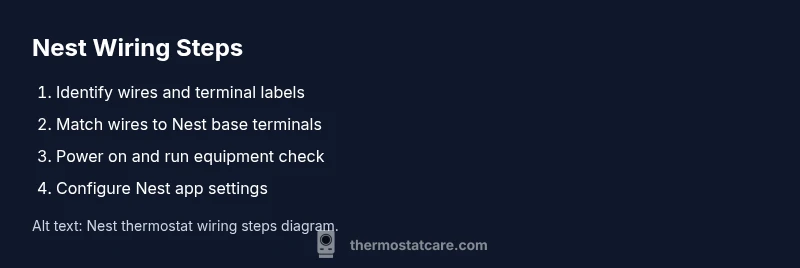
To complete nest thermostat connections, power off at the breaker, identify each wire and its label, then attach wires to the Nest base terminals (R, C, Y, G, W, and O/B as needed). After wiring, restore power and configure the thermostat in the Nest app, verifying that the equipment test passes.
Overview of Nest thermostat connections
Nest thermostat connections revolve around correctly identifying the wires in your HVAC system and mapping them to the Nest base. The most common wires are R for power, C for common, Y for cooling, G for fan, and W for heat. Heat pump systems add O or B for reversing valve control. When you approach nest thermostat connections, start with a label check and a plan for which terminals you will use. This knowledge helps homeowners troubleshoot issues quickly and prevents frequent miswiring that can cause system faults or incorrect temperatures. The Nest thermostat is designed to work with a wide range of single-stage and multi-stage setups, but compatibility varies by system configuration. Throughout this guide, you will see how nest thermostat connections align with typical residential HVAC configurations and how to validate compatibility before wiring.
Mapping wires to Nest terminals
Before you connect anything, confirm the functions of each conductor using labels or a photo of the old wiring. On the Nest base, the standard terminals include R, C, Y, G, W, and O/B for heat pumps. Match each labeled conductor to the appropriate terminal: R to R, C to C, Y to Y, G to G, W to W, and O/B to O/B. If a conductor lacks a label, refer to the original wiring diagram or use a multimeter to determine voltage and function after powering down. Keep in mind that some systems use jumpers or separate accessory relays; note these in your plan so you don’t misconnect a jumper that isn’t compatible with Nest.
Safety and compatibility considerations
Electric wiring carries risk. Always power down the HVAC circuit at the main breaker before touching wires, and verify no voltage with a tester. If your system lacks a C-wire, Nest may still operate using alternative power methods, but a steady C-wire is preferred for reliable operation. Check your HVAC type (single-stage vs multi-stage, conventional vs heat pump) and review Nest compatibility notes. If you encounter unusual wire colors or multiple wires sharing a terminal, pause and consult the professional wiring diagrams for your equipment. When in doubt, you can run a 24-volt common wire extension or use a Nest Power Connector as an alternative to a direct C-wire.
Wiring scenarios for common HVAC setups
Standard single-stage cool and heat typically use R, C, Y, G, and W. A heat pump adds O or B for reversing valve control, and some setups use Y2 or W2 for second-stage cooling or heating. If your thermostat wires are short or miscolored, rely on function rather than color and wire the Nest based on terminal labels. For systems without a C-wire, Nest can often operate by leveraging power from the R wire via the Nest’s internal power management, but many users prefer adding a C-wire or a power connector to ensure stability during Wi-Fi transmissions and advanced features.
After installation: app setup and testing
Power the system back on and open the Nest app to complete setup. The app will guide you through system type checks, Wi-Fi configuration, and software updates. Run a quick test to ensure cooling and heating respond correctly, and verify fan operation and reversing valve behavior if applicable. If the app flags incompatibilities, revisit the wiring plan and confirm that each conductor is connected to the correct terminal. Document any anomalies so you can troubleshoot later or call for professional support if needed.
Common mistakes to avoid and maintenance tips
Avoid common missteps like mixing up R and RC, leaving a loose wire, or ignoring a missing C-wire. Always label wires before removing the old thermostat, and take a reference photo for future service. Periodically check the Nest app for firmware updates and confirm that the HVAC status is reported accurately after changes. Regular maintenance helps prevent false temperature readings and improves system efficiency.
Tools & Materials
- Non-contact voltage tester(Confirm no voltage present at the thermostat wire terminals before touching.)
- Small screwdriver (Phillips or flathead)(For securing Nest base screws.)
- Wire labels or tape(Label each conductor as you disconnect.)
- Nest thermostat and base(Have the Nest unit ready for installation.)
- Smartphone with Nest app(To complete setup and tests.)
- Optional: Nest Power Connector (C-wire adapter)(Useful if you lack a C-wire.)
Steps
Estimated time: 30-60 minutes
- 1
Power off HVAC and thermostat
Turn off power at the main breaker and at the thermostat itself. Confirm there is no voltage using a tester before handling any wires. This step prevents electric shock and accidental short circuits during wiring.
Tip: Use a dedicated HVAC breaker and verify zero voltage with a tester. - 2
Remove cover and photograph wiring
Carefully remove the thermostat faceplate and take clear photos from multiple angles. This gives you a reference if anything needs to be reconnected later and reduces guesswork during reassembly.
Tip: Capture wide and close-up shots of each terminal and label. - 3
Identify and label wires
Label each conductor with its function (R, C, Y, G, W, O/B) before disconnecting. If a wire lacks a label, trace its path and compare with the old thermostat wiring diagram or system control board.
Tip: Use color and terminal location as a secondary guide, but rely on labels first. - 4
Verify Nest compatibility and decide on C-wire
Review your HVAC type and confirm Nest compatibility. If you don’t have a C-wire, decide whether to use a Nest Power Connector or add a dedicated C-wire.
Tip: Check for single-stage vs multi-stage and heat pump vs conventional setup. - 5
Connect wires to Nest base according to labels
Insert each conductor into the matching Nest terminal (R to R, C to C, Y to Y, G to G, W to W, O/B to O/B). Secure screws firmly without over-tightening and ensure wires sit fully under the terminal clamps.
Tip: Double-check each connection against your labeled references before reassembly. - 6
Restore power and initialize Nest app
Turn the breaker back on and power up the Nest unit. Open the Nest app and follow the on-screen prompts to configure HVAC type, connect to Wi-Fi, and run a quick equipment test.
Tip: If the app flags an issue, recheck each wire’s terminal position and retry the equipment test.
Questions & Answers
What wires do I need for Nest thermostat connections?
Most Nest setups use R, C, Y, G, and W; O/B is used for heat pump reversing valve. If you lack a C-wire, Nest may run with power stealing or an adapter, but a C-wire improves reliability.
Most Nest setups use R, C, Y, G, W, and O/B for heat pumps. If you don’t have a C-wire, Nest can work with power stealing or an adapter, but a dedicated C-wire is best.
Do I always need a C-wire for Nest?
A C-wire is not always required, but it is highly recommended for stable Nest operation. Without C, the thermostat may rely on power stealing, which can cause power issues in some systems.
A C-wire isn’t always required, but it’s recommended for stability. Without it, Nest may use power stealing, which can cause issues on some systems.
How can I tell if my HVAC is compatible with Nest?
Use the Nest compatibility checker in the app or on Google’s support site. It guides you through system type, wire count, and whether a C-wire is needed for reliable operation.
Run the Nest compatibility check in the app or on Google's site to confirm system type and wire requirements.
Is it safe to wire a Nest thermostat myself?
Wiring a thermostat can be safe if you power off and follow labels carefully. If you’re unsure about any step, consult a professional to avoid shocks or equipment damage.
Yes, it can be safe if you power off and follow the labels. If you’re unsure, call a professional.
What should I do if Nest won’t power on after wiring?
First, recheck all wire connections and ensure the power is restored at the breaker. If the issue persists, verify the C-wire status and consider using the Nest Power Connector as needed.
First, recheck connections and restore power. If it still won’t power, check the C-wire or consider a power connector.
How do I know if wiring is correct after installation?
Use the Nest app’s equipment test and verify that cooling, heating, and fan respond correctly. If any function is misbehaving, recheck terminal assignments and wire labels.
Check the equipment test in the app and confirm that heat, cool, and fan respond correctly. Recheck wiring if issues appear.
Watch Video
What to Remember
- Power off before handling wires
- Label wires to prevent miswiring
- Test configuration in the Nest app
- Keep wiring photos for future service