Carrier Thermostat Programming: A Complete How-To Guide
Learn how to program Carrier thermostats for comfort and energy savings. This step-by-step guide covers scheduling, modes, app control, and troubleshooting to help homeowners optimize their home climate.


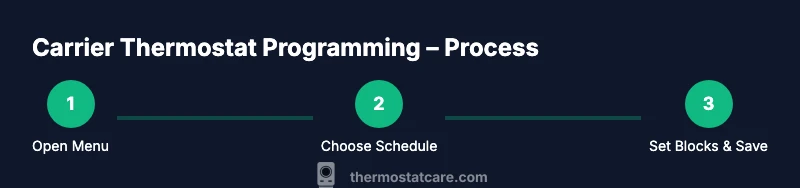
Program your Carrier thermostat by following a clear step-by-step schedule. Start by opening the programming menu, set weekday and weekend times, choose heat, cool, or auto modes, then save. The Thermostat Care team notes that correctly matched schedules improve comfort and minimize energy waste, particularly when you tailor the programming to your daily routine. You can also use the app for remote changes.
Understanding Carrier thermostat programming basics
Carrier thermostats are designed to translate your daily routine into a comfortable, energy-efficient climate. At their core, programming lets you set different temperatures for different times of day and days of the week, then switch to a hold or auto mode when needed. This guide uses plain-language steps and practical examples so homeowners and DIY enthusiasts can implement a reliable schedule without guesswork. According to Thermostat Care, the most effective programs align home occupancy patterns with temperature setpoints, reducing energy waste while preserving comfort. Start by noting your typical wake, work, and sleep times, then map those blocks to your thermostat’s available program slots. If you already rely on the auto or adaptive recovery features, you can fine-tune them after the initial schedule is live. The goal is a predictable, comfortable environment with minimal manual adjustments.
Accessing the Carrier thermostat programming interface
To begin programming, wake up the thermostat and access the main menu. Press the Menu or Settings button, then navigate to Schedule, Program, or a similarly labeled option depending on your model. If you’re using the Carrier app, log in and locate the device that corresponds to your thermostat. Some older Carrier models require you to press a sequence of physical buttons to enter the programming mode. Having your model number and manual handy reduces confusion and speeds setup. If you encounter a lock or password prompt, input the default code found in your manual and plan to change it after setup. The interface should present you with weekday and weekend blocks, or a general “daily” block you can customize. Be sure your thermostat is connected to Wi-Fi if you plan to use remote changes.
Setting a weekday schedule: morning, day, and night
Begin with a baseline weekday schedule that covers waking hours, work hours, and evening routines. Typical blocks include: wake (adjust the temperature before you get up), work (set a comfortable but economical temperature while you’re away), and sleep (lower or raise heat/cool for overnight). Enter the desired setpoints for each block and assign start and end times. Save the weekday schedule before moving to weekend settings. If your model supports multiple programs per day, you can create separate blocks for weekdays that reflect commute times, school pickups, or exercise routines. Consistency matters: once a weekday pattern is established, you’ll have fewer tweaks later.
Setting weekend schedules and vacation holds
Weekend patterns often differ from weekdays. Create a distinct set of blocks for Saturday and Sunday that reflect leisure activities, late wake times, and social events. If you travel, use the vacation hold or temporary hold features to preserve your standard program while you’re away. Some Carrier models offer a vacation mode that resumes automatically after a set period. Remember to review and adjust weekend settings seasonally if your routines change with daylight hours or social schedules. After saving, run a quick test by advancing the clock a few hours to ensure the changes take effect as expected.
Understanding hold, auto, and adaptive recovery options
Hold lets you lock in a temporary temperature, bypassing the programmed schedule. Auto uses the schedule to adjust temperatures automatically, and adaptive recovery (if available) preheats or pre-cools to reach the desired setpoint by the start time. Decide which mode suits your lifestyle: use Auto for consistent schedules, Hold for unexpected changes, and Adaptive Recovery when you want precise thermal comfort with minimal energy use. Clarify how long a hold should last and whether it should override the schedule temporarily. If you’re unsure, start with standard Auto scheduling and introduce holds as needed.
Troubleshooting common programming issues
If your changes don’t save, re-enter the program, confirm you pressed Save or Confirm, and check for a software update in the app. If the display shows an error code, refer to the manual’s error guide, which often maps codes to simple solutions like reconnecting Wi-Fi or ensuring the C-wire is properly seated. For remote programming, ensure your phone’s time zone is correct and the thermostat’s clock is synchronized. If you’ve recently installed a new battery or power supply, recheck the settings after a reset. Finally, if a scheduled change seems to run at the wrong times, verify the time settings and daylight saving adjustments in the thermostat or app. Thermostat Care recommends keeping a written copy of your schedule for reference when issues arise.
Energy-saving strategies with Carrier programming
Energy savings come from aligning temperatures with occupancy and using setback periods during unoccupied times. A practical approach is to raise the cooling setpoint a few degrees during work hours and lower the heating setpoint during sleep. Use weekends to reflect slower routines, and enable Auto to ensure gradual transitions rather than abrupt changes. If your Carrier model supports recovery features, calibrate them to minimize overshoot. Finally, combine programming with other efficiency measures like sealing leaks and using G-level insulation for long-term savings. Thermostat Care’s guidance emphasizes tailoring the schedule to your real life, not a generic template.
Remote control and app-based programming options
Many Carrier thermostats support remote programming via a dedicated app. Install the app, pair it with your device, and verify you can push schedule changes in real time. Remotely adjusting the schedule is convenient when plans change, and it helps you maintain energy discipline even when you’re away. Ensure your smartphone has a stable internet connection and that the thermostat is linked to your account. If you travel across time zones, enable automatic time adjustment or manually update the clock to avoid misaligned schedules. The app’s calendar view can help you visualize your week at a glance and make faster edits.
What to do after power loss or battery replacement
Power outages or battery replacements can reset clocks or erase temporary overrides. After power returns, review the current time and reset any scheduled blocks that may have been lost. If you use a system hold, re-enter the desired temperatures and times. It’s a good practice to re-check your weekday and weekend blocks to ensure they reflect your current routine. If your model uses adaptive recovery, allow a cycle or two for the thermostat to reacquire the correct start times. Finally, save the updated program and run a quick test to confirm the schedule functions as intended.
Tools & Materials
- Carrier thermostat(Model with scheduling capability; verify firmware supports programming features.)
- Owner's manual(Keep for model-specific button labels and steps.)
- Smartphone or tablet with internet access(Useful for app-based programming and remote control.)
- Stable Wi-Fi network (prefer 2.4 GHz)(Needed for app connectivity and remote changes.)
- Pen and notebook(For jotting down a preferred schedule during setup.)
Steps
Estimated time: 20-40 minutes
- 1
Open the programming menu
Wake the thermostat, press Menu/Settings, then locate Schedule or Program. If using the Carrier app, open the device panel and select Scheduling. This first action unlocks the structured blocks you’ll fill in for weekdays, weekends, and holds.
Tip: Have the user manual handy to confirm button labels for your model. - 2
Choose the schedule type and climate mode
Select the mode (Heat, Cool, Auto) and confirm you’re editing the correct day blocks. If your model offers multiple programs per day, decide whether you want separate weekday and weekend profiles.
Tip: If unsure, start with Auto and adjust block-by-block later. - 3
Program weekday start and end times
Set wake, leave, return, and sleep blocks with corresponding temperatures. Keep start times consistent for reliability and only tweak when routines change.
Tip: Document the times you choose to avoid confusion later. - 4
Program weekend and vacation blocks
Create a distinct weekend schedule and enable vacation or hold modes when away. Ensure the thermostat automatically resumes your regular schedule after the planned period.
Tip: Use a calendar view if available to plan weeks ahead. - 5
Configure hold, auto, and adaptive settings
Decide how holds override the schedule, whether Auto will follow the full program, and if Adaptive Recovery is enabled to minimize overshoot.
Tip: Test a quick hold from a dinner plan to see how the override behaves. - 6
Test the programmed schedule
Run a small test by advancing the time or waiting for the next transition, then verify temperatures match the blocks. Make any necessary corrections and save.
Tip: Always save after each significant change. - 7
Enable remote/app controls
If you’re using the Carrier app, pair the thermostat and test remote schedule edits. Confirm changes reflect on the device in real time.
Tip: Keep the app updated for best compatibility. - 8
Review and finalize the setup
Do a final pass of all blocks, ensure consistency across weekdays and weekends, and confirm the clock is accurate. Document the final schedule for future reference.
Tip: Consider creating a printed copy of your weekly plan.
Questions & Answers
How do I access the Carrier thermostat programming on a legacy model?
On legacy models, enter the Settings or Menu, navigate to Schedule or Program, and follow on-screen prompts. If buttons are labeled differently, consult the manual or use the app if supported by the device.
On older units, go to Settings, then Schedule, and follow prompts. If your labels differ, check the manual or use the carrier app if available.
What is the best way to set weekday and weekend schedules?
Create a weekday schedule with wake, work, and sleep blocks, then mirror a slightly different weekend template. Keeping consistent times reduces energy waste and improves comfort.
Set different blocks for weekdays and weekends to match your routine; consistency helps energy savings.
Can I program Carrier thermostats without the app?
Many Carrier models support in-device programming without the app, but the app provides easier editing, remote access, and backup. If you mainly use the thermostat, you can still program it directly.
You can program it on the device itself, but the app makes remote changes simpler.
Why isn’t my schedule saving after edits?
Check for a Save/Confirm option and ensure you completed the process. If there’s a software update, install it, and re-enter the schedule. A temporary hold could also override the saved settings.
Make sure you hit Save and confirm there are no prompts asking to save changes.
How often should I update the schedule?
Update when routines change seasonally or with shifts in occupancy. A quarterly review is usually sufficient for most households.
Review your schedule when routines change, not just on a whim.
Do I need a C-wire to program Carrier thermostat schedules?
A C-wire provides a stable power supply for some smart features, but many Carrier models can operate with batteries or the existing wiring for basic programming. Check your model’s requirements.
Some models need a common wire for full functionality; others work on battery power.
Watch Video
What to Remember
- Program Carrier thermostat in clear weekday/weekend blocks
- Use Auto for routine changes and Hold for exceptions
- Test changes and save frequently to confirm outcomes
- Remote app control can simplify ongoing schedule management
- Keep a written schedule as a quick reference for changes