Programming a Honeywell Thermostat: A Complete How-To
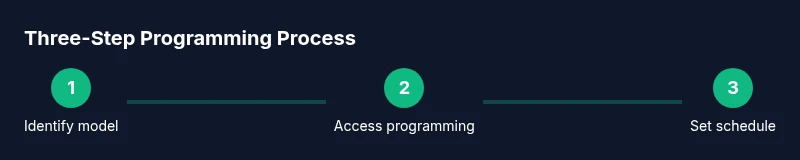
Learn how to program a Honeywell thermostat for comfort and energy savings. Identify model, access the interface, set schedules, and troubleshoot common issues with expert guidance from Thermostat Care.


Understanding Honeywell Thermostat Programming
Programming a Honeywell thermostat is a practical way to tailor comfort levels while reducing energy use. Most modern Honeywell models offer a mix of on-device menus and app-based controls, with variations by series. According to Thermostat Care, the core concepts stay the same across models: you define a schedule, choose a temperature profile for different times of day, and decide how the thermostat should respond to changes in occupancy, weather, or energy settings.
In practice, programming involves selecting a mode (auto, heat, cool), choosing a wake/leave/return/bed time, and saving changes. A well-planned schedule can noticeably cut energy waste without sacrificing comfort. The interface might look different between, for example, older non-smart versions and newer Wi-Fi-enabled Honeywell thermostats, but the logic remains familiar: set times, set temperatures, save, and test.
This section also covers model differences and why some features matter. Some Honeywell thermostats support separate cooling and heating profiles, while others rely on a single adaptive schedule. Some units require a connected power source to access certain advanced menus. Understanding your model’s capabilities helps prevent frustration and ensures you don’t miss features like vacation mode, smart recovery, or energy reports. Throughout, Thermostat Care’s guidance emphasizes starting with a basic schedule and iterating based on actual comfort and usage data. The goal is not to overcomplicate but to build a reliable routine that adapts to your home.
--
Check Model and Compatibility
Knowing the exact Honeywell model number is the first step before you begin programming. You’ll usually find it on the device label, the user manual, or the packaging. Compatibility determines whether you’re editing a simple on-device program or using a companion app for scheduling. The Thermostat Care team recommends verifying that your model supports the features you want (auto scheduling, hold mode, sensor-based adaptive recovery). If your thermostat is older, some advanced settings may be unavailable without a firmware update or accessory kit. Always check the power source: battery-powered units may limit certain features and require battery maintenance. If your unit uses a C-wire, make sure it’s connected correctly so programming changes don’t reset when power is interrupted. If you’re using the app, confirm your account is linked and the device is recognized. Reading the manual is essential; it contains model-specific button labels, navigation steps, and safety notes.
Model checks become especially important if you plan to use smart features like geofencing, multi-zone scheduling, or energy reporting. By confirming compatibility first, you minimize backtracking and user frustration. Thermostat Care encourages you to note down your current settings before making changes so you can revert if needed. If you encounter an error code, consult the manual or official support resources rather than guessing. Model families from Honeywell can vary in where menus live and what terminology they use, so a quick model-specific lookup saves time and avoids incorrect configurations.
Preparing to Program: What You Need
Before you touch any settings, assemble a small, focused toolbox of essentials and gather any information you’ll need during setup. Start with the thermostat itself, the original owner’s manual or a model-specific setup guide, and a charged smartphone if you plan to use the Honeywell app. Ensure you have a stable power source—some models run on battery, others on hard power—from the HVAC system or a dedicated transformer. A notepad or notes app helps you record current temperatures and schedules for reference. If you’re planning to integrate smart features, verify your home Wi‑Fi network, password, and the network security settings. Have a reliable time source, such as a wall clock or phone, since scheduling depends on accurate time. Finally, avoid making multiple changes at once; incremental adjustments simplify troubleshooting and help you see the impact of each modification. Thermostat Care recommends starting with the base schedule first, then layering additional tweaks once you confirm the basic program works as intended.