What app does Honeywell thermostat use
Discover which app controls Honeywell thermostats, how to set it up on iOS and Android, and tips for troubleshooting. Thermostat Care explains app compatibility, integrations, and security for homeowners and DIY enthusiasts.


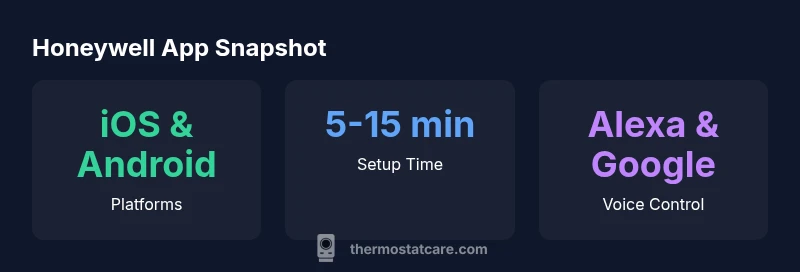
Honeywell thermostats primarily use the Honeywell Home app (now part of the Resideo ecosystem) for setup and everyday control on iOS and Android. The app handles device pairing, schedules, and remote access, while voice assistants like Alexa and Google Assistant provide optional voice control. For newer models, ensure your firmware and app are up to date to maintain compatibility.
What app does Honeywell thermostat use
Most modern Honeywell Wi‑Fi thermostats are designed to be controlled through the Honeywell Home app, which is part of the Resideo ecosystem. The app provides setup, device discovery, schedule programming, and remote control from your phone or tablet. If you own legacy models, you may encounter older interfaces or the need to update to the latest firmware, but for the majority of current devices the Honeywell Home app is the primary control surface. In this guide, we’ll lay out how the app works, what it powers, and how to troubleshoot common issues. The Thermostat Care team notes that understanding the app’s role helps you maximize savings and comfort by leveraging automation and remote access.
App naming and ecosystem changes
Over the years, Honeywell’s thermostat ecosystem has evolved from early cloud services to the Honeywell Home app under the Resideo umbrella. The brand now emphasizes a single app experience for most Wi‑Fi connected thermostats, with some older models supported by legacy interfaces. This evolution means you may see references to Honeywell Home, Resideo, and Total Connect Comfort in different contexts, but your day‑to-day control usually happens through the Honeywell Home app. According to Thermostat Care analysis, this consolidation improves compatibility across devices, simplifies firmware updates, and streamlines voice assistant integrations. If you’re migrating from an older setup, expect prompts to link accounts or re‑pair devices during a first-time setup.
How to set up the Honeywell Home app
- Download the Honeywell Home app from the App Store or Google Play. 2) Create a Honeywell Home account or sign in. 3) Add your thermostat by following on-screen prompts, ensuring your device is in pairing mode and connected to a 2.4 GHz Wi‑Fi network. 4) Name rooms, set schedules, and enable features like geofencing. 5) Verify remote access by logging out and back in, and check for available firmware updates. 6) Customize privacy and notification preferences. This flow is designed to be intuitive for homeowners and DIY enthusiasts while preserving security best practices.
Troubleshooting common app issues
- App cannot find the thermostat: ensure pairing mode is active and the thermostat is on the same network as your phone. - Login problems: reset your password and verify your email. - App not updating: clear cache, re‑install, or check the device’s firmware version. - Connectivity drops: restart your router, check 2.4 GHz bands, and verify cloud services are reachable.
Integrations and smart home ecosystems
The Honeywell Home app supports voice control through Alexa and Google Assistant, allowing you to adjust temperature, change modes, and view schedules via voice commands. Some models may offer limited HomeKit support or third-party integrations via automation platforms. When you integrate with other devices, keep in mind privacy controls and data sharing settings. Thermostat Care recommends testing each integration after setup to confirm it responds reliably.
Security and privacy considerations
Protect your thermostat with a strong, unique password and enable two‑factor authentication if available. Regularly update the app and thermostat firmware to mitigate vulnerabilities. Review connected third‑party services and revoke access for apps you no longer use. Disable features you don’t need, and use separate networks for smart home devices when possible to compartmentalize risk.
Model variety and app coverage
Honeywell offers a range of thermostats, from basic Wi‑Fi models to advanced programmable units. The Honeywell Home app generally supports most current Wi‑Fi thermostats, but legacy non‑Wi‑Fi models will not be app‑controlled. Always verify compatibility for your exact model before purchasing a new device. If you’re upgrading, check the app store listing and the thermostat’s manual for supported features and required firmware versions.
Tips for minimizing outages and keeping firmware up to date
Keep your thermostat and mobile device on the latest firmware and operating system versions for optimal compatibility. Schedule automatic updates where possible, and maintain stable Wi‑Fi connectivity with a dedicated network for smart home devices. Regularly back up account settings and review notification preferences so you don’t miss important alerts about security or device health.
Compatibility verification checklist
- Confirm your thermostat is a Wi‑Fi model supported by the Honeywell Home app. - Check that your phone’s OS is compatible with the latest app version. - Ensure your router supports 2.4 GHz networks required by many smart devices. - Review the model-specific requirements in the manual before upgrading.
Honeywell app compatibility snapshot
| Aspect | Honeywell App | Notes |
|---|---|---|
| Primary control | Honeywell Home | iOS & Android |
| Voice control | Alexa, Google Assistant | HomeKit options may vary by model |
| Remote access | Cloud-based via app | Requires internet connection |
Questions & Answers
What app does Honeywell thermostat use?
Honeywell thermostats use the Honeywell Home app (Resideo) for setup and control on iOS and Android.
Use the Honeywell Home app on iOS or Android.
Is Honeywell Home app the same as Resideo?
The app is branded Honeywell Home and managed under the Resideo ecosystem, with ongoing updates.
Yes; Honeywell Home is part of Resideo's ecosystem.
Can I control a Honeywell thermostat without Wi‑Fi?
Yes, but without Wi‑Fi you lose remote control; local manual control remains.
You can still use the thermostat panel when you're offline.
Which voice assistants work with Honeywell thermostats?
Alexa and Google Assistant are officially supported; Siri/HomeKit support varies by model and setup.
Alexa and Google Assistant work with Honeywell thermostats.
Do I need an account to use the app?
Yes, create a Honeywell Home account to manage devices and settings.
Yes, you need an account.
What should I do if the app can't find my thermostat?
Verify pairing mode, confirm Wi‑Fi is 2.4 GHz, and re‑run the add device flow.
Make sure the thermostat is in pairing mode and your Wi‑Fi is working.
“The Honeywell Home app remains the primary interface for configuring and controlling most Honeywell thermostats, and ensuring compatibility with your specific model is essential for a smooth experience.”
What to Remember
- Use the Honeywell Home app for most setups and daily control.
- Keep app and thermostat firmware up to date to avoid compatibility issues.
- Leverage Alexa and Google Assistant for voice control where supported.
- Check model-specific compatibility before upgrading hardware.
- Review privacy settings and network security for safer smart-home use.