How to Control Your Thermostat from Your Phone
Learn how to control your thermostat from your phone using apps, geofencing, and remote scheduling. Thermostat Care guides homeowners through setup, security, and troubleshooting for seamless, energy-saving comfort.


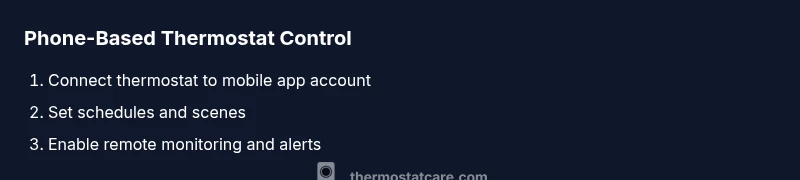
By using the official app or a compatible smart-home hub, you can control your thermostat from your phone, set schedules, adjust temperatures remotely, and receive alerts anywhere. This guide walks you through setup, security considerations, and practical tips to get reliable, convenient phone-based control without compromising privacy or comfort. Whether you’re upgrading an older system or starting fresh, you’ll learn best practices.
Why controlling a thermostat from your phone matters
Controlling a thermostat from your phone adds convenience and faster responses to changing conditions in your home. According to Thermostat Care, homeowners who use phone-based controls report higher satisfaction thanks to the ability to adjust comfort on the fly, even when they’re away. The beauty of this approach is that you can see current temperatures, hold times, and energy use in real time, all from a device you already carry. Think of it as having a smart assistant for your home climate: you can tweak schedules, receive alerts when someone leaves the house, and optimize setpoints without walking to the wall unit. This seamless control reduces the friction between wanting comfort and wanting efficiency, making it easier to stay on track with your energy goals.
In addition to convenience, phone control unlocks proactive energy management. You can program away-from-home modes to reduce heating or cooling when you’re not there, and you can review daily activity to understand how your habits affect energy use. For families with variable schedules, the ability to adjust remotely means you won’t overheat or overcool rooms in your absence. The Thermostat Care team often notes that small, timely adjustments compound into noticeable savings over a season, especially when paired with timer-based schedules and occupancy sensing that aligns with real-life routines.
wordCount”:“null”}],
Tools & Materials
- Smartphone with internet access(iOS or Android, latest OS recommended)
- Stable Wi-Fi network(2.4 GHz/5 GHz support preferred; ensure router is streaming consistently)
- Thermostat compatible with mobile app(Check model supports app control and cloud syncing)
- Thermostat app account credentials(Use a unique password; enable two-factor authentication if available)
Steps
Estimated time: 15-40 minutes
- 1
Check compatibility and create accounts
First, verify your thermostat model supports remote control via a mobile app. Create or sign in to the manufacturer app, and link your thermostat to your account. This establishes the cloud connection that makes remote control possible.
Tip: If you’re switching brands, note whether you’ll need to factory-reset the old device to avoid conflicts. - 2
Install the app and connect to the thermostat
Download the official app for your thermostat and follow the in-app prompts to connect to the device. This usually requires selecting your thermostat from a list and confirming a pairing code shown on the thermostat.
Tip: Keep your phone near the thermostat during setup in case you need to scan a QR code or enter a pairing PIN. - 3
Add the thermostat to your home Wi‑Fi and authorize cloud access
Enter your home network credentials within the app so the thermostat can access the internet and send data to the cloud. Authorize any required permissions, such as notifications and location services if you want geofencing.
Tip: Ensure your network is stable during initial setup to prevent incomplete pairing. - 4
Create a basic schedule
Set a simple day/night schedule that moves the temperature gradually toward comfortable settings. Use the app’s copy of your current schedule as a baseline and adjust for your routine.
Tip: Test the schedule by simulating a typical day and watching how the thermostat responds. - 5
Test remote control and geofencing
From outside the home network, use the app to adjust temperature and verify real-time updates are received on your phone. If you want automatic changes when you approach home, enable geofencing.
Tip: If geofencing feels flaky, check your phone’s location permissions and the router’s UPnP settings. - 6
Enable notifications and set energy goals
Turn on alerts for temperature swings, system faults, and filter reminders. Set reasonable energy-saving goals (e.g., reduce cooling during peak hours) and track progress over time.
Tip: Notifications should be tailored to avoid alert fatigue—prioritize faults and critical energy events.
Questions & Answers
Can I control multiple thermostats from a single phone?
Yes. Most apps allow you to manage more than one thermostat from the same account. You’ll see each device in a list and can tailor schedules for each zone or room. If you’re using a smart home hub, you can group devices for unified control.
Yes—most apps support multiple thermostats, and you can tailor each one individually.
Is phone-based control secure?
Security depends on the app and your network. Use strong, unique passwords, enable two-factor authentication, keep the app updated, and ensure your Wi‑Fi network is secured with WPA3 or WPA2. Avoid public Wi‑Fi for setup when possible.
Security matters; use strong passwords, enable two-factor authentication, and keep software updated.
What if my Wi‑Fi changes or I get a new router?
Re-connect the thermostat to the new network through the app. You may need to re-enter your Wi‑Fi credentials or re-run the setup wizard. Most apps store credentials locally and will guide you through re-pairing.
If your network changes, re-link the thermostat in the app and follow the setup prompts.
Do I need a smart thermostat to control from my phone?
Not always. Some legacy models offer mobile control through the manufacturer’s app, but a true smart thermostat with cloud connectivity provides deeper features like geofencing and better energy analytics. Check your model’s capabilities.
You typically need a smart thermostat for full phone control features, but some older models offer basic app access.
Can I control the thermostat with voice assistants while using phone apps?
Yes. Many thermostats support voice assistants (Alexa, Google Assistant, Siri). You can set temperatures or schedules by voice, complementing the app-based control. Ensure your accounts are linked securely and permissions are granted as needed.
You can use voice assistants alongside phone apps for hands-free control.
Watch Video
What to Remember
- Enable phone control via a supported app or hub
- Create robust schedules and geofencing for comfort and savings
- Prioritize security: strong passwords and enable 2FA
- Test remote access and notifications to ensure reliability