Setting up wifi on Honeywell thermostat
A thorough, step-by-step guide to setting up wifi on Honeywell thermostats, with troubleshooting, app integration, and security best practices from Thermostat Care.


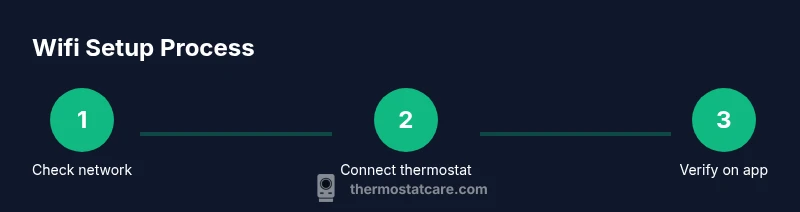
To set up wifi on a Honeywell thermostat, install the official Honeywell Home app, connect the thermostat to your 2.4 GHz network, enter your Wi‑Fi password, and confirm. Update firmware if prompted and test the connection in the app.
Why wifi connectivity matters for Honeywell thermostats
Setting up wifi on honeywell thermostat is more than just a convenience; it unlocks remote control, real-time scheduling, and energy insights that can trim your heating bills. When a thermostat stays connected, you receive software updates, fault alerts, and compatibility with voice assistants. According to Thermostat Care, establishing a reliable wireless link from day one reduces troubleshooting time and improves overall performance. The Honeywell ecosystem supports multiple connection methods, but the most stable experience typically comes from a dedicated home network running at a strong 2.4 GHz band. In practice, you’ll use the official Honeywell Home app to initiate the setup, which guides you through selecting your network, entering the password, and confirming the connection. After the device confirms it’s online, you can customize schedules, enable geofencing, and integrate with other smart-home devices. The payoff is a simpler, more energy-efficient home, with fewer manual adjustments and more consistent comfort.
For homeowners, the act of setting up wifi on honeywell thermostat is the gateway to remote monitoring, energy savings, and improved comfort. You’ll also gain the ability to push firmware updates automatically, which helps with security and feature enhancements. Thermostat Care emphasizes testing connectivity immediately after setup and again after any major network change. If you ever doubt whether the connection is stable, run a quick mock temperature adjustment from the app and verify that it responds promptly. Consistency in connectivity is the foundation of all features that rely on cloud services and mobile control.
Prerequisites and compatibility considerations
Before you begin the wifi setup, verify several practical details to reduce errors and frustration. First, confirm that your home network broadcasts at 2.4 GHz in addition to 5 GHz; many Honeywell models work best on 2.4 GHz, and some do not connect reliably to 5 GHz alone. You should know your Wi‑Fi SSID and password, and ensure the router is powered on and reachable from the thermostat’s location. If you have MAC filtering enabled, temporarily allow the thermostat’s MAC address to connect during setup, then reconfigure security afterward. For devices that support WPS, you may see an option on your router; however, Thermostat Care generally recommends manual entry to avoid WPS vulnerabilities. Make sure you have the latest version of the Honeywell Home app installed on your phone or tablet, and confirm that your device has a clear line of sight to the router or a minimal number of walls in between. Finally, check your Honeywell thermostat model’s compatibility notes to confirm it supports the features you intend to use (remote access, voice control, geofencing, etc.).
How wifi setup works: an overview for Honeywell thermostats
A wifi-enabled Honeywell thermostat establishes a secure link to your home network, enabling cloud-based features, app control, and remote diagnostics. The setup flow typically involves launching the official app, selecting the thermostat you are pairing, and choosing your Wi‑Fi network from a list of detected networks. The thermostat then authenticates with the network using the password you provide, after which it downloads configuration and firmware updates as needed. Understanding this process helps you troubleshoot common issues, such as network discovery failures or password errors. Once connected, the thermostat maintains a persistent connection with the cloud service, allowing schedules, trends, and energy usage to sync across devices. If you encounter problems during pairing, try restarting the router, moving the thermostat closer to the access point, or temporarily disabling VPNs that might block the device from reaching the cloud. Security and firmware updates are ongoing priorities in modern thermostats, so keep the device up to date to minimize risk and maximize performance.
Security and privacy considerations for wifi-enabled thermostats
Security should be a central consideration when enabling wifi on any smart device. Use WPA2 or WPA3 encryption on your home router, and avoid leaving default admin credentials on the router. Disable WPS if possible, and use a strong, unique password for your Wi‑Fi network. Create a separate guest network for guests and smart home devices if your router supports it to isolate critical devices from less trusted traffic. Regularly update the thermostat’s firmware and the companion app to receive security patches and feature improvements. Finally, review app permissions to ensure the thermostat only has access to what it needs (calendar, location services, or voice assistants) and disable any features you don’t plan to use. Thermostat Care recommends maintaining an up-to-date security posture as part of ongoing home network hygiene.
Common issues during wifi setup and troubleshooting tips
Users frequently run into problems such as the thermostat not detecting the network, incorrect password errors, or slow connections. Start by confirming the router is broadcasting and that the 2.4 GHz band is enabled. Re-enter the password carefully, paying attention to case sensitivity and special characters. If the network list remains empty, try rebooting the thermostat and the router, then retry pairing. Ensure the thermostat is within reasonable range of the router; physical obstructions and interference from other devices can degrade performance. If you continue to face issues, consider temporarily disabling firewalls or ISP-provided restrictions that may block cloud services. Finally, review the thermostat model’s support page for any device-specific steps or known issues tied to firmware versions.
Testing, maintenance, and next steps
After successful wifi setup, test all connected features to ensure reliable operation. Use the Honeywell app to run a quick temperature adjustment, view live readings, and confirm that scheduling updates propagate to the thermostat promptly. Enable geofencing and test it with a phone in and out of the designated area to verify automatic adjustments. Schedule regular firmware checks and app updates to keep security and performance current. If you use voice assistants, test each command to confirm proper integration. Finally, document your network details and keep a simple log of any changes to the thermostat settings so you can troubleshoot quickly in the future.
Authority sources and further reading
For further guidance on smart thermostat connectivity and network security, consult the following reputable sources:
- Energy.gov - Thermostats and energy-saving guidance: https://www.energy.gov/energysaver/thermostats
- NIST - Wireless networking and security basics: https://www.nist.gov/
- FTC - Keeping your smart home devices secure: https://www.consumer.ftc.gov/articles/0015-smart-home-security
Tools & Materials
- Honeywell thermostat (model with Wi‑Fi)(Ensure it supports Honeywell Home app pairing)
- Smartphone or tablet with Honeywell Home app installed(iOS or Android; keep the app updated)
- Stable 2.4 GHz Wi‑Fi network(Ensure SSID is visible during setup)
- Wi‑Fi network password(Have it ready; avoid password changes during setup)
- Router with adequate signal in thermostat area(Consider a mesh extender if coverage is poor)
- Optional: Ethernet cable for wired fallback during setup(Some models support initial Wi‑Fi setup via wired connection)
Steps
Estimated time: 25-35 minutes
- 1
Check network compatibility
Verify your network operates on a 2.4 GHz band and that the router is accessible from the thermostat location. Confirm you know the SSID and password before starting. If the network uses MAC filtering, prepare to temporarily allow the thermostat's MAC address. This upfront check reduces time spent troubleshooting later.
Tip: If you’re unsure about 2.4 GHz support, log in to your router’s admin page to verify bands before starting. - 2
Open the Honeywell Home app
Launch the app on your smartphone and sign in with your account. Ensure you have internet access on your device. If you don’t see your thermostat listed, tap add device and follow the prompts. The app will guide you to the Wi‑Fi setup screen.
Tip: Keep your phone connected to the same network you plan to use for the thermostat during setup. - 3
Navigate to Wi‑Fi settings on the thermostat
On the thermostat, go to Settings, then Network or Wi‑Fi. If your model uses a dedicated ‘Add device’ button, press it and wait for the network list to populate. Choose your home network from the list. If the network isn’t visible, try refreshing the list or moving closer to the router.
Tip: Avoid using VPNs on your mobile device during setup as they can interfere with network discovery. - 4
Select your Wi‑Fi network
Tap the name of your 2.4 GHz network. If prompted, confirm you want to connect the thermostat to this network. Some models require you to scan a QR code or enter the SSID manually; follow on-screen instructions precisely. Make sure you enter the password exactly, including correct capitalization and special characters.
Tip: Double-check the password before submitting to avoid repeated failures. - 5
Enter your Wi‑Fi password
Type the password carefully and submit. If the thermostat reports an incorrect password, re-enter it with attention to case sensitivity. After submission, wait for the device to authenticate with the router. A successful connection will show as connected in the app.
Tip: Copy-paste the password if possible to avoid typos. - 6
Confirm the connection
The thermostat should display a confirmation screen or status indicator. In the app, verify that the device shows as online and that system controls respond. If not, retry the connection flow or restart the router and thermostat. Once online, proceed to firmware updates if offered.
Tip: If you don’t see a confirmation, reboot both router and thermostat and retry once. - 7
Update thermostat firmware
Check for firmware updates in the app and install any available versions. Updates can improve security and reliability especially for network features. Do not interrupt the update process. After updating, the thermostat may restart automatically.
Tip: Keep the device plugged in during updates to prevent mid-update failures. - 8
Connect the thermostat to the mobile app
If not already connected, add the thermostat to the Honeywell Home app and complete the pairing flow. The app may ask you to authorize cloud access or enable certain permissions. Verify that you can control temperature and view status from the app.
Tip: Enable push notifications in the app for alerts about temperature or connectivity. - 9
Enable remote access
In the app settings, ensure remote access and cloud syncing are turned on. This enables you to control the thermostat when you’re away from home. Test by adjusting the temperature from outside your network to confirm remote connectivity.
Tip: Test using cellular data rather than Wi‑Fi while away to validate remote access. - 10
Adjust security and privacy options
Review security settings in the app, limit permissions, and ensure the device is using the latest security standards. Consider enabling two-factor authentication for your account if available. Check that your home network uses a strong password and WPA2/3 encryption.
Tip: Regularly review app permissions and revoke access for unused services. - 11
Test schedules and geofencing
Set an initial schedule and test it to ensure changes reflect on the thermostat. If you use geofencing, simulate arrival and departure to verify automatic adjustments. Confirm that energy-savings modes apply correctly and that vacation or away modes behave as expected.
Tip: Use realistic test locations for geofencing to avoid false triggers. - 12
Document settings for future reference
Create a simple record of your network name, password (stored securely), and the thermostat’s software version. Note any quirks or steps unique to your model. This documentation helps you troubleshoot quickly if you change networks or reset devices in the future.
Tip: Keep sensitive info (passwords) in a secure location separate from the device itself. - 13
Backup plan: wired fallback (optional)
If your model supports it, you can set up a temporary wired fallback during initial configuration. This reduces wireless interference during first-time pairing. After successful wifi pairing, you can remove the wired connection if desired.
Tip: Only use wired fallback if your router is unstable or your device struggles with wireless handshake. - 14
Verify cross‑device compatibility
Test the thermostat’s interaction with other smart devices (voice assistants, hubs, or scenes). Ensure routines still function when triggered by other devices. Resolve any conflicts between schedules or scenes that might override desired temps.
Tip: Document any automation conflicts and adjust routines accordingly. - 15
Check for secondary reconfigurations
If you move to a different location (new router or network), repeat the setup steps for the new network. Reconnect the thermostat to ensure it retains cloud access. Update your device list in the app if you add or remove devices.
Tip: Avoid changing networks frequently during initial setup to prevent confusion. - 16
Celebrate a successful setup
You’ve completed the wifi setup and validated both local and remote control. Take a moment to enjoy seamless control and predictable comfort. Keep a backup of your credentials and monitor performance over the next few days.
Tip: Schedule a quarterly check to ensure the thermostat remains connected and up to date.
Questions & Answers
How long does wifi setup typically take on a Honeywell thermostat?
Most setups take between 5 and 15 minutes after prerequisites are met. If you encounter password or network issues, allocate extra time for retry attempts. Allow additional minutes if firmware updates are required.
Most setups take about 5 to 15 minutes once you have the network details ready. If you run into password or network issues, plan for a few extra minutes to retry or update firmware.
Can I use WPS to connect the thermostat to Wi‑Fi?
Some Honeywell models offer WPS, but it is generally less secure. If possible, connect manually using your network password to avoid potential vulnerabilities. WPS can be convenient, yet it may expose your network to risks if not configured carefully.
Some models support WPS, but manual connection with your password is usually safer and recommended.
What if the thermostat can't find my wifi network?
Ensure the network is 2.4 GHz and broadcasting. Move the thermostat closer to the router and disable any firewall rules that block new devices temporarily. You can also try rebooting the router and the thermostat and retrying the setup.
If the network isn’t found, check 2.4 GHz, move closer to the router, and reboot both devices before retrying.
Is a 2.4 GHz network required for all Honeywell models?
Most Honeywell thermostats that connect to wifi rely on the 2.4 GHz band for better range, though some newer models support 5 GHz as well. If your model can only use 2.4 GHz, ensure your router is configured to broadcast that band consistently.
Yes, many Honeywell models rely on 2.4 GHz for reliable connectivity, though some newer models may support 5 GHz mix.
Will wifi setup affect other smart home integrations?
A successful wifi setup lays the groundwork for remote control and app-based automations. If other devices lose sync after setup, re-check network settings and ensure the thermostat remains on the same home network used by your smart hub.
Setting up wifi correctly keeps your thermostat in sync with other smart devices and apps.
Can I control the thermostat remotely after setup?
Yes. Once connected, you can control, schedule, and monitor the thermostat from anywhere with an internet connection via the Honeywell Home app. Ensure your account has proper security settings to protect access.
Yes, you can control it remotely via the Honeywell app, with proper account security.
Watch Video
What to Remember
- Verify 2.4 GHz network availability before starting
- Follow app-guided steps to minimize errors
- Keep firmware and app updated for security and features
- Test remote access and geofencing after setup