Honeywell Thermostat with WiFi: A Practical Guide
Explore how a Honeywell thermostat with WiFi can enhance comfort, cut energy use, and simplify climate control with setup tips, troubleshooting, and security guidance.


A Honeywell thermostat with WiFi offers remote control, smart scheduling, and energy-management features that can reduce your bill. With smartphone app access and compatibility with voice assistants, you can adjust temperature from anywhere. Ensure your HVAC supports 24V controls and that you have a C-wire for reliable power. This guide walks through setup, troubleshooting, and optimization tips.
Why a Honeywell Thermostat with WiFi matters
According to Thermostat Care, upgrading to a Honeywell thermostat with WiFi can transform day-to-day comfort and energy management. The core value comes from remote control, smarter scheduling, and real-time feedback on how changes affect your energy use. Homeowners benefit from fewer temperature swings when they shape routines around occupancy and weather patterns. The model’s compatibility with common 24V HVAC systems makes it a practical first step for many homes, especially when you want to avoid manual adjustments and forgotten programming screens.
This section highlights how WiFi connectivity translates into tangible benefits: convenience, proactive energy management, and insights that help you spot opportunities to trim waste. You’ll also see how integration with mobile apps and voice assistants can simplify daily routines, from early-morning presets to nighttime cooling.
Tip: Start by verifying your current wiring and power setup, so you know whether you need a C-wire or a power extender during installation.
Key Features: Control, Scheduling, and Data
Honeywell WiFi thermostats bring a suite of features that address both comfort and efficiency. Core capabilities include remote scheduling via a mobile app, geofencing to adjust temps as you leave or return home, and real-time energy reports that show how settings affect consumption. Some models offer voice assistant compatibility with Google Home or Amazon Alexa, enabling hands-free control. The devices typically support multiple user profiles, so family members can adjust the temperature without compromising the overall scheme. Security updates are delivered over the air to protect against vulnerabilities, and most units let you view occupancy-based insights to optimize comfort.
For DIYers, the user interface often emphasizes guided setup wizards, which reduce the likelihood of wiring mistakes and misconfigured schedules. In practice, the combination of remote control and adaptive scheduling tends to yield noticeable improvements in daily comfort and bill reduction, particularly in homes with variable occupancy or thermostat-proximate usage patterns.
Important: When configuring schedules, test changes during different outside temperatures to ensure the system responds predictably.
Compatibility: HVAC Systems and Wiring
Compatibility hinges on your HVAC’s control voltage and the presence of a C-wire. Most Honeywell WiFi thermostats require 24V systems with standard thermostat terminals (R, C, W, Y, G, etc.). If your current stat doesn’t have a C-wire, you may be able to use a power extender kit or install a dedicated C-wire run. Before purchasing, compare the wiring diagram of your furnace or air handler with the thermostat’s installation guide. If you’re unsure, a quick consult with a licensed technician can prevent miswiring and power issues.
Thermostats with WiFi generally support conventional heating systems (gas, electric, heat pumps with auxiliary heat) and most cooling configurations. However, heat pump setups may require specific wiring (O/B, AUX) and additional configuration in the app. Always verify compatibility with your HVAC equipment and local electrical codes.
Choosing the Right Model: Quick Guide
Within the Honeywell ecosystem, different WiFi thermostats offer similar core capabilities but vary in display size, ease of use, and accessory compatibility. When selecting a model, prioritize: (1) HVAC compatibility and wiring (C-wire availability), (2) app reliability and ease of setup, (3) which voice assistants are supported, and (4) firmware update frequency and security features. If you want faster setup and maintenance reports, pick a model with robust energy analytics and a responsive mobile interface. For households with older systems, check if a common power option (like a power extender) is required to guarantee stable operation.
Always read customer reviews for real-world performance and note any issues with WiFi drops or firmware glitches. A well-chosen model reduces ongoing maintenance time and improves long-term reliability.
Setup and Installation: A DIY Path
Follow these steps to install a Honeywell WiFi thermostat without professional help in most cases:
- Turn off power at the breaker to your HVAC system to prevent shock or damage.
- Remove the old thermostat and label wires by their terminals (R, C, W, Y, G).
- Attach the new thermostat base and connect wires according to the wiring diagram in the manual.
- Reattach the display and restore power. The thermostat should power up and guide you to the setup screen.
- Connect to your home WiFi, then sign into the Honeywell app and complete the configuration.
- Run a quick system test (heat, cool, fan cycles) to ensure proper operation.
If you encounter a no-power situation, re-check C-wire connections and verify that the transformer is delivering 24V. If wiring is unclear, consult a professional to avoid miswiring.
Pro tip: Keep a small notebook of wire colors and terminal mapping you discovered during the removal; it speeds future upgrades.
Everyday Use: Tips to Optimize Energy Savings
The real value of a Honeywell WiFi thermostat emerges when you actively optimize schedules and leverage occupancy-driven controls. Use a baseline schedule that mirrors typical daily routines (wake, leave, come home, sleep) and gradually adjust for seasonal changes. Enable geofencing to reduce energy during unoccupied periods, but avoid aggressive setbacks if you have advanced comfort needs. Review energy reports monthly to identify which days show the greatest variance, and adjust thermostats accordingly. For homes with heat pumps, take advantage of auxiliary heat controls to prevent excessive energy use during cold snaps. Regularly updating the device firmware can help retain performance and security.
As you fine-tune, keep a spare battery-equipped back-up for older units and set the thermostat to auto-away when you’re on vacation, so you don’t waste energy while away from home.
Troubleshooting Common WiFi Issues
WiFi problems are the most frequent cause of frustration with smart thermostats. Start by confirming the router is functioning and the thermostat is connected to the correct network. Check that the password is correct and the thermostat’s software is up to date. If the device fails to maintain a connection, try rebooting the router and the thermostat. You may also need to reset the thermostat’s network settings and re-enter credentials. If problems persist, verify that there’s adequate signal strength where the thermostat is located and consider relocating the router or using a mesh system. In some cases, a factory reset of the thermostat resolves lingering connectivity hiccups.
When troubleshooting, keep a log of error messages and the steps you took; this helps identify recurring patterns and speeds up support if needed.
Security, Privacy, and Maintenance
WiFi-enabled thermostats can expose your home to cybersecurity risks if not properly managed. Always use a strong, unique password for your home network and enable two-factor authentication where available. Keep firmware up to date and disable remote access when you’re away from home for extended periods (if you don’t need it). Regular maintenance includes periodic battery checks (if applicable), cleaning dust from vents, and testing the thermostat’s sensors for accuracy. If you suspect a security breach, reset the device and re-pair with your app using secure credentials.
Security best practices also apply to other smart home devices, so maintain good overall network hygiene and consider a dedicated guest network for IoT devices.
Real-World Scenarios: Case Examples
In practice, households that adopt a Honeywell WiFi thermostat with proactive scheduling and regular firmware updates can experience meaningful improvements in comfort and energy efficiency. For example, a family with variable workdays finds geofencing valuable for adjusting temperatures when leaving and returning home. A two-story home sees steadier temperatures after configuring separate schedules for each floor, reducing system cycling and improving overall comfort. While the exact savings depend on usage patterns, many homeowners report noticeable improvements over the first heating season after upgrading to WiFi-enabled models.
WiFi-enabled vs traditional thermostat comparison
| Model/Approach | Connectivity | Remote Control | Typical Installation Time | Power Source |
|---|---|---|---|---|
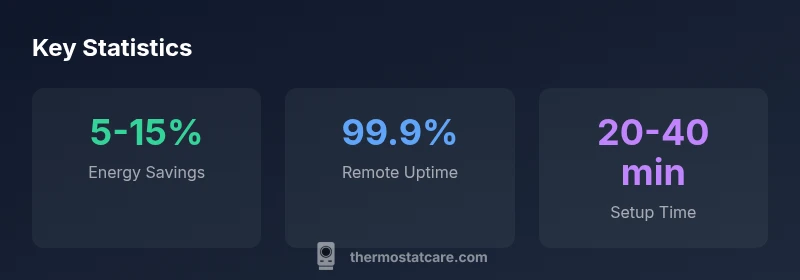
| Honeywell WiFi Thermostat (generic) | Wi‑Fi + App | Full remote control | 20-40 minutes | C‑wire recommended |
| Traditional Thermostat (non‑WiFi) | Local only | No remote control | 15-30 minutes | Battery/Line power |
| Hybrid WiFi Thermostat (generic) | Wi‑Fi + App | Partial remote | 25-45 minutes | C‑wire recommended |
Questions & Answers
What is a Honeywell thermostat with WiFi?
A Honeywell thermostat with WiFi is a smart thermostat that connects to your home network for remote control, scheduling, and energy insights. It supports app-based management and voice assistants for convenient control.
A WiFi thermostat lets you control your home's temperature from your phone or voice assistant.
Do I need a C-wire to install a Honeywell WiFi thermostat?
Most Honeywell WiFi models require a household 24-volt power source and a C-wire for reliable operation. If your old stat doesn’t have a C-wire, you may need a power extender or wiring upgrade.
Chances are you'll need a C-wire or a power extender to power the thermostat reliably.
Is a Honeywell WiFi thermostat compatible with my HVAC system?
Compatibility depends on your system's voltage and controls. Most 24V HVAC systems are compatible, but check the model's wiring guide and your furnace or air handler's terminal strip.
Most 24V systems work, but verify before buying.
How do I troubleshoot WiFi connectivity issues?
First verify your router, ensure the thermostat is on the correct network, and confirm password accuracy. Restart devices, check for firmware updates, and reset network settings if needed.
Restart devices and check for updates; reset network settings if problems persist.
Can I control a Honeywell WiFi thermostat with voice assistants?
Yes. Most Honeywell WiFi thermostats support popular voice assistants like Google Assistant and Amazon Alexa, enabling hands-free adjustments.
Yes, you can use voice assistants to control temperature.
How secure are WiFi-enabled thermostats?
WiFi thermostats include built-in security features and firmware updates. Protect your home network with strong passwords and keep firmware current to reduce risk.
Keep your WiFi secure and update firmware to stay protected.
“A WiFi-enabled Honeywell thermostat, when paired with a compatible HVAC system and proper wiring, offers measurable energy savings and enhanced comfort.”
What to Remember
- Check HVAC compatibility before upgrading.
- Enable C-wire to ensure reliable power.
- Use scheduling and geofencing to maximize savings.
- Secure your network and update firmware regularly.
- Follow step-by-step installation guides for safety.