Resideo Thermostat Offline Troubleshooting Guide
Urgent, step-by-step guide to bring a Resideo thermostat back online when it goes offline. Power, Wi‑Fi, app sync, and firmware fixes from Thermostat Care to minimize downtime.


Most offline issues with a Resideo thermostat come from Wi‑Fi disconnect, power issues, or account sync problems. Start by confirming the thermostat has power, then check your router and internet. If it stays offline, reset the thermostat and re‑pair it with the Resideo app to re-establish connection.
Why Resideo Thermostat Offline happens
When a Resideo thermostat shows as offline, it’s usually because the device cannot reach the cloud, or because the local network isn’t delivering stable power or a reliable Wi‑Fi signal. According to Thermostat Care, the most common culprits are a dropped Wi‑Fi connection, a tripped power supply, or an expired app‑link. Environmental factors (like a router reset or ISP outage) can also interrupt communication. Understanding these root causes helps homeowners tackle the problem quickly and safely, without unnecessary service calls.
Immediate checks you can perform right now
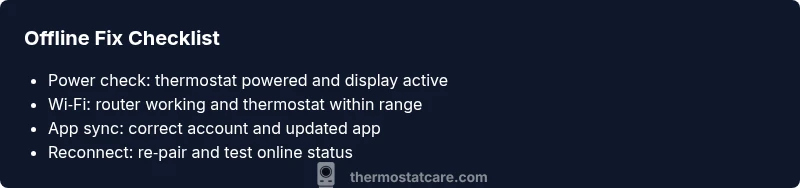
If your thermostat suddenly goes offline, perform these checks in order. First, check that the thermostat has power: verify the display is on and that the HVAC system is not in a power-saving mode. Then, confirm your Wi‑Fi is active on other devices. If your router recently rebooted or firmware updated, re‑establish the connection to the thermostat. Finally, verify your thermostat is linked to the correct account in the Resideo app. These quick checks catch the majority of outages in minutes.
Common causes to verify next
Below are the most frequent reasons a Resideo thermostat goes offline, with practical verification steps:
- Power issues: Make sure the thermostat’s power wire is securely connected and the circuit breaker hasn’t tripped. A dim display or frequent resets often points to a power problem.
- Wi‑Fi instability: Check signal strength at the thermostat location; walls, appliances, or distance from the router can degrade connectivity.
- Account/app sync problems: Ensure you’re logged into the right account in the Resideo app and that the app is updated to the latest version.
- Firmware glitches: If a recent update caused instability, a fresh reboot or reinstallation may be needed.
- Router interruptions: Some ISPs perform maintenance that briefly disrupts connections; a simple router reboot can restore service.
Diagnostic flow for “offline” symptoms
Use this flow to diagnose the root cause and apply the right fix. Start with the simplest checks and progress to targeted actions:
- Is the thermostat displaying at all? If yes, proceed to network checks; if no, address power.
- Can other devices reach the internet on the same Wi‑Fi network? If yes, the problem is likely device‑specific; if no, fix router/modem first.
- Is the thermostat linked to the correct Resideo account? If not, re‑link via the app.
- Has the thermostat firmware updated recently? If yes, reboot and re‑pair; if no, consider a manual reset if issues persist.
Step-by-step fix for the most common cause (Wi‑Fi connectivity)
- Restart router and modem: unplug for 60 seconds, plug back in, and wait for the lights to stabilize. 2) Move the thermostat closer to the router or reduce interference from walls/metal objects. 3) Reconnect the thermostat to Wi‑Fi through the Resideo app using the correct network name and password. 4) Reboot the thermostat from the settings menu, and then wait for it to re‑synchronize with the cloud. 5) If using a guest network, disable isolation and ensure the thermostat can reach the internet. 6) After reconnection, run a quick check in the app to confirm online status. Tip: Keep a record of your Wi‑Fi SSID and password in a safe place so you can re‑connect quickly in the future.
Safety tips, common mistakes, and pitfalls
- Do not work on electrical components without turning off the HVAC circuit at the breaker box when you suspect a power issue.
- Avoid repositioning the router too far from the thermostat; distance increases latency and can degrade stability.
- Do not attempt firmware downgrades or unofficial updates; use the official app and support channels.
- If you smell burning plastic or hear buzzing from the thermostat, stop and call a professional—there may be a wire fault.
Prevention: maintaining an always‑online Resideo thermostat
Proactive maintenance reduces offline events. Regularly check your home network health, keep the Resideo app updated, and confirm the thermostat is connected to a stable power source. Schedule quarterly router reboots and perform a quick diagnostic test after any ISP maintenance window. Consider placing the thermostat within strong Wi‑Fi range and avoid mounting behind dense metal ventilation ducts.
Steps
Estimated time: 45-60 minutes
- 1
Verify power and display
Check that the thermostat is powered, the screen is lit, and there are no flashing errors. If the device is unresponsive, switch off the circuit breaker for 30 seconds and turn it back on, then observe the display.
Tip: If the screen stays completely dark, power wiring may be loose—avoid removing mounting plate yourself if unsure. - 2
Check network status
Confirm your Wi‑Fi network is active on other devices. If the router has recently rebooted or updates, wait a few minutes and recheck connectivity.
Tip: Run a simple speed test near the thermostat to gauge signal strength. - 3
Re‑link the thermostat in the Resideo app
Open the Resideo app, remove the thermostat if listed as offline, and add it back using the on‑screen prompts. Ensure you’re signing in with the correct account.
Tip: Have your Wi‑Fi password handy before starting the re‑link process. - 4
Re‑connect to Wi‑Fi
Choose the network, enter the password, and ensure the thermostat completes the connection and reports online status in the app.
Tip: If your network has 2.4 GHz and 5 GHz bands, prefer 2.4 GHz for better range. - 5
Perform a reset if needed
If the device still shows offline, perform a factory reset from the thermostat menu and re‑pair it from scratch in the app.
Tip: Note that a factory reset erases customized schedules—back them up if possible. - 6
Confirm online status and run a test
After re‑pairing, check in the app for online status and run a quick test (adjust a setting and watch for a response).
Tip: Keep the app open during the first test to catch any latency issues.
Diagnosis: Resideo thermostat shows offline in app or display
Possible Causes
- highWi-Fi connectivity issue
- highPower issue or tripped breaker
- mediumAccount/app sync problem
- lowFirmware glitch or failed update
- lowRouter/modem firmware or ISP outage
Fixes
- easyRestart router and modem to restore network stability
- easyPower cycle the thermostat and check for proper display power
- easyRe-link the thermostat in the Resideo app to the correct account
- mediumReset the thermostat and re‑pair with the app
- mediumUpdate router firmware or contact ISP if outage persists
Questions & Answers
What is the first thing I should check when my Resideo thermostat goes offline?
Start with power and network. Ensure the thermostat is powered and the display is active, then verify that your Wi‑Fi is working for other devices. If these basics fail, move to re‑pairing in the app.
First check power and your Wi‑Fi. If the thermostat shows no power or your network is down, fix those issues before trying other steps.
How do I re‑pair my Resideo thermostat with the app?
Open the Resideo app, remove the device if listed as offline, then follow the prompts to add it back. Ensure you are signed into the correct account and that the network name and password are correct.
Open the app, remove the device, then re‑add it with the right account and network details.
Can firmware updates cause the thermostat to go offline?
Yes, a faulty update can cause connectivity issues. If you suspect this, reboot the device, check for available updates, and reinstall the update if needed.
Updates can sometimes cause glitches; reboot and check for updates to fix that.
Is it safe to reset the thermostat to fix offline status?
A factory reset is safe if you follow the onscreen prompts, but it removes custom schedules and settings. Back up any important configurations before resetting.
Resetting is a valid step if you follow the prompts, but be aware you’ll lose saved settings.
When should I contact professional support?
If power issues persist, if you hear unusual noises, or if wiring looks damaged, contact a licensed technician. Persistent offline status after resets often indicates a hardware or wiring fault.
If issues persist after resets or you hear buzzing or smell burning, call a professional right away.
How can I prevent future offline incidents?
Keep firmware updated, ensure stable power, and maintain a strong Wi‑Fi signal near the thermostat. Periodic tests after ISP maintenance can prevent surprises.
Keep everything updated and test connectivity regularly to prevent future downtime.
Watch Video
What to Remember
- Power and Wi‑Fi first, then app sync.
- Re‑link and re‑pair to re‑establish cloud connection.
- Follow a step‑by‑step flow to isolate the root cause.
- Only escalate to a professional if you detect wiring or hardware faults.