How to Put Thermostat on Auto
Learn how to set your thermostat to Auto mode for balanced comfort and energy savings. This comprehensive guide covers model-agnostic steps, troubleshooting, and best practices to keep your home comfortable without wasteful running times.


You’ll learn how to put your thermostat on Auto, ensuring your home maintains a comfortable temperature while conserving energy. This quick guide covers what Auto mode does, when to use it, and a safe, model-agnostic 5-step process. You’ll need a functioning thermostat, access to its control panel (or app), and basic safety awareness.
What Auto Mode Does and Why It Matters
According to Thermostat Care, Auto mode helps maintain a comfortable home while maximizing energy efficiency by letting the thermostat switch between heating and cooling as needed. In Auto, the HVAC system responds to your setpoint and the current room temperature, reducing unnecessary operation and cycling. This is especially helpful in shoulder seasons when outdoor temperatures vary and a steady indoor climate matters for comfort and cost control. Understanding Auto sets the foundation for smarter thermostat behavior and better long-term savings. If you’re curious about how to put thermostat on auto, this guide breaks down the concept and the safest way to enable Auto on most common models.
Auto mode relies on sensor data and the programmed schedule to decide whether to run heating or cooling. When temperatures drift within your configured band, Auto will reduce or pause operation to maintain the target range. This minimizes wasted energy and creates a steadier indoor climate. The principle is simple: Auto makes smart decisions for you, so you don’t have to micromanage a room’s temperature throughout the day.
For households with variable occupancy, Auto can align cooling and heating with when people are home or away, further reducing energy waste. While Auto is powerful, it’s not a magic switch—your comfort and savings depend on choosing appropriate setpoints and ensuring the system is well-maintained. By starting with Auto, you set a reliable baseline for consistent climate control and efficiency.
-block_type_no":
notes
Tools & Materials
- Thermostat user manual or model guide(Keep for model-specific Auto settings and terminology.)
- Power check (batteries or C-wire)(Ensure the thermostat is properly powered before changing modes.)
- Flat-head or Phillips screwdriver(Only needed if you need to remove the wall plate on older models.)
- Smartphone with thermostat app (optional)(Helpful for remote confirmation and adjustments.)
- Notepad and pen (optional)(Use to log final settings for future reference.)
Steps
Estimated time: 10-20 minutes
- 1
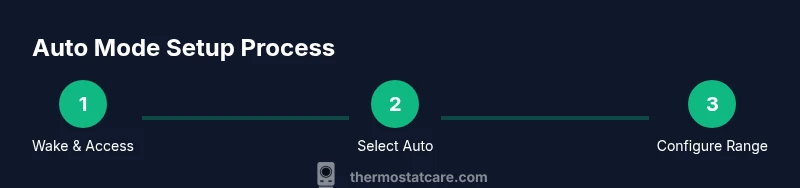
Wake the display and access settings
Tap or press the thermostat screen to wake it. Navigate to the Settings or Modes section depending on your model. You’re preparing the device for a mode change, so ensure the device is responsive before continuing.
Tip: If the screen is unresponsive, replace batteries or connect the device to its power source. - 2
Open the mode menu
Find the current mode (Heat, Cool, or Off) and open the mode options. You’re aiming to switch away from a fixed setting toward Auto.
Tip: Some models require you to confirm a secondary screen before selecting Auto. - 3
Select Auto as the operating mode
Choose Auto (or Auto Changeover) as the mode. Auto allows the system to switch between heat and cool based on the current temperature and schedule.
Tip: Ensure that both heat and cool are enabled within Auto if your system supports it. - 4
Set temperature range or schedule
If your thermostat supports a temperature band or schedule, configure a comfortable range (e.g., 68–72°F in winter) and set times when occupants are home or away.
Tip: A tight range can lead to more frequent cycling; a slightly wider range usually saves more energy. - 5
Save changes and observe the response
Confirm and save settings. Monitor the HVAC activity for the next 15–20 minutes to verify Auto responds to temperature changes.
Tip: Watch for the “heating” or “cooling” indicators on the display to confirm Auto is actively managing the climate. - 6
Document your final settings
Note the Auto setting, any scheduled times, and the target band in your log or app notes. This helps maintain consistency if someone else uses the thermostat.
Tip: Regularly review schedules during seasonal changes to keep Auto performing at peak efficiency.
Questions & Answers
What does Auto mode do on a thermostat?
Auto mode lets the thermostat manage heating and cooling automatically to maintain the target temperature based on room readings and the programmed schedule. This reduces manual adjustments and can improve energy efficiency.
Auto mode automatically handles heating and cooling to keep your set temperature without constant adjustments.
Can Auto work with a manual schedule?
Yes. Auto can follow a schedule if your model supports it. A temporary Hold can override Auto for a set period, after which Auto resumes.
Auto can follow schedules on most models; you can use Hold to override for a while if needed.
Why isn’t Auto engaging after I switch it on?
Check that the thermostat has power (batteries or C-wire), confirm the HVAC system is powered and communicating, and verify there are no conflicting Hold settings.
If Auto won’t engage, first check power and connections, then look for any holds or overrides.
Is Auto better than leaving the system on all day?
For most homes, Auto offers better energy savings and comfort by avoiding constant operating times. You can override during vacations or extreme weather when needed.
Auto saves energy for most homes and keeps comfort steady, with overrides for special cases.
How do I override Auto temporarily?
Use the Hold or temporary override feature to set a different temperature. Auto will resume its normal behavior after the hold period ends.
Use Hold to override for a while; when the hold expires, Auto resumes automatically.
Watch Video
What to Remember
- Set Auto to balance comfort and energy use
- Verify your model supports Auto for both heat and cool
- Adjust schedules to fit daily routines
- Test Auto for a day and review outcomes