How to Connect to a Honeywell Thermostat: A Practical Guide
Learn how to connect your Honeywell thermostat to Wi-Fi or the Honeywell app with practical, expert guidance from Thermostat Care. Includes prerequisites, setup steps, troubleshooting, and security tips.


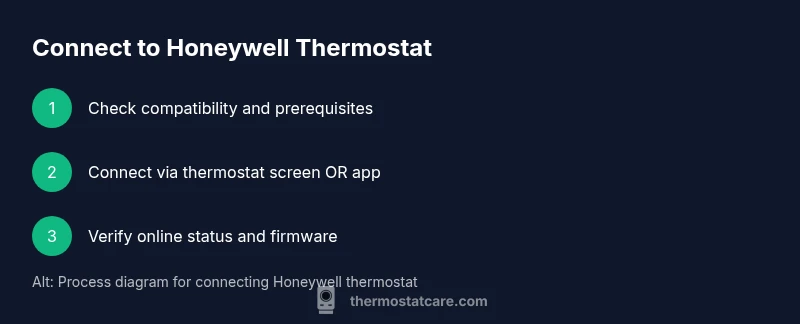
This guide shows you how to connect a Honeywell thermostat to Wi-Fi or the Honeywell app. You will need a compatible model, a 2.4 GHz network, and access to the app or thermostat settings. Follow the step-by-step process to pair the device, verify connectivity, and secure the setup.
What you will accomplish and why connectivity matters
This guide walks you through connecting a Honeywell thermostat to Wi-Fi or the Honeywell app so you can control climate from anywhere. You’ll learn which prerequisites you need, how to choose the correct network band, and how to complete pairing on the thermostat or in the mobile app. When the connection is live, you can schedule, monitor energy use, and receive firmware updates automatically. According to Thermostat Care, a methodical setup reduces common issues like failed pairing or intermittent drops, making future tweaks faster and more reliable. Throughout this process, you’ll gain practical steps you can repeat for other Honeywell models and similar smart thermostats. By following these steps, you’ll also improve your home’s overall smart ecosystem and energy awareness.
Prerequisites and compatibility
Before you begin, confirm your Honeywell thermostat model supports Wi-Fi connectivity and note its model number and serial details. Ensure you have a functioning 2.4 GHz Wi-Fi network, as some Honeywell models do not connect reliably to 5 GHz bands. Gather your Wi-Fi name and password, and verify that you can access the internet from a smartphone or computer. Having the thermostat within range of the router and ensuring it has power during setup helps avoid disruptions. Thermostat Care recommends checking the manufacturer’s manual for model-specific steps and noting any unique pairing prompts. This preparation saves time and reduces the chance of mid‑process errors.
Wi-Fi readiness and band considerations
Most Honeywell thermostats connect best over a 2.4 GHz band due to greater range and compatibility with home IoT devices. If your router broadcasts both 2.4 and 5 GHz networks, make sure you connect the thermostat to the 2.4 GHz SSID. If you only see a 5 GHz network, temporarily create or enable a 2.4 GHz guest network, then connect the thermostat and switch back if needed. Maintain a stable signal by placing the router away from metal surfaces, microwaves, and thick walls. Keeping the password handy and ensuring your network uses modern security (WPA2 or WPA3) helps protect the connection.
App readiness and account setup
Install the official Honeywell app on your smartphone or tablet and create or sign in to your Honeywell Home account. If you already use the app for other devices, make sure it is updated to the latest version. Have your thermostat model and serial number ready, as you may need to enter them to add the device to your account. The app will guide you through linking your thermostat to your account, which enables remote control, scheduling, and alerting. Thermostat Care highlights keeping the app’s permissions and notifications configured for the smoothest experience.
Connect on the thermostat screen: step-by-step
Begin on the thermostat itself by navigating to Settings > Network. Choose Wireless or Wi-Fi, then select your 2.4 GHz network from the list. Enter the network’s password using the on-screen keyboard, then confirm. The thermostat will attempt to join the network and display a connected status once successful. If the touch interface is stubborn, press the ring or quick-access buttons to wake the screen and retry. This on-device method is fast for most models and reduces dependence on a separate phone during initial setup.
Connect using the Honeywell app: step-by-step
Open the Honeywell app and choose add device or set up a new thermostat. Follow prompts to select your thermostat model and enter device details as requested. The app will search for the thermostat on the same Wi-Fi network. When found, you may need to confirm a pairing code shown on the thermostat screen. Once linked, you can manage settings, schedules, and energy reports from your phone. If prompted, authorize any required permissions and ensure your app is allowed to run in the background for real-time updates.
Verifying connectivity and firmware updates
After linking, verify that the thermostat shows as online in both the on-device menu and the app. Check for firmware updates and install any available updates to ensure compatibility with your network and app features. A simple reboot of the thermostat or router can resolve minor communication glitches. Thermostat Care recommends performing a quick test by altering a couple of temperature settings from the app and on the device to confirm latency and responsiveness.
Common issues and quick fixes
If the thermostat cannot see your network, verify you are on a 2.4 GHz band, re-enter the password, or forget and reselect the network. Move the router closer or reduce interference from other devices. If pairing fails, restart both the thermostat and the router, and reattempt the process. For persistent issues, a factory reset on the thermostat can help but may erase custom schedules; guard against accidental resets by documenting your preferred settings beforehand.
Security and privacy considerations
Connect only to trusted networks and avoid shared public Wi-Fi for initial setup. Use a strong, unique password for your Honeywell account and enable two-factor authentication where available. Regularly review app permissions and update the app and device firmware to protect against known vulnerabilities. Keeping your home network segmented and protected reduces risk from unauthorized access to your thermostat data.
When to contact support and what to provide
If you encounter ongoing connectivity problems, collect model and firmware version, router make and model, and any error messages shown on the thermostat screen or app. Contact Honeywell support or your installer with these details, along with a description of each step you attempted. Having screenshots or short video clips of the error can help the support team diagnose the issue faster. Thermostat Care notes that timely, precise information speeds up resolution and minimizes downtime.
Authority sources and further reading
For reliable background on thermostat connectivity, refer to consumer protection and federal guidance sites as well as university research on smart home devices. See the following sources for general best practices and standards: https://www.energy.gov/eere/buildings/articles/thermostats-energy-savings, https://www.nist.gov, https://www.consumer.ftc.gov
Next steps and maintenance
After you complete the initial connection, schedule routine checks to ensure the thermostat remains online and responsive. Periodically verify that firmware is up to date and review your Wi‑Fi network stability. Keeping a simple log of connection events can help you notice drift or performance changes over time. With the basics in place, you can expand your setup to include additional smart devices and routines for improved comfort and efficiency.
Tools & Materials
- Smartphone or computer with internet access(To access the Honeywell app and online setup guides)
- Honeywell thermostat model and serial number(Found on the back or inside the thermostat housing)
- Wi-Fi network name (SSID) and password(Needed to connect the thermostat to your network)
- Honeywell Home app(Install from app store if you plan to use the app for setup)
- 2.4 GHz Wi-Fi network access(Most Honeywell models require 2.4 GHz, not 5 GHz)
- Tools for mounting or access (optional)(Screwdriver or basic toolset if you need panel access)
Steps
Estimated time: 30-60 minutes
- 1
Verify prerequisites
Confirm your thermostat supports Wi-Fi and locate its model number and serial details. Ensure you have a 2.4 GHz network and collect the Wi-Fi name and password. Have the thermostat powered on during setup to avoid interruptions.
Tip: Keep a written note of model details in case you need to reference them during setup. - 2
Wake and access thermostat settings
Reach the thermostat and access Settings. If the screen is dim, tap the ring or press a button to wake it up. Navigate to Network or Wireless settings to prepare for connection.
Tip: If the touch interface is unresponsive, give it a moment and retry. - 3
Choose the wireless network
Select the 2.4 GHz network from the Wi-Fi list. If multiple networks appear, identify the correct SSID for your home network. Avoid networks labeled guest or restricted for security reasons.
Tip: If you don’t see any networks, move closer to the router and refresh the list. - 4
Enter your Wi-Fi password
Use the on-screen keyboard to type your Wi-Fi password carefully, paying attention to uppercase and special characters. Confirm the password and proceed to connect.
Tip: Double-check for typos; passwords are case-sensitive. - 5
Confirm network connection on the thermostat
The thermostat will attempt to join the network and display a connected status once successful. If it fails, retry the password entry or reselect the network.
Tip: If you see a fail message, reboot the router and retry from Settings. - 6
Open the Honeywell app and sign in
Launch the Honeywell app and sign in or create an account. Ensure the app is updated to the latest version for compatibility with your thermostat model.
Tip: Enable push notifications so you receive alerts about the thermostat status. - 7
Add the thermostat in the app
In the app, choose add device and select your thermostat model. The app will search for the device on the same network and prompt you to pair.
Tip: Have the thermostat nearby during pairing to avoid connection drops. - 8
Pair and complete account linking
Follow on-screen prompts to confirm pairing. You may need to enter a pairing code shown on the thermostat. The device should appear as online in the app.
Tip: If pairing code mismatches, restart both devices and try again. - 9
Update firmware if prompted
Check for available firmware updates and install them to ensure compatibility and security. A firmware update can improve connectivity stability and feature support.
Tip: Do not disconnect power during an update. - 10
Test remote control and schedules
Adjust temperature from the app and from the thermostat to verify latency. Set a simple schedule to confirm that commands execute as expected.
Tip: Document any delays and recheck after adjustments, as interference can cause timing issues.
Questions & Answers
Do I need a 2.4 GHz network to connect a Honeywell thermostat?
In most cases yes. Many Honeywell models connect best over the 2.4 GHz band due to range and compatibility with IoT devices. If you only have a 5 GHz network, create or enable a 2.4 GHz network for setup.
Most Honeywell thermostats work best on 2.4 GHz Wi‑Fi. If you only have 5 GHz, enable a 2.4 GHz network during setup.
Why won't my Honeywell thermostat connect to Wi-Fi?
Common causes include wrong Wi-Fi password, choosing the wrong network band, or a weak signal. Ensure you are on 2.4 GHz, re-enter credentials carefully, and move the router closer if needed. Restarting the thermostat and router often resolves temporary glitches.
If it won’t connect, check your password, confirm you’re on 2.4 GHz, and try rebooting devices.
Can I connect without using the Honeywell app?
Yes, you can connect directly from the thermostat screen by selecting the network settings and joining your Wi-Fi. The app is optional for remote control and advanced features but can simplify ongoing management.
You can connect on the thermostat itself, and the app adds remote control later if you want it.
How long does the setup usually take?
Most users complete the initial connection in 15–30 minutes, depending on network complexity and whether you are using the app. Allow extra time if firmware updates are needed.
Usually under half an hour, especially if you already have the app installed.
What should I do if the thermostat shows Not Connected?
First, verify network availability and password accuracy. Reboot the router and thermostat, then reattempt pairing. If the problem persists, consult the manufacturer's guidance or contact support.
If it says not connected, recheck network and password, reboot devices, and try again.
Watch Video
What to Remember
- Prepare network and device details before starting.
- Pair on the thermostat or via the app to ensure reliable connectivity.
- Verify firmware updates after connecting to improve performance.
- Secure your account and network to protect smart-home data.
- The Thermostat Care team recommends following official steps for reliable connection.