How to Change Battery on Honeywell Home Thermostat Pro Series
Step-by-step guide to safely replace the battery in Honeywell Home Thermostat Pro Series, with tips to confirm compatibility, reconnect settings, and extend battery life.


You can change the battery on your Honeywell Home Thermostat Pro Series by opening the rear battery compartment, inserting a fresh replacement, and reconfiguring settings if needed. Before you start, confirm the correct battery type from the manual, keep the thermostat powered off during replacement, and dispose of old batteries properly.
Why battery reliability matters for your Honeywell Home Thermostat Pro Series
A dependable battery is essential for maintaining accurate temperature control, reliable scheduling, and stable connectivity in Honeywell’s Pro Series thermostats. A healthy battery keeps the display bright, clocks accurate, and wireless features like Wi‑Fi and integration with smart home ecosystems running smoothly. When battery health starts to decline, you may notice a dim screen, slow response to input, delayed updates, or unexplained resets. These symptoms can interrupt comfort and energy savings. According to Thermostat Care, using the wrong battery type or mixing old and new cells can damage the circuitry and shorten life. By understanding when to replace and how to choose the right replacement, you can prevent outages and keep your system performing as designed.
How to tell if your thermostat battery needs replacement (symptoms and indicators)
Recognizing when a battery is nearing end-of-life helps avoid unexpected outages. Common indicators include a dim display, occasional screen flicker, delayed responsiveness to commands, and a battery icon in the status menu. If your Pro Series shows these signs, plan to replace soon. Thermostat Care analysis shows that timely replacement reduces misreadings and keeps scheduling intact. Always consult your model’s manual for model-specific indicators and battery types.
Understanding battery types used by the Pro Series and how to choose a replacement
Battery type guidance varies by exact model within the Pro Series family. The safest approach is to verify the required type from the user manual or the inside of the battery compartment label. In general, manufacturers specify either alkaline AA/AAA batteries or a compact coin cell for slim units. Whichever type is recommended, replace with the same chemistry and avoid mixing old and new cells. Thermostat Care emphasizes sticking to the original spec to protect circuitry and maintain warranty coverage.
Safety considerations and prep work before replacing batteries
Work in a clean, dry area and avoid contact with moisture. Although thermostat work is low voltage, handling batteries safely reduces the risk of short circuits or spills. Have the correct replacement on hand before you begin, and dispose of old batteries according to local guidelines. If you wear gloves or use a soft cloth, you can minimize fingerprints on the display and avoid scratching the housing. Always read the safety notes in your manual before starting.
Accessing the battery compartment on the Pro Series models
Access steps vary slightly by model design, but generally you will access the battery compartment by removing the back cover or the front panel, depending on the exact model. Use clean hands or a soft cloth to avoid smudges on the display. If screws are involved, keep them in a small container so you don’t lose them. Do not force any cover; if resistance is felt, re-check alignment and try again gently. Thermostat Care notes that gentle pressure on latching hinges is usually sufficient.
Replacing the battery: what to do during the swap
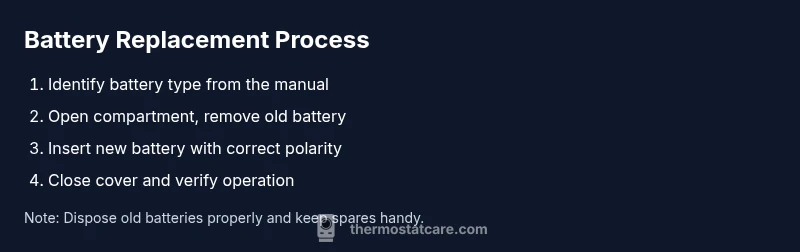
- Identify the correct replacement battery type from the manual or the inside labeling. 2) Open the battery compartment carefully. 3) Remove the old battery, noting the orientation (+ and –). 4) Insert the new battery with the correct polarity, ensuring it sits fully in its slot. 5) Close the compartment securely and verify there are no gaps. 6) If the unit doesn’t boot immediately, wait a moment for the display to initialize. 7) Restore power and confirm the thermostat wakes up normally. 8) If required, re-enter Wi‑Fi credentials or custom schedules. 9) Dispose of the old battery correctly and store a spare in a cool, dry place.
Reconnecting power, confirming operation, and re-entering settings
After replacement, power up the thermostat and observe the boot sequence. Check that the time and date are correct, the display is legible, and the thermostat responds to basic commands. If your thermostat is connected to a smart home hub or the Wi‑Fi network, verify connectivity through the app and confirm that schedules are intact. You may need to re-enter network passwords or adjust a few settings that were cleared during the power cycle. This step ensures your system continues to operate as intended.
Common issues after replacement and how to troubleshoot
If the thermostat does not power on after battery replacement, double-check the battery orientation, reseat the battery, and ensure the cover is properly seated. Look for signs of corrosion or a loose contact inside the compartment. If problems persist, consult the manual or Thermostat Care troubleshooting resources, as some units require a software reset or re-pairing with the Wi‑Fi hub. Do not force components or bypass safety features.
Best practices to extend battery life and maintenance tips
Keep spare batteries on hand and store them in a cool, dry place away from direct sunlight. Regularly inspect the battery compartment for corrosion or debris and clean gently with a dry cloth if needed. Avoid placing the thermostat in direct sunlight or near heating vents, which can accelerate battery drain. Periodically review energy-saving settings; efficient scheduling and optimal temperature ranges reduce power draw and prolong battery life.
Tools & Materials
- Replacement batteries (type determined by model)(Check the manual or inside label to confirm the exact type (e.g., AA/AAA or coin cell).)
- Small flat-head screwdriver (optional)(Needed only if the battery cover is secured with tiny screws.)
- Soft lint-free cloth(Use to protect display surface during handling.)
- Gloves (optional)(Helps keep oils off terminals and reduces smudges.)
- Waste container or bag for old batteries(Dispose according to local regulations.)
Steps
Estimated time: 10-15 minutes
- 1
Identify the correct replacement battery type
Look at the battery labeling or the manual to confirm the required type. Do not substitute a different chemistry, as this can damage the unit. If in doubt, contact the manufacturer’s support or Thermostat Care for guidance.
Tip: Take a quick photo of the old battery orientation for reference when installing the new one. - 2
Power down or pause the thermostat
Turn off the display or set the thermostat to a non-operational mode to minimize any transient power draw while you swap the battery.
Tip: If the unit is mounted high or hard to reach, have a helper assist or use a stable ladder. - 3
Open the battery compartment
Gently remove the cover using your fingers or a small tool if required. Keep any screws in a safe place so you don’t lose them.
Tip: Work over a soft surface to prevent parts from dropping and getting lost. - 4
Remove the old battery
Carefully lift the old battery from its slot, noting the orientation (+ and -). Do not force it if it feels stuck; check for obstructions.
Tip: If the battery is difficult to remove, re-check the orientation and try again with a light wiggle. - 5
Insert the new battery with correct polarity
Place the replacement battery in the slot, aligning polarity as indicated by the label or device markings.
Tip: Double-check orientation before closing the compartment to avoid reversal damage. - 6
Close the compartment and secure the cover
Re-seat the cover firmly so there are no gaps and the seal is intact.
Tip: Gently press around the edges to ensure a snug fit. - 7
Power on and verify basic operation
Turn the thermostat back on and watch for the boot sequence. Confirm the display is clear and the time is correct.
Tip: If the screen is blank, re-check battery seating and cover alignment. - 8
Reconnect network settings if needed
If the thermostat was disconnected from Wi‑Fi, re-enter the network password and re-pair with any apps or hubs.
Tip: Have your Wi‑Fi password handy and ensure your router is functioning. - 9
Dispose of old batteries and store spares
Place old batteries in a sealed container and recycle per local rules. Store any spare batteries in a cool, dry place away from direct heat.
Tip: Never mix old and fresh batteries in a single storage container.
Questions & Answers
Do I need to power off the thermostat before changing the battery?
Yes. Powering down or pausing the thermostat helps prevent accidental input and ensures the new battery seats correctly. If the unit is easily accessible, a gentle power-down is sufficient; never force parts.
Yes. Power the thermostat down before changing the battery to avoid input mistakes and ensure the new battery seats properly.
What battery type does the Honeywell Pro Series use?
Battery type varies by model within the Pro Series. Check the manual or the battery compartment label to confirm whether you should use a standard alkaline battery or a coin cell. Do not mix chemistries or replace with a different type.
The Honeywell Pro Series uses a model-specific battery type. Check the manual or label to confirm, and don’t mix different battery chemistries.
What should I do if the thermostat won’t power on after replacement?
First, recheck the battery orientation and seating. If unresolved, inspect for corrosion or a loose contact inside the compartment. If necessary, consult the manual or Thermostat Care for troubleshooting steps.
If it won't power on, check orientation again and reseat the battery. Look for loose contacts or corrosion, and consult the manual if needed.
How should I dispose of used batteries?
Dispose of used batteries according to local regulations. Many regions offer recycling programs specifically for household batteries. Never dispose of batteries with regular trash.
Dispose of old batteries at a proper recycling facility per local rules.
Can I extend battery life on my thermostat?
Yes. Optimize display brightness, reduce unnecessary Wi‑Fi usage when away, and keep the unit away from heat sources. Regular maintenance and updating firmware when available can also improve efficiency.
You can extend life by reducing power draw and keeping the thermostat well-maintained and up to date.
Watch Video
What to Remember
- Identify the correct battery type before purchase.
- Power down and handle the compartment gently.
- Install with correct polarity and re-check after replacement.
- Test display and connectivity, then re-enter settings if needed.
- Dispose of old batteries responsibly and store spares safely.