How to Get Thermostat Out of Delay Mode
Learn how to disable delay mode on your thermostat, identify common causes, and restore immediate heating or cooling with a practical, homeowner-friendly guide from Thermostat Care.


To get your thermostat out of delay mode, start by identifying the cause (scheduled hold, temperature hold, or time-based delay). Then switch the thermostat to a normal operation mode, adjust the current target temperature, and verify that the unit begins heating or cooling immediately. If it persists, check the system wiring and user settings, and perform a soft reset if needed.
Understanding Delay Mode and Why It Matters
Delay mode on a thermostat is a protective feature that prevents rapid temperature swings after a schedule or remote hold. According to Thermostat Care, delay mode can be triggered by a temporary hold, a programmed schedule, or a connected app setting. The intent is to give you stable comfort while avoiding wasteful cycling, but it can become frustrating when you need immediate heating or cooling. In this section, we explore what delay mode does, how it interacts with different system types (gas, electric, heat pump), and why it sometimes sticks around longer than expected. We'll also cover how to distinguish a true delay from a misinterpreted display, such as a paused status or a timer countdown. Understanding these nuances helps you decide the right fix rather than blindly resetting the device.
Delay Mode Triggers You Might Be Missing
Delay mode can be triggered by several common scenarios. A scheduled temperature hold attached to a program or app, a temporary manual hold that you forgot, or a smart-home routine that temporarily locks changes can all activate delay behavior. If your thermostat is connected to a home automation hub, ensure the hub isn’t sending late-off or delayed signals that re-enable hold settings. Thermostat Care analysis shows many delay-mode frustrations stem from overlooked app or schedule settings rather than a faulty device. By verifying each trigger, you’ll often resolve the issue without any hardware work.
Quick Checks Before You Change Settings
Before you start changing settings, power down safely if your unit is hard-wired. Check the display for any active holds (look for “hold,” “delay,” or a clock icon). Review the current mode (heat, cool, auto) and confirm you’re operating in the intended schedule. If you use a manufacturer app, make sure the app hasn’t applied an implicit hold. Have the thermostat’s user manual handy to locate hold controls and any system-specific timers. This prep reduces back-and-forth and helps you move faster when you begin the fixes.
Step-by-Step Core Fixes: Remove Delay
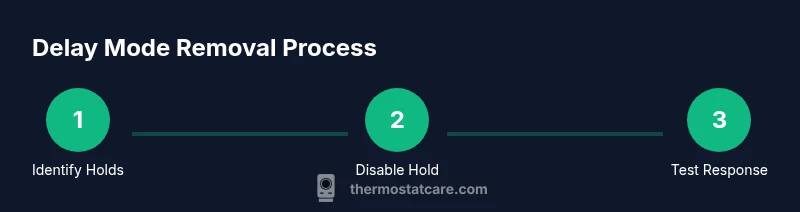
- Identify which hold is active. Look for a displayed hold icon or a visible countdown. If you find multiple holds, note each source (schedule, manual hold, app hold) before making changes.
- Disable the active hold. Toggle off the schedule/hold or set the timer to disengage, then confirm the thermostat shows a standard auto mode and a normal setpoint.
- Set the thermostat to Auto mode. This returns the system to the regular heating/cooling cycle and ensures the current setpoint is respected without a pending delay.
- Adjust the target temperature to your desired value. If the system responds immediately, delay mode is likely cleared; if not, proceed to the next steps.
- Test system response after changes. Wait 5–10 minutes to observe heating or cooling behavior and verify the changes hold under normal conditions.
- Perform a soft reset if the delay persists. Power down the thermostat for 30 seconds or use the reset option in the settings menu, then re-test.
- Inspect power supply and wiring. Ensure the device is receiving steady power and there are no loose connections, especially critical on battery-less units or heat pumps.
- Check for firmware or app updates. Outdated software can reapply holds or misinterpret sensor data; update and re-test.
Testing the System After Changes
After you’ve completed the fixes, monitor the thermostat for a full cycle. Confirm the system starts heating or cooling when the target is reached and that no automatic delay is re-engaged by a hidden hold or schedule. If the environment has unusually stable temperatures, allow a longer test window (up to 30 minutes) to catch intermittent delays. Keep an eye on the display for any new hold indicators, and note how long it takes to respond to manual temperature adjustments.
Common Pitfalls and How to Avoid Them
Misinterpreting a timer icon as a persistent delay is common. If you disable a hold but the device re-engages a hold after a few minutes, inspect any linked apps or thermostats in your smart-home ecosystem for synchronized schedules. Some models reapply a hold after a power interruption; in that case, a complete reset may be required. Avoid repeatedly turning the system on and off within short intervals, as this can confuse sensors and prolong delay behavior. Always document changes you make in case you need to revert later.
Pro Tips from Thermostat Care
- Label any changed settings or holds so you can revert if needed. This helps you recreate the original setup if you later alter it unintentionally.
- Take a photo of the original wiring and settings before making changes, especially on heat-pump systems or multi-stage setups.
- If your thermostat is connected to a home automation hub, temporarily disable the hub’s schedules during testing to prevent auto-heats or cools from reapplying delays.
- When in doubt, consult the manufacturer manual or Thermostat Care resources for model-specific instructions to avoid unsafe wiring or frequent resets.
Maintenance Habits to Prevent Delay Mode Problems
Regularly review your programmed schedules and holds, especially after seasonal time changes or when adding new smart devices. Keep your thermostat firmware up to date and ensure the device remains physically clean and free of dust that could affect sensor readings. If you notice recurring delay behavior, consider documenting all occurrences with times and conditions to help diagnose with a professional. Establish a routine check, such as testing at least once per week during extreme weather periods, to catch delays early and maintain reliable comfort.
Tools & Materials
- Thermostat user manual(Model-specific instructions for holds and delay settings)
- Flathead screwdriver(Only if panel access is required and screws exist)
- Phillips screwdriver #2(If wiring compartment needs opening)
- Multimeter (optional)(Check power at the thermostat terminals)
- Smartphone or tablet(Access app or cloud settings for holds)
- Spare batteries (for non-powered sensors)(Ensure sensors remain powered during tests)
- Camera or notepad(Document current settings before changes)
Steps
Estimated time: 30-45 minutes
- 1
Identify active holds
Open the thermostat menu and locate any active hold, timer, or scheduling indicators. Note the source (scheduled, manual, or app) to guide the next action.
Tip: Take a screenshot of the current holds to reference later. - 2
Disable the active hold
Switch off the hold or timer that’s currently delaying changes. Confirm the display reflects a normal mode (auto/heat/cool) with no delay icon.
Tip: If unsure, re-check the source in the app or manual after disabling. - 3
Set to Auto mode
Change the system mode to Auto to allow the thermostat to switch between heating and cooling as needed.
Tip: Auto mode prevents a stiff, single-use setting from sticking. - 4
Adjust the target temperature
Input your desired comfort setting and observe if the system reacts immediately.
Tip: Move the setpoint in small increments if the unit seems slow to respond. - 5
Test system response
Let the thermostat run through a full cycle and watch for immediate action after the new setpoint.
Tip: Allow 5–10 minutes per cycle to confirm behavior. - 6
Perform a soft reset
Power down the thermostat for 30 seconds or use the reset option from the settings menu.
Tip: A reset clears transient glitches without erasing schedules. - 7
Inspect power and wiring
Ensure power supply is stable and terminals are secure. Look for signs of loose wires or corrosion.
Tip: Only perform wiring checks if you are comfortable; otherwise skip to a professional. - 8
Update firmware/app
Check for and install any available firmware or app updates that could reintroduce delay logic.
Tip: Updates can fix bugs that cause unwanted delay holds.
Questions & Answers
What is delay mode on a thermostat?
Delay mode is a hold-based feature that prevents rapid temperature changes. It temporarily pauses adjustments to protect comfort and efficiency, especially after a scheduled change.
Delay mode is a hold-based feature that pauses adjustments after a scheduled change to protect comfort and energy use.
Why does my thermostat keep delaying after I turn off hold?
Common causes include an active schedule, a memory hold from a recent change, or an app/remote hold reapplying settings. Check the app and schedule settings to identify the source.
Often the delay is caused by an active schedule, a memory hold, or a remote hold reapplying settings. Check your app and schedules.
Should I reset the thermostat to disable delay mode?
A soft reset can clear temporary holds or glitches, but it may reapply programmed schedules. Use a reset if simple holds are gone but delays persist.
A soft reset can clear glitches, but it may reapply schedules. Use reset if holds are gone but delays persist.
Can delay mode affect energy savings?
Delay mode itself aims to prevent wasteful cycling, but improper removal can cause brief inefficiencies or discomfort. Balance immediate comfort with efficient scheduling.
Delay prevents wasteful cycling but removing it improperly can affect comfort and efficiency.
Is delay mode the same as Eco mode?
No. Delay mode is about holding changes; Eco mode is an energy-saving profile. They can interact, but they serve different purposes.
Delay is a hold feature; Eco is an energy-saving profile. They’re related but not the same.
Watch Video
What to Remember
- Identify the hold source before changing settings
- Disable holds, set mode to Auto, and test response
- Use soft reset and firmware updates to fix glitches
- Document changes to simplify future troubleshooting