SmartThings Thermostat: Install, Configure, and Troubleshoot
Expert, practical guide to installing, configuring, and troubleshooting a SmartThings thermostat for homeowners. Learn wiring, app setup, automations, security, and maintenance to optimize comfort and energy use.


According to Thermostat Care, this guide helps homeowners confidently install, configure, and troubleshoot a SmartThings thermostat in a typical home. You’ll cover wiring basics, app setup, and creating routines, plus common fixes for connectivity, sensor accuracy, and comfort issues. By the end, you’ll know when a DIY fix is appropriate and when to call a professional for more complex HVAC concerns.
What is a SmartThings Thermostat?
The SmartThings thermostat is a Wi‑Fi enabled device designed to integrate with the Samsung SmartThings ecosystem. It lets you control heating and cooling from a single mobile app, and it can be incorporated into automations, scenes, and voice assistants. For DIY homeowners, the big advantage is centralized control: you can adjust comfort settings from anywhere, monitor energy usage, and coordinate with other smart devices in your home. The Thermostat Care team notes that most homes gain reliability when the thermostat is properly powered and wired through a common C‑wire, ensuring consistent operation even during Wi‑Fi outages. In practice, a SmartThings thermostat supports standard heating and cooling configurations and can step in as the hub for multi‑zone or zoned setups when used with compatible HVAC equipment.
Why SmartThings matters for home automation
SmartThings acts as a command center for a growing ecosystem of smart devices. When you pair a SmartThings thermostat with compatible sensors, motion detectors, and smart plugs, you can create tailored routines that respond to occupancy, weather, and energy usage. For example, a simple scene can lower cooling during the night when you don’t need full cooling, and then raise it before you wake up. The flexibility is a boon for energy efficiency and comfort, and it scales with your home’s growth. Thermostat Care researchers emphasize that, for most homeowners, the more you automate, the more you notice climate consistency and reduced manual adjustments.
Compatibility and HVAC considerations
Before purchasing, map your HVAC system’s capabilities. Most thermostats use standard 24‑volt control signals (R, C, W, Y, G) but some systems, such as era-specific or heat pumps, require additional terminals or jumpers. Ensure your furnace or air handler provides a C‑wire for stable power; if not, you’ll need a power extender kit if supported by the thermostat. Also verify that your system is single‑stage or multi‑stage, because that affects how the thermostat interprets heat and cool calls. The Thermostat Care team notes that compatibility is often the difference between a smooth setup and recurring communication hiccups.
Wiring basics and safety considerations
Safety first: power must be off at the breaker before touching any HVAC wiring. Use a non‑contact tester to confirm there is no live voltage on the thermostat wires. Label each conductor before disconnecting the old unit, and take a photo for reference. When connecting to the new thermostat, match wire colors to terminal labels (R, C, W, Y, G, etc.) and double‑check that the C‑wire is properly connected to the thermostat and to the HVAC control board. If your situation uses uncommon terminals or a powered humidifier, consult the wiring diagram for your model.
App setup and initial configuration
Install the SmartThings app on your smartphone and sign in. Add a new device, selecting Thermostat, then follow on‑screen prompts to connect to your home Wi‑Fi and register the thermostat with your SmartThings hub. When pairing, you may need to temporarily disable cellular data for setup; re‑enable once connected. After pairing, assign the thermostat to a room, set your preferred units (C or F), and confirm that the current temperature and target settings respond correctly via the app.
Creating automations and routines with SmartThings
With the thermostat online, you can build routines that trigger based on time, occupancy, or weather. Examples include a wake‑up routine that preheats or pre‑cools the house, an away mode that minimizes runtime, or a geofence that adjusts temperature when you approach home. Use SmartThings scenes to group devices (thermostat, blinds, fans) for a coordinated climate strategy. Regularly test these automations to ensure they trigger correctly.
Common setup pitfalls and how to avoid them
Pitfalls include mismatching wires to terminals, skipping the C‑wire check, and assuming Wi‑Fi alone powers the thermostat. Always confirm the thermostat is powered by a dedicated circuit and that the hub and phone have reliable network access. Misunderstanding HVAC control logic (heat vs. cool calls) can lead to uncomfortable cycles. Double‑checking compatibility with your equipment during planning reduces rework.
Troubleshooting connectivity, sensors, and data
If the thermostat isn’t showing up in the SmartThings app, verify network credentials and retry pairing. For inaccurate readings, confirm proper sensor placement away from direct sun or drafts and ensure the device has up‑to‑date firmware. If routines don’t run, re‑test the automation trigger and review the smart home hub logs. Regular diagnostics help catch drift or miscommunication early.
Energy savings, schedules, and remote access
A well‑configurated SmartThings thermostat balances comfort with energy savings. Create daily schedules for wake, work, and sleep times, and utilize geofencing to reduce HVAC runtime when no one is home. Remote access via the app lets you tweak temperatures while traveling or running errands, contributing to more consistent temperatures and lower energy waste.
Privacy, security, and data concerns
SmartThings collects usage data to improve services and enable automations. Review privacy settings in both the SmartThings app and your thermostat, disable unused data sharing, and enable two‑factor authentication for your account. Regularly update firmware and app to mitigate security vulnerabilities.
Maintenance, updates, and power considerations
Keep the thermostat and hub up to date with the latest firmware. If you notice power issues, verify the C‑wire connection and ensure the HVAC control board provides stable power. Manuals for your HVAC system remain essential references for terminal locations and acceptable wiring configurations.
Real-world performance and what to expect
Most homeowners notice improved comfort and predictable temperatures within a few days of proper setup. Expect energy savings from consistent schedules and properly timed warm‑up or cool‑down periods. While cloud connectivity enhances features, the device remains functional even if the internet is temporarily unavailable, operating on local schedules when possible.
Tools & Materials
- SmartThings thermostat (ensure model supports your HVAC system)(Check compatibility with your furnace/air handler and C-wire availability)
- Smartphone or tablet with the SmartThings app(iOS/Android, install latest app)
- Non-contact voltage tester(To verify power and avoid shorts)
- Screwdrivers (Phillips #2 and flat-head)(For wall plate and terminal screws)
- Wire strippers and flush cutters(Helpful for neat terminations)
- Electrical tape and wire nuts(For safe wire connections)
- HVAC wiring diagram (manual or online)(Useful reference for terminal locations)
Steps
Estimated time: 60-90 minutes
- 1
Verify power and compatibility
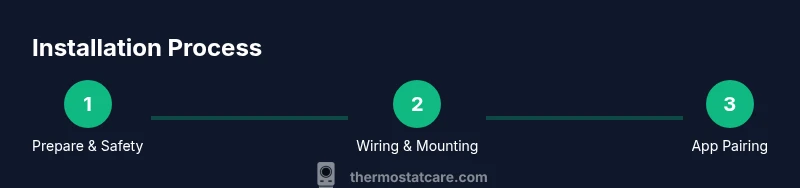
Turn off power to the thermostat circuit at the main panel. Check that the HVAC system supports standard thermostat wiring and that a C-wire is available for stable power. This step reduces the risk of equipment damage and ensures reliable operation.
Tip: If you’re unsure about C-wire availability, consult your HVAC manual or contact a pro before proceeding. - 2
Power down and remove the old thermostat
Carefully remove the existing faceplate and disconnect wires one by one. Take a photo for reference showing where each wire attaches. This visual record helps you connect wires to the new thermostat correctly.
Tip: Label wires with small stickers as you remove them to prevent miswiring. - 3
Label wires and prepare the new base
Label each conductor and confirm terminal labels on the new thermostat base match the wires. If the mounting plate requires adjustment, attach it securely to the wall with the supplied screws. Ensure no wires are loose.
Tip: Keep the wires neatly organized to avoid pinching or cross‑contact on the back plate. - 4
Connect wires to the new thermostat
Connect R, C, W, Y, G, and any additional wires to their matching terminals on the new device. Double‑check that the C‑wire is firmly connected to both the thermostat and the HVAC control board. Use the lowest‑tension approach when tightening screws to prevent wire damage.
Tip: If unsure about a nonstandard terminal, refer to the thermostat’s manual for terminal‑by‑terminal mapping. - 5
Mount the thermostat and restore power
Secure the thermostat on its mounting plate and restore power at the breaker. Verify the display powers up, and note any error indicators. This confirms the device is receiving power and is ready for pairing.
Tip: If the display remains dark, recheck the C-wire connection and the breaker status. - 6
Pair with the SmartThings app
Open the SmartThings app, add a new device, and select Thermostat. Follow on‑screen prompts to connect to your Wi‑Fi and complete device pairing. Confirm that the app shows current temperature and target setpoints.
Tip: If pairing fails, temporarily disable other Bluetooth devices nearby to reduce interference. - 7
Configure basic settings
Assign the thermostat to a room, choose Celsius or Fahrenheit, and set up a default operating mode. Verify control responsiveness by adjusting the target temperature from the app and watching the HVAC respond.
Tip: Set a comfortable baseline temperature for morning and evening to reduce last‑minute adjustments. - 8
Create a simple automation
Set up a basic routine, such as a wake‑up schedule or away mode, to automate heating and cooling. Start with one simple automation to learn the process before expanding.
Tip: Document your automation logic so you can replicate or adjust later. - 9
Test operation and finalize
Run through a quick test: switch between heat and cool, adjust fan, and verify remote control works from your phone. Confirm all automations trigger as intended and that readings look accurate.
Tip: Keep a record of any anomalies for later troubleshooting.
Questions & Answers
Is SmartThings thermostat compatible with all HVAC systems?
Compatibility depends on your HVAC signals and C-wire availability. Most systems with standard 24‑volt controls work, but some heat pumps or multi‑stage setups require additional wiring or compatibility checks. Always verify with your HVAC manual and the thermostat’s compatibility lists before purchase.
Compatibility depends on your HVAC signals and C-wire availability. Check your HVAC manual and the thermostat’s list before purchasing.
Do I need a C-wire for SmartThings thermostat?
A C-wire is commonly required for reliable power, especially if you have a Wi‑Fi thermostat that draws power from the system. If your current wiring lacks a C-wire, you may need a power extender kit or consult a professional for a safe upgrade.
A C-wire is often needed for reliable power; if you don’t have one, consider a power extender kit or professional help.
How do I connect SmartThings to Wi‑Fi?
During pairing, the app guides you through joining your home Wi‑Fi network. Ensure your phone is on the same network and stable. If you have guest networks or 2.4 GHz only, adjust settings to allow device pairing.
The app walks you through joining your home Wi‑Fi. Use a reliable 2.4 GHz network for best compatibility.
What should I do if the thermostat won’t show up in the app?
Double‑check power, verify the thermostat is in pairing mode, and ensure network credentials are correct. Restart the app and retry the pairing process. If issues persist, check for firmware updates on the hub and the thermostat.
Check power and pairing mode, verify network credentials, and try again. Update firmware if needed.
Can I operate SmartThings thermostat without internet?
Most basic thermostat functions, like manual temperature control, work locally, but advanced automations require internet access. If your network goes down, you may still control the device directly through the local panel if supported.
You can usually adjust manually, but automations rely on internet access.
How often should I update the thermostat firmware?
Keep both the thermostat and SmartThings hub updated to minimize compatibility issues and security risks. Enable automatic updates if available and review change notes after each upgrade.
Keep firmware up to date to ensure compatibility and security.
Watch Video
What to Remember
- Plan compatibility before you buy any hardware.
- Label wires and confirm C-wire presence for stable power.
- Test automations and settings to ensure reliable comfort.
- Keep firmware and app updated for security and features.
- Use best practices for wiring to prevent future issues.