Can You Control a Honeywell Thermostat with Your Phone? A Practical Guide
Learn how to control Honeywell thermostats from your phone using the official Honeywell Home app and supported voice assistants. This guide covers compatibility, setup, troubleshooting, and best practices for secure, reliable remote control.


Yes—you can control most Honeywell thermostats with your phone using the official Honeywell Home app, plus supported voice assistants like Google Assistant and Alexa. This guide explains which models are compatible, how to install and sign in to the app, how to pair with your smart speaker, and how to troubleshoot common connection and account setup issues so you can manage temperature remotely.
Understanding the Phone Control Landscape for Honeywell
According to Thermostat Care, modern Honeywell thermostats are designed to be controlled from a smartphone via the official Honeywell Home app or compatible ecosystems. This redirection toward mobile control is part of Honeywell’s push to simplify remote temperature management for homeowners and DIY enthusiasts. By design, you gain the ability to adjust heating and cooling from anywhere with an internet connection, which can improve comfort and energy efficiency. If you’re asking, can you control honeywell thermostat with phone? the short answer is yes for many Wi‑Fi‑enabled models. However, some older or non‑Wi‑Fi units may require a bridge or upgrade to participate in remote control. The practical value is clear: being able to adjust schedules, monitor current temperature, and respond to weather changes while away from home helps you stay comfortable and save energy. The Thermostat Care team recommends confirming your exact model and firmware status before attempting full remote control, as a quick update can unlock new features.
Compatibility and Model Variants
Phone control hinges on model capability. Wi‑Fi enabled Honeywell thermostats connect to your home network and expose control via the Honeywell Home app. Some older Lyric or legacy models may require an optional hub or a firmware upgrade to enable remote access. In practice, most users can control their device from a phone once the app is installed and the thermostat is linked to the same Wi‑Fi network as the phone. Beyond the app, you can often extend control through voice assistants like Google Assistant, Alexa, or Apple’s HomeKit, depending on the specific model and integration support. Always verify whether your thermostat supports cloud-based control and which ecosystems it can pair with.
Getting Started: Apps, Accounts, and Network Essentials
If you’re wondering, can you control honeywell thermostat with phone, the foundational steps involve the app, your account, and a stable network. Begin by installing the official Honeywell Home app on your smartphone. Create or sign in to your Honeywell account, then ensure your thermostat is connected to the same Wi‑Fi network as your phone. Having your Wi‑Fi password handy will speed setup, and enabling two‑factor authentication can improve account security. After linking the thermostat to the app, you’ll gain remote access, real-time temperature readings, and scheduling capabilities. The next sections cover linking to voice assistants and troubleshooting common hiccups.
How to Set It Up (High-Level Overview)
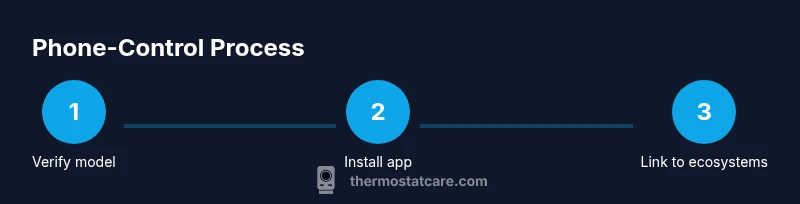
If you ask, can you control honeywell thermostat with phone, the high-level setup flow typically includes installing the app, adding the thermostat in the app, and verifying remote access. You’ll switch the thermostat to pairing mode if needed, enter the network credentials, and confirm the device appears in the app’s device list. From there, you can set schedules, create geofencing routines, and enable smart features like away mode. The key is ensuring a stable Wi‑Fi connection and that your account is properly linked to the device. Detailed, step-by-step instructions are provided in the dedicated STEP-BY-STEP section of this article.
Common Pitfalls and Quick Fixes
Several common issues can block phone control. First, verify both the thermostat and phone are on the same Wi‑Fi network during setup. If the device isn’t appearing in the app, try removing and re-adding it, or rebooting the thermostat and router. Check for firmware updates for both the thermostat and the Honeywell Home app. If you run into authentication problems, reset the app’s connection to the thermostat or re-authenticate your Honeywell account. For voice assistants, ensure the Honeywell Home skill or integration is enabled and logged in with the correct account. The goal is a reliable, consistent connection that remains active even when you’re away from home.
Voice Assistant and Ecosystem Integration
Can you control honeywell thermostat with phone and voice? Absolutely, with ecosystem integrations. Google Assistant and Amazon Alexa can both control a linked Honeywell thermostat via voice commands, while some models offer Apple HomeKit support. When you set up voice control, you’ll typically add the Honeywell Home skill (for Alexa) or the Google Assistant action, then assign the thermostat to a room or routine. These integrations are especially handy for hands-free adjustments, quick voice commands, and routine automation.
Security, Privacy, and Best Practices
Remote control introduces new security considerations. Always use a strong, unique password for your Honeywell account and enable two‑factor authentication where available. Regularly review connected devices and permissions, and be cautious with shared networks or guest networks that may restrict device discovery. Keep the thermostat’s firmware up to date, as updates often include security improvements and feature enhancements for phone control. Finally, monitor access logs when possible and audit integrations you’ve enabled with Google Assistant or Alexa.
Real-World Scenarios: When Phone Control Shines
For many homeowners, phone-based control shines during travel, irregular schedules, or energy-saving campaigns. A quick tap to adjust temperature before arriving home can prevent overheating or chilling. If the weather forecast predicts a cold snap, you can preheat or pre-cool your home remotely. When you’re away for extended periods, you can set geofencing to reduce energy use automatically. Additionally, you can validate current room temperatures to ensure comfort across multiple zones if you have a zoned system. The ability to monitor and adjust remotely translates into tangible daily convenience and potential energy savings.
Tools & Materials
- Smartphone (iOS or Android)(Ensure OS is up to date for app compatibility)
- Stable Wi-Fi network(2.4 GHz or 5 GHz preferred; 2.4 GHz more reliable for smart home devices)
- Honeywell Home app(Install from the iOS App Store or Google Play)
- Active Honeywell account(Have your email and password ready)
- Wi‑Fi credentials(SSID and password during setup)
- Wi‑Fi-enabled Honeywell thermostat(Confirm model supports remote access)
- Voice assistants (optional)(Google Assistant or Amazon Alexa for hands-free control)
- Second testing device (optional)(Use to verify remote access works independently)
Steps
Estimated time: 30-60 minutes
- 1
Verify compatibility
Check that your Honeywell thermostat model supports Wi‑Fi remote control and that it has the latest firmware. Confirm that the thermostat can connect to your home network and that you have a stable internet connection for setup.
Tip: Have your model number and Wi‑Fi password handy. - 2
Install and sign in to the Honeywell Home app
Download and install the official Honeywell Home app from your device’s store. Open the app, create a new account or sign in with an existing one, and ensure you can access the app’s home screen.
Tip: Enable two-factor authentication for added security. - 3
Put thermostat into pairing mode
Access the thermostat’s menu and select pairing mode so the app can discover it. If your model uses a different method, consult the user manual for the exact steps to enable discovery.
Tip: Make sure the thermostat is powered and within range of your router. - 4
Add thermostat in the Honeywell Home app
In the app, choose Add Device and select your thermostat from the list. Follow prompts to link the device to your Honeywell account and name it for easy identification.
Tip: If the device isn’t showing up, restart the app and re-run the discovery process. - 5
Connect to Wi‑Fi via the app
Enter your home network credentials in the app to connect the thermostat to Wi‑Fi. The app will confirm when the device is online and reporting temperature data.
Tip: Prefer a strong, stable Wi‑Fi signal for best performance. - 6
Link to Google Assistant
Open Google Home/Assistant, add the Honeywell Home integration, and sign in with your Honeywell account. Assign the thermostat to a room for intuitive voice control.
Tip: Test a simple command like 'Hey Google, set the thermostat to 72 degrees'. - 7
Link to Amazon Alexa
Enable the Honeywell Home skill in the Alexa app and log in with the same Honeywell account. Discover devices to expose the thermostat to Alexa routines and voice commands.
Tip: Create routines that adjust temperature at different times of day. - 8
Test remote control and routines
Use the Honeywell Home app to adjust temperature remotely, review current readings, and run automations. Ensure changes reflect on the thermostat and in any linked voice assistants.
Tip: If a routine doesn’t run, check permissions and re-link the accounts.
Questions & Answers
Can I control a Honeywell thermostat with my phone without internet?
Remote control typically requires internet access to reach the cloud services. Local control may be available on some models, but full features usually depend on being online.
Remote control usually needs internet access to work with the app and cloud services.
Which Honeywell models support phone control?
Most Wi‑Fi enabled Honeywell thermostats support phone control via the Honeywell Home app and cloud services. Check your model’s specifications to confirm compatibility.
Most Wi‑Fi enabled Honeywell thermostats support phone control via the official app.
Do I need a subscription for phone control?
Basic phone control via the Honeywell Home app is typically free. Some advanced features or integrations may require additional services.
No subscription is usually required for basic app control.
Can I use Siri to control my Honeywell thermostat?
Siri control depends on HomeKit compatibility. Some Honeywell models work with Apple’s HomeKit; check whether your model supports HomeKit integration.
Some Honeywell models work with Apple HomeKit for Siri control.
What should I do if the phone can’t find the thermostat?
Ensure the thermostat and phone are on the same network, restart the app, and re‑attempt discovery. If needed, reset the device’s network settings and re‑link it to your account.
First check the network, then retry discovery and re‑link the device if needed.
Watch Video
What to Remember
- Verify model compatibility before starting setup.
- Use the official Honeywell Home app for phone control.
- Link to Google Assistant and Alexa for voice control.
- Maintain a stable Wi‑Fi connection for reliable remote access.
- Follow security best practices to protect your account.