Nest Thermostat Installation Manual PDF: Step-by-Step DIY Guide
A practical, step-by-step guide to locating, downloading, and using the Nest thermostat installation manual PDF, with wiring basics, compatibility checks, and setup steps. Thermostat Care provides expert guidance for homeowners troubleshooting thermostats.


This guide helps you locate and use the Nest thermostat installation manual PDF, verify compatibility with your HVAC, gather essential tools, and follow a clear step-by-step process to install and configure your Nest thermostat safely. You’ll check wiring, power, and app setup, plus safety tips and common troubleshooting. This overview references Thermostat Care.
Why the Nest thermostat installation manual PDF matters
A well-constructed installation manual PDF is your best reference when replacing or upgrading a thermostat. For the Nest thermostat, the official manual consolidates wiring diagrams, model-specific steps, safety reminders, and troubleshooting tips in one accessible document. The Nest manual PDF helps users verify compatibility with their HVAC system, understand which wires are required, and identify when professional help is advisable. According to Thermostat Care, following the official PDF reduces guesswork and minimizes the risk of miswiring, which can damage equipment or void warranties. As you read, note model numbers, terminal labels, and any notes about heat pump configurations or accessory sensors.
Locating the Nest thermostat installation manual PDF safely
Start with the official sources to avoid outdated or incorrect information. The Nest support site and Google’s Help Center host model-specific installation manuals and PDFs that you can download instantly. If you received a Nest thermostat packaging, check the label or included QR code to access the correct PDF. For DIY enthusiasts, saved PDFs in your Google Drive or cloud backups can be convenient, but ensure you’re opening the latest version. Also, avoid third-party sites offering “free manuals” that may be incomplete or incorrect. The official Nest PDF includes diagrams, wiring tables, and step-by-step illustrations tailored to your hardware configuration.
Understanding compatibility and model-specific diagrams
Nest thermostats work with many heating and cooling setups, but compatibility depends on your equipment and wiring. The PDF usually includes a compatibility checklist, wiring diagrams for typical systems (single-stage and multi-stage), and notes for heat pump configurations or old-furnace setups. Pay attention to the Nest model you own; some diagrams assume a C-wire presence, others provide alternatives if you don’t have a dedicated common wire. Thermostat Care data shows that most installation questions stem from mismatches between the thermostat and the HVAC control board, so double-check model notes in the PDF before you begin.
Tools and safety prerequisites
Before you begin, make sure you have the right tools and a safe work environment. The Nest installation PDF often references a few standard items: a screwdriver, a voltage tester, a compatible smartphone with the Nest app, and a stable step-stool or ladder if the thermostat is mounted high on a wall. This section emphasizes working only with the power turned off to the HVAC system and using non-conductive tools when handling exposed wires. Always follow the PDF’s safety cautions and local electrical codes. Thermostat Care recommends performing a quick room check for dampness or interference that could affect mounting.
Reading wiring diagrams and typical scenarios
Wiring diagrams in the Nest PDF show how to map your current wires to the Nest terminals. Common wire colors correspond to functions such as R (power), W (heat), Y (cool), G (fan), and C (common). The manual often includes notes for single-stage systems, multi-stage systems, heat pumps, and systems without a C-wire. If your home uses a non-standard wire color, the PDF’s labeling and illustrations become essential for accurate connections. Thermostat Care emphasizes labeling wires and photographing terminal blocks before disconnecting anything to ensure a clean reassembly.
Installing: high-level steps from base to app
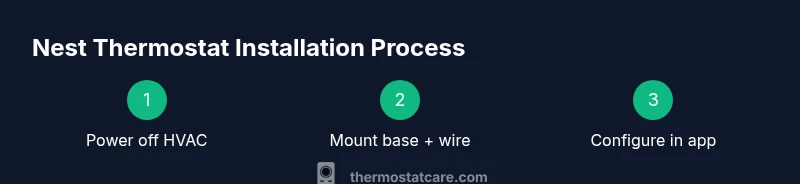
The Nest installation PDF outlines a logical sequence from mounting the base to configuring in the Nest app. It covers prerequisites like power-off safety, removing the old thermostat, mounting the new base, connecting wires to matching terminals, snapping on the display, and completing setup in the app. The diagrams help you verify that terminals align with your equipment’s control board. After installation, the PDF typically walks you through connecting Wi‑Fi, signing into your Google/Nest account, and selecting HVAC type and system details. Thermostat Care notes that following the PDF reduces the chance of wiring errors and improves long-term performance.
After installation: app setup and testing
Once hardware is connected, the Nest app guides you through device naming, room assignment, and thermostat schedule configuration. The installation PDF’s final sections often include a test routine: run heat, cool, fan, and system tests, confirm time and date accuracy, and verify that the app shows active status and correct equipment. If a problem occurs, refer back to the PDF’s troubleshooting diagrams and check that wiring matches the terminal map. Thermostat Care highlights keeping the app updated and enabling energy-saving features for the best results.
Tools & Materials
- Nest thermostat (3rd generation or newer)(Choose model compatible with your HVAC system and wiring needs.)
- Screwdriver (Phillips head #2)(Used to mount the base plate and secure wires.)
- Voltage tester(Verify wires are de-energized before touching.)
- Smartphone with Nest app installed(Needed for setup and ongoing control.)
- Ladder or sturdy stool(Helpful if the thermostat location is high on the wall.)
- Labeling materials (masking tape, pen)(Label wires before disconnecting to map to Nest terminals.)
- C-wire or C-wire adapter (if necessary)(Some homes lack a dedicated common wire; the manual covers alternatives.)
Steps
Estimated time: 30-60 minutes
- 1
Power down the HVAC system
Turn off the circuit breaker that powers the furnace/air handler. Use the voltage tester to confirm there is no live voltage at the old thermostat terminals. This protects you from shocks and prevents wiring damage during removal.
Tip: Double-check the breaker is OFF before touching any wires. - 2
Remove the old thermostat and document wiring
Carefully remove the faceplate and thermostat from the wall. Take a photo of the wiring in place and label each conductor with its function (R, W, Y, G, C) if you’re unsure. This creates a reliable reference if you need to revert.
Tip: Label wires as you disconnect to avoid confusion later. - 3
Verify compatibility and plan wiring
Open the Nest app’s compatibility checker or consult the PDF’s compatibility section to confirm your system type. This reduces the risk of a dead thermostat or improper temperature control.
Tip: If your system isn’t listed, stop and seek professional help. - 4
Connect wires to the Nest base
Attach each labeled conductor to the corresponding Nest terminal on the base plate (R to R, W to W, Y to Y, G to G, C to C). Secure firmly without pinching wires. The wiring map in the PDF should match your setup.
Tip: Avoid forcing wires into terminals; loose connections cause faults. - 5
Mount the Nest base and install the display
Attach the base to the wall with screws and mount the Nest display. Restore power at the breaker and follow on-screen prompts to proceed with setup.
Tip: Hold the display centered to ensure a clean flush mount. - 6
Configure Wi‑Fi and account in the Nest app
Connect the thermostat to your home Wi‑Fi and sign into your Google/Nest account. Enter HVAC details as prompted (system type, number of stages, etc.). This enables remote control and scheduling.
Tip: Use a strong Wi‑Fi password and update the app after setup. - 7
Run a system test and finalize
Use the app’s test function to verify heating, cooling, and fan operations. Confirm accuracy for time and date, and enable preferred energy-saving settings.
Tip: Document any issues and re-check wiring against the PDF’s wiring diagram.
Questions & Answers
Do I always need a C-wire for a Nest thermostat?
Not always. Some Nest models can run without a dedicated C-wire, but you may experience power issues on certain systems. Use the Nest compatibility checker to determine requirements for your setup and consider a C-wire or adapter if recommended by the PDF.
A C-wire is not always required, but your system may perform better with one according to the official manual.
Can I install the Nest thermostat myself without hiring a technician?
Many homeowners can install Nest thermostats using the official manual PDF and app-guided setup. If you encounter unusual wiring, unusual equipment, or high-voltage risks, stop and consult a professional.
DIY is common, but stop if the wiring looks unfamiliar.
Where can I download the Nest installation manual PDF?
The official Nest support site and Google Help Center host model-specific installation manuals in PDF format. Always download from the official source to ensure you have the latest diagrams and steps.
Get the PDF from the official Nest support site for accuracy.
Will Nest work with heat pumps and multi-stage systems?
Yes, Nest thermostats support heat pumps and multi-stage systems. The PDF includes diagrams for these configurations and notes on wiring differences from simpler setups.
Heat pumps and multi-stage setups are supported with the right wiring; check the PDF diagrams.
How do I know which wires go to which Nest terminal?
Refer to the color-coded wiring diagram in the PDF and your labeled wires. If lines don’t match standard colors, rely on the terminal-and-function mapping in the manual.
Use the wiring diagram and labels in your notes to map wires correctly.
What should I do if the app can’t detect my system during setup?
Try rechecking wiring against the PDF, ensure the thermostat is powered, and restart the Nest app. If detection still fails, consult the support PDF’s troubleshooting section or contact support.
Recheck wiring, power, and try again; if needed, reach out to support.
Watch Video
What to Remember
- Verify PDF model compatibility before wiring
- Label wires and photograph the old setup
- Follow the Nest app setup for Wi‑Fi and accounts
- Test all modes (heat, cool, fan) before finalizing
- Consult the official PDF for diagrams and safety notes