How to Unlock a Carrier Thermostat: A Practical Guide
Learn safe, practical steps to unlock a Carrier thermostat, regain control, and prevent future lockouts with homeowner-friendly tips from Thermostat Care.


This guide helps homeowners unlock a Carrier thermostat when access is blocked by a lock or code. You’ll learn non-destructive options, when a factory reset is appropriate, and how to reconfigure settings quickly. Before you start, have the installer code or account details on hand, and consider reaching out to Carrier support if you’re locked out by the device.
Understanding why Carrier thermostats get locked
Lock features on Carrier thermostats are designed to prevent unauthorized changes to temperature settings. According to Thermostat Care, common triggers include a parental or child lock, a service or installer lock activated during maintenance, and a touchscreen lock that engages after a period of inactivity. Some systems also implement a firmware lock if the device detects unusual activity or if the unit is connected to an HOA-protected account. When you see a lock icon, a code, or a message that changes cannot be made, you’re likely dealing with one of these modes. Before attempting any unlock, confirm you are authorized to adjust the device. If you’re unsure, contact the building manager or Carrier support to confirm ownership and access rights.
Thermostat Care’s guidance emphasizes approaching a locked Carrier thermostat with caution to avoid misconfigurations and potential warranty issues.
Locate the lock type and indicators
Next, inspect the thermostat display for symbols that indicate lock status (a padlock icon, a key symbol, or a 'Lock' label). Note any on-screen prompts or error codes. Different Carrier models may name the lock mode differently (e.g., 'Lock' in Installer Settings, 'Screen Lock', or 'Child Lock'). If possible, identify the model line (Infinity, Performance, or Comfort) and consult the official manual for the exact unlock path. Knowing the exact lock type guides your next steps and helps you avoid resetting settings unnecessarily. If the lock persists after you’ve identified the mode, keep a detailed record of what you attempted and when; this will be useful if you need to contact Carrier support later. Thermostat Care adds that model-specific nuances matter, so consult model notes when available.
Prepare for unlocking: credentials and safety
Before you begin, gather credentials that might be required to access protected menus. This typically includes an installer or service code and the model number with serial. Having proof of ownership or authorization on hand can speed up support if you need to escalate. Power down the thermostat only as instructed by the manual, since improper power cycling can confuse the device or void warranty. If your system uses the Carrier app or online account, ensure you can log in or have the account email available. Finally, identify your primary goal: do you want to simply unlock temporary access or reset to a known, clean state? Clear goals help you choose a non-destructive method over a full reset.
Non-destructive unlocking paths you can try
If you can access the menu, search for a 'Lock' option within Settings or Installer Settings. Disable the lock using the installer code or the on-screen prompts. Some models allow you to temporarily bypass the lock by switching to a basic operation profile or guest mode. Avoid changing other settings unless you’re certain of the impact. Take screenshots or write down the current configuration before you alter anything, so you can revert if needed. If you don’t see a lock option, look for a 'Restore defaults' or 'Reset to factory' choice that indicates a non-destructive reset; many devices offer a soft reset that preserves user preferences like schedules in the app. If your goal is quick access for routine adjustments, these paths are worth exhausting first. Thermostat Care notes that non-destructive options should be prioritized to avoid data loss.
Non-destructive reset options in the Carrier ecosystem
When unlock attempts fail, a non-destructive reset (as described in the manual) may restore access without erasing all your schedules. Check for options like 'Reset network settings' or 'Reset user preferences' rather than a full factory reset. These are model-dependent, so refer to your manual or Carrier support pages. If you proceed, expect you’ll need to re-enter Wi‑Fi credentials and re-sync with any linked thermostats or smart-home automations. Document the steps you take and the exact screens you see; this helps you or a technician troubleshoot later and reduces repeated attempts that could trigger additional security prompts. Thermostat Care reinforces documenting changes to simplify future troubleshooting.
When a reset isn’t possible, contact Carrier support and service options
If you cannot unlock through the menus or if a reset would compromise critical configurations, contact Carrier support or your installing contractor. Have your model, serial, and proof of ownership ready. Carrier may require verification that you have authority to adjust the thermostat and may provide a guided unlock or arrange service. If your thermostat is under warranty or part of a managed HOA program, a professional unlock may be preferred to avoid warranty voids. In some cases, Carrier may offer remote unlocking assistance via a secure session. The important principle is to avoid forcing hardware changes that could damage the unit or cause unanticipated HVAC results. Thermostat Care advises seeking official support rather than risky DIY hacks.
Post-unlock steps: reconfiguring schedules and Wi-Fi
After you regain access, review all critical settings promptly. Re-enter and verify schedules, temperature bands, and energy-saving rules. Reconnect the thermostat to your home Wi‑Fi network or hub, then test integration with any smart-home assistants. If you use the Carrier app, confirm that notifications, weather data, and energy reports are functioning. Consider exporting or backing up your current configuration to prevent future data loss from accidental changes. If you had an installer code or account, ensure those credentials are stored securely or updated if you’ve created a new access path. Thermostat Care underscores keeping a recent backup to speed future recoveries.
Prevent future lockouts: best practices
To minimize future lockouts, store installer or service codes in a secure, separate location and limit who knows them. Set up a guest or service-access mode if your model supports it, and keep a simple, memorable lock password that you can share with trusted household members. Document recovery steps in a dedicated notes file or password manager entry. Regularly update the thermostat’s firmware and keep the manual handy, so you can reference unlock procedures quickly. Finally, maintain an up-to-date contact record for Carrier support and your local installer so you can get timely help without delays. Thermostat Care recommends proactive planning and secure credential management.
Authorities and references, model-specific notes, and common pitfalls
For authoritative guidance, consult Carrier’s official resources and trusted sources. The Carrier website and user manuals provide model-specific unlock instructions and safety notes. If you are a homeowner, ensure you have authorization to access and modify settings; bypassing security features can have legal and warranty implications. Common pitfalls include attempting aggressive power-offs, ignoring model-specific unlocking steps, and confusing a factory reset with a soft reset. Always verify you are following the correct path for your exact model (Infinity, Comfort, or Performance series) and refer to the official manual for your device. See these references for further reading: https://www.energy.gov, https://www.nist.gov, https://www.consumer.ftc.gov.
Tools & Materials
- Carrier thermostat installer/service code(Needed to access Installer Menu or unlock features; obtain from installer or Carrier support.)
- Model number and serial(Found on the unit label or inside the battery compartment.)
- Owner account credentials or proof of ownership(Helpful when verifying authorization with support.)
- Official manual or model-specific guide(Download from Carrier's website or consult the app.)
- Device with internet access (phone/computer)(Needed for support portals or remote guidance.)
Steps
Estimated time: 45-90 minutes
- 1
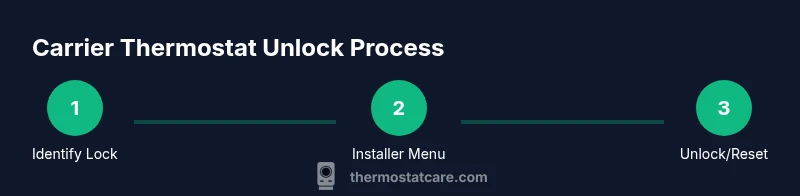
Check for a visible lock indicator
Look at the thermostat screen for a lock icon, 'Lock' label, or error message. This tells you the lock type and where it’s configured. If you cannot locate an indicator, note any error codes and consult the model’s manual. WHY: Identifying the lock type prevents unnecessary resets.
Tip: Record any icons or codes you see for quick reference. - 2
Open the Installer Menu with the correct code
If you have the installer or service code, enter it to access the Installer Menu. This is where many carriers offer a dedicated unlock option. If you don’t have the code, skip to step 4. WHY: The Installer Menu is designed to safely bypass user locks without affecting unrelated settings.
Tip: Use the official code from documentation or a trusted installer. - 3
Disable the lock from Settings
Navigate to Settings or Installer Settings and disable the lock. Confirm each prompt before exiting the menu. WHY: This preserves your current schedules and preferences while restoring standard operation.
Tip: Take a screenshot of current settings before altering anything. - 4
Attempt a non-destructive reset if unlock fails
If you can’t disable the lock, look for a soft reset or non-destructive option that preserves user data. Avoid a full factory reset unless necessary. WHY: Non-destructive resets reduce the chance of losing schedules and network settings.
Tip: Only perform a non-destructive reset per the manual. - 5
Reconfigure essential settings after unlock
Once unlocked, verify temperature schedules, energy-saving modes, and sensor configurations. Reconnect to Wi-Fi or the Carrier app and test remote control. WHY: Ensures system behavior matches your preferences post-unlock.
Tip: Test critical scenarios (cooling/heating cycles, hold mode) to confirm reliability. - 6
If unlock is still not possible, contact Carrier support
When in doubt or when access is restricted, contact Carrier support or your installer. Provide model, serial, and ownership proof. WHY: Professional unlocks protect warranty and safety.
Tip: Ask about remote unlocking options or in-home service if needed.
Questions & Answers
Why would my Carrier thermostat be locked?
Locks protect against unwanted changes, often used for parental control, service locks, or installer modes after maintenance. Identify the lock type to choose the safest unlock path.
Locks prevent unwanted changes; identify the lock type to choose the safest path.
What if I don’t have the installer code?
If you don’t have the installer code, contact the installer or Carrier support to verify ownership and obtain access. Do not attempt to bypass security without authorization.
If you don’t have the installer code, contact the installer or Carrier support to verify ownership.
Will a factory reset erase my schedules?
A full factory reset can erase schedules and Wi‑Fi settings. Prefer non-destructive resets or installer-menu unlocks to preserve user data whenever possible.
A factory reset can erase schedules and Wi‑Fi; use non-destructive options first.
Is unlocking safe for the HVAC system?
Yes, unlocking is safe if done through the proper menus or with official support. Avoid power-cycling or hardware tampering that could affect HVAC performance.
Unlocked safely through official channels; avoid hardware tampering.
How long does unlocking typically take?
Duration varies by model and lock type, typically from a few minutes to about an hour if support is involved.
It can take a few minutes to an hour depending on the lock and support steps.
Can a professional unlock without losing settings?
Yes, technicians can often unlock without erasing user data by using model-specific procedures and remote guidance when available.
Yes, professionals can unlock without losing your data in many cases.
Watch Video
What to Remember
- Identify your lock type before acting
- Prioritize non-destructive options
- Back up schedules before changes
- Keep installer codes secure and accessible
- If in doubt, contact Carrier support