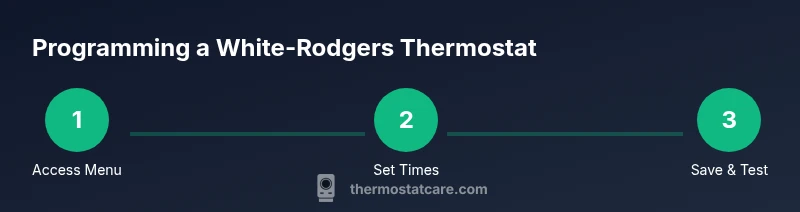
How to Program a White Rodgers Thermostat: A Step-by-Step Guide
Learn how do you program a white rodgers thermostat with a clear, expert walkthrough. This guide covers schedules, holds, and common troubleshooting to improve comfort and energy savings.


Learn how to program a White-Rodgers thermostat to set daily schedules, create hold temperatures, and fine-tune comfort settings. You’ll need your thermostat, a power source, and access to the menu. This quick answer previews the exact steps you'll perform in the detailed guide below.
Understanding White-Rodgers Thermostats and Programming Basics
White-Rodgers offers a range of programmable thermostats that share common menu structures, even as feature sets vary by model. In practice, the programming workflow is similar across generations: access the programming or schedule menu, set temperature targets for defined time blocks, and save changes. According to Thermostat Care, taking a few minutes to map your daily routine before touching the device dramatically reduces the chance of messy overrides later. Most models use a clock-based schedule tied to five or seven days, with separate settings for weekdays and weekends. In addition to temperature targets, you may find options for fan operation, hold vs. schedule behavior, and display preferences. Understanding these basics helps you avoid frustration and makes subsequent tweaks quicker. If you’re wondering how do you program a white rodgers thermostat, this guide will walk you through model-agnostic steps and highlight key differences you’ll encounter across families.
What You’ll Need Before You Start
Before you begin programming, take a moment to verify your model family and prepare a simple outline of your daily routine. A quick note on thermodynamics aside, the goal is to minimize temperature swings while maximizing comfort. Gather your model’s manual for menu labels, a pen and paper for jotting down preferred time blocks, and ensure the thermostat has power (batteries or a C-wire as required). If your system is more complex (heat pump, multi-stage cooling), know that some options may appear under secondary menus. Thermostat Care recommends documenting any unique labels or non-standard terms you see so you can re-create settings later if needed.
Navigating the Menu Across White-Rodgers Models
White-Rodgers menus are not identical from model to model, but the core ideas stay the same. Start by locating the Menu, Settings, or Prog button. Use Up/Down to navigate and Enter or Save to select. Look for sections labeled Schedule, Program, or Weekday/Weekend. If your model uses a touchscreen, tap the appropriate icon to enter scheduling mode. When in doubt, consult the manual and note any model-specific terminology; this reduces the risk of applying a generic instruction that doesn’t fit your device. Think of this step as translating your plan into digital blocks that the thermostat can follow.
Scheduling Concepts: Weekdays, Weekends, and Holds
The backbone of programming is creating time blocks with target temperatures. Most systems allow separate schedules for weekdays and weekends. A typical workflow is to set a wake time, a leave time, a return time, and a sleep time each day, then assign sensible temperatures to each block. A hold is a temporary override that keeps the thermostat at a chosen temperature until the next scheduled change or a fixed end time. Understanding the distinction between a schedule and a hold helps you adapt quickly when your routine shifts. When you’re ready, you’ll transfer these blocks into the device’s calendar and save.
Energy Savings and Comfort: Practical Impacts of Programming
A well-structured schedule reduces energy consumption by avoiding unnecessary heating and cooling during your absence. The goal is to start warm or cool a little before you wake and to start cooling down before you return home in the evening. Even modest adjustments can lead to meaningful comfort improvements without sacrificing efficiency. Thermostat Care notes that a consistent routine is more effective than frequent manual changes, since the system can optimize cycles more predictably. Remember to review seasonal adjustments—heating in winter and cooling in summer require different block temperatures and might justify separate schedules.
Common Mistakes and How to Avoid Them
Common pitfalls include skipping a scheduled change for days off, inconsistently naming time blocks, and forgetting to Save after edits. Some models auto-sleep and may require re-entry to confirm a new block. Battery power issues can cause unexpected resets; ensure batteries are fresh or that a constant power source is connected. If you notice the system not following the new schedule, re-check the hold settings and verify the correct end times per block. Keeping a simple cheat sheet of your blocks helps prevent mis-clicks and saves time when you review settings later.
Ready for Your First Full Schedule? What to Do Next
With the blocks created and saved, run a quick test to simulate a full day. Use the thermostat’s “Preview Day” or manually step through each block to confirm the temperatures respond as expected. Note any off-by-one-hour discrepancies and adjust block start times accordingly. Finally, document your finalized schedule and where you stored the notes. A simple system for recording updates makes future changes faster and less error-prone.
Tools & Materials
- Owner's manual for your White-Rodgers model(Model family helps locate exact menu labels and steps)
- Pen and paper for notes(Capture your target blocks and hold preferences)
- Power source for thermostat(Ensure system power is on; batteries if used should be fresh)
- Utility-free reference (optional)(Phone/tablet can help look up model-specific terms)
- Notepad or digital checklist(Record final block times and temperatures for future tweaks)
Steps
Estimated time: 30-45 minutes
- 1
Enter programming menu
Press the Menu or Settings button to access the programming menu. Use the Up/Down arrows to locate the Schedule or Program option, then press Enter to select it. If your model uses a touchscreen, tap the Schedule icon to begin.
Tip: If your model hides the option behind a sub-menu, try pressing and holding the OK or Gear button for several seconds. - 2
Choose a day type
Select Weekdays to set the weekday block temperatures and times. If your model supports Weekend, switch to the Weekend tab and prepare separate blocks.
Tip: Label blocks clearly (e.g., Weekday Wake) to avoid confusion later. - 3
Set wake, leave, return, and sleep blocks
Enter start and end times for each block using the arrow keys or on-screen controls, then assign target temperatures for each block. Repeat for all required days.
Tip: Keep a consistent temperature scale (F or C) across all blocks. - 4
Configure hold settings
Decide whether to use a temporary Hold after changes or to rely on the automatic schedule. If using Hold, set the duration or end time for the override.
Tip: Hold can prevent unexpected temperature shifts when you’re away. - 5
Review and save changes
Review all blocks for accuracy, then save or exit to apply the schedule. Some models auto-save when you exit; others require explicit confirmation.
Tip: Double-check end times align with your real-day activities. - 6
Test the new schedule
Run a quick test by stepping through blocks or using a built-in Preview Day feature if available. Confirm the thermostat heats or cools to the chosen targets.
Tip: If something feels off, go back, adjust times or temperatures, and save again. - 7
Document and backup
Write down the final schedule and block labels; store it somewhere accessible. Consider backing up settings if your model supports cloud or profile saving.
Tip: Documentation makes future tweaks faster and less error-prone. - 8
Monitor performance over a week
Observe comfort and energy use across weekdays and weekends. Tweak block temperatures by a degree or two if needed for optimal comfort.
Tip: Small adjustments can yield noticeable improvements in climate consistency.
Questions & Answers
How do I access the programming menus on a White-Rodgers thermostat?
Most White-Rodgers models use a Menu or Settings button to access the Schedule or Program section. Navigate with Up/Down and confirm with Enter. If you have a touchscreen, tap the correct icon to enter scheduling mode.
Open the Menu, choose Schedule, and use the arrows to set your times. Tap to confirm when prompted.
Do I need a C-wire to program or save settings?
Many modern White-Rodgers thermostats need a power source; some require a C-wire for reliable operation. If the display flickers or powers off during changes, add a common wire if possible.
You may need a C-wire for stable power. If the thermostat resets during programming, consider adding a common wire.
What is the difference between a 'hold' and a 'schedule'?
A schedule defines temperatures for predefined time blocks across days. A hold temporarily overrides the schedule until the hold ends or you resume the schedule.
Hold overrides the plan for a set period; a schedule runs automatically according to the blocks you created.
How do I save changes after programming?
After finishing each screen, choose Save or Done. Some models auto-save when you exit, but many require explicit confirmation to apply changes.
Be sure to confirm each change by selecting save, then exit.
What should I do if the display is blank during programming?
Check that the thermostat is powered, verify breakers and fuses, and ensure any batteries are fresh. If still blank, perform a model-specific reset as instructed in the manual.
If the display is blank, check power and batteries, then reset if needed.
How long does it take to program a White-Rodgers thermostat?
A typical setup takes about 15-30 minutes, depending on the model and the complexity of your schedule.
Most people finish in roughly 15 to 30 minutes.
Watch Video
What to Remember
- Plan your weekly schedule before programming.
- Use hold to override without altering the schedule.
- Save changes after each menu exit.
- Verify power to prevent resets during setup.